 Sign in
Troubleshooting Your Data
Troubleshoot your data across Plecto
Is your data not adding up? Here are a few things you can do to troubleshoot.
Troubleshoot data sources and data import
Integrations
-
Are you missing registrations? Plecto will not import data for deactivated employees and those listed under the Pending tab on the Employee page. To troubleshoot, you can check if there are any skipped writes in the data source settings and subsequently activate any employees you want to track data for.
-
You can update your data source by running a manual data import. Click Import more data in the data source settings and select start and end dates. Plecto will pull all registrations within that time frame.
-
You can also refresh your credentials. Sometimes, credentials might expire or, if we have added new data types to an integration, you might need to refresh your credentials and approve the new scopes.
-
You can check the import logs in the data source settings to see how much data gets imported or if there are any errors.
-
If you open a registration in your data source and something doesn't look right, you can compare the registration details to the data Plecto got from your system.
SQL
-
You can run a manual data import on SQL data sources. Open the data source settings and click Import historical data.
If you want to import a large amount of historical data, you should split the imports into multiple sessions. Otherwise, the database might not be able to run large imports at once.
Calculated fields
- If you have calculated fields in your system (like Salesforce), they will import as regular numbers in Plecto. To have your data show the same way as in your source system, create a calculated field in Plecto.
Issues with Google Sheets
Importing issues
-
Have you renamed your sheet? When Plecto looks for the data, it uses the spreadsheet ID and the sheet name. If you rename the sheet, the automatic imports will stop, so do not rename the sheet.
-
You can't import Excel files (.xlsx) even if they are on your Google Drive. This integration only supports Google Sheets files. What you can do is import your Excel file into Google Sheets and use that Google Sheets spreadsheet to integrate with Plecto.
Missing registrations
- Check if all the rows in the sheet have external IDs. Plecto will only import those spreadsheet rows that have an external ID. This doesn't apply if you use row numbers as the external ID.
Dashboard not showing data
-
Check the default date in the data source settings. If the default date is the Created date (also called Date in the dropdown), you should change it. The Created date updates along with each automatic import, so it's not a reliable data point to measure the KPIs by.
-
Can't see your employees? Have you changed the Employee field (also called Use this field as the member in Plecto)? If you don’t change the default member field in the data source settings, all registrations will be associated with an employee called Google Sheets.
Troubleshoot teams and employees
-
Teams have an important role in Plecto. If you have added teams to your widgets, dashboards or reports, please verify that there are employees assigned to those teams. Go to Settings > Teams and go through your teams to understand if something is missing.
-
Alternatively, you can look at the employee list in Settings > Employees. Sometimes the same employee profile can appear twice – that can happen if you integrate with multiple systems and/or have created employee profiles manually.
-
Plecto imports all active employees. However, some systems prevent Plecto from merging employees automatically. If you see that there are duplicate employee profiles, you can do a manual merge.
Default date used in formulas
All teams have the right employees, and you have imported all of the data... but something's still not adding up? Check your data source settings to see the default date used in formulas.
What is a default date?
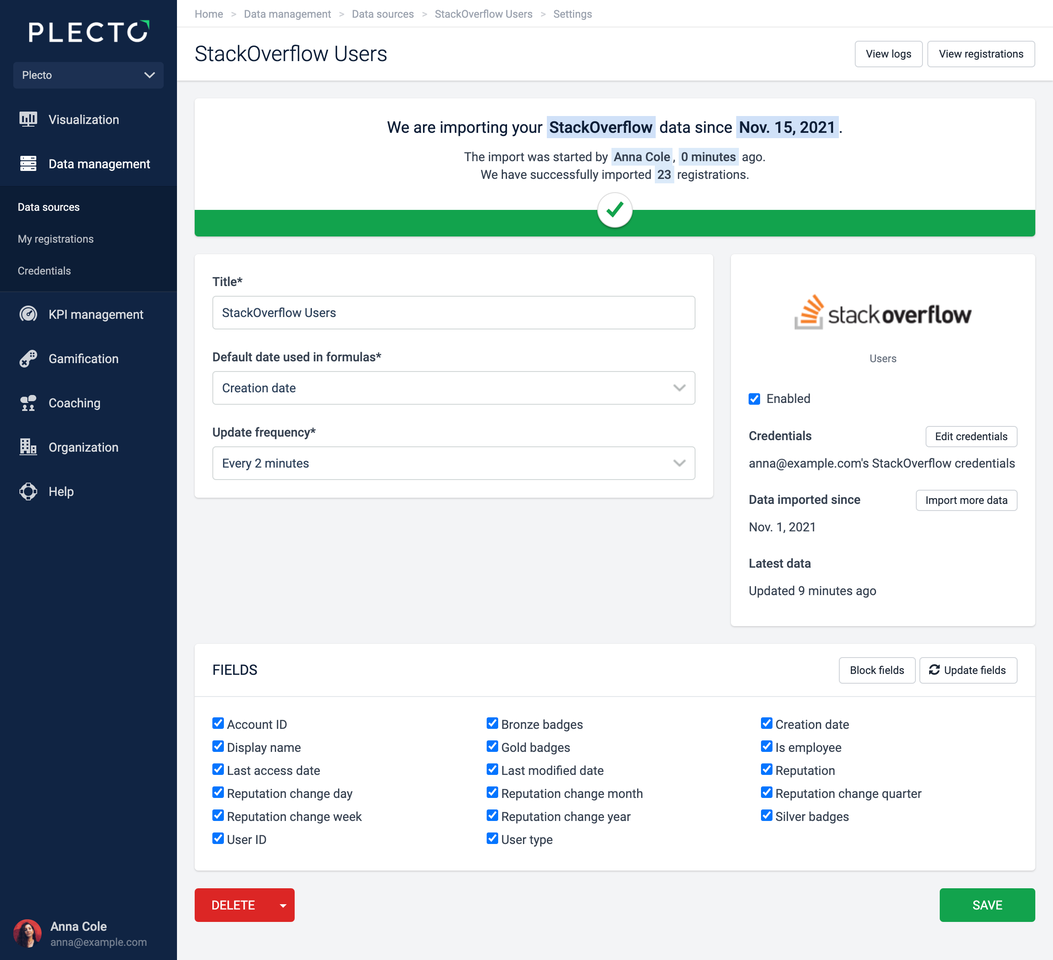
The default date determines what date field from your data source is used as the basis for your formulas.
Say you have two date fields, Created date and Updated at, and you have made 15 new registrations this week but only updated 10.
Depending on which of the two is the default date field, the formula will return different values when counting the number of registrations: 15 (Created date) and 10 (Updated at).
-
For manual data sources, the default date is always the Created date.
-
Integration data sources have different default date fields, depending on your integration. You can choose which date field to use as default in the data source settings (see the example below).
Tip! – You can choose a different date field in your formula instead of changing the default date for an entire data source. Just select a different date field in the formula's Data function component.
Troubleshoot your formulas
Sometimes the formulas might be to blame. Here's what to check:
-
Is your formula using the correct data source? Is the data source enabled, and are all registrations updated? If not, try to run a manual import in your data source settings.
-
Double-check your filters. If you are using any filters in the formulas, make sure they refer to the correct fields in the data source. Filtering is case sensitive, which means that the filters must be spelled exactly the same as they appear in the data source.
-
You might need to change the date field in your formula. Click the three dots in the top-right corner of your Data function component to change it. How it works: If you created 10 registrations in August, but updated 5 in September, the date field will tell Plecto which number to use.