 Sign in

Using MCP with Plecto
Using MCP with Plecto
Plecto connects to AI assistants through the Model Context Protocol (MCP), an open standard that lets AI tools read and manage your Plecto data through natural conversation. Once connected, you can create dashboards and reports, build formulas, set up contests, streaks, and notifications, manage employees and teams, and add data sources and integrations by describing what you want instead of writing formula syntax manually.
Prefer to stay in Plecto? Build with AI is the same assistant inside Plecto, with no MCP setup needed.
Supported clients: Any MCP-compatible AI client can work, including claude.ai, Claude Desktop, and other tools that support remote MCP servers.
Getting connected
The Plecto MCP endpoint is https://app.plecto.com/api/mcp
Connect from claude.ai
-
Open Settings → Connectors → Add custom connector.
-
Sign in when redirected and choose the Plecto organization you want to connect.
-
Click Allow to grant access.
On first use, Claude Desktop opens a browser window so you can complete login and authorization.
Connect from other MCP-compatible clients
Any AI client (like ChatGPT) that supports remote MCP servers over HTTP with OAuth can use the same endpoint: https://app.plecto.com/api/mcp. Follow your client’s instructions for adding a remote MCP server. During authorization, you’ll be redirected to Plecto to sign in and select an organization.
Best practice: If you work across multiple Plecto organizations, double-check which one you authorize before you start creating dashboards or formulas.
Permissions: The assistant acts as you. It can only see and change what your Plecto user has access to, and only use features included in your plan.
What you can do
Dashboards
-
Browse all dashboards or search by name
-
Create a new dashboard and choose a theme
-
Build a complete dashboard in one go from a ready-made layout with KPI tiles and charts
-
Update dashboard settings such as title, theme, and who has access
-
Create sub-dashboards under a parent dashboard
-
Delete dashboards you no longer need
Example prompts
-
“Show me all my dashboards”
-
“Create a Sales Performance dashboard and add a number widget showing total revenue this month”
-
“Delete the test dashboard I made last week”
Widgets
Your assistant can add and manage multiple Plecto widget types:
-
Number tiles for a single KPI, optionally with red, yellow, and green thresholds
-
Speedometers for progress toward a target
-
Graphs including area, line, column, pie, donut, and funnel charts
-
Leaderboards ranking employees or teams by a metric
-
Tables and timelines with multiple columns backed by formulas
-
Text widgets for notes, headings, and instructions
-
Timers for deadlines or live clocks. Repeating countdowns are set up in Plecto.
-
Streaming widgets for live external values
Charts can be grouped by employee, team, time such as day, week, or month, or by custom fields from your data source. Widgets can also be filtered to specific teams, abbreviate large numbers, and hide streak badges.
The assistant checks the existing layout before adding anything, so new widgets do not overlap existing ones. You can also ask it to resize, move, or replace widgets.
Example prompts
-
“Add a leaderboard to my Sales dashboard showing top reps by closed deals”
-
“Make the revenue tile turn red below 50,000 and green above 100,000”
-
“Add a donut chart of calls split by direction”
-
“Add a column chart of won deals per month for this year”
-
“Build a funnel widget showing leads, qualified, proposal, and won stages from my CRM”
-
“Add a countdown timer to the end of the quarter”
-
“Move the leaderboard to the bottom row and make it span two columns”
-
“Replace the old revenue widget with a speedometer”
Formulas
-
Browse existing formulas, including folder organization
-
Create new formulas from plain-language descriptions
-
Choose display formats such as numbers, percentages, durations, dates, prefixes, or suffixes
-
Check a formula’s value for current or past periods
-
Break results down by employee or team
-
Test a formula without saving it
-
Edit or delete formulas
-
Automatically organize dashboard-related formulas into a folder named after the dashboard
Example prompts
-
“Create a formula for average deal size on won deals in Pipedrive, shown in dollars”
-
“What’s the current value of my Monthly Revenue formula, and what was it last month?”
-
“What’s my Win Rate per team this quarter?”
-
“Test this for me without saving: count of open Zendesk tickets where priority is high”
Reports
-
Browse reports, including their sections and email schedule
-
Create reports with table, column, bar, line, area, pie, combo, and waterfall sections, plus text sections
-
Set the time period, compare with a previous period, and break rows down by employee, team, or custom field
-
Turn dashboard widgets into report sections. Charts and tables carry over, and number and speedometer widgets become a table.
-
Schedule report emails once, hourly, daily, weekly, or monthly to employees and teams in your organization
-
Edit or delete reports and their schedules
Note: The assistant can only send report emails to people in your organization. To add external recipients, edit the schedule in Plecto.
Example prompts
-
“Create a monthly report with revenue per team and a column chart of won deals per week”
-
“Turn the charts on my Sales dashboard into a report”
-
“Email the Sales report to the Sales team every Monday at 8:00”
Contests
-
Browse contests and their settings
-
Create employee or team contests based on a formula or data source, with an end date, a target, or both. The contest dashboard is created automatically.
-
Choose a contest theme, add prizes or coins for top places or milestones, and make contests recurring
-
Edit contests that haven't ended yet, or delete contests you no longer need
Note: Contest pictures, backgrounds, and Reward Store prizes are added in Plecto.
Example prompts
-
“Start a two-week contest for the Sales team on booked meetings, with 500 coins for first place”
-
“Create a milestone contest where everyone earns 100 coins at 20 calls and 300 coins at 50”
Streaks
-
Create streaks that count days, working days, weeks, or registrations in a row, based on a data source or a formula
-
Set what keeps a streak going and what ends it, how long a run has to be before it shows, and which teams take part
-
Announce streak milestones on Home slideshows
-
See who is on a streak right now, and pause, edit, or delete streaks
Note: Streaks for specific employees and team streaks are set up in Plecto.
Example prompts
-
“Create a streak for reps who log at least one call every working day”
-
“Who is on the longest streak right now?”
Achievements and Reward Store
-
Create, edit, and delete achievement badges, including their category, icon, shape, and color
-
Give achievements automatically with a notification, or give one to an employee right away
-
Create, edit, and delete Reward Store items with a price in coins and stock
Note: Custom achievement icons and reward pictures are uploaded in Plecto. Deleting an achievement also removes it from everyone who has earned it.
Example prompts
-
“Create a ‘Century Club’ achievement and give it to anyone who makes 100 calls in a day”
-
“Add a $50 gift card to the Reward Store for 1,000 coins, with 10 in stock”
Notifications
-
Create notifications that trigger on a formula result, on each new registration, or on a schedule
-
Let a formula notification check every employee's own result, including employees added later
-
Play sounds, show text, banners, or videos on slideshows, and send mobile push messages, emails, or Slack and Microsoft Teams messages
-
Give achievements or coins, post to the News Feed, spin the wheel, or control Philips Hue lights and Sonos speakers
-
Use variables such as the employee’s name in messages
-
Pause, resume, edit, or delete notifications
The assistant only offers the actions included in your plan.
Note: Notifications based on a contest, such as when someone takes 1st place, are set up in Plecto.
Example prompts
-
“Play the cash sound on the Sales slideshow every time a deal is won”
-
“Send a Slack message when open support tickets go above 50”
-
“Every Friday at 15:00, email the team a reminder to log their hours”
Slideshows
-
Browse your slideshows
-
Create and edit slideshows with dashboards, contests, web pages, and YouTube videos
-
Set how long each slide shows, when during the day it shows, and whether it scrolls automatically
-
Delete slideshows you no longer need
Note: TVs are set up in Plecto. If you delete a slideshow, TVs showing it go blank.
Example prompts
-
“Make a slideshow that rotates between the Sales and Support dashboards every 2 minutes”
-
“Add the current contest to the Sales slideshow”
Employees and teams
-
Look up an employee's teams, title, and reporting manager
-
Edit an employee's name, display name, title, reporting manager, and birthday. Names that come from an external system can't be changed.
-
Activate deactivated or pending employees, deactivate employees, or discard pending employees so they stay inactive
-
Find duplicate employee profiles and merge them
-
Give employees login access or remove it. The invitation only goes to an email address Plecto already has for the employee from an integration, and the login gets your organization's default permission profile.
-
Give coins, take coins away, or give an achievement
-
Create, rename, and delete teams, add or remove members and team managers, move a team under another team, and set a team's home dashboard and slideshows. Deleting a team also deletes its sub-teams.
Before the assistant merges, activates, or deactivates employees, deletes a team, or gives login access, coins, or achievements, it names everyone involved and asks you to confirm. Merges and deactivations run in the background and can't be undone from the chat.
Note: Merging employees, handling duplicate suggestions, removing login access, and deleting teams need Global Admin access. Activating, deactivating, and discarding employees need the Activate and deactivate employees permission, and team changes need Create and edit employees and teams. Details such as an employee's permission profile and last login need View all employees and teams. Read more in Introduction to permissions.
Example prompts
-
“Which employees are pending?”
-
“Merge the two Anna Cole profiles and keep the one on the Sales team”
-
“Give Curtis 200 coins for closing the Acme deal”
-
“Create a Support EMEA team with Maria and Jonas, and make Maria the manager”
Data sources and registrations
-
Create a manual data source with text, number, date, choice, and Yes/No fields, and choose which teams can register data in it
-
Rename a manual data source, add, edit, or remove its fields, and change which teams can register
-
Add registrations to a manual data source, the same as registering them in Plecto. New registrations can trigger notifications, like any other registration.
The assistant asks you to confirm before it removes fields or adds registrations.
Note: Data sources from integrations can't be edited or registered into from the chat. The assistant won't rename a data source or a field while formulas still use the old name. It tells you which formulas to update first. New data sources count toward your plan's data source limit.
Example prompts
-
“Create a manual data source for referrals with a Customer field and a Value field”
-
“Add a Region choice field with North, South, and West to the Referrals data source”
-
“Register 3 booked meetings for Anna today”
Connect integrations from chat
You can connect Jira Software, Adversus, webCRM, and Freshdesk without leaving the chat:
-
Ask the assistant to connect the integration. It first checks if your organization already has a connection it can reuse.
-
Open the link the assistant gives you. It takes you to Plecto's own connection page, where you sign in or paste your API key.
-
Tell the assistant when you're done. It asks the setup questions for the import, such as which Jira project to import, and suggests answers.
-
Confirm, and the assistant creates the data source and starts the first import in the background.
Never paste API keys, tokens, or passwords into the chat. Enter them only on Plecto's connection page. The assistant never asks for them.
Note: You need permission to create data sources. Other integrations are connected in Plecto under Data sources.
Example prompts
-
“Connect Adversus and import our calls”
-
“Connect Jira and import issues from the Website project”
Look up data sources, teams, employees, and themes
-
List connected data sources and inspect their fields, types, and allowed values
-
View organization teams for dashboard sharing or grouping
-
List employees. Inactive and pending employees need the View all employees and teams permission.
-
Browse available dashboard themes, including custom themes
Example prompts
-
“What data sources do I have connected?”
-
“What themes are available? Switch this dashboard to the dark one”
How it looks in practice
Build a dashboard from one prompt
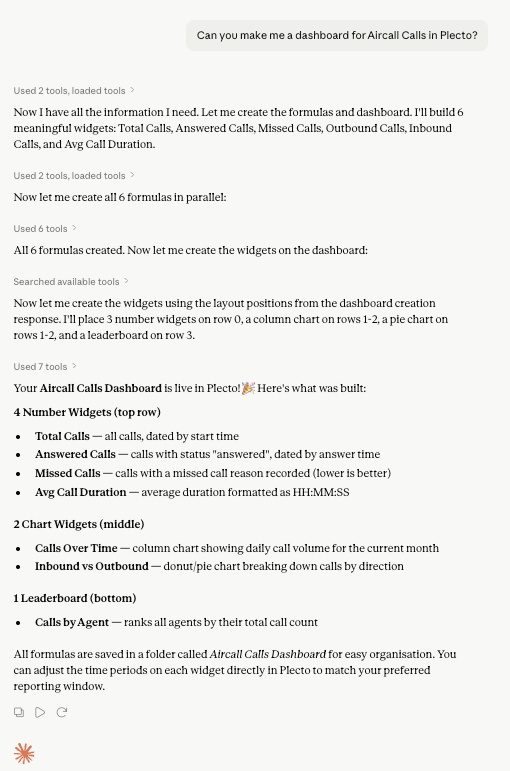
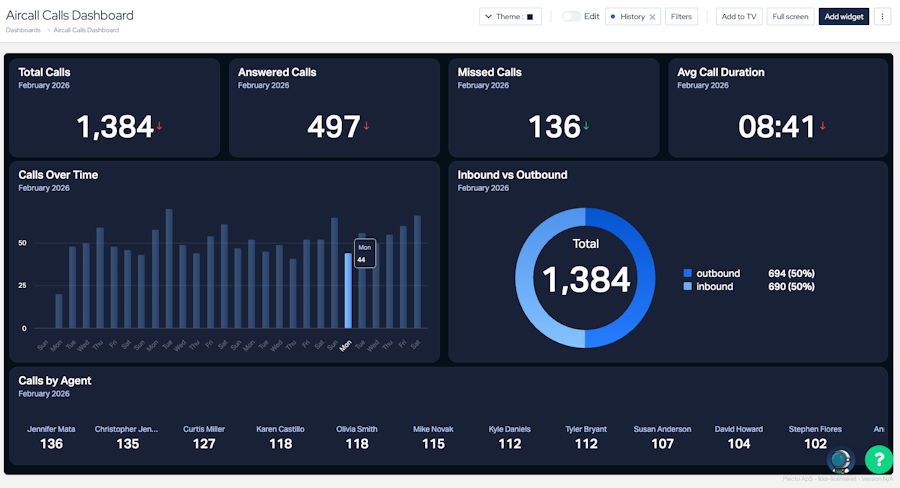
A single prompt can be enough to create a complete dashboard. For example, asking “Can you make me a dashboard for Aircall Calls in Plecto?” can lead the assistant to explore the data source, create formulas, and place widgets automatically.
The resulting dashboard can include KPI tiles at the top, charts in the middle, and a leaderboard below.
Edit the layout in plain language
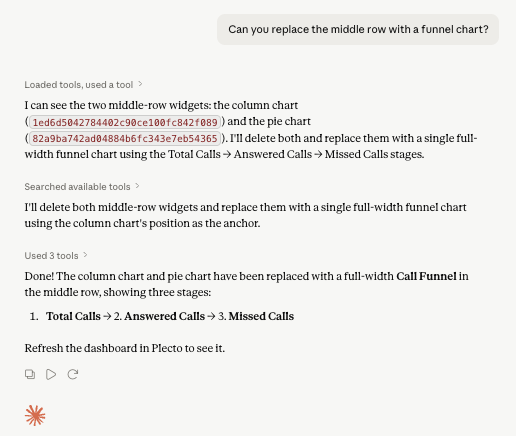
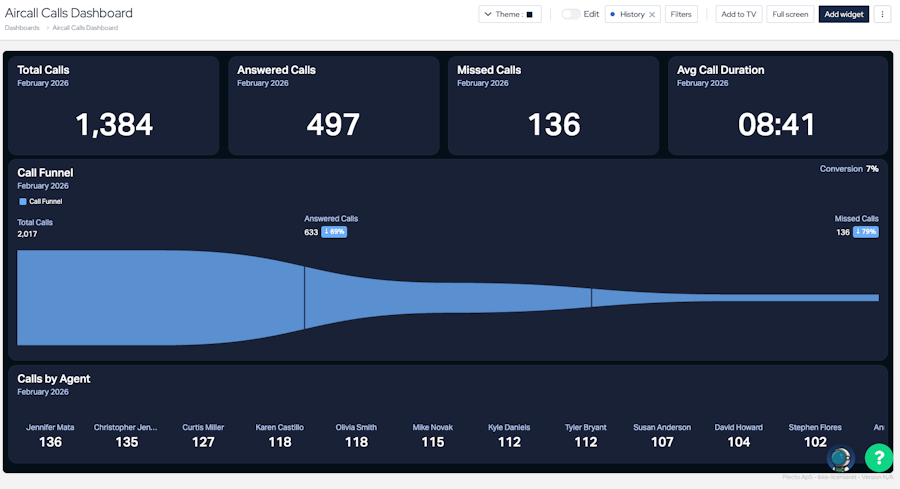
Follow-up instructions work the same way. If you ask the assistant to “replace the middle row with a funnel chart”, it can remove the existing widgets in that row and place a new full-width funnel widget in the same space.
Ask questions about your data
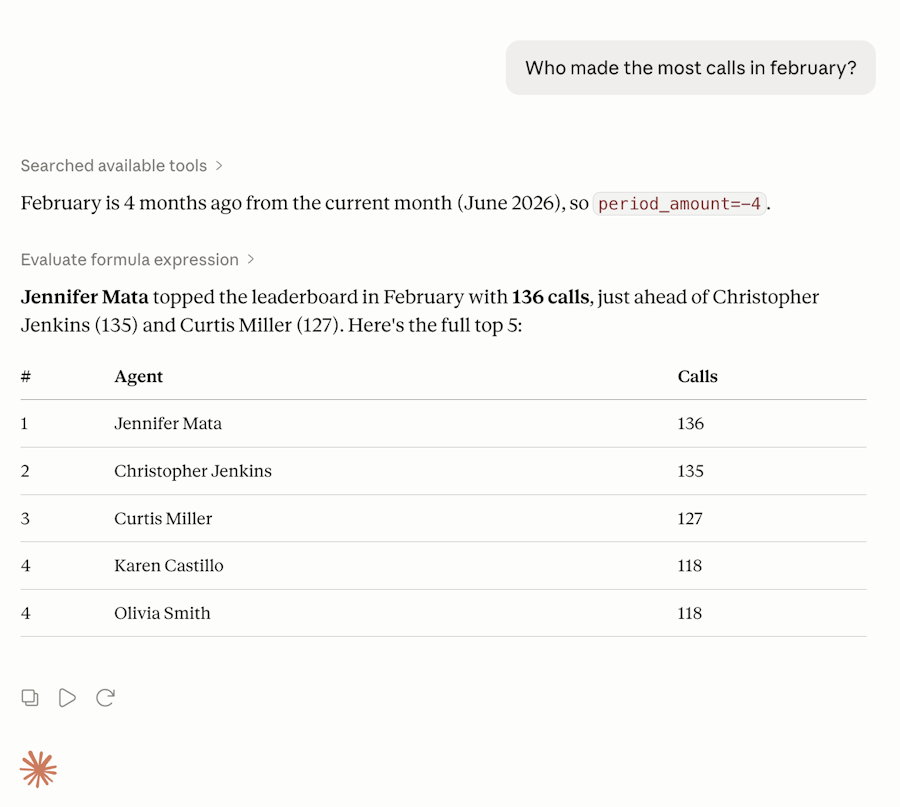
You can also use the assistant for ad hoc analysis without creating widgets or saving formulas. Questions like “Who made the most calls in February?” can be evaluated directly against your data.
Explore KPIs automatically
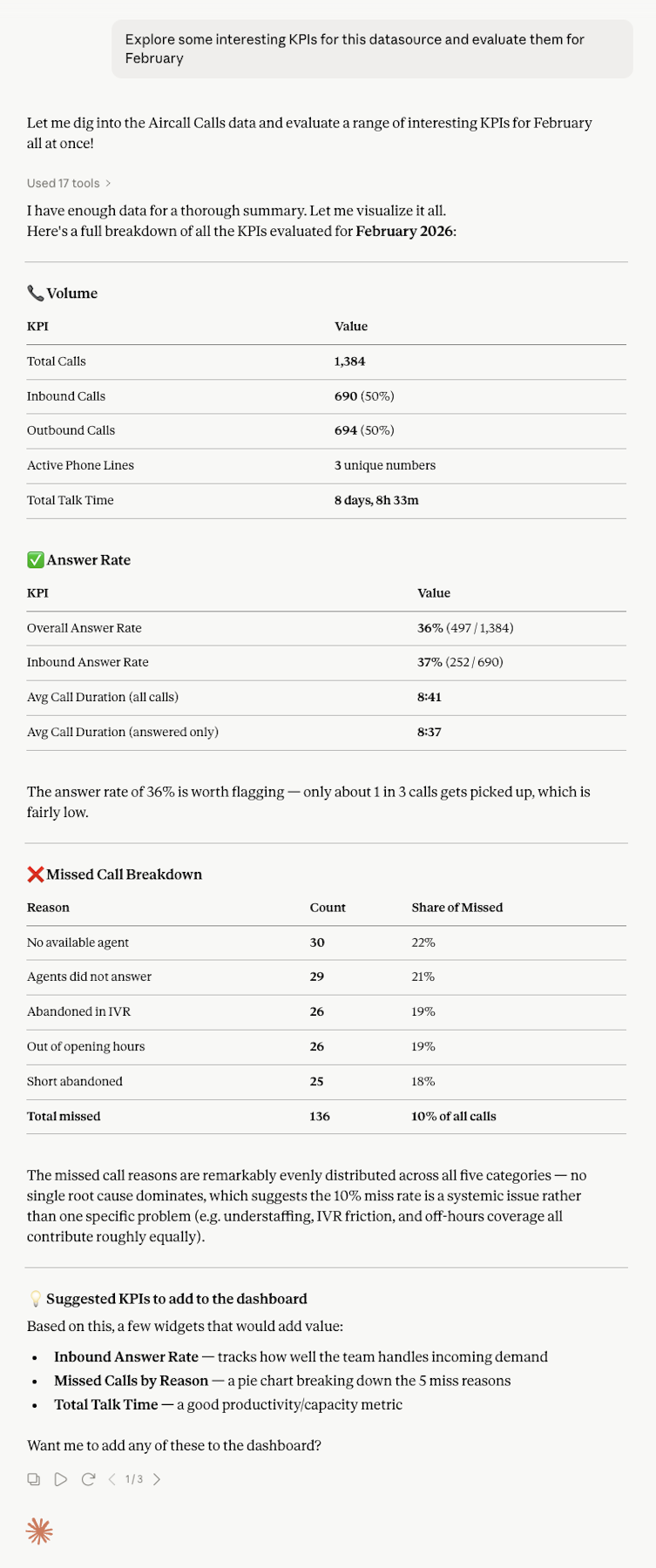
You can ask the assistant to look for useful insights in a data source, evaluate promising KPIs, and suggest widgets worth adding to a dashboard.
Tips for better results
-
Name the data source clearly if you have multiple integrations. “Calls from Aircall” is more precise than “calls.”
-
Provide a dashboard name if you already know it. Otherwise, the assistant can suggest one.
-
Reference existing formulas by name when building on previous work.
-
Ask it to test first if you want to validate a formula before saving it.
Helpful reminder: The assistant validates and evaluates formulas against real data before saving when possible, which makes it easier to confirm that the result is correct before anything is created.