Sign in
How to Check Your Browser's JavaScript Console
Why do we need to see your JavaScript console?
When you contact our support team, we might ask you to send a screenshot of your JavaScript console. You can find the JavaScript console in your web browser as part of its developer tools. The way you access the JavaScript console depends on your web browser.
The console contains information about errors or other issues, which allows us to identify the root problem and help you better.
In addition to the console screenshot, we would also like to know:
-
What browser version are you using? If not the latest, could you update the browser and try again?
-
Does the issue occur in other browsers? For example, if it doesn't work in Chrome, does it in Safari?
-
Does the issue occur in incognito mode (or equivalent)?
Tip – Include your entire console when taking screenshots
-
To take a screenshot on Windows, press the
Windows key+PrtScn. Your screenshot should get saved to the Pictures > Screenshots folder. -
To take a screenshot on your macOS, press
Command+Shift+4and select a part of your screen.
Console: Safari
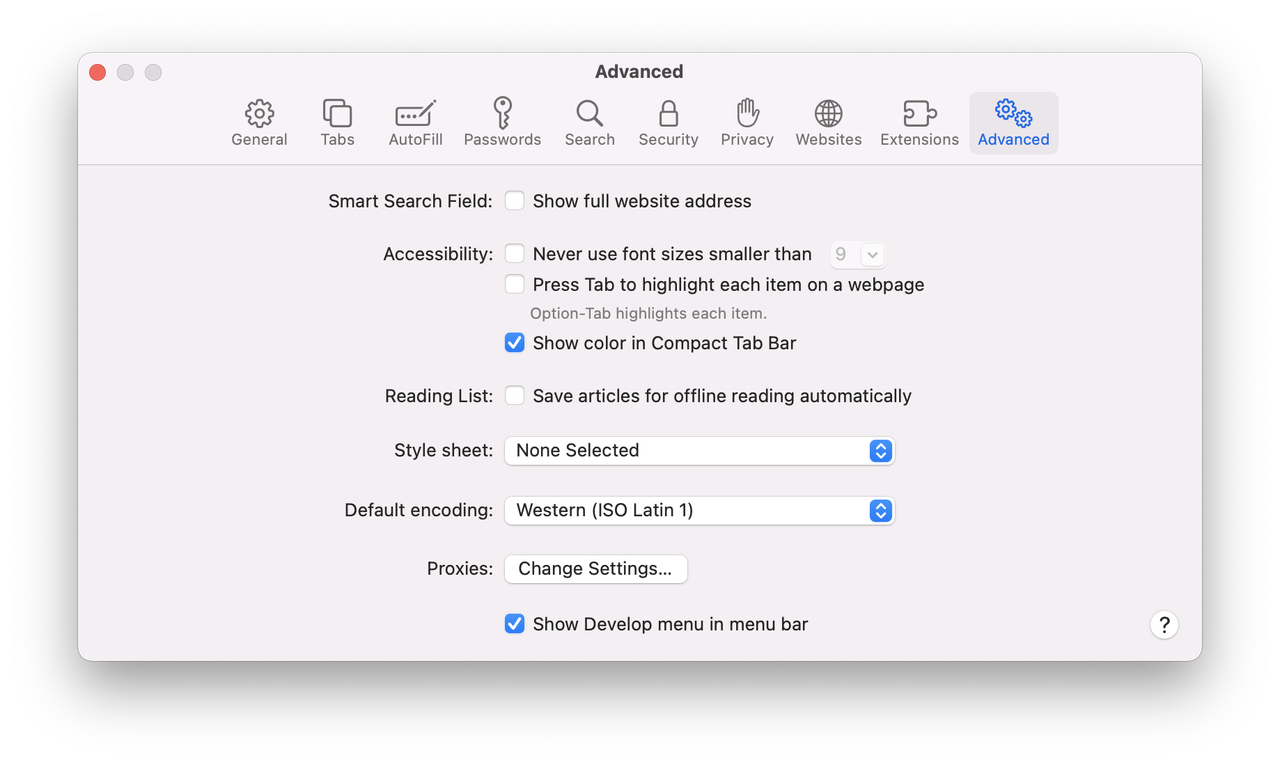
Before you can open the console in Safari, you need to enable a setting in Safari's preferences.
-
Open Safari.
-
In the top-left corner of your screen, click Safari > Preferences > Advanced.
-
Enable the Show Develop menu in menu bar option. You can now close this window.
-
Go to the page where you spotted some issues.
-
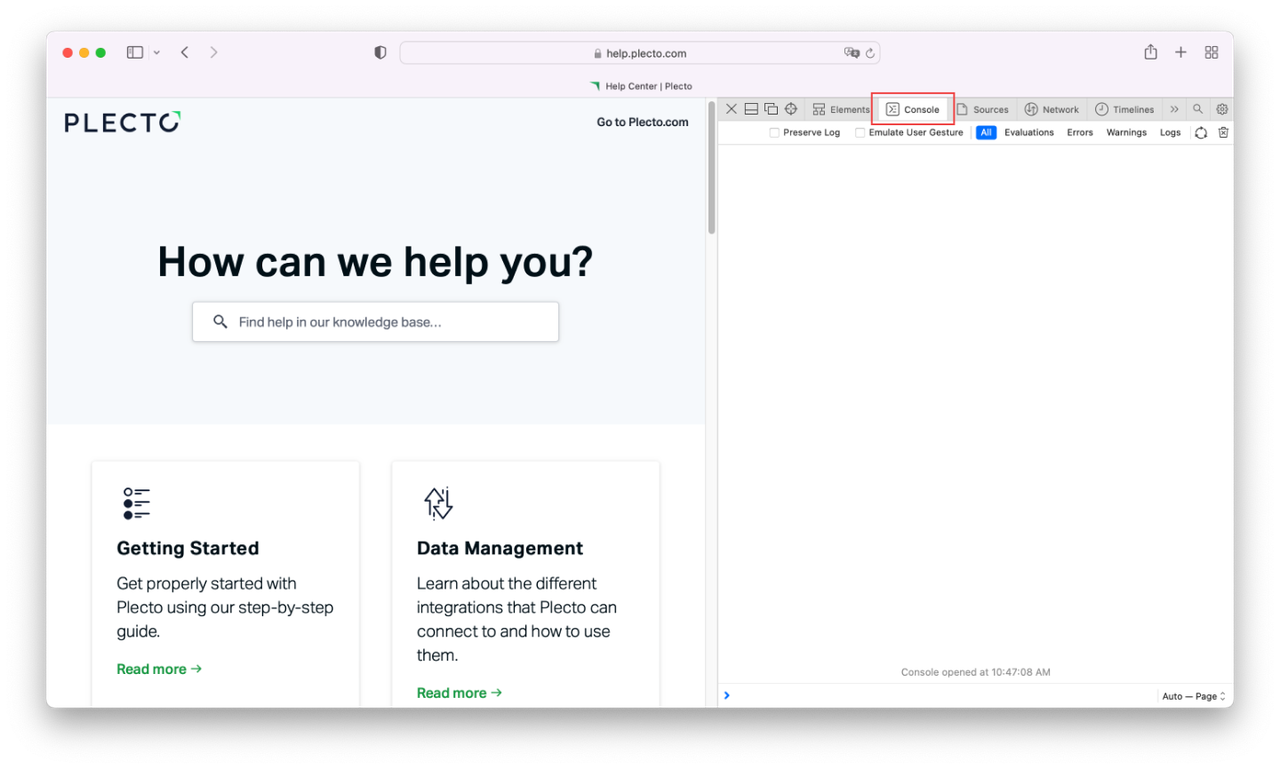
Open the console by pressing
Command+Option+Con your keyboard. If something's not working properly, you will see error messages in the console window. -
Take a screenshot of the console and send it to our support team.
Console: Firefox
-
Open a page in Firefox.
-
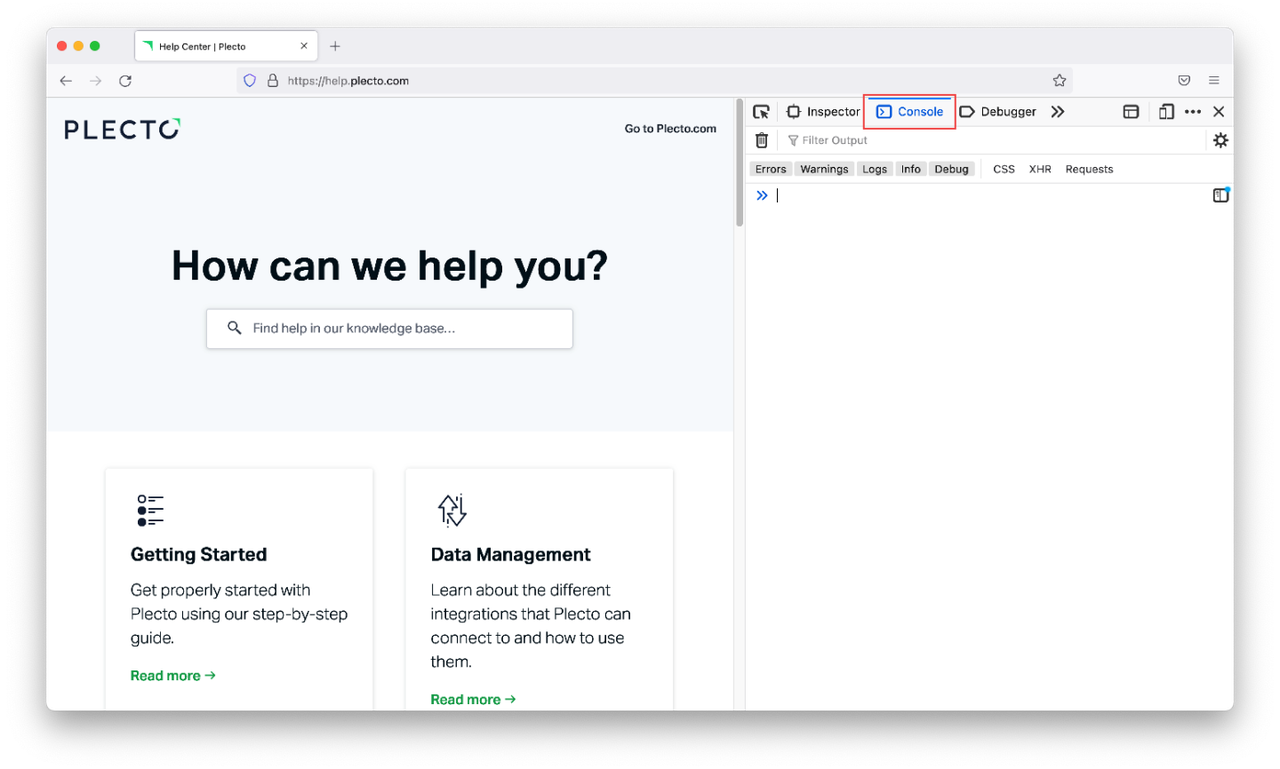
Open the console by pressing the following keys on your keyboard: macOS:
Command+Option+KWindows:Ctrl+Shift+K -
Take a screenshot of the console.
Console: Edge
-
Open a page in Microsoft Edge.
-
Open the console by pressing the following keys: macOS:
Command+Option+JWindows, Linux:Ctrl+Shift+J -
Take a screenshot of the console.
Console: Opera
-
Open a page in Opera.
-
Open the console by pressing the following keys on your keyboard: macOS:
Command+Shift+IWindows:Ctrl+Shift+I -
Click the Console tab to open it.
-
Take a screenshot of the console.
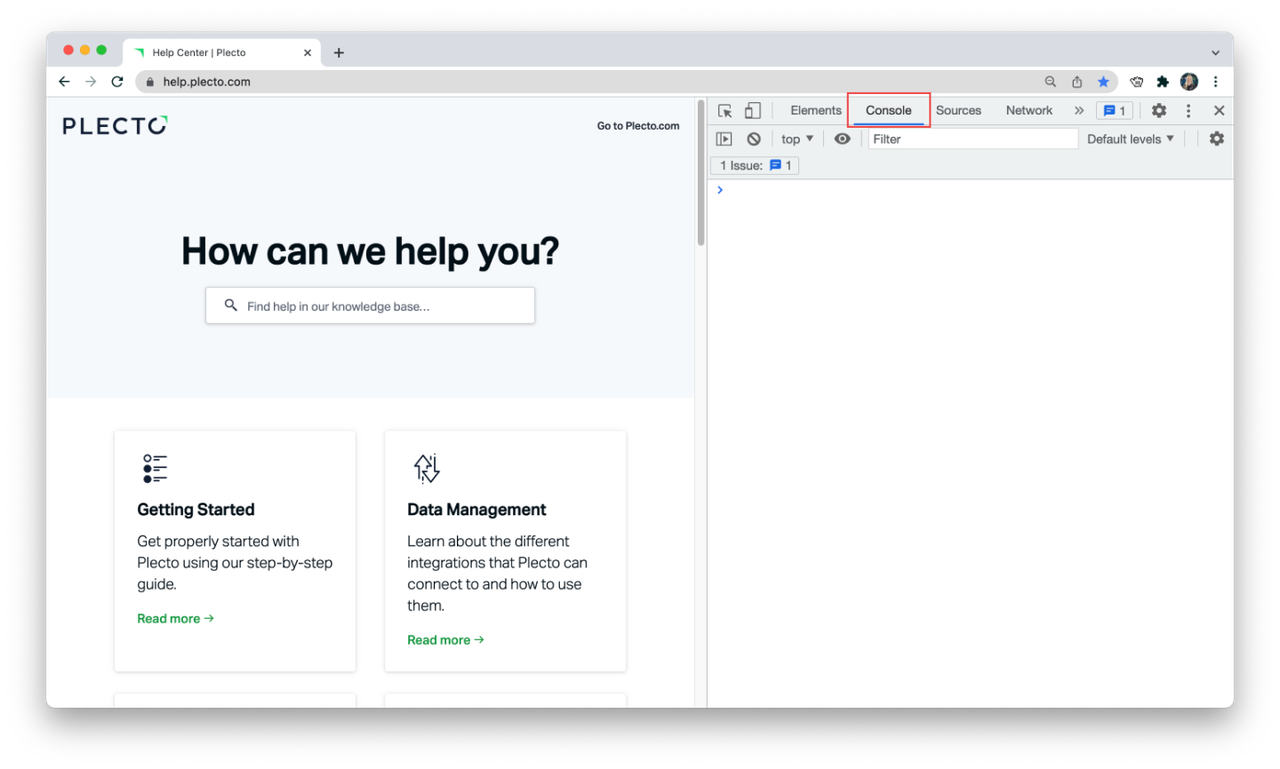
Console: Chrome
-
Open a page in Chrome where you've noticed some issues.
-
Open the console by pressing the following keys on your keyboard: macOS:
Command+Opt+JWindows:Ctrl+Shift+J -
Take a screenshot of the console.