 Sign in
How to Check Integration Logs
See all the import logs from your external system
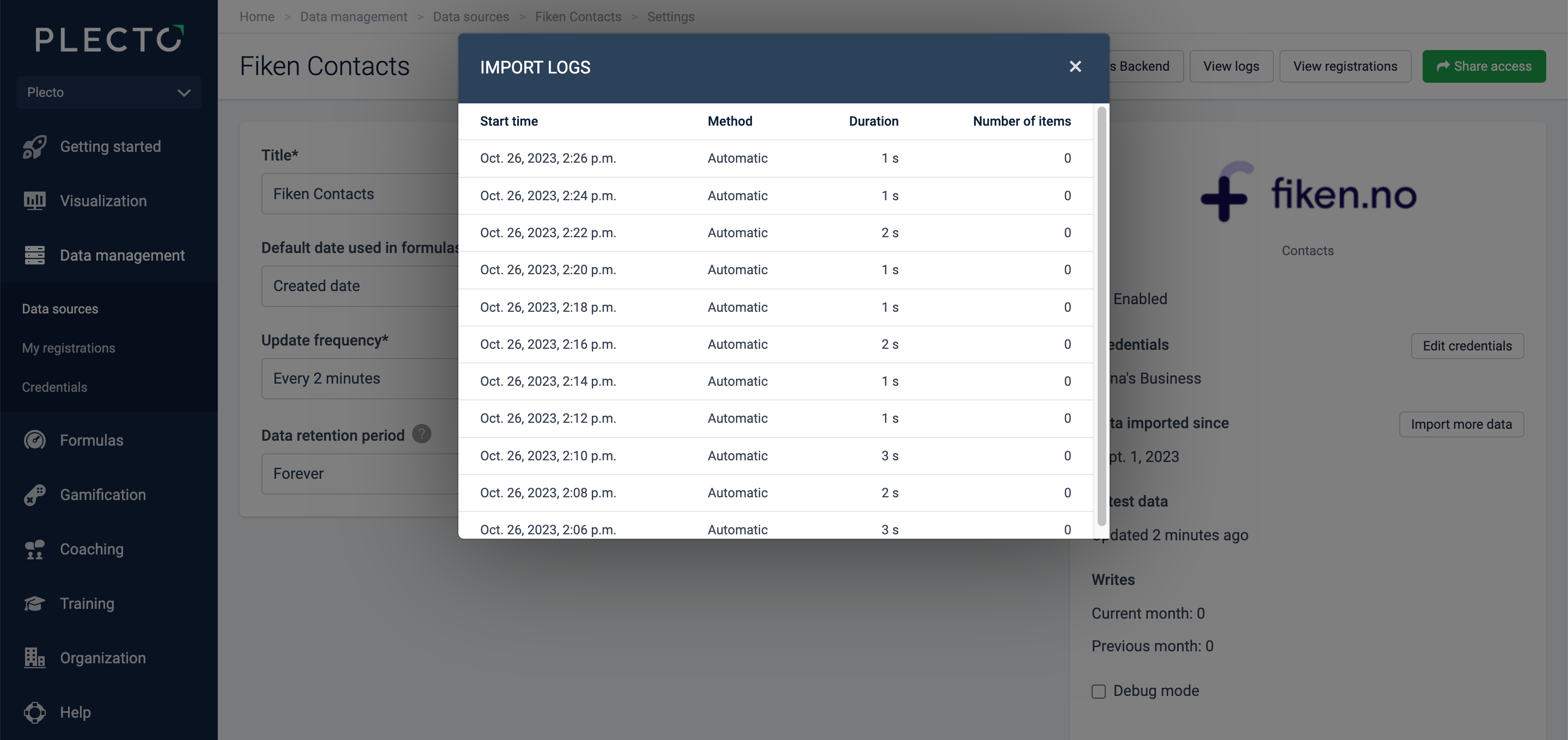
Check the import start time, method (automatic or manual), duration, and the number of imported or skipped items.
-
Go to Data sources and open your data source settings.
-
In the top right, click View logs.
There, you should see information about all automatic and manual imports from your system.
Skipped registrations
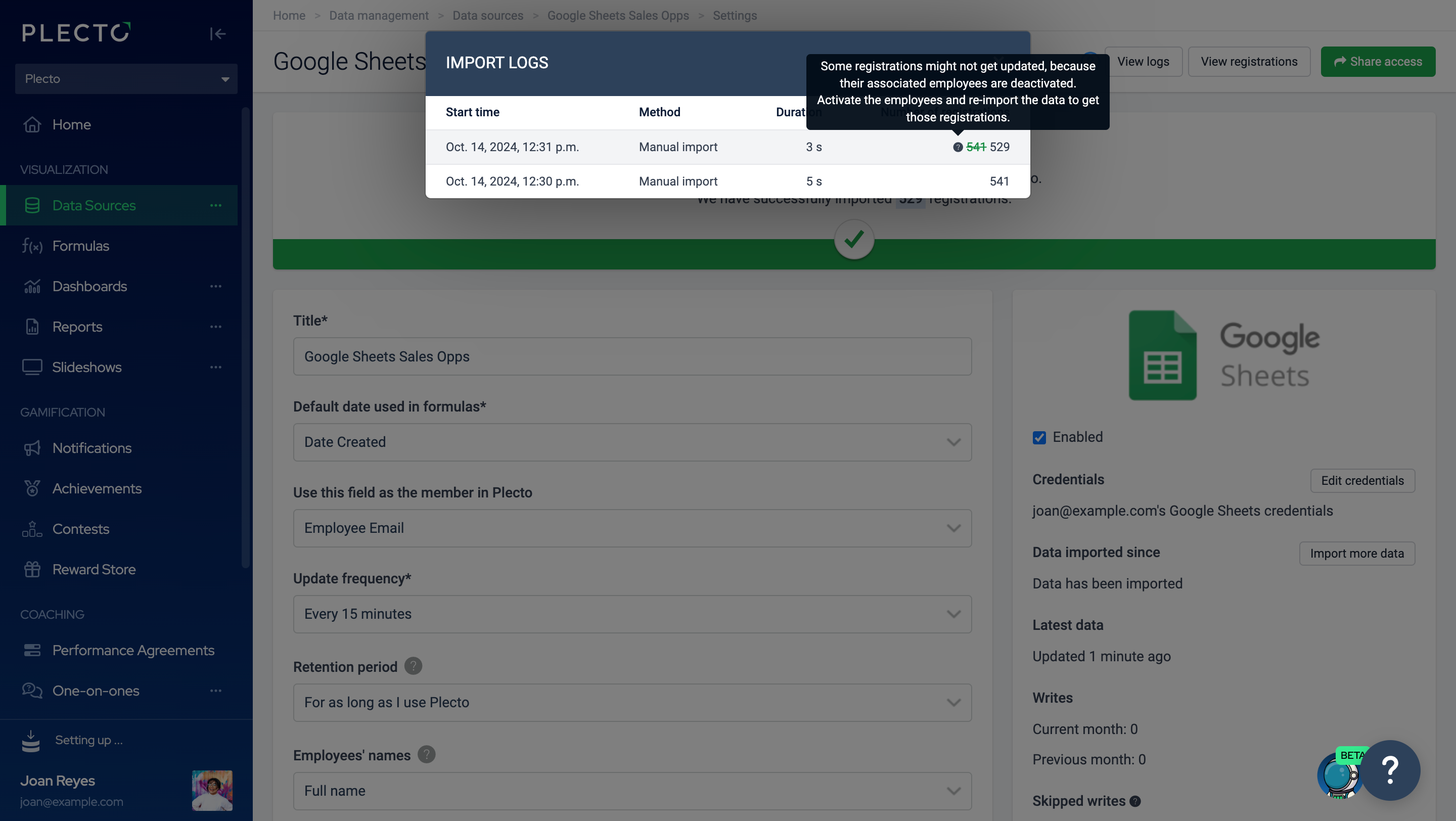
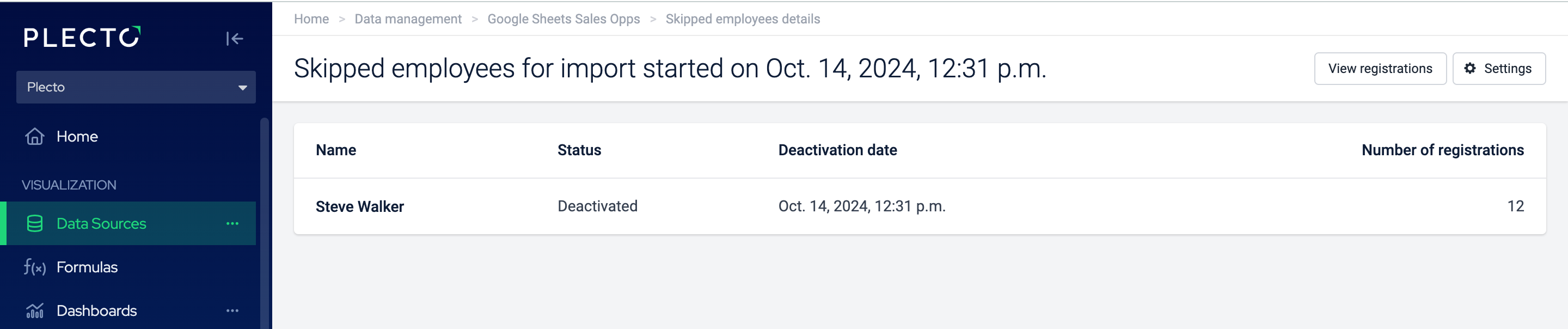
By default, we skip importing registrations for deactivated employees. You can see which employees and how many registrations were skipped along with each import by clicking the question mark in each row under Number of registrations.
Are your import logs showing error messages? Here's what they mean
expired_token or Refresh token is invalid
-
The authentication is not valid anymore. You might see that data sources using these credentials got disabled as well. To fix this, go to Data sources > Credentials and refresh your credentials.
This is a known issue for Google Analytics 4 integration.
400 Client Error: Bad Request for url
Here below are a couple of commonly known issues. However, the 400 errors are usually integration-specific, so please contact our support team if you're experiencing an issue like this one.
-
If you see messages like "Please remove <field name> to make request compatible" or "Metric names must only contain letters, numbers, or _," it means that a field name is incompatible. The error should resolve once you rename the field.
-
Using Google Sheets? Make sure the sheet name is the same as when you integrated it. With Google Sheets, you cannot rename the sheets once you've integrated them to Plecto.
401: Unauthorized
- It's likely that the credentials are invalid. Check if you added the right access keys (API tokens) and that any relevant prefixes are included (for example,
api_u9Y7sd...).
402: Payment required
- You might get this error if some services aren't available to you in the integrated system. For example, here's a 402 example from Asana: "402 - The request was valid, but the queried object or object mutation specified in the request is only available to premium organizations and workspaces."
403 Client Error: Forbidden for url
- 403 means that the authorized user doesn't have required permission for the resource we tried to access. In short, credentials aren't coming from an admin account. If you are an admin and are getting this error, try to create the credentials again and check the right instance and that the credentials are spelled properly.