 Sign in
Troubleshooting Notifications
Find out why your notifications might not work
If you can't see your notification from Plecto, here are a few things you can check to troubleshoot.
Check the destination slideshow
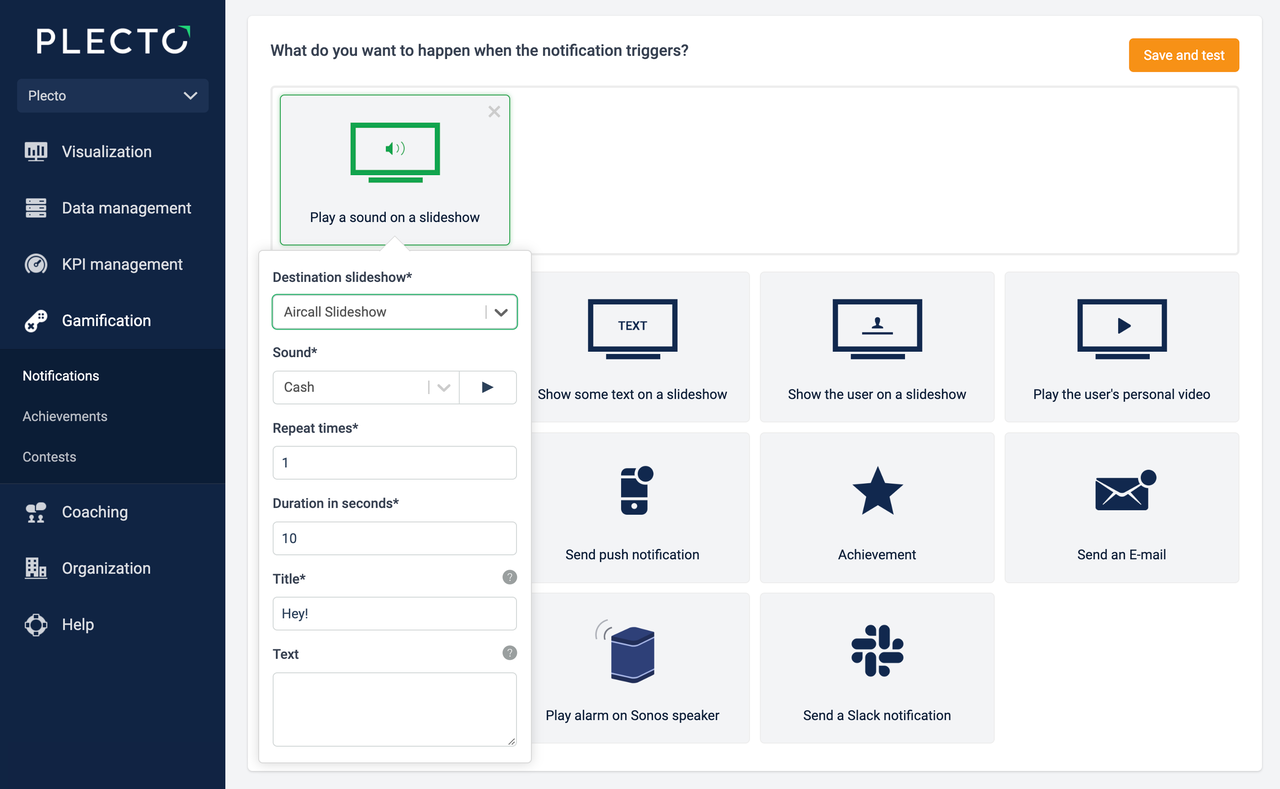
Make sure you have correctly set up the notification actions. Check if you're sending the notification to the correct destination slideshow.
Slack notification isn't sending
If you can't see the notification in your Slack channel, make sure you've invited Plecto to the channel. To invite Plecto, type @plecto in the message field in Slack and hit Enter.

Check your teams and employees
Make sure you have enabled the notification for the right team(s) or employee(s). If you have enabled the notification for a team, please make sure there are employees assigned to this team.
Notification settings
Enabled from this date
Plecto will look for notification triggers (new or updated registrations or changes in the formula result) starting from this date and time.
The Enabled from this date refers to the default date field in your data source. The default date tells Plecto what data it should take into account.
The default date can be configured on integration data sources. In manual data sources, the default date is always the Created date.

Still can't seem to make it work?
We're sorry that the issue persists. Please don't hesitate to reach out to our support team for help.
YouTube video not playing
Some TVs don't support autoplay of YouTube videos from the get-go. Save and test your notification to see if the video appears on the TV screen.
Personal YouTube videos
Everyone should add a personally chosen YouTube video to their Plecto profile for the video to play when a notification triggers. If you've added this notification action, but the person triggering the notification hasn't added a video link to their profile, nothing will happen.
Test your device's compatibility
Test if your device is able to display Plecto slideshows and dashboards. To run a test, open app.plecto.com/debug in your TV browser or any other device you want to use for visualizing your business metrics with Plecto.
Notification trigger log
You can check the triggered notification log to verify if your notification has already been triggered.
-
Go to Notifications and open a notification.
-
Click the Log of triggered notifications in the top-right corner.
There, you can see the following information:
-
Date triggered
-
Date on the registration
-
Employee that triggered the notification
-
Status showing if any errors occurred
-
Link to the registration
-
View details (notification conditions, actions, and errors)