 Sign in
Date Functions in Formulas
What are date functions in formulas?
A date function is a formula component that can calculate the number of days, workdays, holidays, weeks, months, years, and other date-related metrics.
Date functions allow you to calculate KPIs more precisely. It's particularly relevant for metrics that calculate the average.
The numbers you get from date functions depend on the time period you select on a widget. For example, Workdays will give the number 5 if the time period on the widget is Current week.
Available date functions
The list of available date functions slightly differs from the Advanced to Visual formula editors.
Here's a list of date functions we support currently:
-
Visual editor: Workdays, Holidays, Days, Weeks, Months, Years.
-
Advanced editor: NetWorkDays, Holidays, Days, Weeks, Months, Years, Hour, Day, Month, Year.
Date and time objects
Each of the date functions includes smaller arguments called date and time objects. These are indicators that tell Plecto when or what to consider.
For example, if you want to use Days, you need to tell Plecto how many days you want to calculate. If you choose from Widget start date to Widget end date, Plecto will say 7 if the widget's time period is Current week.
Here's a list of date and time objects you can add:
| Visual editor | Advanced editor | Description |
|---|---|---|
| Today | Today() | Today until 23:59:59. |
| Now | Now() | The date and time right now. |
| Widget start date | Startdate() | The start date and time of the selected time period on the widget. |
| Widget end date | Enddate() | The end date and time of the selected time period on the widget. |
| Fixed date | Date(yyyy,mm,dd) | Allows you to select a fixed custom date range. |
Workdays
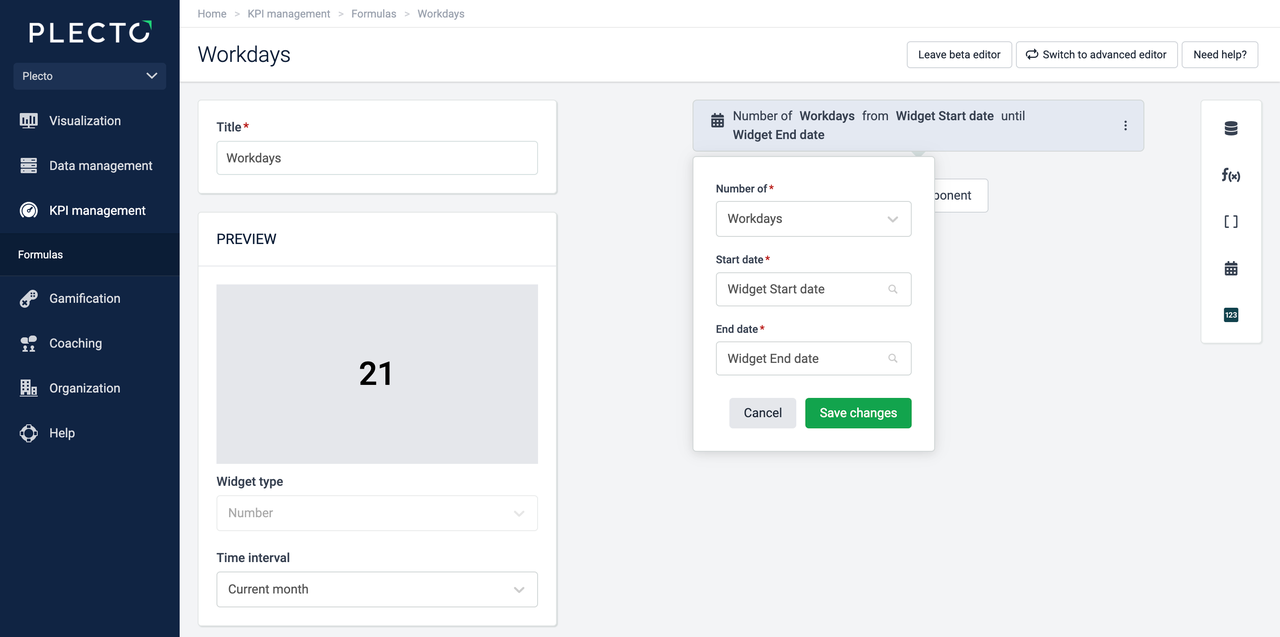
Returns the number of working days within a selected time period. If you add Start date: Widget start date, End date: Widget end date and set the time period on the widget to current month, the formula will return values between 20 and 23, depending on the number of workdays in the month.
Advanced formula editor
In the Advanced formula editor, the date function is called NetWorkDays. To get the number of NetWorkDays, you can use the following formula:
| (NetWorkDays(StartDate(),EndDate())) |
|---|
Holidays
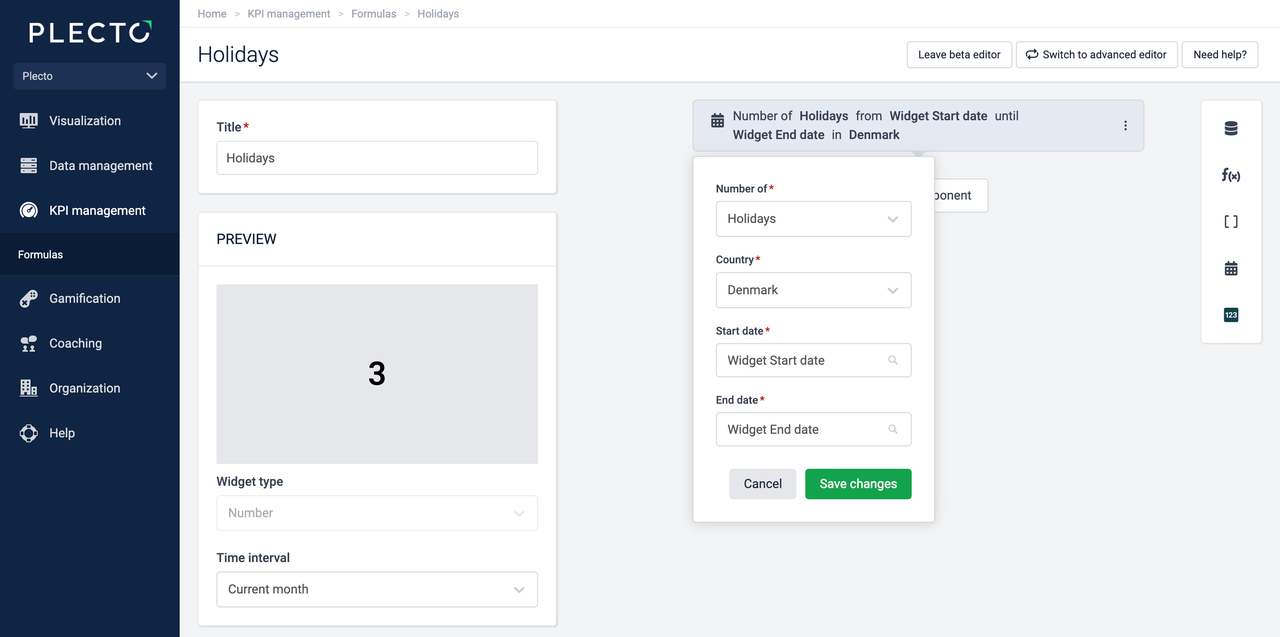
Returns the number of holidays within a time period. Here you have to select a country to help Plecto understand how many holidays it needs to calculate. See the list of the available countries.
For example, to get the number of holidays in Denmark this month, you can create the following component. Set the time period on the widget to the current month.
Advanced formula editor
In the Advanced formula editor, the date function is called Holidays. This function requires you to include a country code(for example, "US") to help Plecto understand how many days to show. You can use the following formula:
| (Holidays("US",StartDate(),EndDate())) |
|---|
Days
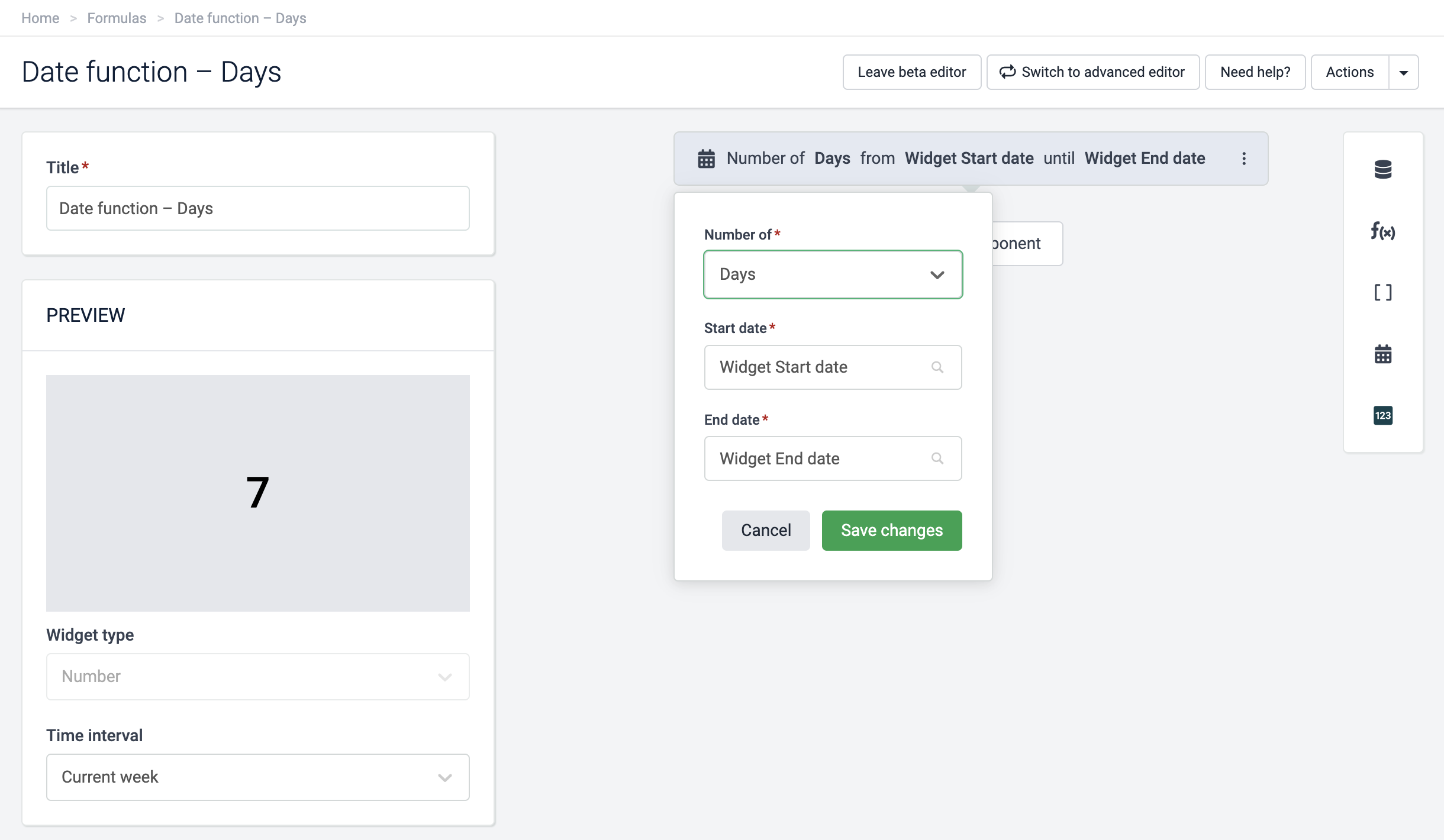
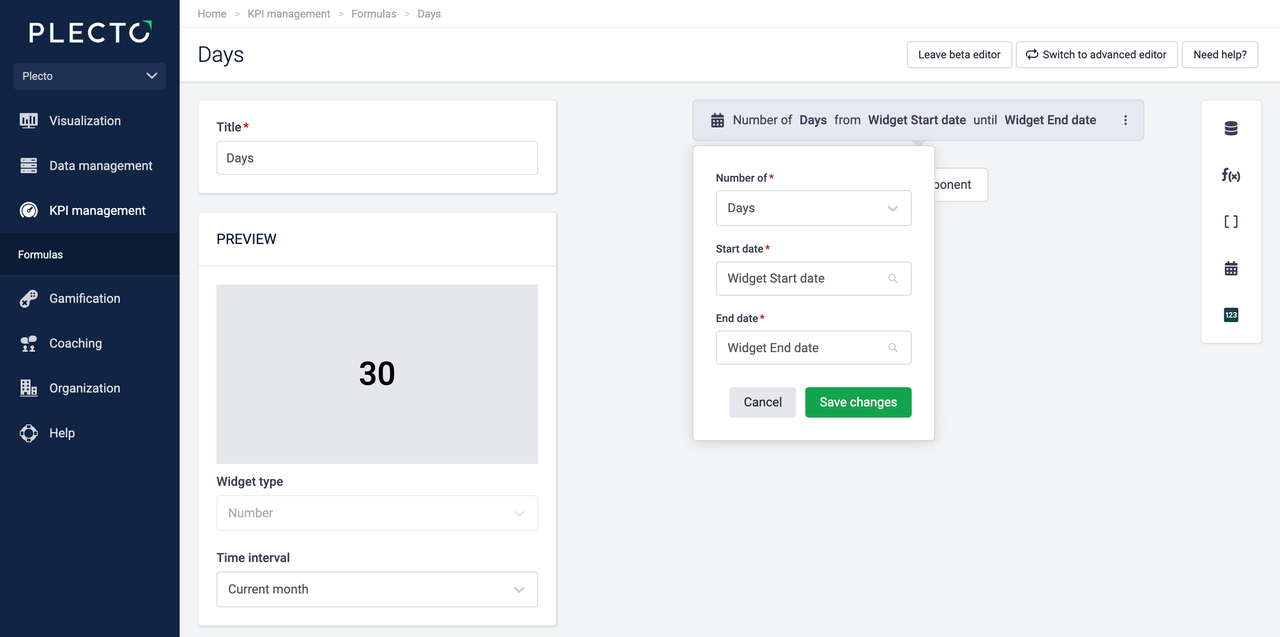
Returns the number of days within a time period. The number depends on the start and end dates you select in the formula, as well as the time period on your widget.
For example, if you add Start date: Widget start date, End date: Widget end date and set the time period on the widget to the current month, then Plecto will count the total number of days this month. In June, the number will be 30, in October - 31.
Advanced formula editor
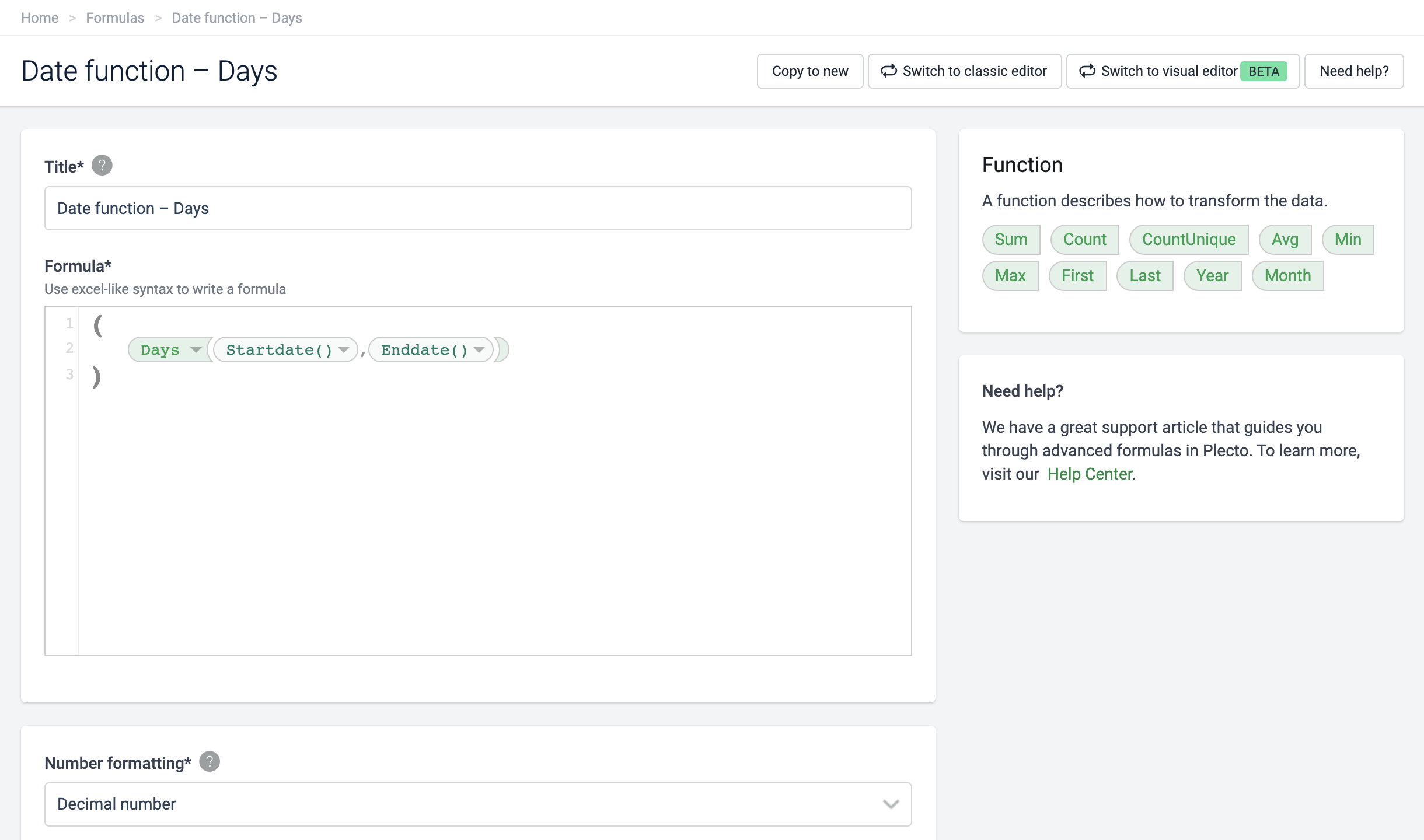
In the Advanced formula editor, the date function is called Days. You can use the following formula example to count the number of days from widget start date to end date:
| (Days(Startdate(),Enddate())) |
|---|
Tip – Use date functions to create MTD target formulas
You can incorporate the Days and Workdays functions in your formulas to create month-to-date targets. Read this article to learn more.
Weeks
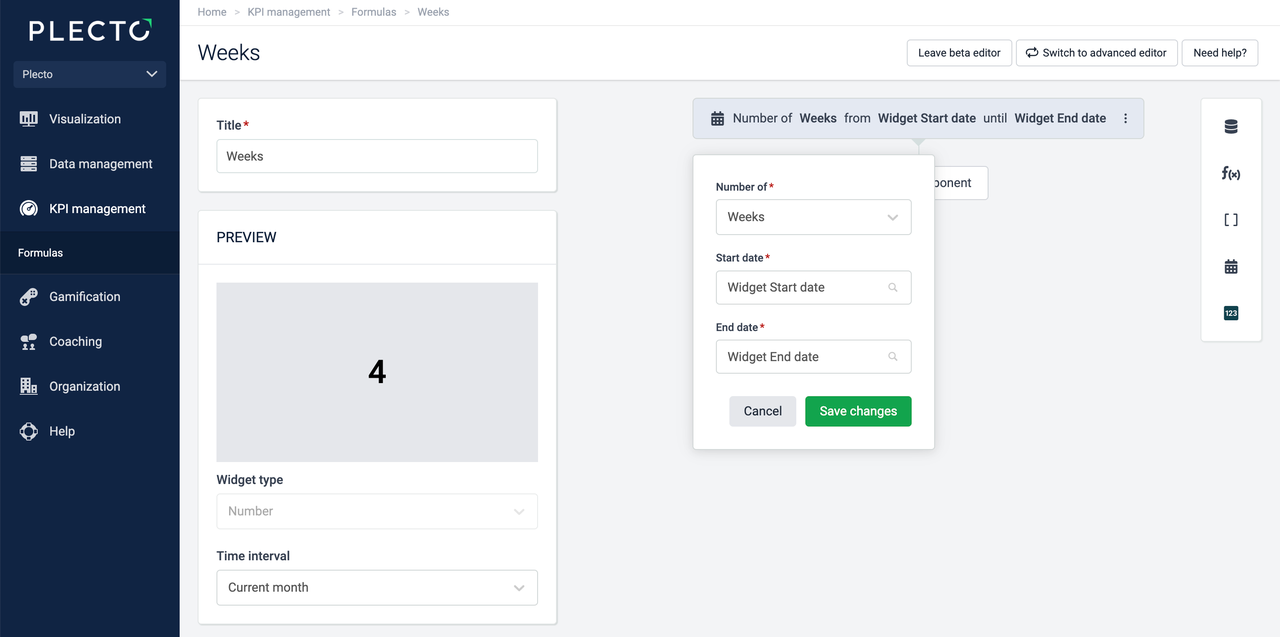
Returns the number of weeks within the selected time period. For example, if you select the current month time period on the widget, the formula will return 4 (or 5, depending on the month).
Advanced formula editor
In the Advanced formula editor, the date function is called Weeks. You can use the following formula example to count the number of weeks from widget start date to end date:
| (Weeks(Startdate(),Enddate())) |
|---|
Months
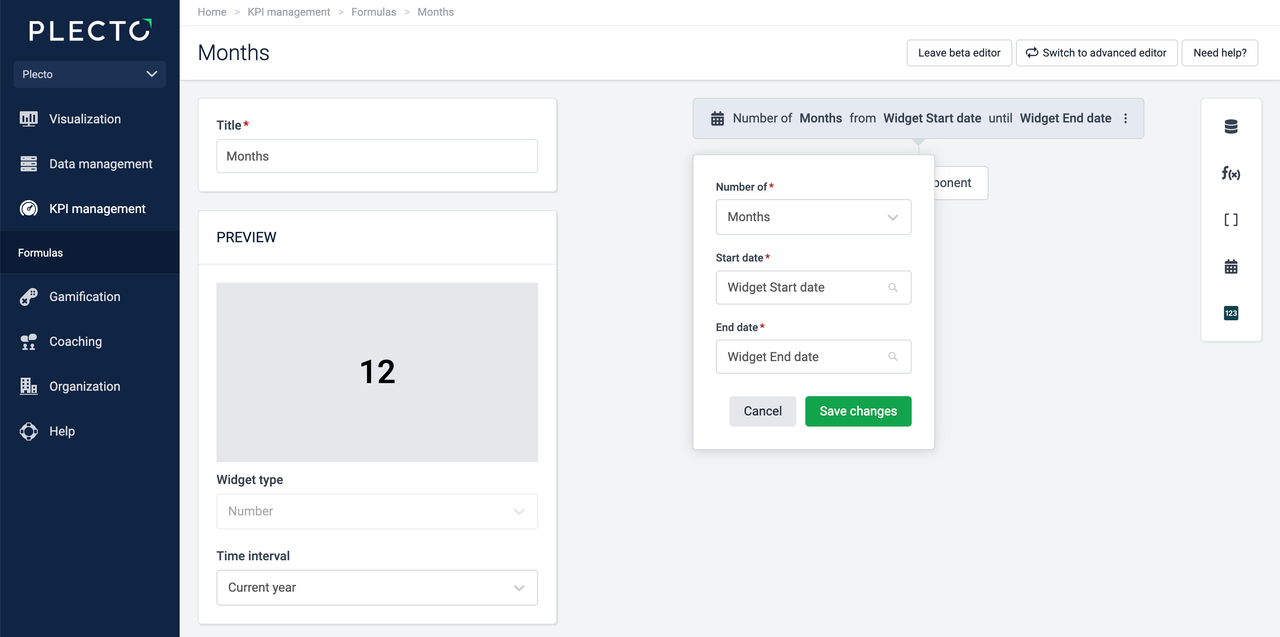
Returns the number of months within the selected time period. For example, if you select the current year on the widget, the formula will return 12.
Advanced formula editor
In the Advanced formula editor, the date function is called Months. You can use the following formula example to count the number of months from widget start date to end date:
| (Months(Startdate(),Enddate())) |
|---|
Years
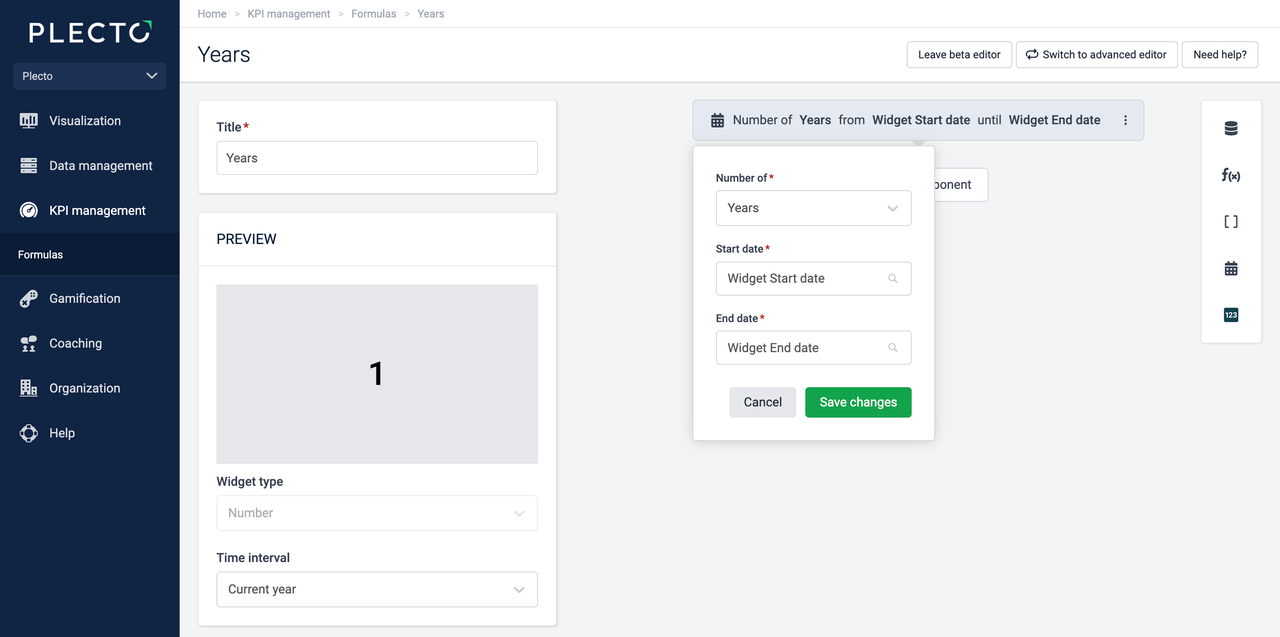
Returns the number of years within the selected time period. For example, if you select the Current Year time period on the widget, the formula will return 1.
Advanced formula editor
In the Advanced formula editor, the date function is called Years. You can use the following formula example to count the number of years from widget start date to end date:
| (Years(Startdate(),Enddate())) |
|---|
Hour
Supported only in the Advanced formula editor
This date function is called Hour, and it returns the date's hour, for example, "11" for 11:23 am. This function will return a numerical value of the current hour, and regardless if the hour now is 11:23 am or 11:55 am, it will output a number value of 11.
The following formula will output a number value of the current hour:
| (Hour(Now())) |
|---|
Day
Supported only in the Advanced formula editor
This date function is called Day, and it returns the date's day, for example, "10" for the 10th of June. The result depends on both the date object included in the formula and the time period selected on the widget.
If you use a formula like the following, it will output a decimal number of the current day. For example, if it is currently the 10th of June, the widget will display 10.
| (Day(Today())) |
|---|
Month
Supported only in the Advanced formula editor
This date function is called Month, and it returns the date's month, for example, "8" for August. The result depends on both the date object included in the formula (see the section above) and the time period selected on the widget.
If you use a formula like the following, it will output a decimal number of the current month. For example, if the current month is August, the widget will display 8.
| (Month(Today())) |
|---|
Year
Supported only in the Advanced formula editor
This date function is called Year, and it returns a year. For example, 2022. To see the year of today, use the following formula:
| (Year(Today())) |
|---|
Tip – Change the number format to Text
Change the number formatting to text to make sure the widget displays, for example, 2022. If you choose the decimal number format instead, the widget will display the result with a thousand separator, for example, 2.022 or 2,022, depending on your localization.