Sign in
How to Add Filters in Formulas
Filters in formulas
Find specific data by applying filters to your Data function components. See your won deals, missed calls, calls longer than 20 seconds, leads from a specific pipeline, orders from a particular shop, and so much more.
The available filtering options depend on the field type in your data source. In general, there are five main types of fields you can find in a data source: number, text, list, date, and Yes/No fields.
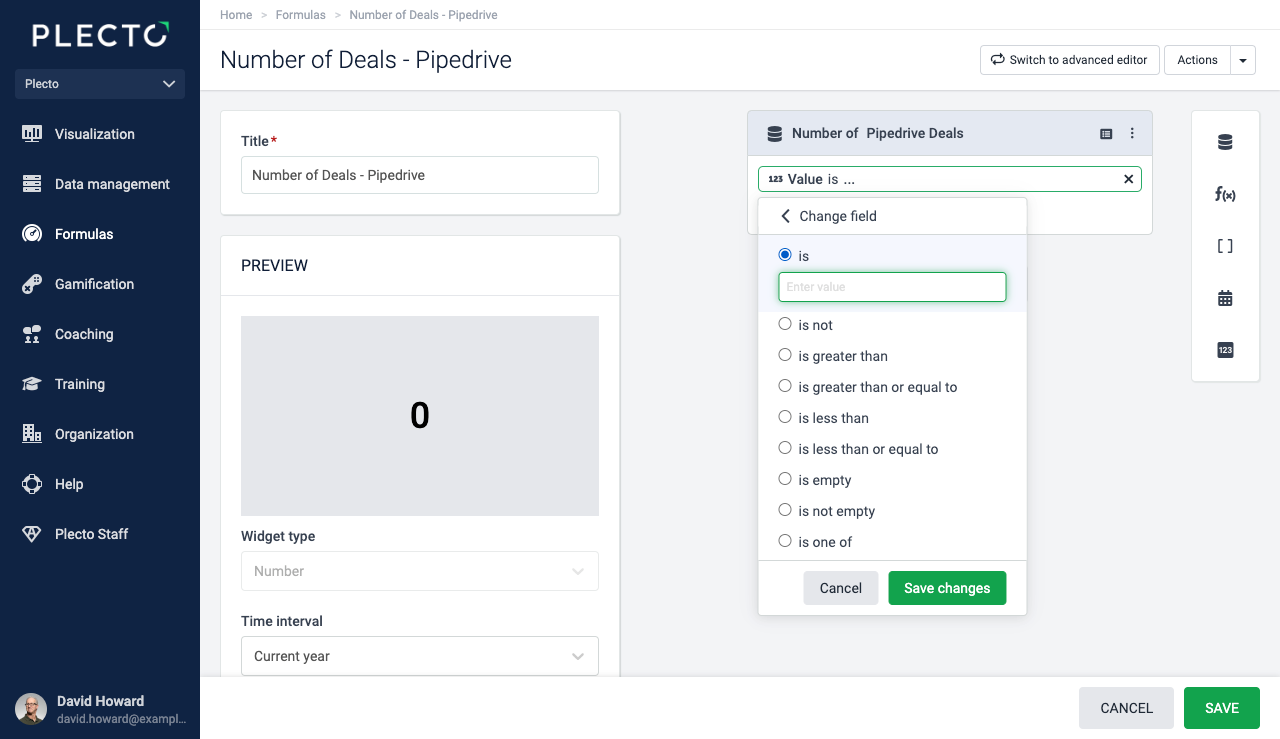
Filters on number fields
Want to see how many calls are longer than 20 seconds? Add a filter where the duration is greater than 20. Or, if you want to see the number of deals where the value is 1000 or less, add the is less than or equal to 1000 filter.
Here are all the available filtering options for number fields:
-
is
-
is not
-
is greater than
-
is greater than or equal to
-
is less than
-
is less than or equal to
-
is empty
-
is not empty
-
is one of (filter your data by multiple values)
Filters on list fields
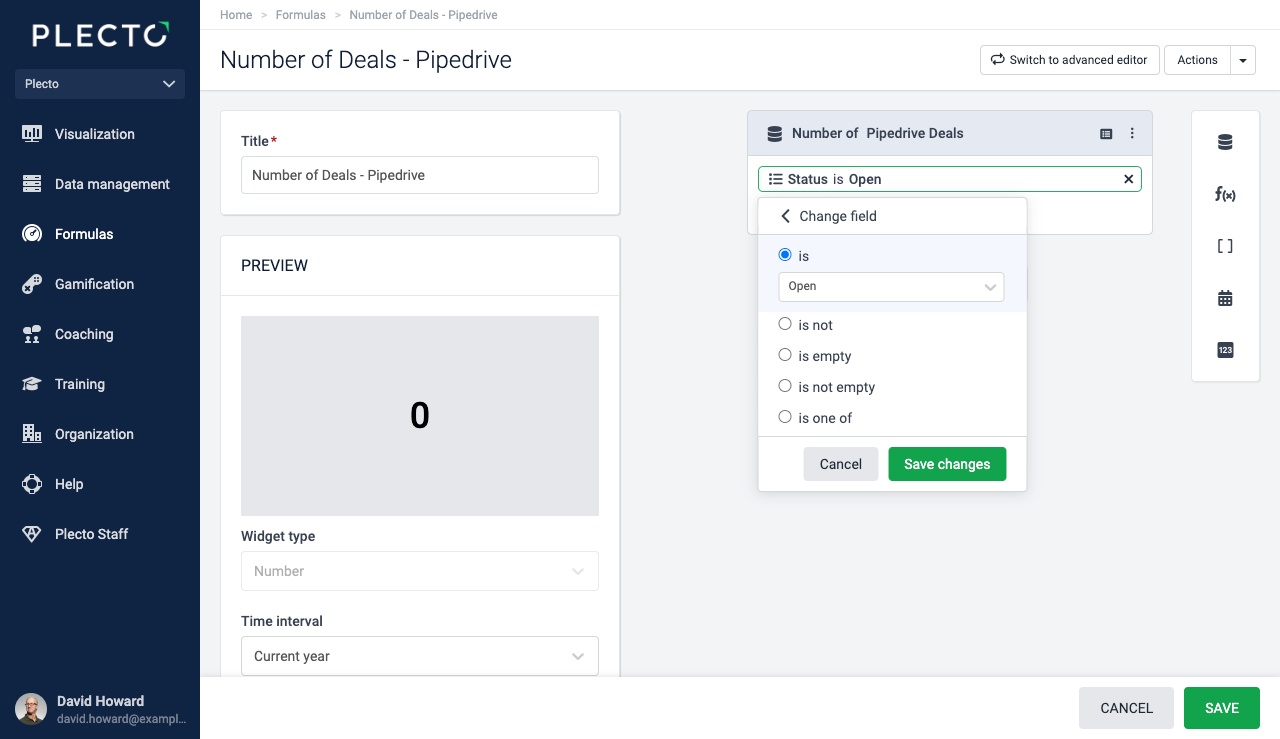
List fields are usually presented in the form of a dropdown. If you filter on a list field, all you have to do is select a pre-defined value (contrary to a text field where you have to type in the value yourself).
The available filtering options on list fields are:
-
is
-
is not
-
is empty
-
is not empty
-
is one of (filter your data by multiple values)
Filters on text fields
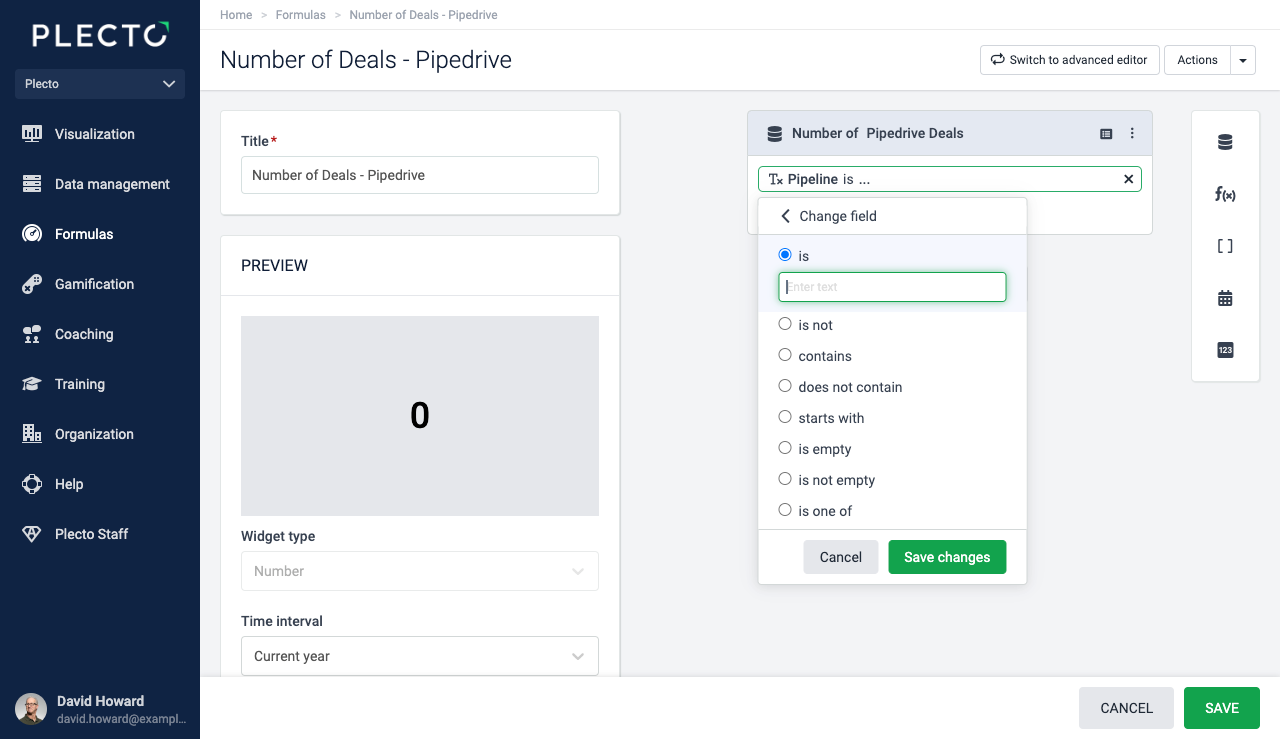
Filtering on text fields is case sensitive. When applying filters to text fields, the text should match the way it appears in the data source.
The available filtering options are the following:
-
is
-
is not
-
contains
-
does not contain
-
starts with
-
is empty
-
is not empty
-
is one of (filter your data by multiple values)
Filtering is case sensitive, therefore make sure to type the field names exactly the same way as they are displayed in the selected data source. For example, write "Revenue" instead of "revenue" (mark the difference in the uppercase "R").
Filters on Yes/No fields
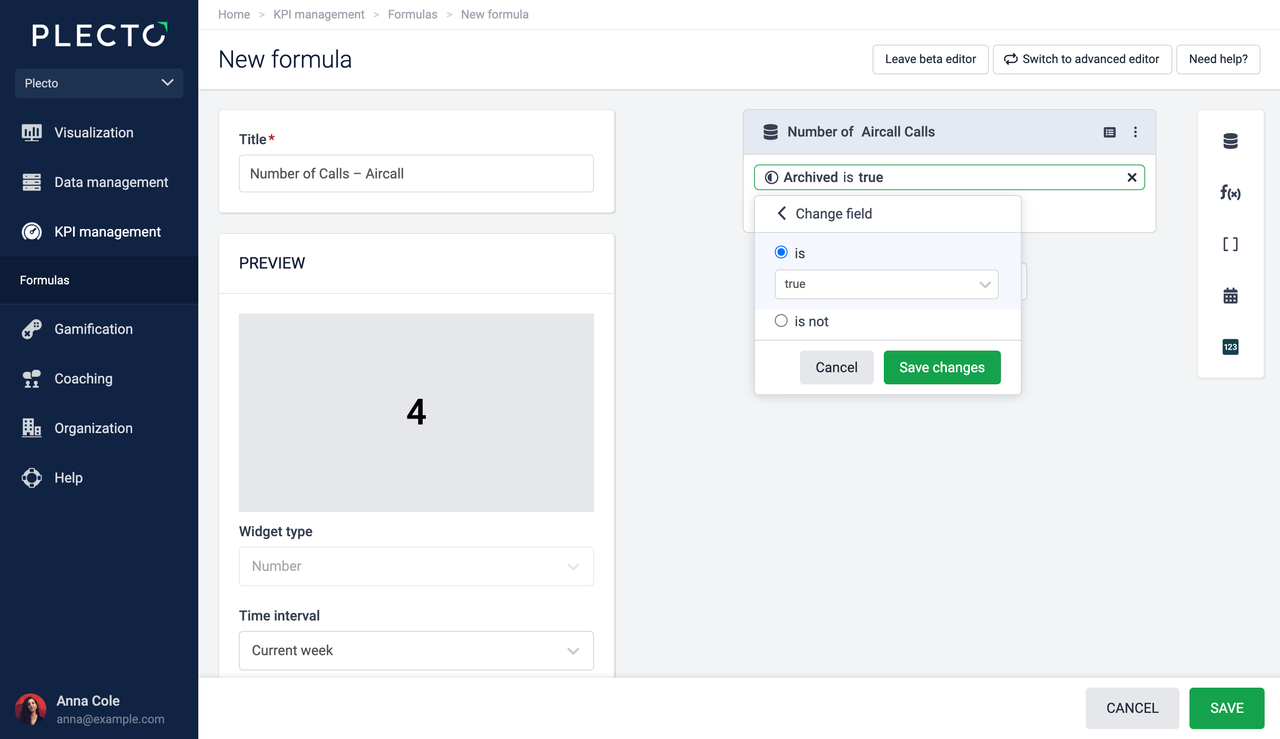
Yes/No fields have only two options – yes (also – true) and no (also – false).
The available filtering options for Yes/No fields are:
-
is true
-
is false
Filters in the Advanced formula editor
Filtering in the advanced formula editor only requires you to add a filtering parameter. There's no distinction between the field types and the different filtering options in the advanced editor. The filtering options are the following:
| Filter | Symbol | Example |
|---|---|---|
| is | = | (Count(Aircall Calls,Direction="outbound")) |
| is not | != | (Count(Salesforce Leads,Lead Source!="Web")) |
| is less than | < | (Count(Aircall Calls,Duration<180)) |
| is less than or equal to | <= | (Sum(Pipedrive Deals,Value<=1000)) |
| is greater than | > | (Count(Aircall Calls,Duration>480)) |
| is greater than or equal to | >= | (Count(Salesforce Opportunities,Amount>=5000)) |
| is empty | ="" | (Count(Aircall Calls,Missed call reason="")) |
| is not empty | !="" | (Count(Pipedrive Deals,Expected or actual close date!="")) |
| is one of | :in | (Count(Pipedrive Deals,Status:in["Open","Won"])) |
Is empty / is not empty
There shouldn't be any space between the quotation marks if you use the filters is empty or is not empty.
If you add space between the quotation marks, Plecto will think there should be a value between and will therefore show an error message on the widget due to improper formatting.
✅ Correct =""
❌ Incorrect =" "
Filters on date fields
Date field means that the data source field contains a date (and usually also time). It could be the updated date, modified date, closing date, or any other.
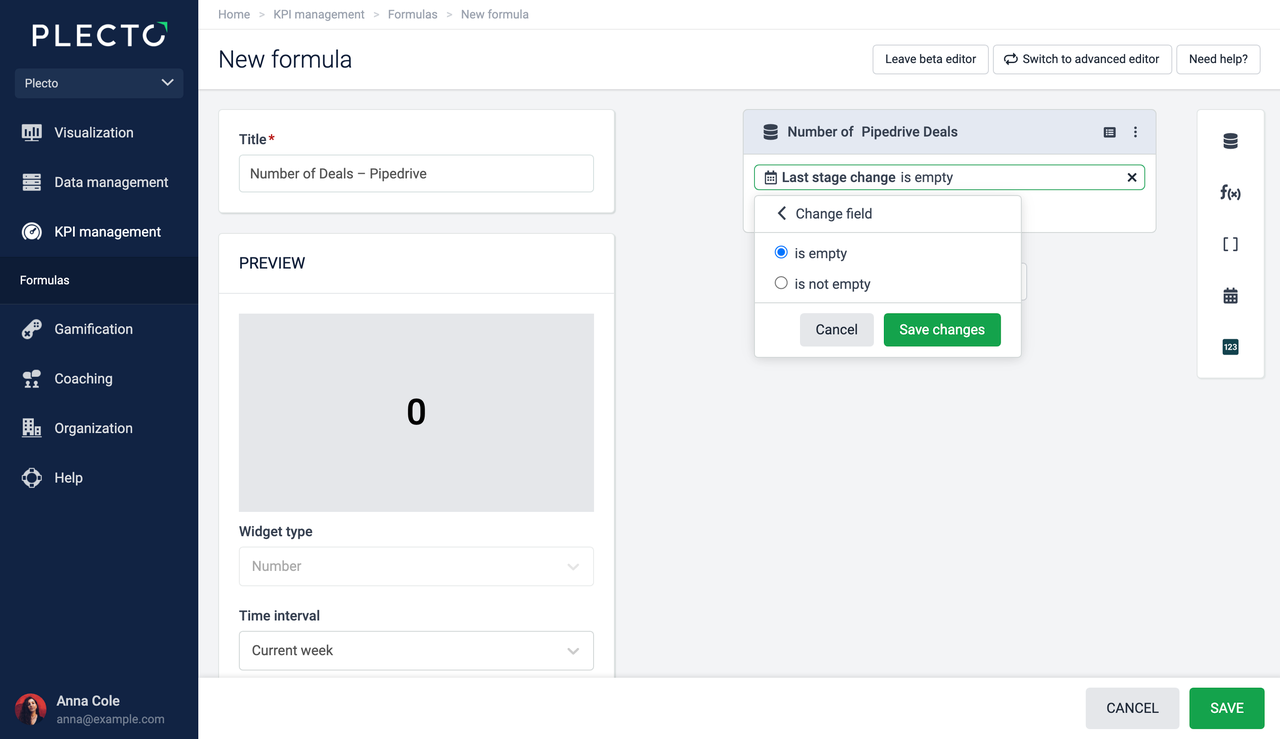
Date fields support the following filtering options:
-
is empty
-
is not empty