Sign in
History Modifier in Formulas
What is a History Modifier?
History modifiers offset formula results when formulas are added to a widget (on dashboards, in reports, or wherever formulas are used).
What can the History Modifier be used for?
This feature is useful if you want to add two formulas to the same widget where:
-
one shows the current KPI and
-
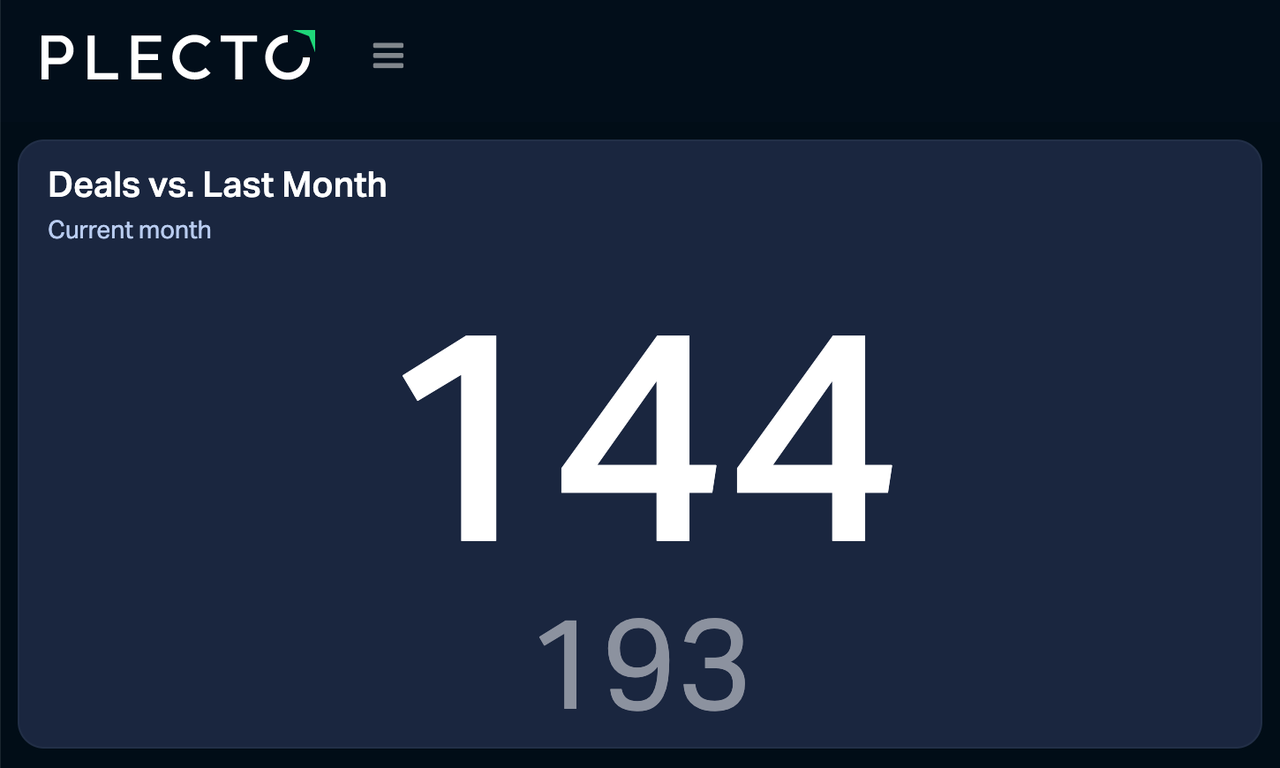
the other is offset with a history modifier and shows a past KPI, even though the time period on the widget is one and the same (for example, Current month).
This way, you can compare your current KPI to, for example, the previous five days, two weeks before the beginning of this month, the past two years, and so on.
Widgets that can display at least two formulas are the number box, speedometer, line & area charts, timeline, and table widget.
How to use it?
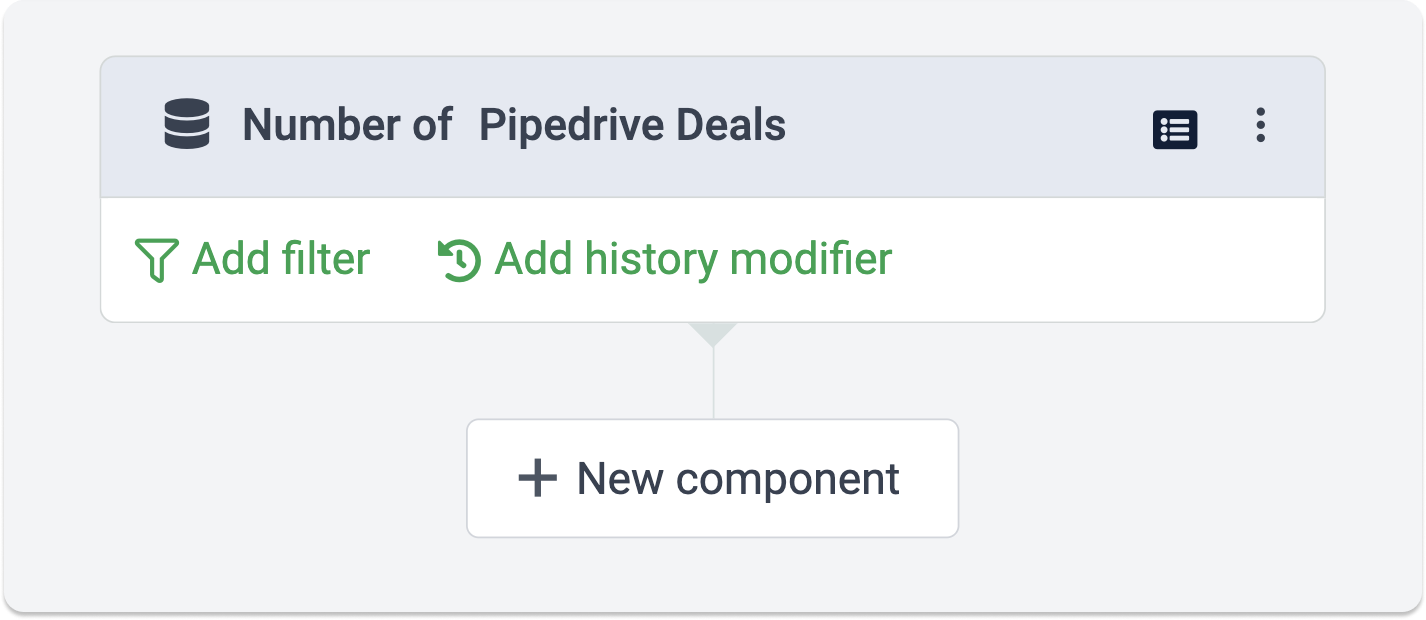
The history modifier belongs to the Data function component in the formula editor.
To use it, create a Data function component, fill out the required fields and click Done. Then, you will be able to add a history modifier to the component.
The history modifier does not set or substitute time periods – it simply tells the formula to look at an offset point in time.
Available time periods and combinations
The history modifier allows you to offset the formula by: Days, Weeks, Months, Years.
Example
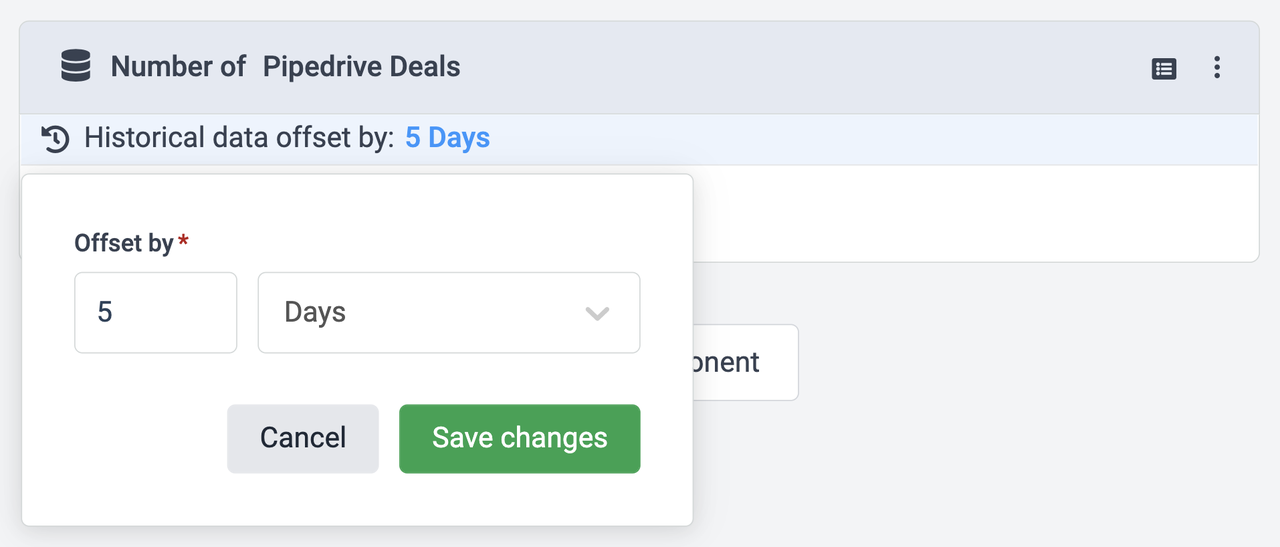
We have a formula that calculates the number of sales deals, offset by 5 days.
Let's break down how a dashboard widget would display data from the formula above if different time periods are selected.
-
Today: The widget will display data from five days back, starting from yesterday. For example, if today is June 10, it will show data from the 5th until the 9th of June (both days included).
-
Current week: The widget will display data from five days back, starting from the last day of the previous week. For example, if today is June 10 and the week starts on June 7, the widget will show data from the 2nd until the 6th of June (both days included).
-
Current month: The widget will display data from five days back, starting from the last day of the previous month. For example, if today is June 10, it will show data from the 27th until the 31st of May (both days included).
-
Current year: The widget will display data from five days back, starting from the last day of the previous year. For example, if the current year is 2022, the widget will show data from the 27th until the 31st of December 2021 (both days included).
History modifier in the Advanced formula editor
The available history modifiers in the Advanced editor are: Day, Week, Month, Year.
Note that the history modifiers in the Advanced editor are typed as singular nouns: "day" instead of "days," "month" instead of "months," and so on.
Here are some examples:
.History(2,day)
.History(3,week)
.History(10,month)
.History(3,year)
| (Count(Adversus Leads,Status=New).History(30,day)) |
|---|
Example – Employee target
Say a data source contains all your employee targets. If the registrations don't get updated for a while, the targets will eventually fall outside of the widget's time period and will no longer be displayed.
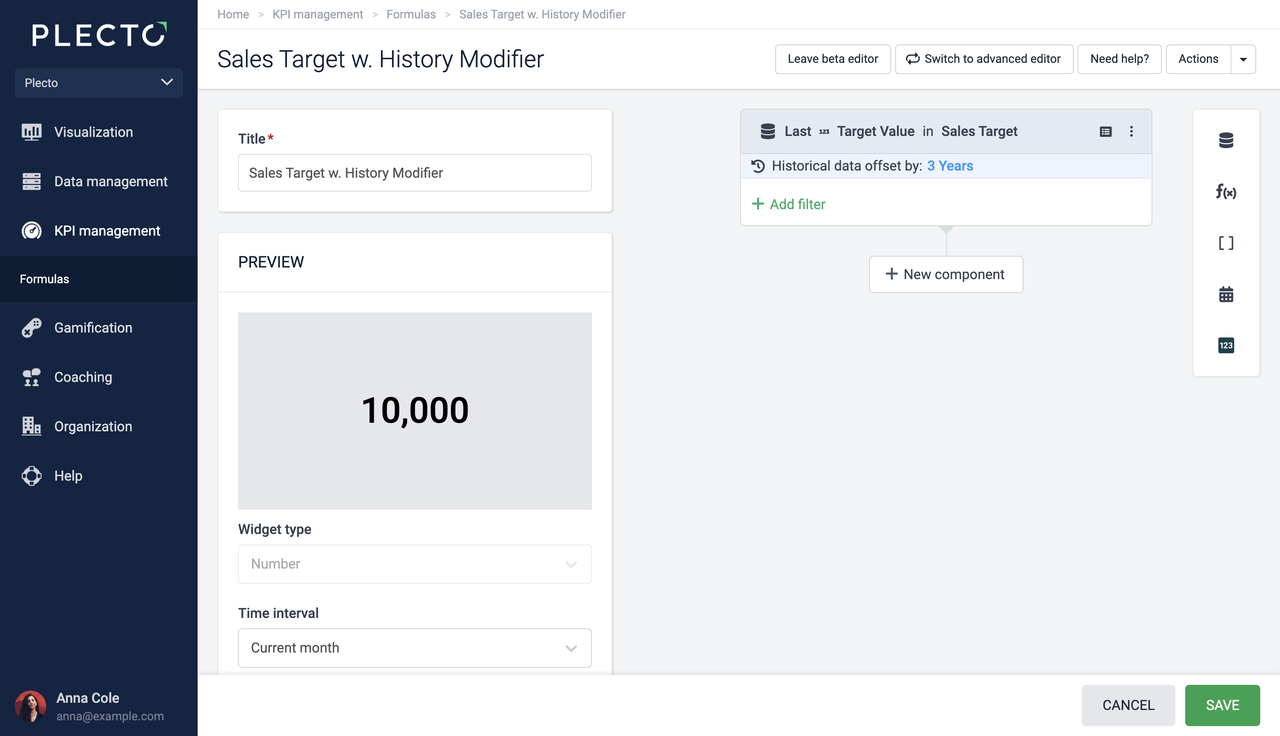
A history modifier gives you a workaround. Create a Date function component using the Last function.
In this formula, you can freely decide how much of the historical data you want to include. If you know that the employee targets get updated rarely, you can add more time to the modifier, for example, 3 years.
The history modifier will exclude targets from the currently selected time period – If today is Tuesday and the widget's time period is Today, the widget will display 0 as the history modifier takes the data from Monday and back.
Example – Compare data to yesterday
See the performance today compared to yesterday on the same dashboard widget.
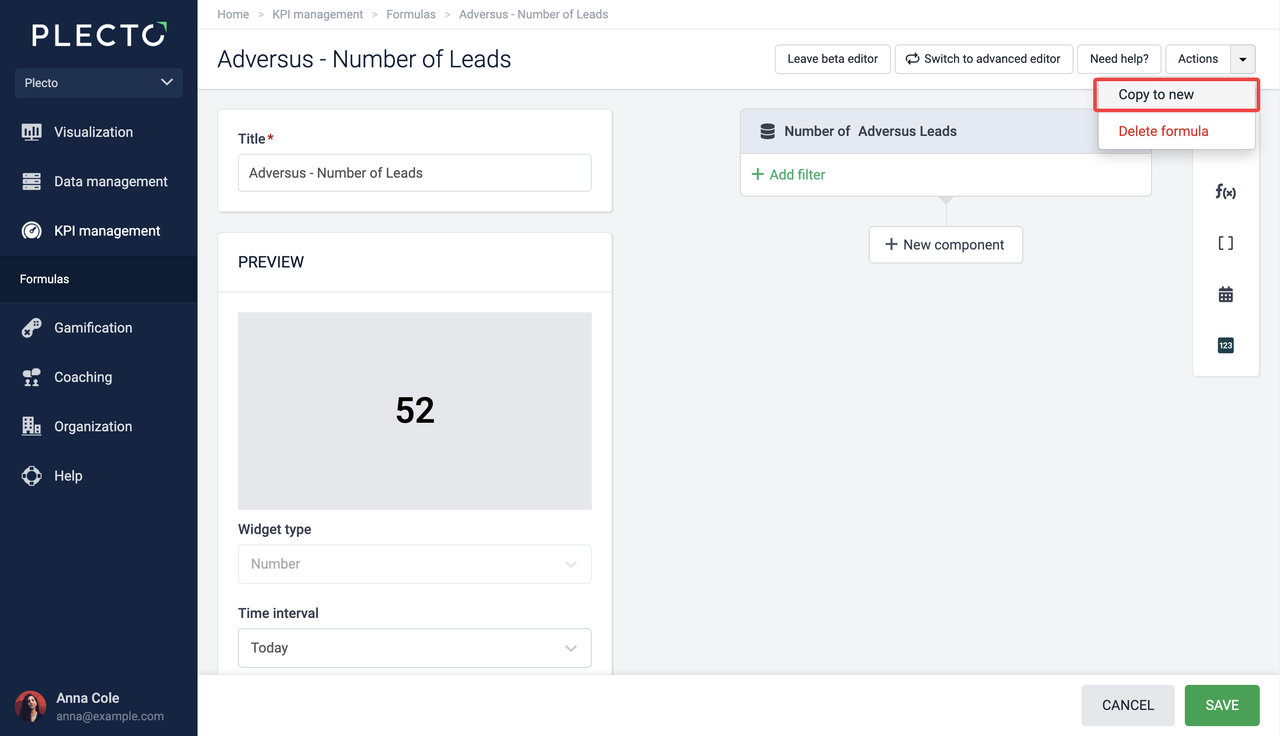
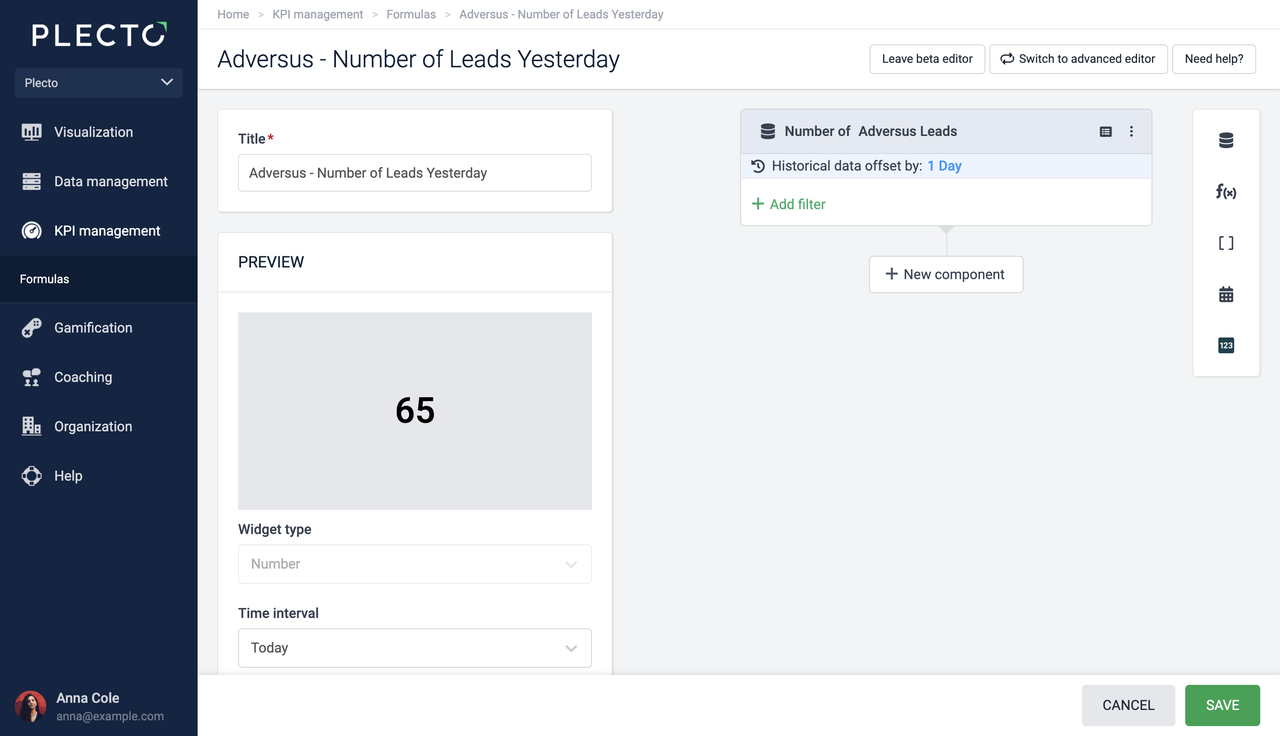
The easiest way to create this KPI is by copying an existing formula, adding a history modifier to the duplicate, and adding both formulas to a widget.
-
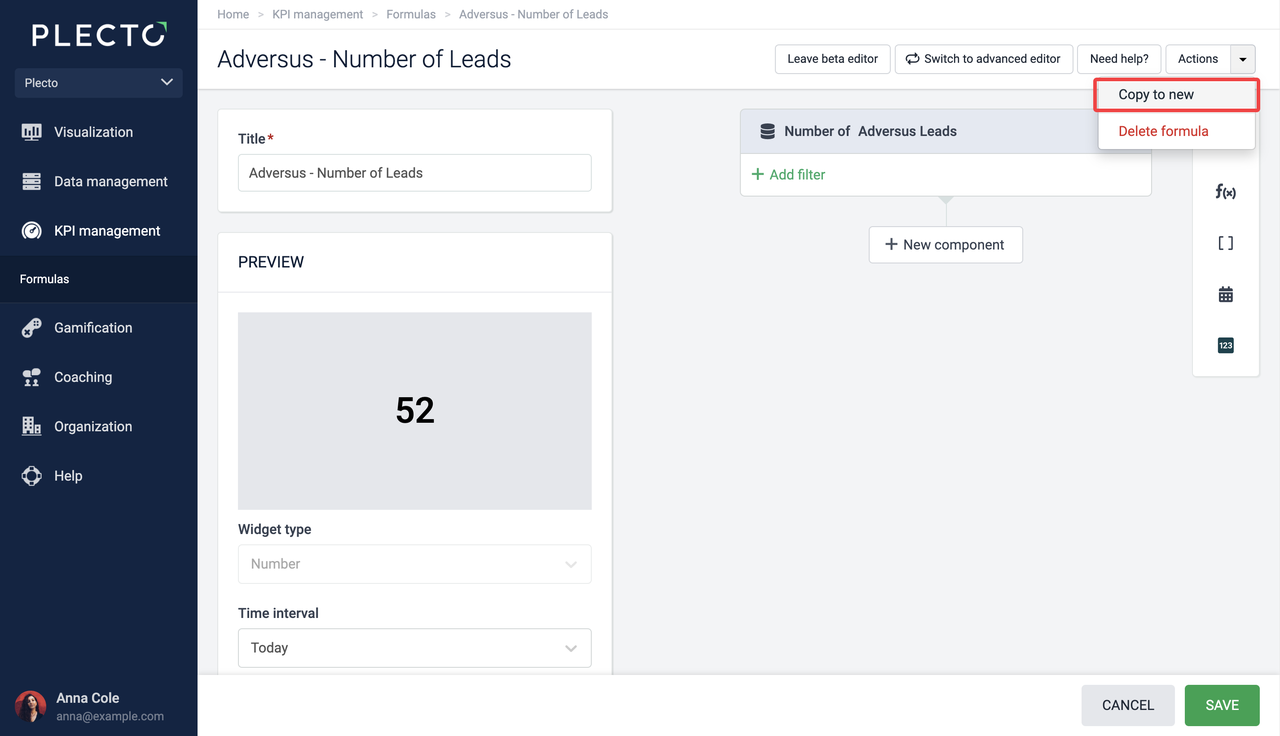
Copy an existing formula.
-
Rename and add a history modifier to the copied formula.
-
Add both formulas to a widget such as the number box. Set the time period to Today.
Example – Same month last year
See your performance this month compared to the same month last year.
The easiest way to create this KPI is by copying an existing formula, adjusting the duplicate, and adding both formulas to a widget on your dashboard. Make sure to set the time period on the widget to Current month.
-
Copy an existing formula.
-
Rename the copied formula.
-
Duplicate the component – click on the three little dots in its top-right corner.
-
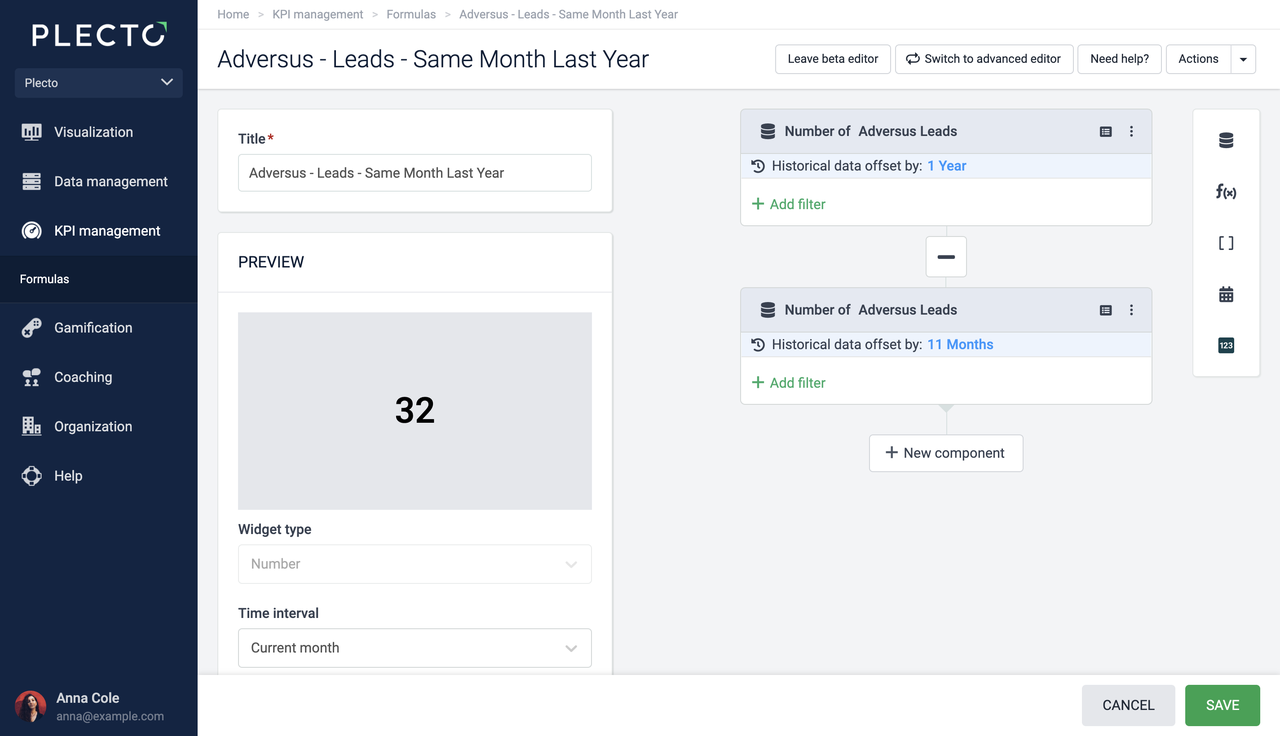
Add history modifiers to the components as shown in the image above.
-
Change the operator to minus ➖.
-
Add both formulas to a widget. Set the time period to Current month.
The modifier in the first component takes data from the previous year (you can also use 12 months) and the second takes data from the previous 11 months.
All we need is to subtract the 11 months of data from the 12 months to get the result for the same month last year.