Sign in
Calculated Fields in Data Sources
Calculated Fields in data sources
Add new columns and create calculations based on the data you already have. More data options allow you to visualize more accurate KPIs.
Calculated fields are only available in integration and manual data sources (not supported in SQL or API).
This feature performs real-time calculations, which may cause slower performance on large datasets.
Learn how to use Calculated Fields: 👇
Using decimals in Calculated Fields
If you want to use a calculation that includes a decimal point (such as 2.6 or 30.075), use the full stop/period instead of a comma. This applies to all localizations.
The current syntax uses commas to manipulate arguments or separate one thing from another. Therefore, if you want to include a decimal number, please use the full stop.
Default field value in Calculated Fields
You can set a default value in your calculated field in case some rows are missing data. If you add a default value, this value will fill out all the empty rows and the other rows will keep their original value.
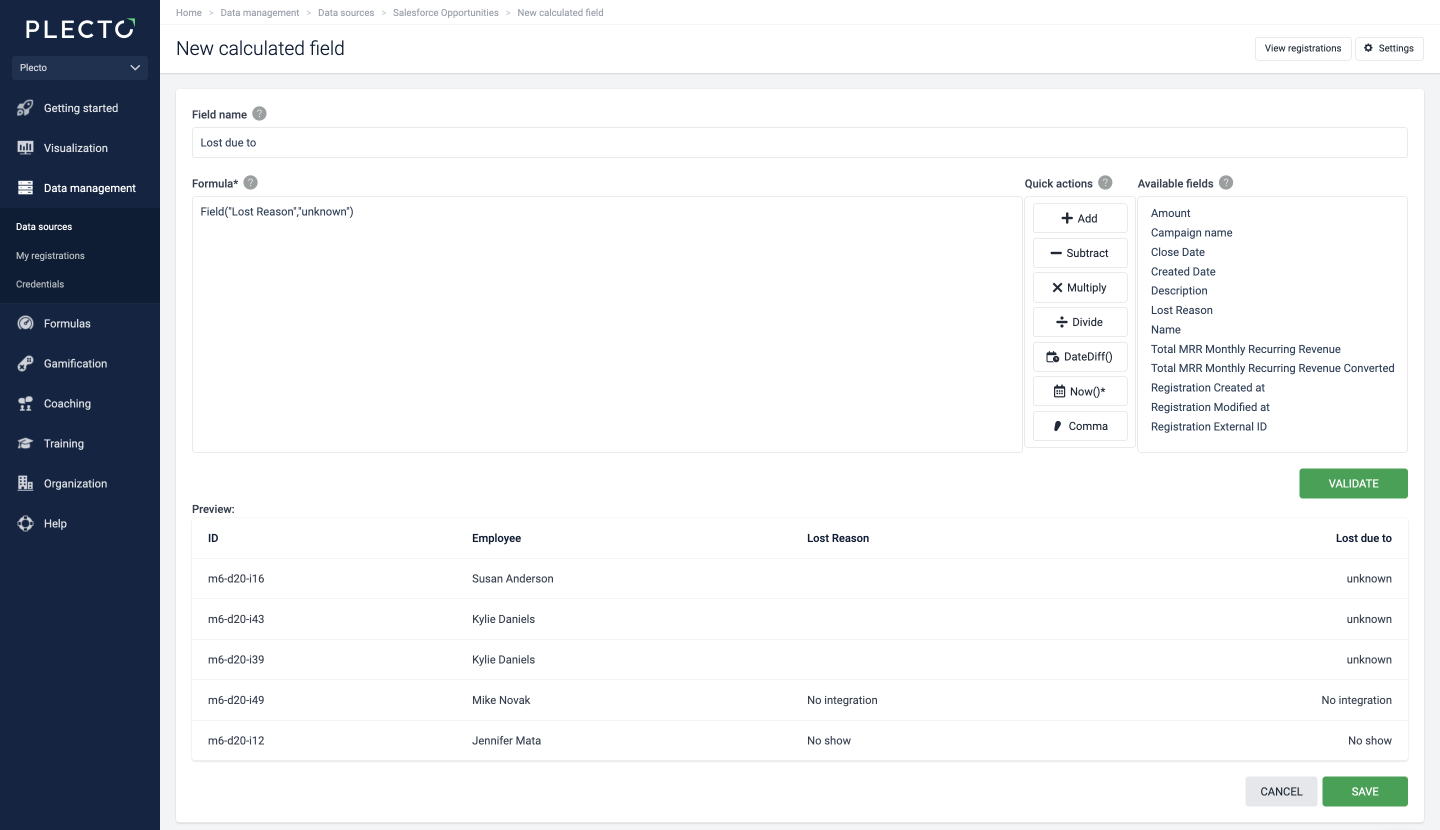
You can use this function on a single field (for example, to show "unknown" in the rows with no data) or integrate the default value in a calculation.
Examples:
-
Field("Workspace ID","1234") -
Field("Price") + Field("Extraordinary amount, "0") -
Field("Lost Reason","unknown") -
Field("End date", Now())- return the end date. If end date is empty, return the date and time now. -
Field("Customer Success Manager", Field("CSM Team Lead"))- return the names of CSMs. If the field is empty, then return the name of the Team Lead.
Simple calculations using Field()
With Field(), you can perform different calculations with the fields already available in your data source.
Use this syntax: Field("Field_1") + Field("Field_2")
Examples:
-
Calculate the total time in minutes:
Field("Total time") / 60 -
Sum the values of two fields:
Field("Price") + Field("VAT Amount") -
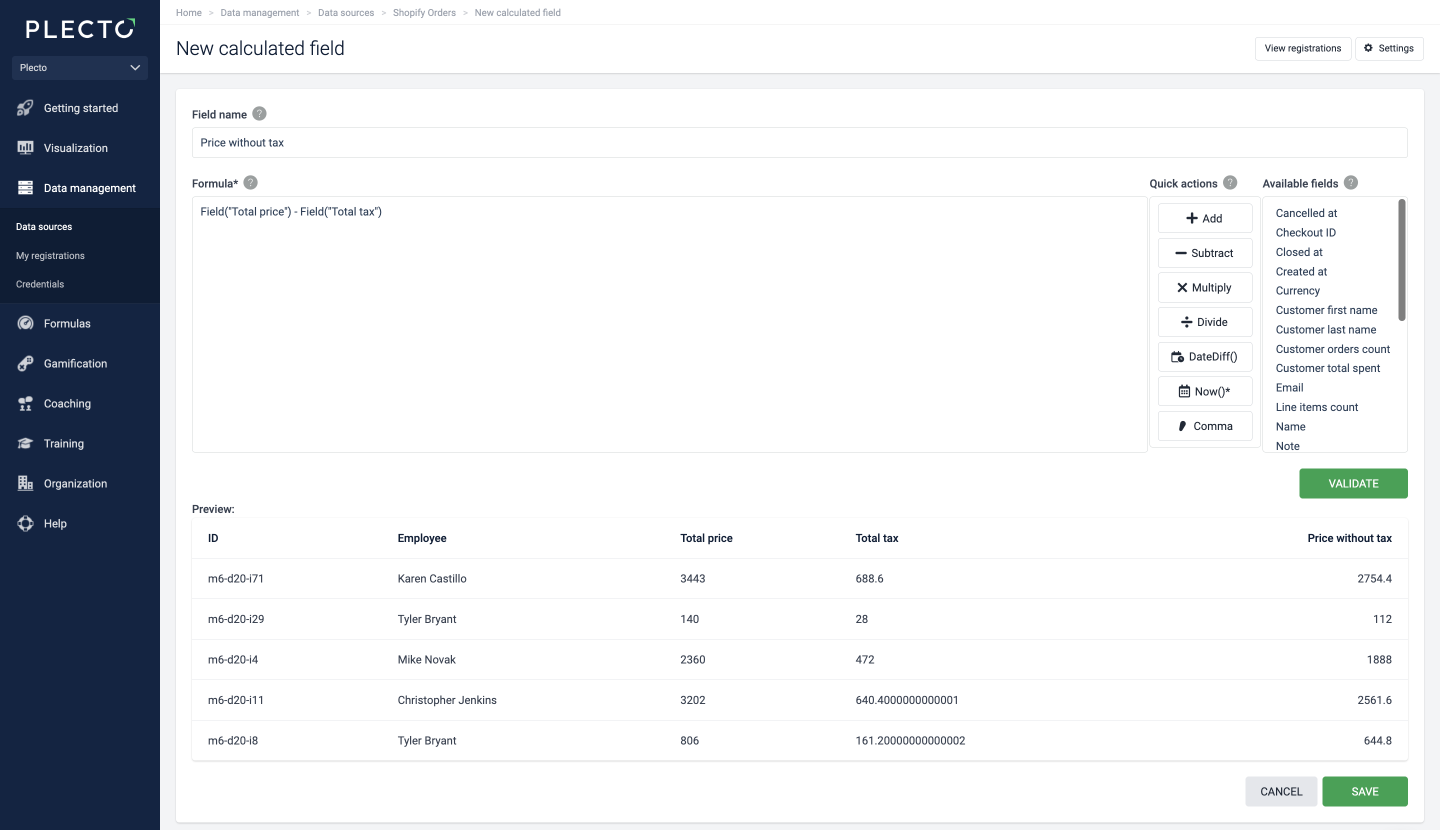
Subtract the values of one field from another:
Field("Total price") - Field("Total tax") -
Combine values from two text fields. See the organization name and its country code (add an empty space in between to separate the two):
Field("Organization name") + " " + Field("Country")
Field names are case-sensitive, so if you type the calculation manually, you must enter the names exactly as they appear in the data source.
The Now() function in Calculated Fields
This function returns the date and time now. You can either use it as an independent statement – Now() – or combine with other functions.
Use this syntax: Now()
Examples:
-
Return the date and time right now:
Now() -
Return the date and time from a field called End date. If the field has empty values, the calculation will return the date and time right now:
Field("End date", Now()) -
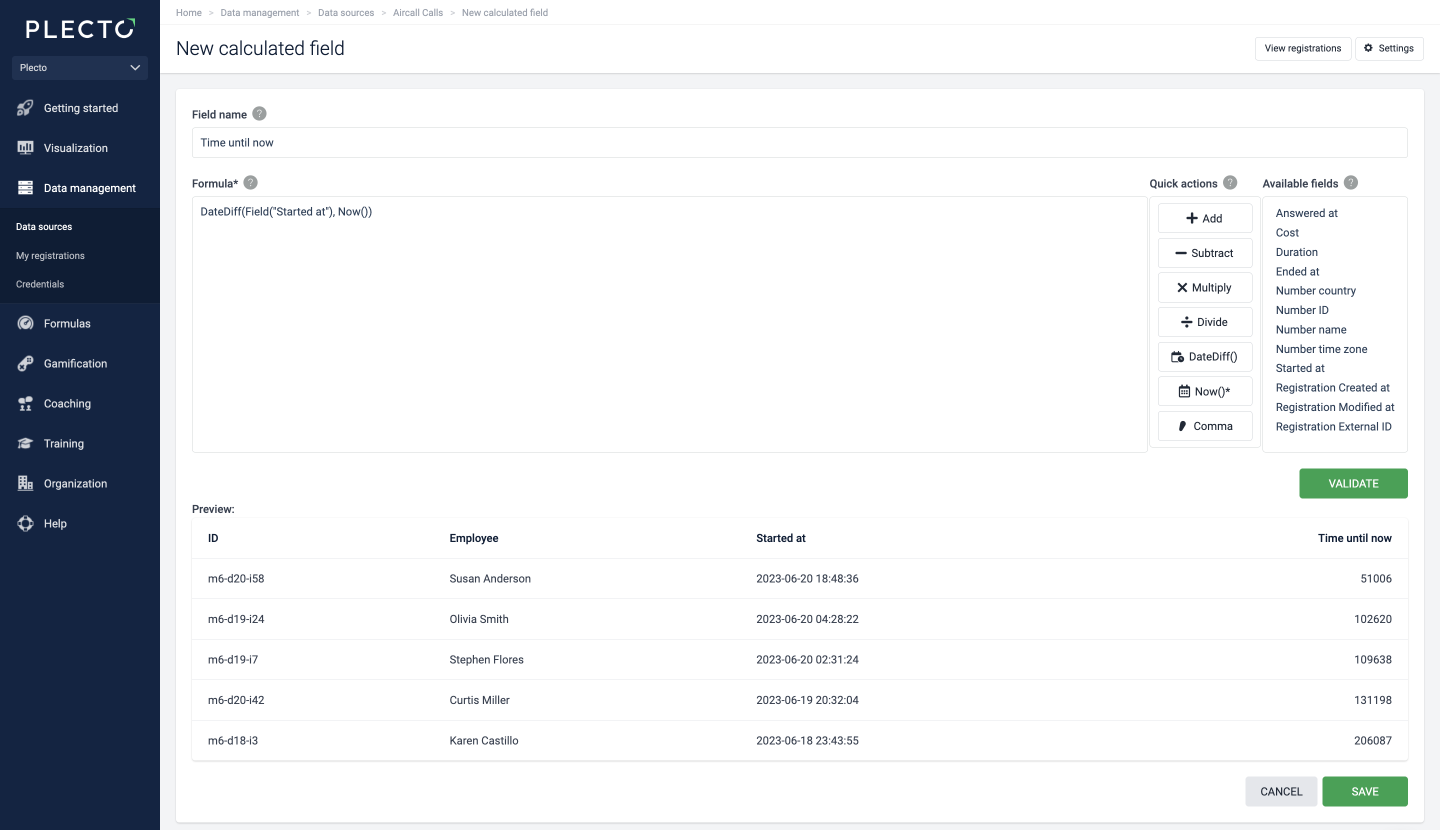
Time difference from start date to right now (in seconds):
DateDiff(Field("Started at"), Now()) -
Calculate the time difference from Start date to End date. If End date contains empty values, the calculated field will return the date and time now:
DateDiff(Field("Start date"), Field("End date", Now())) -
Return the first day of the next month:
Date(Year(Now()), Month(Now())+1, 1)
Update frequency
-
Data sources – The values in the calculated field will update every time you refresh the data source page.
-
Dashboards – The data on your widgets will update as soon as your data source updates (new or updated registrations) or whenever you click Recalculate on the dashboard.
Date Difference between two data source fields
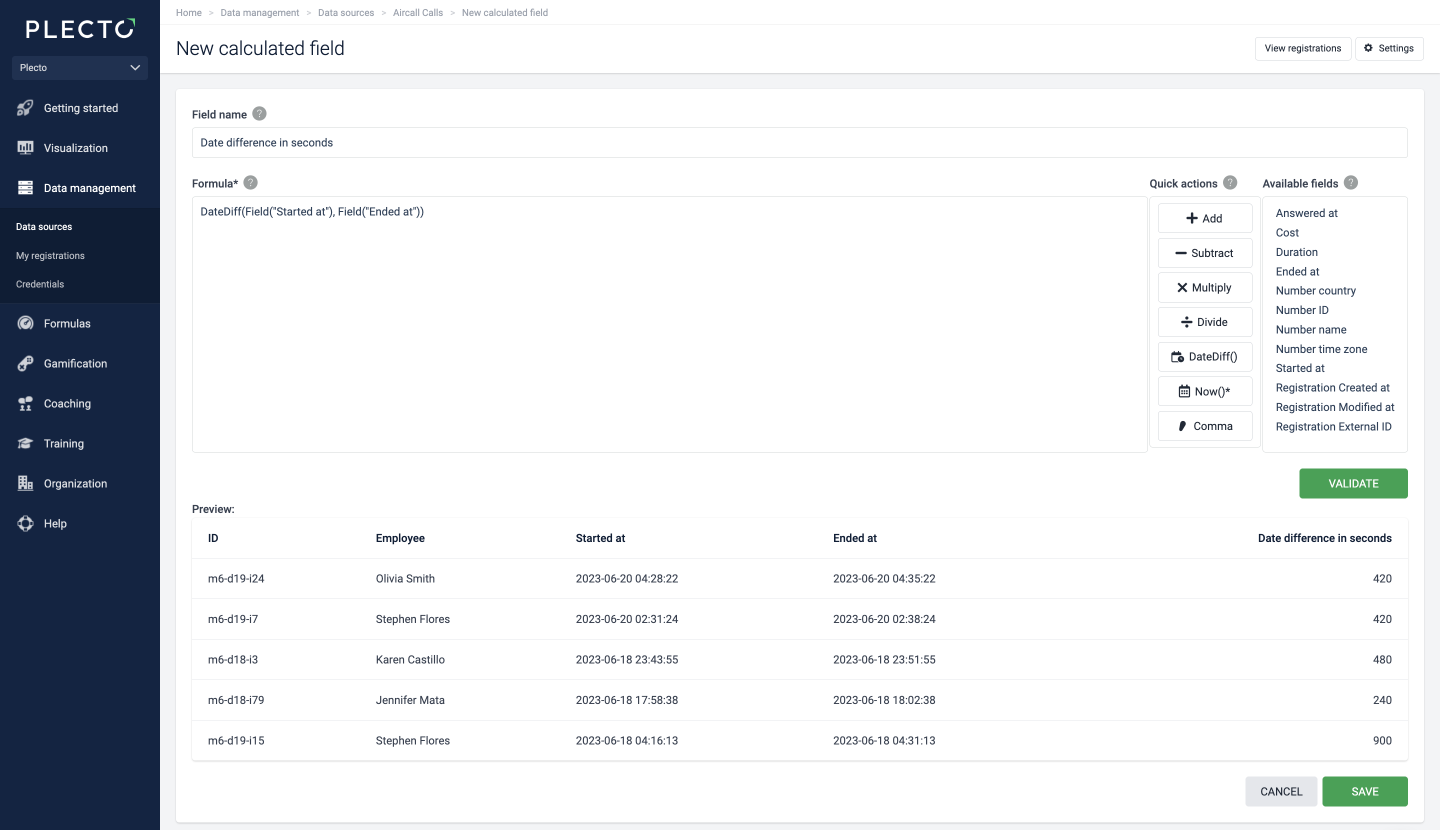
The DateDiff() function calculates the time difference between two date fields in seconds. The order you add the fields is not important, Plecto will always show the absolute value.
Use this syntax: DateDiff(date_1, date_2)
Examples:
-
Date difference from start date to right now (in seconds):
DateDiff(Field("Started at"), Now()) -
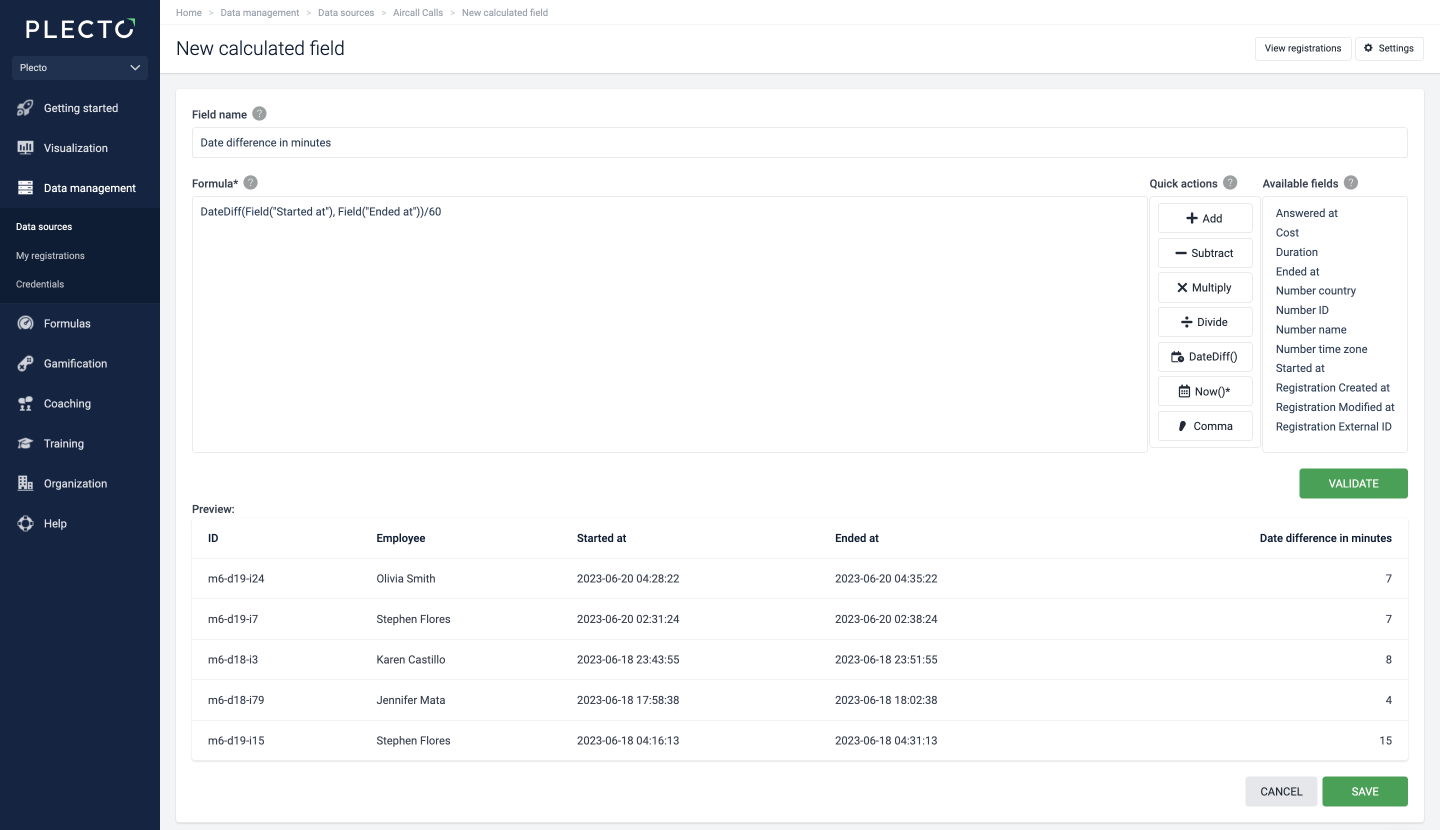
Calculate how long it takes to close a deal (in minutes):
DateDiff(Field("Created date"), Field("Closed date"))/60 -
Calculate the date difference from April 20th, 2024 at 9:15AM until right now (in seconds):
DateDiff(Date(2024, 4, 20, 9, 15, 00), Now())
Field names are case-sensitive, so if you type the calculation manually, you must enter the names exactly as they appear in the data source.
Convert text to numbers in your data source
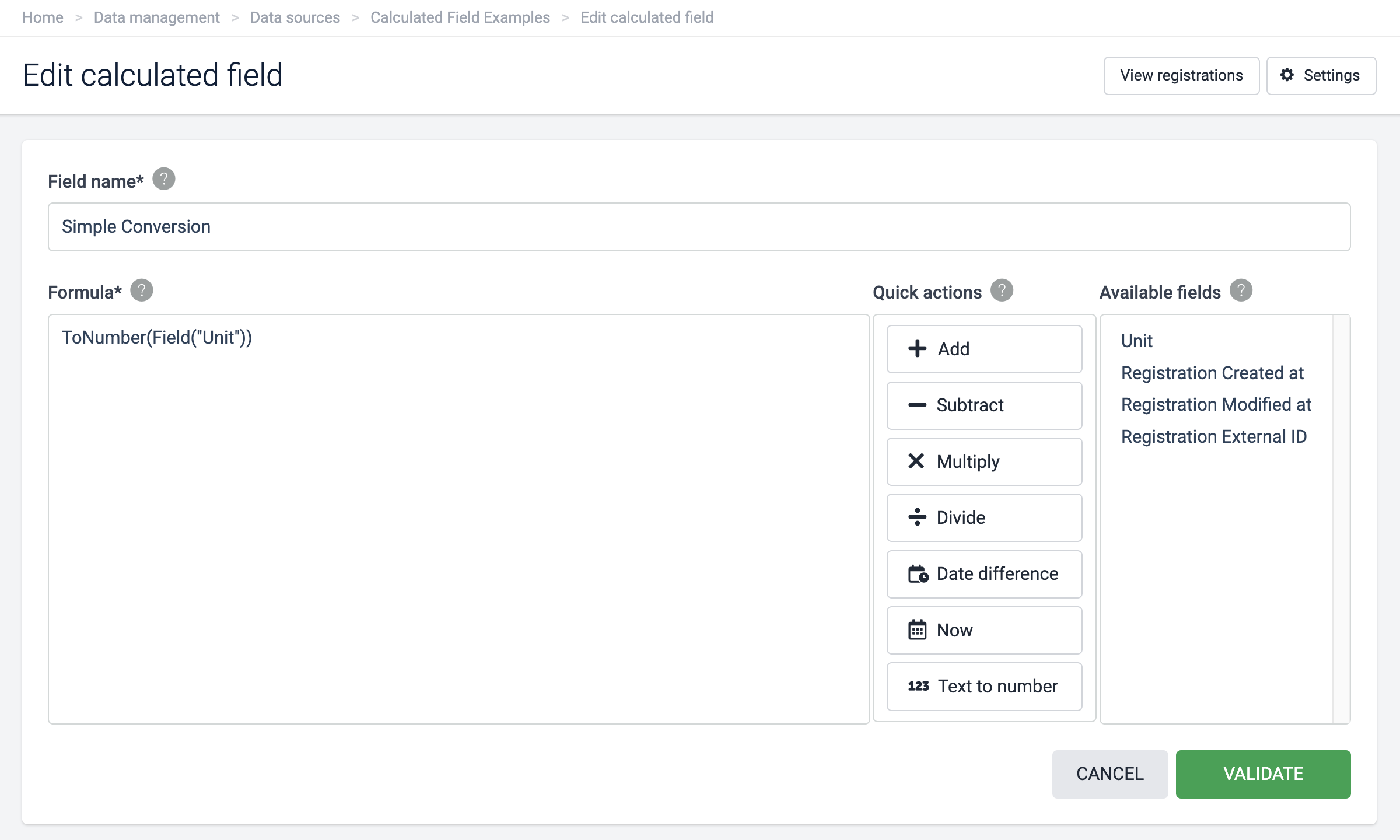
Use this function if your data source field has numbers but is formatted as text. The ToNumber() function solves the issue where you aren't able to select a field while creating a formula because it is formatted as text.
Use this syntax: ToNumber(Field("Units"))
Examples:
-
Convert text format to number format in the field Number of items:
ToNumber(Field("Number of items")) -
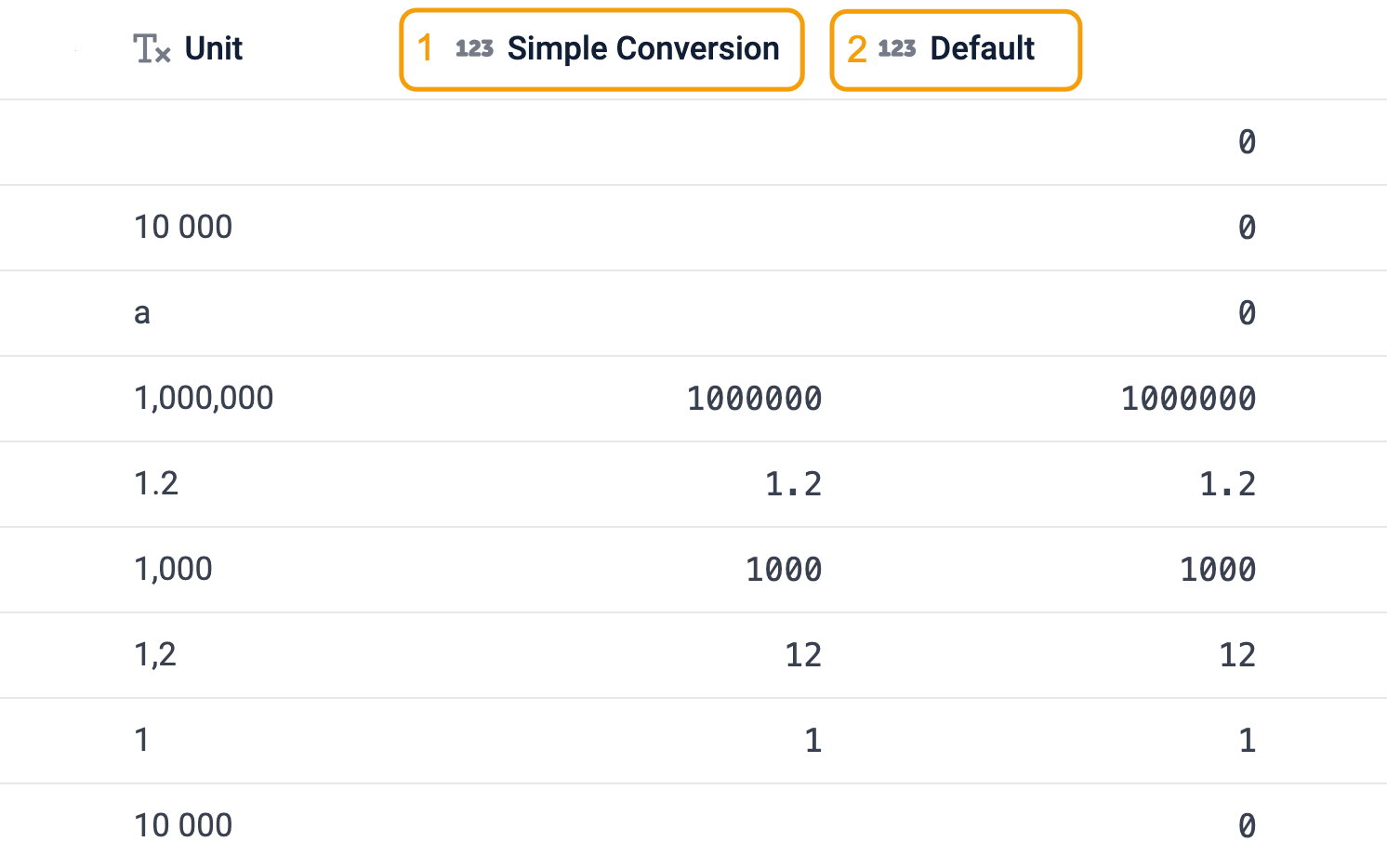
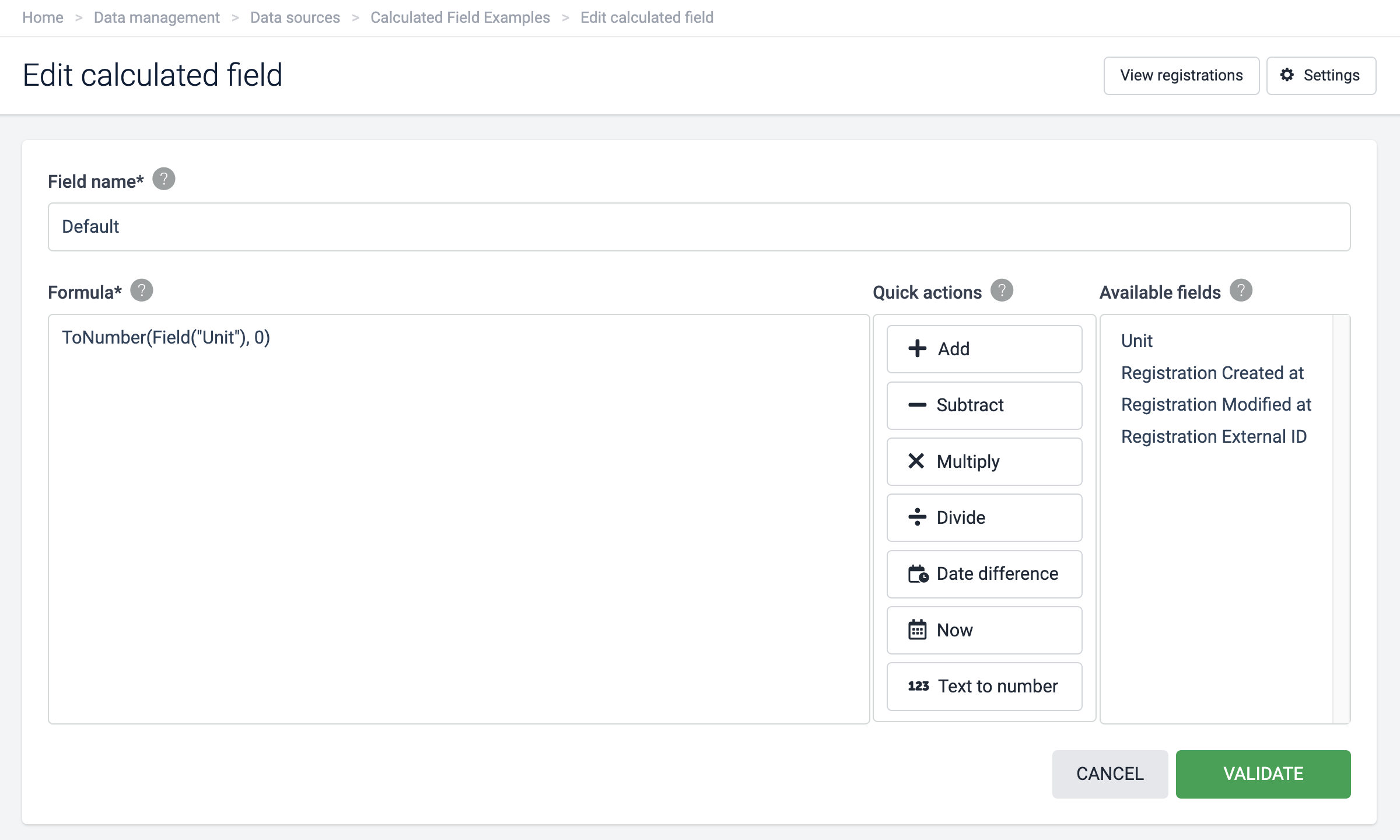
Format the field's Units values to numbers. In registrations where it fails to convert, the default value displayed will be 0:
ToNumber(Field("Units"), 0)
Known issue
When converting, ToNumber() removes commas: 1,000 (text) will convert to 1000 (number). A dot is used as the decimal separator: 1.23 (text) will convert to 1.23 (number).
IF() function in Calculated Fields
Create an IF-statement calculated field and generate conditional values in your data source. The condition can be any of the available functions in calculated fields. The IF() in calculated fields also supports AND and OR statements.
Use the following syntax:
-
If(condition, if_true, if_false)
-
If(Field("Value")=100,1,0)
Examples:
-
Return any numerical values: If(Field("Amount")>=200,1,0)
-
Return text values. Text must be wrapped in quotation marks: If(Field("Amount")>=200,"Target reached","Working on it")
-
Check for workdays vs. weekends: Example 1: If(DayOfWeek(Field("date"))<=5, "Workday", "Weekend") Example 2: If(DayOfWeek(Field("date"))<=5, 1, 0)
-
True() returns "Yes" and False() returns "No": If(Field("Amount")>=200,True(),False())
-
Return values from other fields: If(Field("Amount")>=200,Field("Channel 1"),Field("Channel 2"))
-
Use any other function as the condition: Example 1: If(DateDiff(Field("Start date"),Field("End date"))>(2*24*3600),True(),False()) Example 2: If(DateDiff(Field("Start date"),Now())<(4*3600),"On time","Delayed")
-
AND (&&) statement: If(Field("Campaign")=="React"&&(Field("Org size")>=100,Field("AE Large"),Field("AE Default"))
-
OR (||) statement: If(Field("Campaign")=="React"|| Field("Source")=="Referral",Field("AE Large"),Field("AE Default"))
-
Nested IF function: If(Field"Status")=="Closed Won",If(Field("Country")=="US",1,2),0)
-
Convert time stamps with Epoch converter and use dates in the statement: IF(Field("Start Date") >= 1677628800000 && Field("Start Date") <= 1709251199000, True(),False())
Good to know:
-
Empty rows will return empty rows.
-
You can't mix two different field types like text and number for is true, is false. A formula like the following won't work: If(Field("Amount")>=200,1,"No")
The Switch function in Calculated Fields
With Switch(), we specify pairs of conditions and the returned values if those conditions are met.
The Switch function uses the following syntax:
Switch(Field("Org size") <=50, "Tom",Field("Org size") >50, "Maria","Anna")
Examples:
-
Switch(Condition1, Result1, Condition2, Result2, Condition3, Result3). If value in the field Weekday is 1, return Monday, if value is 2, return Tuesday, etc.:
Switch( Field("Weekday") == 1, "Monday", Field("Weekday") == 2, "Tuesday", Field("Weekday") == 3, "Wednesday" ) -
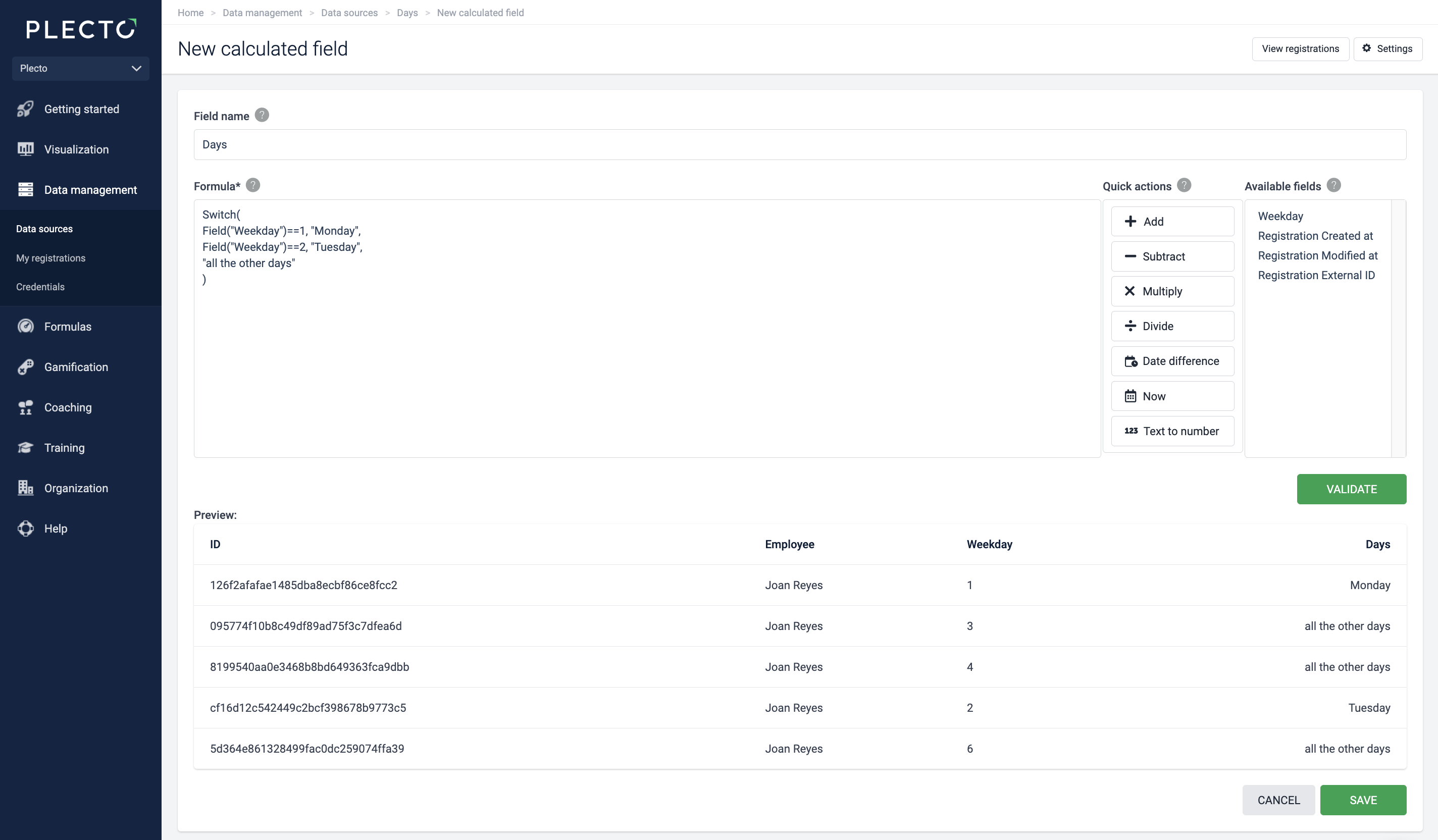
Switch(Condition1, Result1, ..., Condition5, Result5, default_value). If value in the field Weekday is 1, return Monday, if value is 2, return Tuesday. If none of the conditions are met, return all the other days:
Switch( Field("Weekday") == 1, "Monday", Field("Weekday") == 2, "Tuesday", "all the other days" ) -
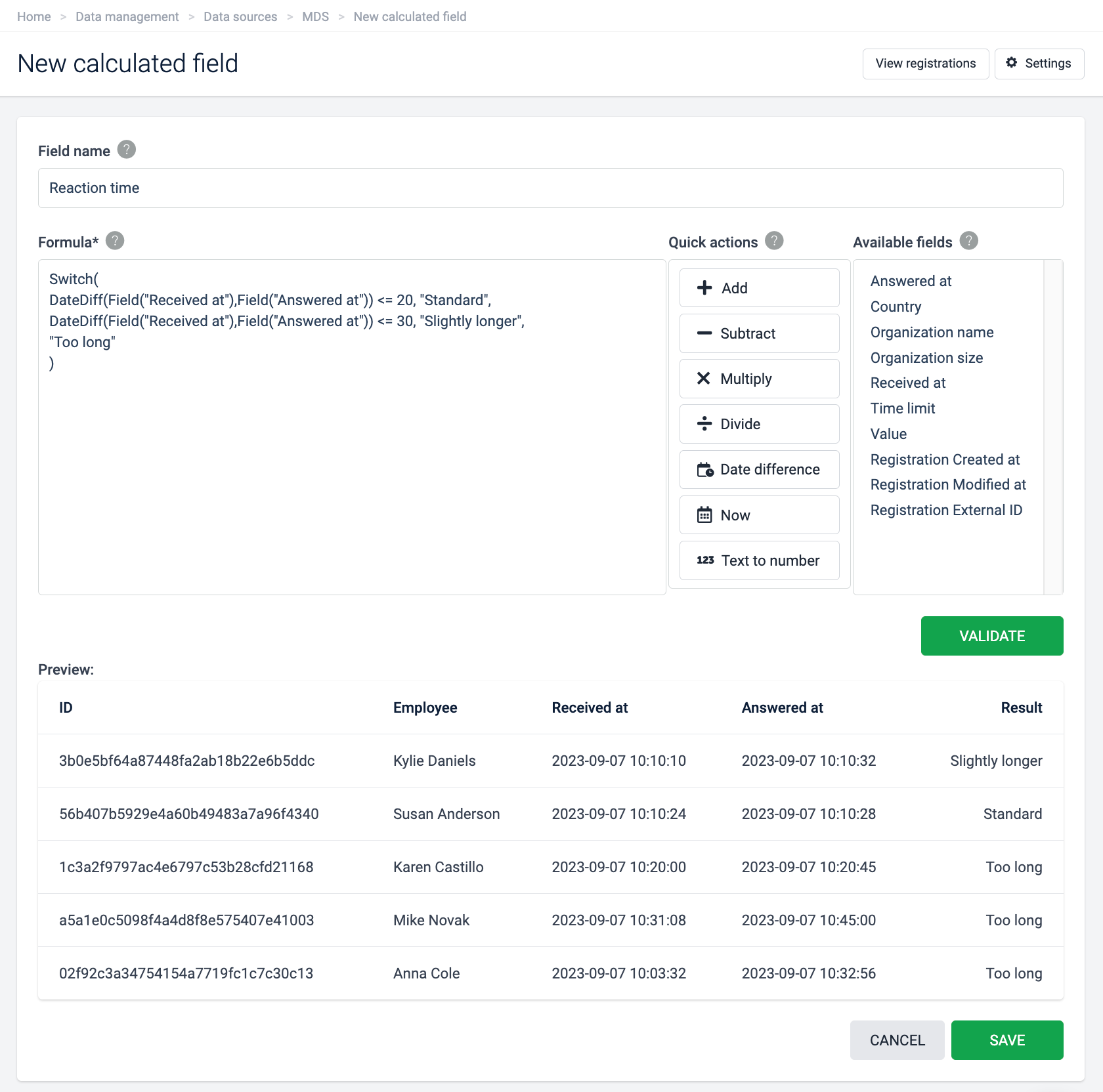
If the date-time difference between Received at and Answered at is less than or equal to 20 seconds, return Fast. If between 21 and 30 seconds, return Slightly longer. If more than 31 seconds, return Too long:
Switch( DateDiff(Field("Received at"),Field("Answered at")) <= 20, "Standard", DateDiff(Field("Received at"),Field("Answered at")) <= 30, "Slightly longer", "Too long" ) -
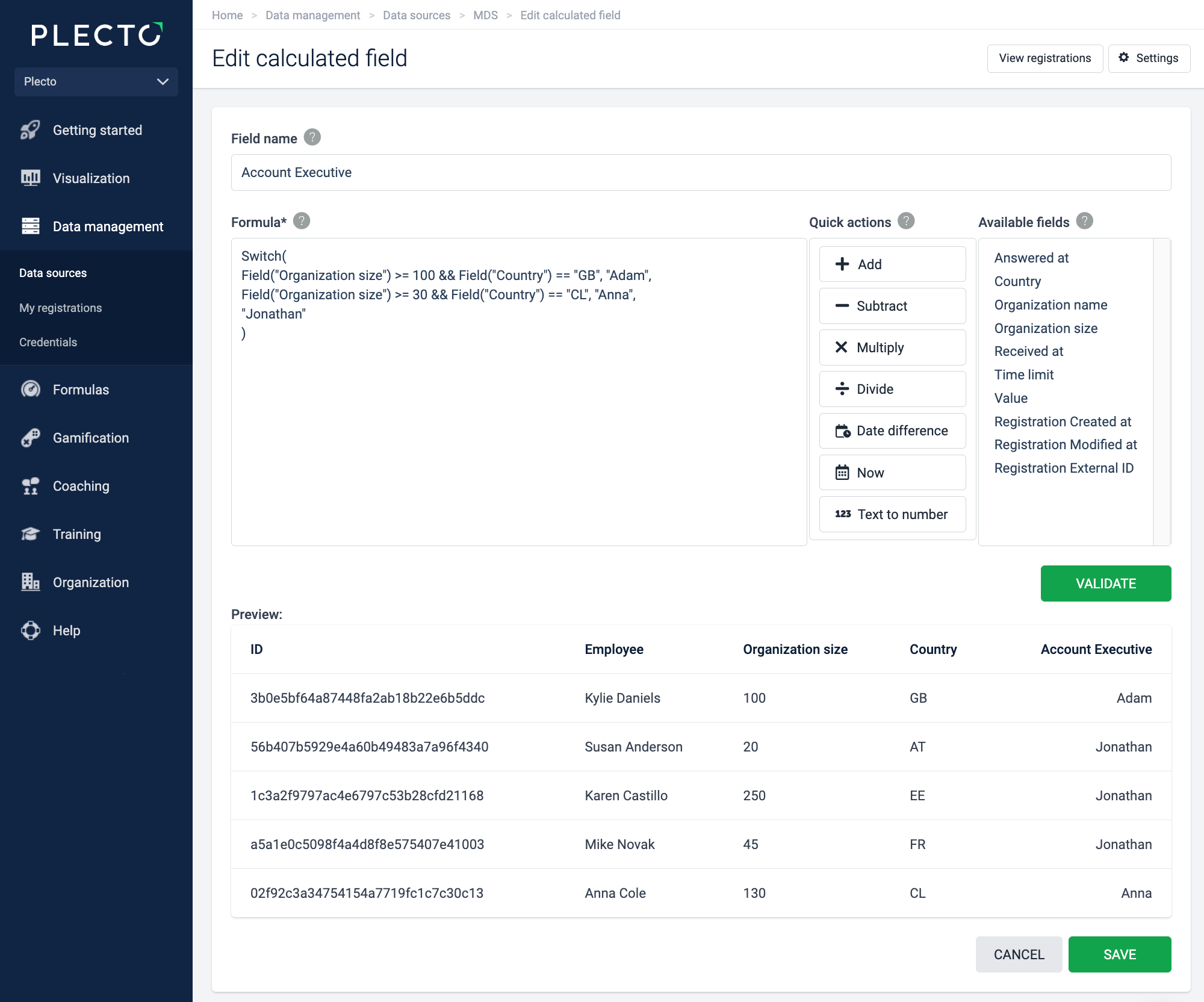
Find the right Account Executive:
Switch( Field("Organization size") >= 100 && Field("Country") == "GB", "Adam", Field("Organization size") >= 30 && Field("Country") == "CL", "Anna", "Jonathan" ) -
Switch "FR" to 🇫🇷 and other country flags:
Switch( Field("Organization address country") == "FR", "🇫🇷", Field("Organization address country") == "DK", "🇩🇰", Field("Organization address country") == "ES", "🇪🇸", Field("Organization address country") == "US", "🇺🇸" )
Good to know:
-
The order is important – we return the value of the first met condition.
-
With an even number of arguments, we assume there is no default value. If the number of arguments is odd, we treat the last argument as default.
-
The conditions can be more complex, they don't have to refer to one field.
-
All comparators are available:
Equals == Does not equal != Greater than > Less than < And && Or || -
There is no limit to the number of arguments you can add in the Switch function.
-
Breaking the formula into separate lines is not needed, but it improves readability.
-
All results (and default) have to be of the same type.
Convert numbers to text in your data source
Use this function if your data source field contains numbers and you want to format them as text.
With the ToText() function, you can combine two text outputs in the same field. For example, add the Account Name + Account ID in the same field.
Use this syntax: ToText(Field("Account ID"))
Examples:
-
Combine Account Name and Account ID in a single field:
Field("Account Name") + ToText(Field("Account ID"))If you want to add space between the Account Name and ID, you can add an empty space
+ " " +in the calculation, like so:Field("Account Name") + " " + ToText(Field("Account ID")) -
Format field values to text. In registrations where it fails to convert, add a default response "unknown":
ToText(Field("Registration number", "unknown"))
Work with single date-time arguments
You can extract individual parts from a date-time or use these as arguments in a Date() function. Year, Month, Day of month, Day of week, Day of year, Week of year, Hour, Minute, Second.
Examples:
-
Return the current year:
Year(Now()) -
Return the month of a field (for example, 5 for May):
Month(Field("date")) -
Return which day of the month it is right now (for example, 11 for 11th of the month):
DayOfMonth(Now()) -
Return which day it is right now (for example, 2 for Tuesday):
DayOfWeek(Now()) -
Use these functions in IF statements to check for workdays vs. weekends:
-
If(DayOfWeek(Field("date"))<=5, "Workday", "Weekend") -
If(DayOfWeek(Field("date"))<=5, 1, 0) -
If(DayOfWeek(Field("date"))<=5, True(), False())
-
-
Return which day of the year is the provided date:
DayOfYear(Date(2024, 5, 25))– this one is 146 😁 -
Return the week numbers (from 1 to 52):
WeekOfYear(Now()) -
Return the current hour in London time zone:
Hour(Now(), "Europe/London") -
Return the minute from a date field:
Minute(Field("date_modified")) -
Return the current second. The numbers update on each page refresh:
Second(Now())
If no time zone is added, the default will be UTC.
The Date() function in Calculated Fields
The Date() function returns a date. It takes 3-7 arguments (*the first 3 are mandatory): year*, month*, day*, hour, minute, second, time zone.
This function is very customizable, so you can combine static numbers, other functions, and dates from other fields to return custom dates, compare dates, or calculate date differences.
Use this syntax: Date(Year, Month, Day, Hour, Minute, Second, Time zone)
Examples:
-
Use Date() to return a static date. For example,
Date(2024, 4, 20, 9, 15, 00)will return 2024-04-20 09:15:00 in the calculated field. -
Add a time zone as the last argument. If no time zone is added, the default will be UTC.
Date(2024, 4, 20, 9, 15, 00, "Europe/Berlin")If you use buttons from the toolbox, Plecto will append the time zone set in your organization.
-
Combine Date() with other functions and data source fields:
-
Date(Year(Now()),Month(Now()),Day(Now()),Hour(Now()), Minute(Now()), Second(Now()), "UTC") -
Date(Year(Field("date")), Month(Now()), 20, "UTC")
-
-
Return the first of March next year:
Date(Year(Now())+1, 3, 1) -
Calculate the date difference from April 20th, 2024 at 9:15AM until right now (in seconds):
DateDiff(Date(2024, 4, 20, 9, 15, 00), Now()) -
Include Date() in an IF statement. If the End date is equal or less than May 10th, 2024 at 2PM (a static date), show the message "Ready before the deadline":
IF(Field("End date")<=Date(2024, 5, 10, 14, 00, 00), "Ready before the deadline","Ready after the deadline")
If no time arguments are provided (if hour, minute, second are omitted), Plecto will default to 00:00:00.
Time() function in Calculated Fields
This function returns the hour and minute from a date field, for example: 13:45. You can either use it as an independent statement – Time() – or combine Time with other functions.
The Time function takes up to two arguments: date, time zone. For example, Time(Field("Close Date"), "Europe/Berlin")
Use this syntax: Time()
Examples:
-
Return the hour and minute from a field Closed Time. If no time zone is specified, the default will be UTC:
Time(Field("Closed Time"),"Europe/Copenhagen") -
Return the current time:
Time(Now()) -
Return the date and time from a field called End date. If the field has empty values, the calculation will return the date and time right now:
Time(Field("End date", Now()), "Europe/Paris") -
Return the time from a widget start date on a dashboard:
Time(StartDate(), "Europe/Copenhagen")
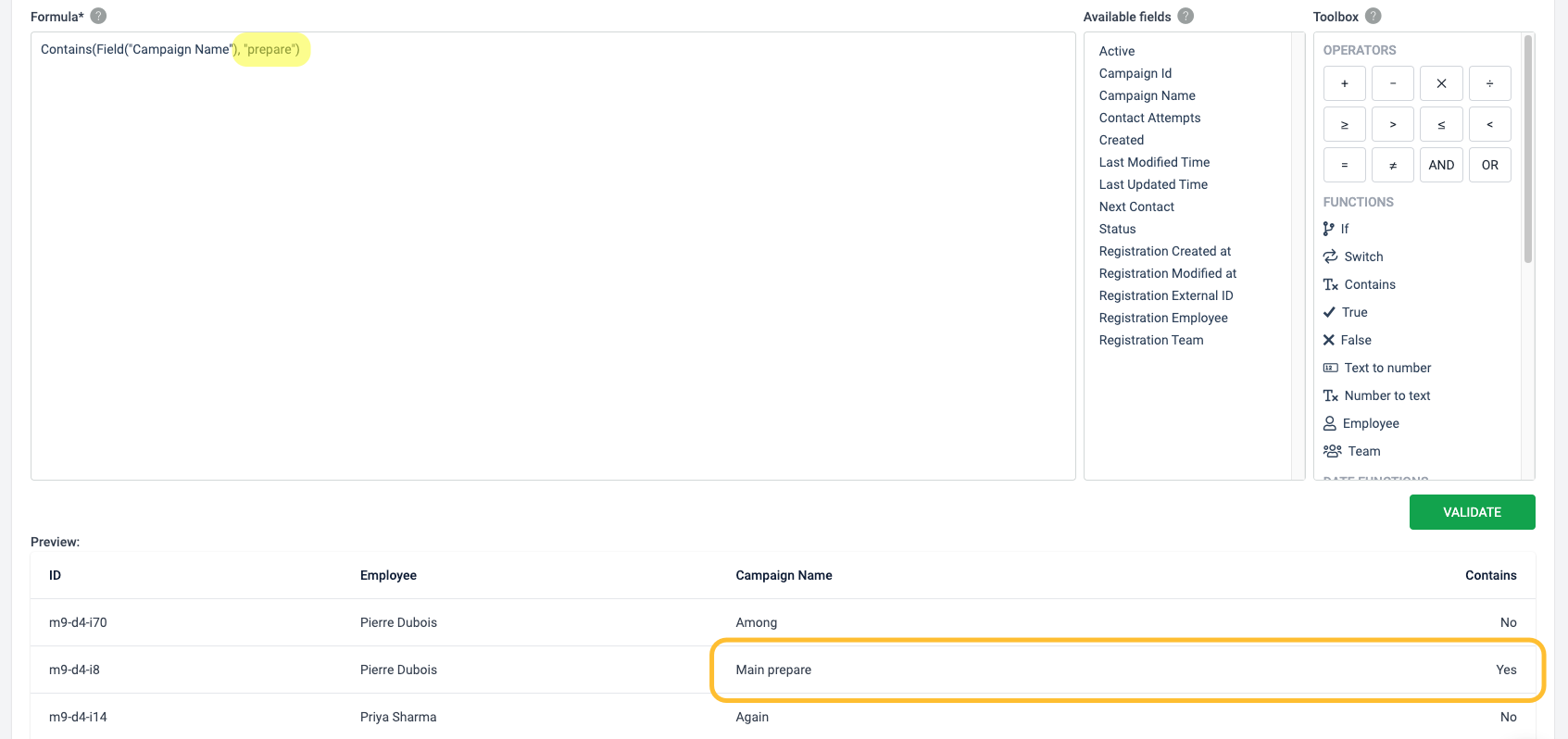
Contains function in Calculated Fields
Contains() is a case-sensitive boolean function that returns "Yes" or "No" in the calculated field.
Use this syntax: Contains(Field("field_name"), "contains_keyword")
Examples:
-
Check if the field Campaign Name contains a word "prepare." The calculated field will either return "Yes" or "No."
Contains(Field("Campaign Name"), "prepare") -
Check if the member UUID string (field called Registration Employee) contains "85e":
Contains(Field("member_uuid"), "85e")
Employee & Team functions in Calculated Fields
Upgrade your data sources with the Employee() and Team() functions! Include employees or teams in the equation and channel your data based on who owns the registration!
Use this syntax:
-
Employee("Pierre Dubois")
-
Team("Sales France")
Examples:
-
If the Primary Contact field equals the name "Pierre Dubois," return "Pipeline A." In all other cases, return "Pipeline B."
IF(Field("Primary Contact")==Employee("Pierre Dubois"),"Pipeline A","Pipeline B") -
If the team UUID equals to team called "Marketing," return 100. Otherwise, return 0.
If(Field("team_uuid") == Team("Marketing"), 100, 0)
Timedelta() – Offset a date field
Add the Timedelta() parameter to date fields and add or subtract seconds from a date.
Use this syntax: Timedelta()
Examples:
-
Add 3600 seconds (1 hour) to the current date and time:
Now() + Timedelta(3600) -
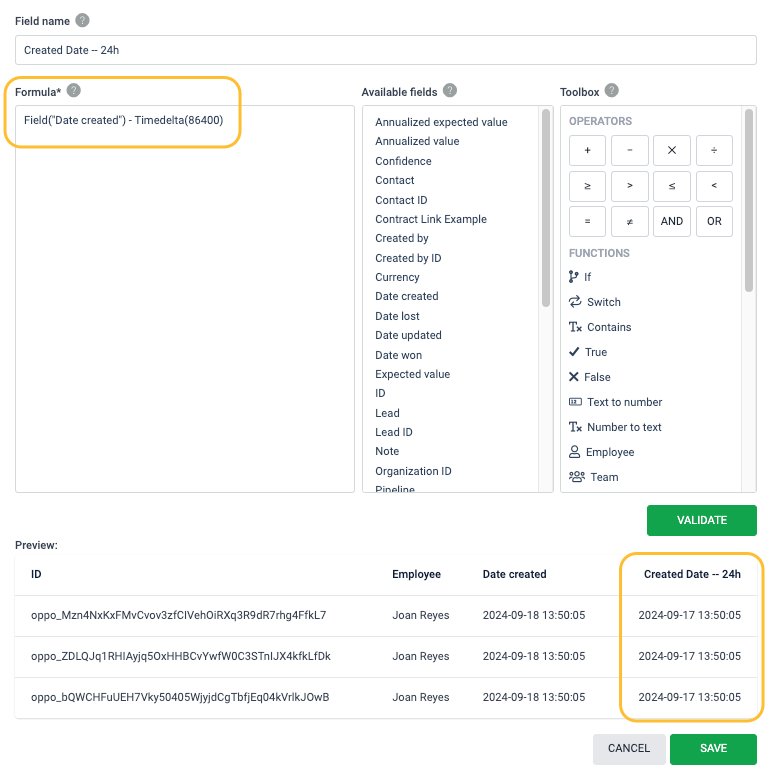
Subtract 86400 seconds (24 hours) from the Created date:
Field("Date created") - Timedelta(86400)