Sign in
How to Create a Manual Data Source
What is a manual data source?
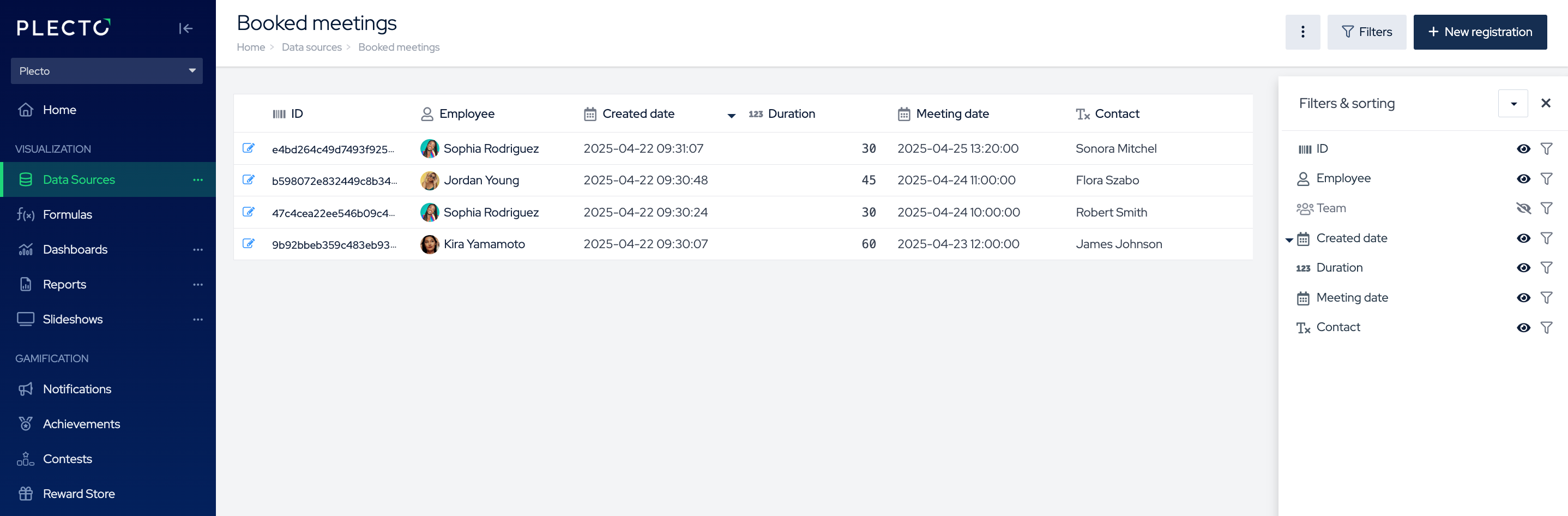
Manual data source means that you enter and manage your data in Plecto manually.
The data source updates when you update it, and you can quickly add registrations from your phone using the Plecto mobile app as well.
Manual data sources can be used to register sales, create targets, keep track of tasks, and more.
You can upload an Excel spreadsheet to a manual data source to get your data into Plecto. Alternatively, you can integrate with Excel 365 or Google Sheets, and your data source will update along with any changes in the original spreadsheet.
Step 1: Create a manual data source
-
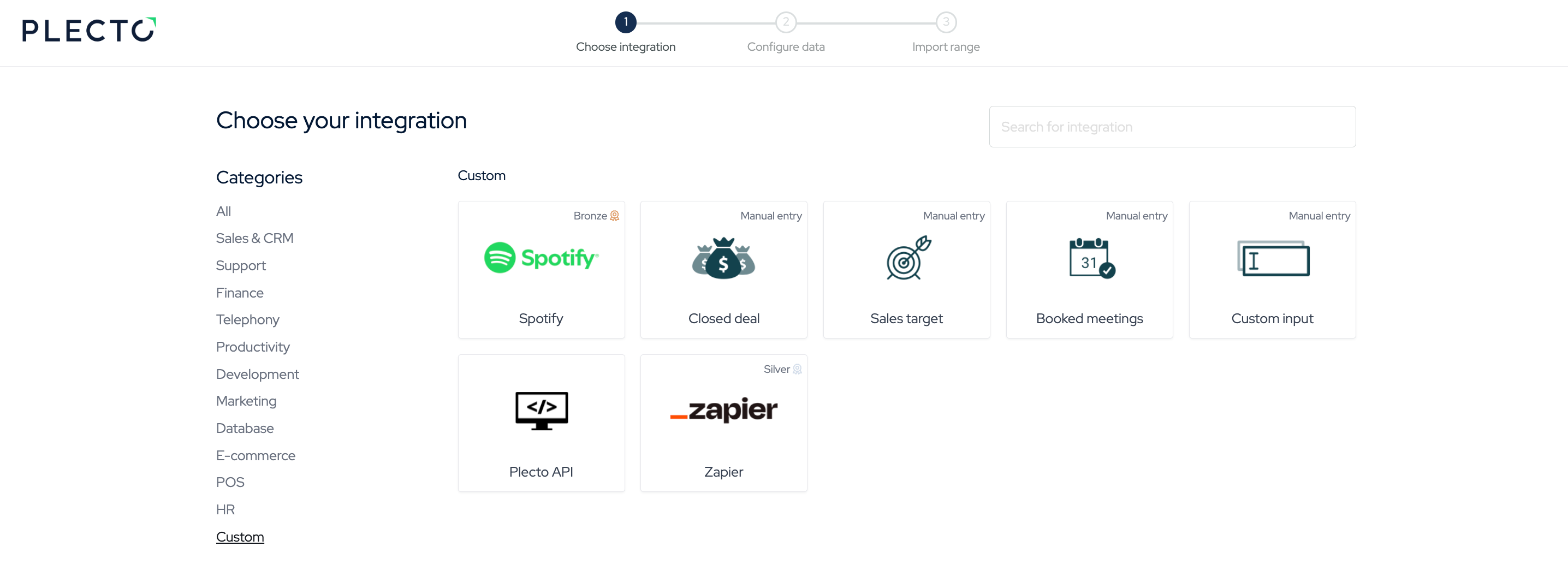
Go to Data sources > New data source > scroll to the bottom of the page or click the category Custom.
-
There are 4 manual data sources you can choose from:
| Closed dealSales targetBooked meetings | These are preset data sources. If you select these, Plecto will create an empty manual data source with the following fields: ID, Employee, Team, Created date, Amount*.Select one > click Confirm. |
|---|---|
| Custom input | This is a manual data source you build from scratch. Select Custom input > Add a title > Add teams (optional) > click Save. |
- You now have a blank data source. Go to Step 2 and learn how to add your own custom fields.
Step 2: Add custom fields
Once you've created the data source, you can start adding custom fields.
-
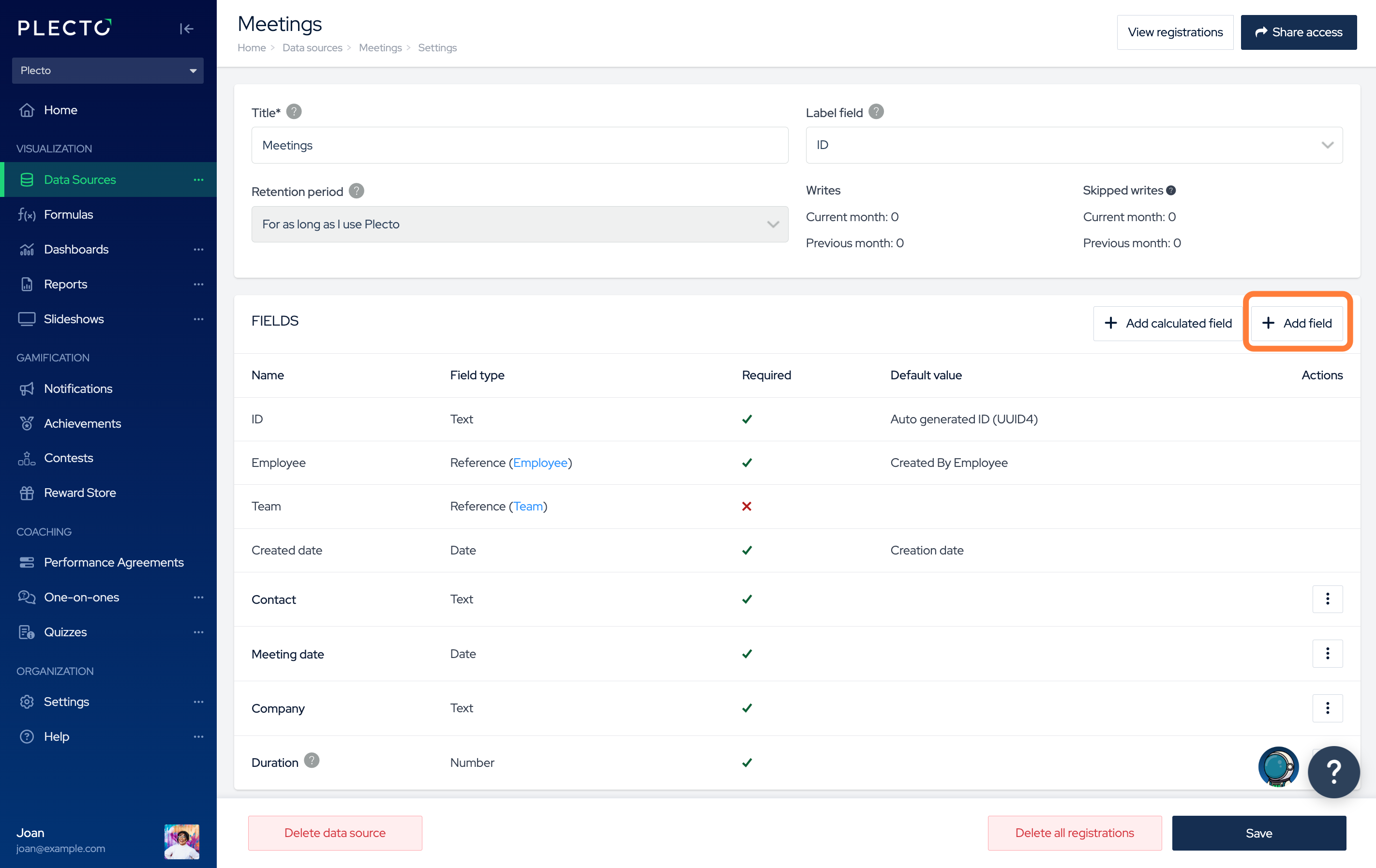
In the data source settings, click Add field to create a new custom field. Fill in the following details:
-
Field name: This will appear at the column header in your data source.
Please note that only plain text should be included in the column titles. Inserting special symbols such as "()*/" etc. can cause formulas to malfunction and not display any data.
-
Field type: Choose what type of data you expect to see in this field (text, number, Yes/No, list, etc.).
-
(Optional) Help text: Provide more information about what you expect to see in this field.
-
(Optional) Default value: Whenever someone creates a new registration, Plecto can pre-fill the field with a default value. It's possible to overwrite it when adding new registrations.
-
(Optional) Order: Reorganize your fields. Lower order values will be placed more on the left in the data source.
-
(Optional) Allow empty field value: Enable this option if the field doesn't necessarily have to be filled out when adding new registrations.
-
-
Keep adding fields until you have the data source structure you need.
You can always change and update your manual data sources, including fields, access, and more.
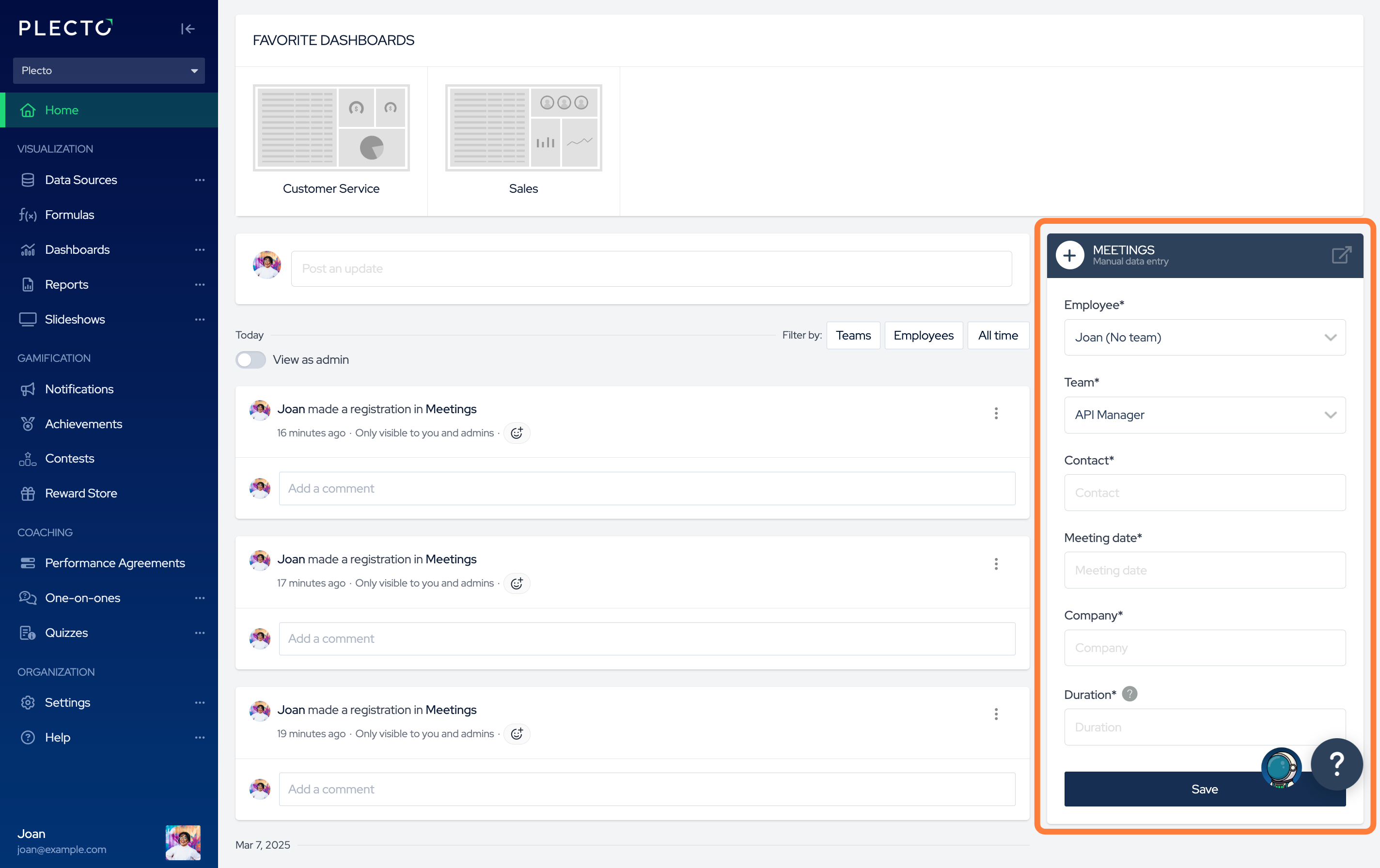
Step 3: (Optional) Add online registration boxes to the Home page
If your team works with manual data sources, you can help them create registrations faster by adding online registration boxes to the Home page.
-
Find the section LIMIT ACCESS in the manual data source settings.
-
Click Add team and choose a team from the list. Members of this team will be able to add shortcut registrations to this data source.
-
Make sure the Show on front page option is enabled.
-
Click Save to finish.
Conversely, you can set up online registration boxes via team profiles in Settings > Teams > Edit team.