 Sign in
Spotify
Step 1: Create an App in Spotify
To integrate your Spotify account with Plecto, you need to provide a Client ID and Client Secret. To get these credentials, create an app in Spotify that's intended for use with Plecto.
-
Go to https://developer.spotify.com/ and log in with your Spotify account.
-
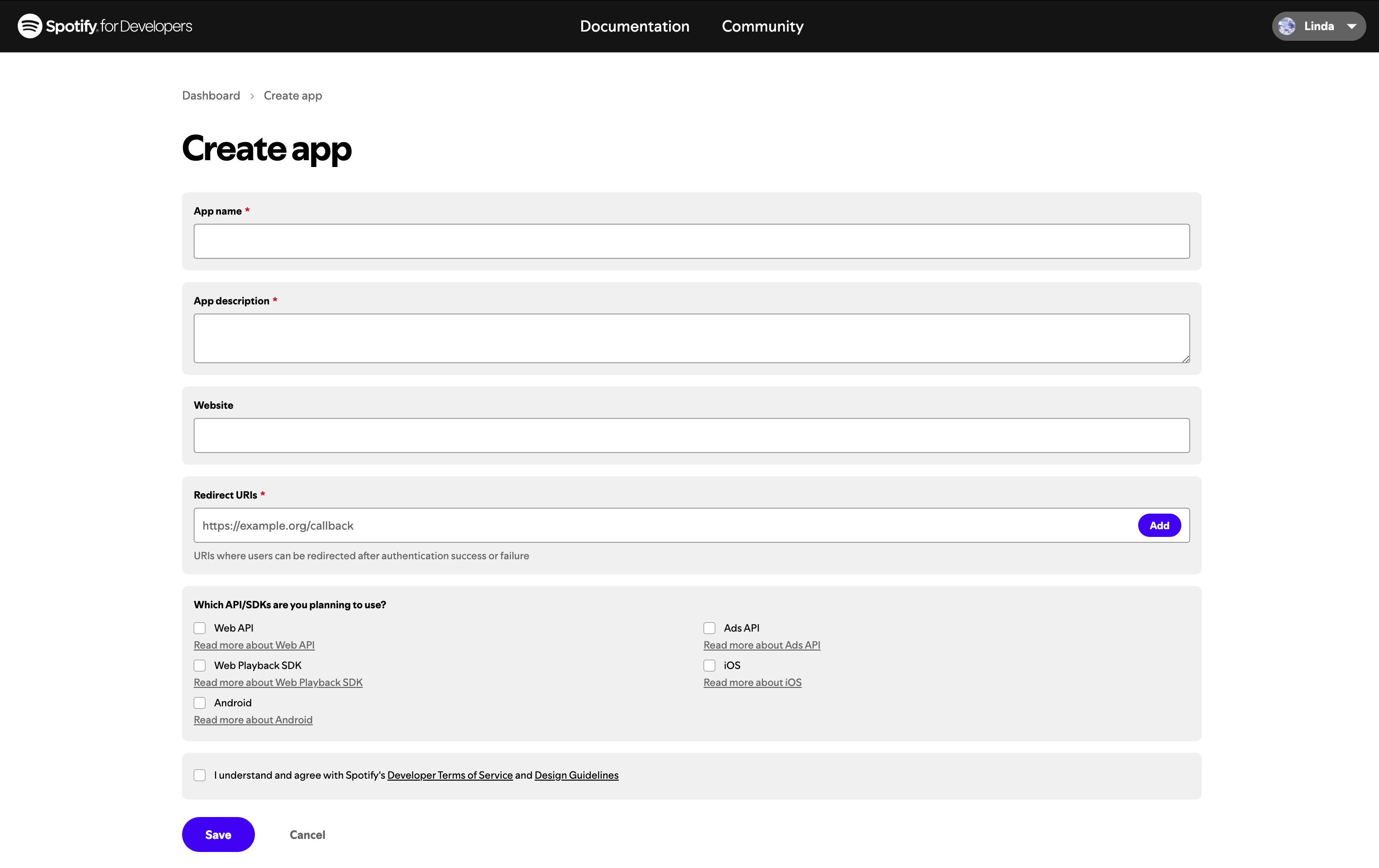
Go to the dashboard in https://developer.spotify.com/dashboard and click the Create an App button*.*
-
Add the app name and description, for example: Plecto
-
Under Redirect URI, add this link: https://integrate.plecto.com/oauth2/spotify/v1/callback/
-
Select Web API under Which API/SDKs are you planning to use? s
-
Agree to Spotify's terms of service and click Save.
-
Now, you'll find your Client ID and Client Secret by clicking Settings in the top-right corner.
-
Open Plecto in a new tab and go to Step 2.
Step 2: Integrate Spotify with Plecto
-
Go to Data sources > New data source > Spotify.
-
Enter your Client ID, Client Secret and click Next.
-
Click Agree to allow Plecto to read your Spotify data.
-
Configure your data source settings. Here, you can change the title, choose the default date, select which fields to import, and more.
-
Click Next to choose how much data to import and how long you want to keep it in the data source.
-
Click Import to finish.
Make sure to activate the Spotify profile under Settings > Employees > Pending tab.
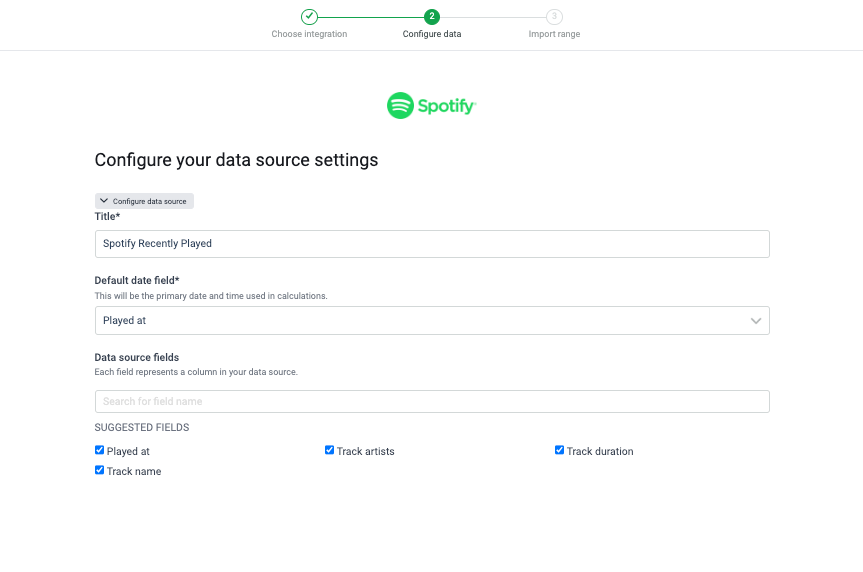
Available data
Our integration with Spotify currently allows you to import the following data:
Update frequency: 2m
Supports custom fields? No
Supports webhooks? No
Supports automatic registration deletion? No
Supports relations? No