 Sign in
Salesmate
Step 1: Find your Session Key and subdomain in Salesmate
-
Go to Salesmate and sign in to your account.
-
When you're signed in, look at the URL and find your subdomain. In the example mycompany.salesmate.io, the subdomain is mycompany. You will have to use it in Step 2.
-
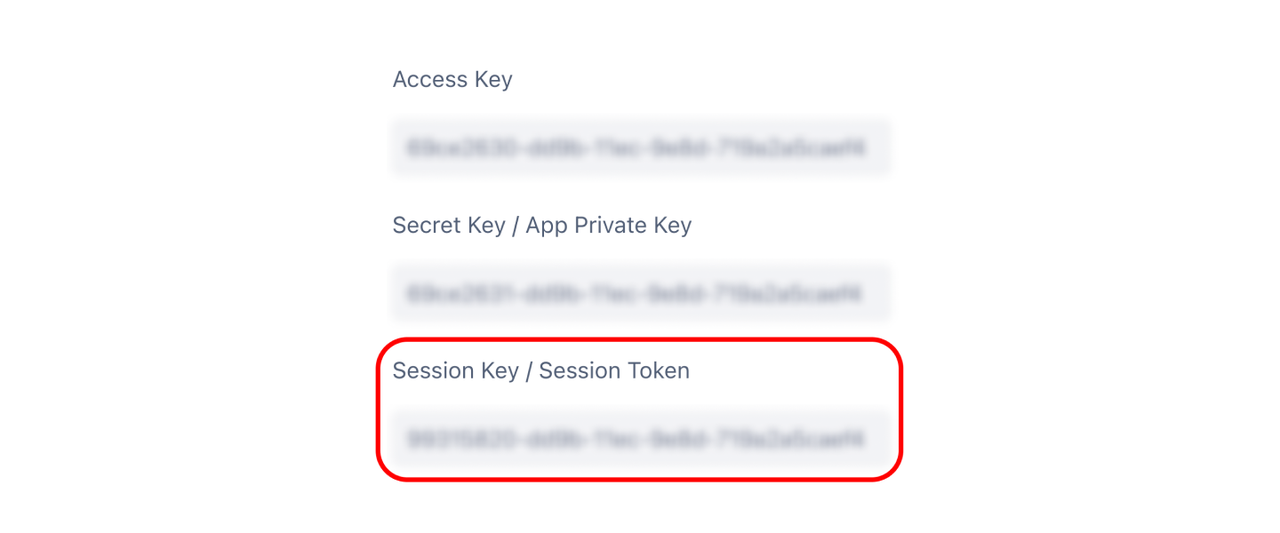
To find the Session Key, click on your profile, then Go to my account > Session Key.
-
Copy the Session Key. Be aware – there are multiple keys, so make sure to get the Session Key.
-
Open Plecto in a new browser tab, then proceed to Step 2.

Step 2: Integrate Salesmate with Plecto
-
In Plecto, go to Data sources > New data source > Salesmate.
-
(Optional) Rename your credentials.
-
Enter your Salesmate subdomain.
-
Insert the Session Key you found in Step 1 and click Next.
-
Select the data you want to import.
-
Configure your data source settings. Here, you can change the title, choose the default date, select which fields to import, and more.
-
Click Next to choose how much data to import and how long you want to keep it in the data source.
-
Click Import to finish.
Available data
Currently, you can import the following data from your Salesmate account to Plecto:
Update frequency: 2m
Default date field: Created at
Supports custom fields? No
Supports webhooks? No
Supports automatic registration deletion? No
Supports relations? No
Update frequency: 2m
Default date field: Created at
Supports custom fields? No
Supports webhooks? No
Supports automatic registration deletion? No
Supports relations? No