 Sign in
Plecto x ServiceTitan Guide
ServiceTitan integration guide
Before you can integrate ServiceTitan with Plecto, the application needs to be enabled. To do that, a ServiceTitan Tenant ID is needed.
Here's how to find your Tenant ID in ServiceTitan:
-
Click the gear icon ⚙️ in the top-right corner.
-
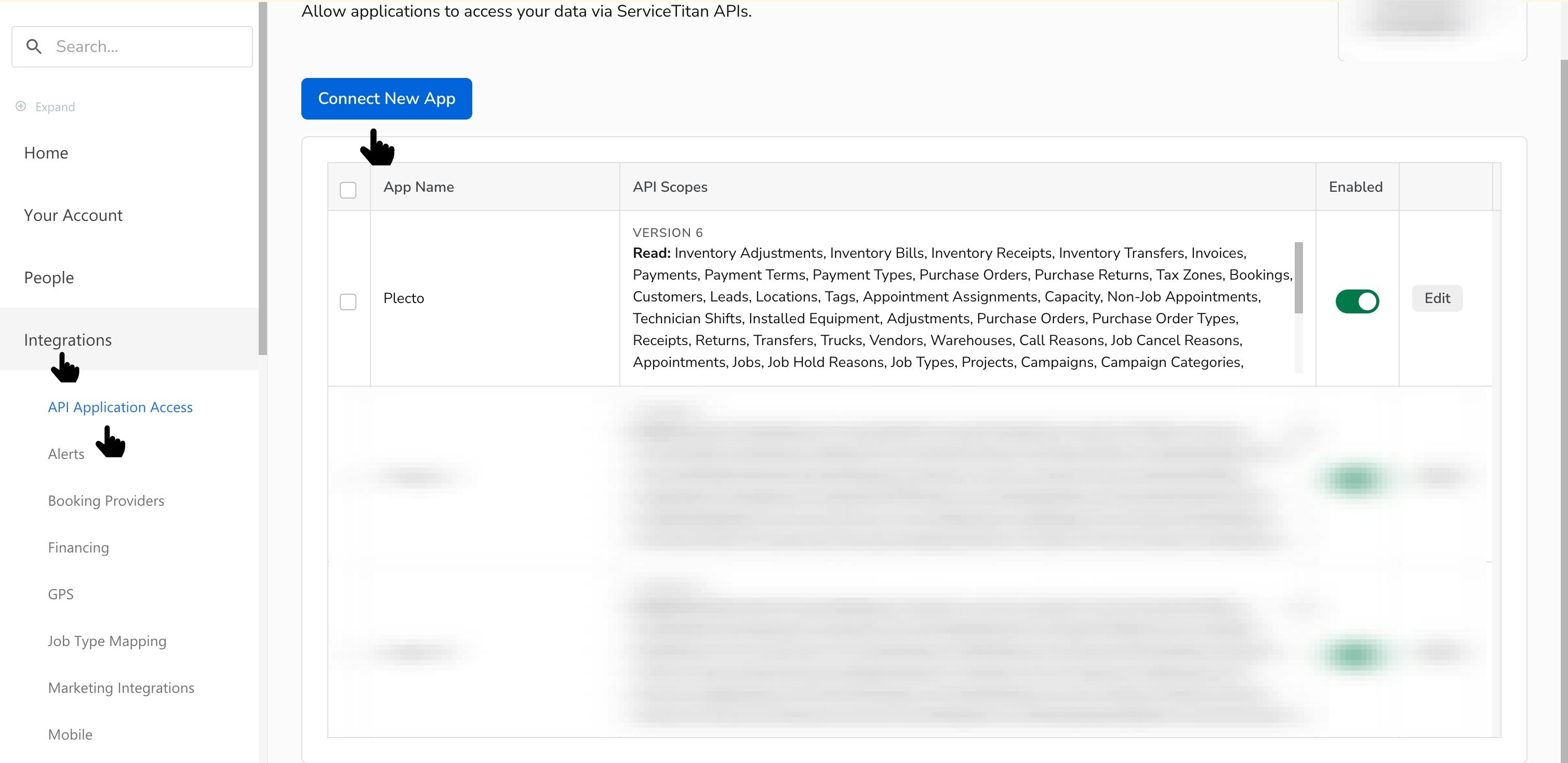
In the left-hand menu, go to Integrations > API Application Access. You will see your Tenant ID on the right.
-
Copy the number and send it to the Partner Manager/Plecto Experts.
To ensure you get the correct data in Plecto, it's mandatory to create new reports in ServiceTitan.
Start making reports from ServiceTitan by clicking on the next step.
Create reports in ServiceTitan
To make sure your data is accurate when it’s imported into Plecto, you’ll need to create a new report in ServiceTitan. This will help ensure all the information is correct and up to date.
You need to create the following report in ServiceTitan:
- ServiceTitan - Plecto - Jobs Report
Please go to "Step 1" to create new ServiceTitan reports.
Step 1: Create new report within ServiceTitan
-
In ServiceTitan, go to Reports > All Reports > Create Report or access the page through this link: go.servicetitan.com/#/new/reports/new
-
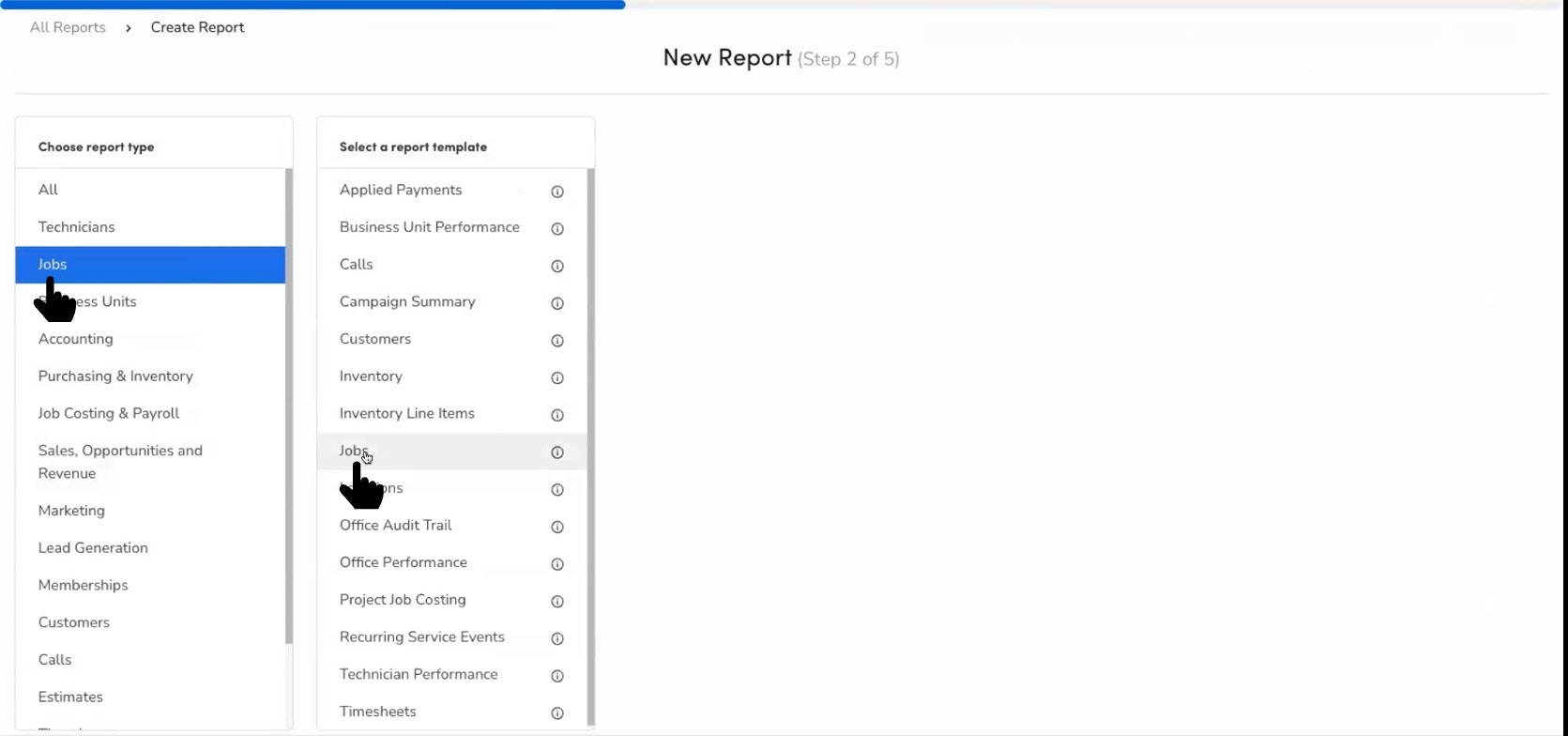
To create a Jobs report, choose the Jobs (Report type) > Jobs (template).
Step 1.1: Columns selection
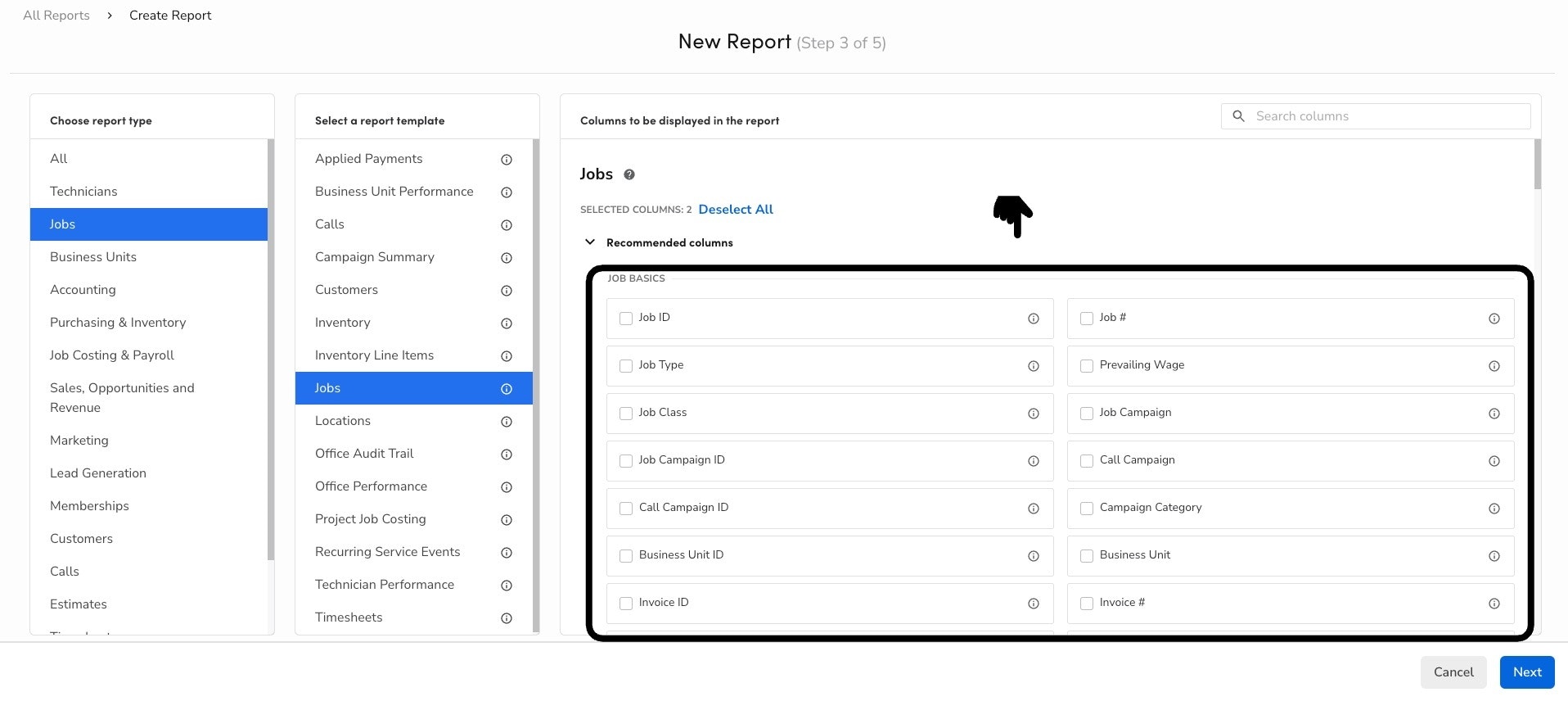
Select the recommended columns to include in the report and click Next.
Find all the recommended columns below:
Job Basic:
| Job ID | Job type | Job Campaign | Lead Generated By |
|---|---|---|---|
| Job # | Job Class | Call Campaign | Business Unit ID |
| Status | Is Lead | Lead Created By | |
| Invoice # | Invoice ID | Job Campaign ID | |
| Converted | Booked by | Call Campaign ID | |
| Business Unit | Opportunity | Campaign Category |
Job Totals:
| Jobs Subtotal | Jobs Total |
|---|
Job Dates:
| Created Date | Scheduled Date | First Dispatch | Start Of Working Time | Sold On | Invoice Date | Completion Date |
|---|
Appointments:
| Total Appointment | Next Appt Start date | Last Appt Date | Upcoming Appt Start Date |
|---|
Customer Information:
| Customer ID | Customer Name | Member Status |
|---|
Technician Performance:
| Assigned Technician | Sold By | Primary Technician | Sold By Business Unit |
|---|
Tags:
| Tags | Customer Tags |
|---|
Summary:
| Jobs Total Revenue | Jobs Gross Margin | Jobs Gross Margin % |
|---|
Step 1.2: Report details
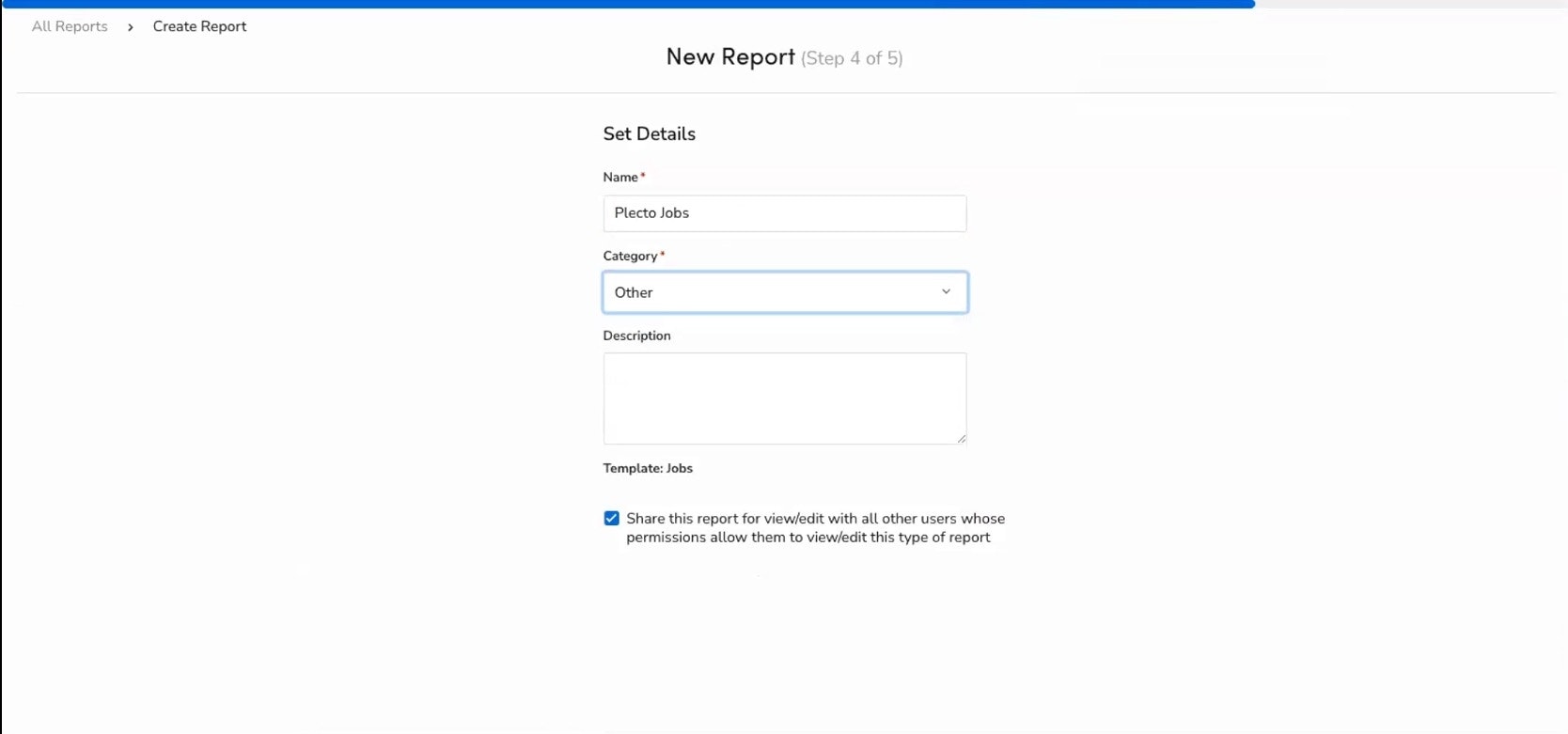
Set the report details:
-
Give the report a name, e.g:
- ServiceTitan - Plecto - Jobs Report
-
Select a category: Other.
-
"Share this report for view/edit with other users whose permissions allows them to view/edit this type of report." We recommend keeping the checkbox disabled.
-
Click Save to finish.
(Optional) Add a description. Here you can mention that the report is intended for integrating with Plecto.
Step 2: Connect Plecto to ServiceTitan
Once you get the confirmation from your Partner Manager/Plecto Expert, you can start connecting Plecto to ServiceTitan:
-
In ServiceTitan, click the gear icon ⚙️ in the top-right corner.
-
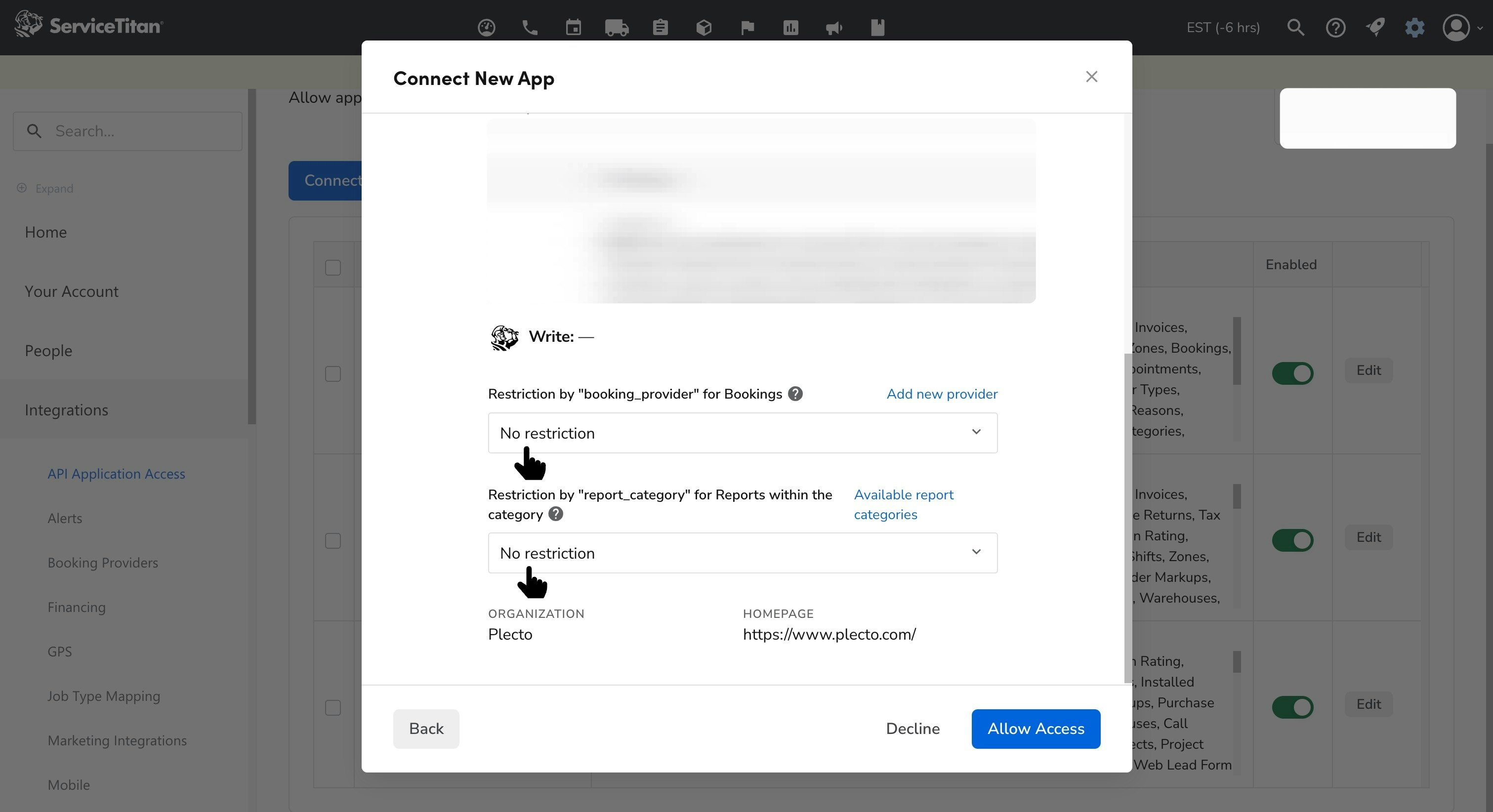
Go to Integrations > API Application Access > Connect New App > Plecto > Connect.
-
Click Allow Access to enable Plecto to read your data.
Make sure to configure "no restrictions" in the report_category to ensure that you can import your ServiceTitan reports into Plecto.
-
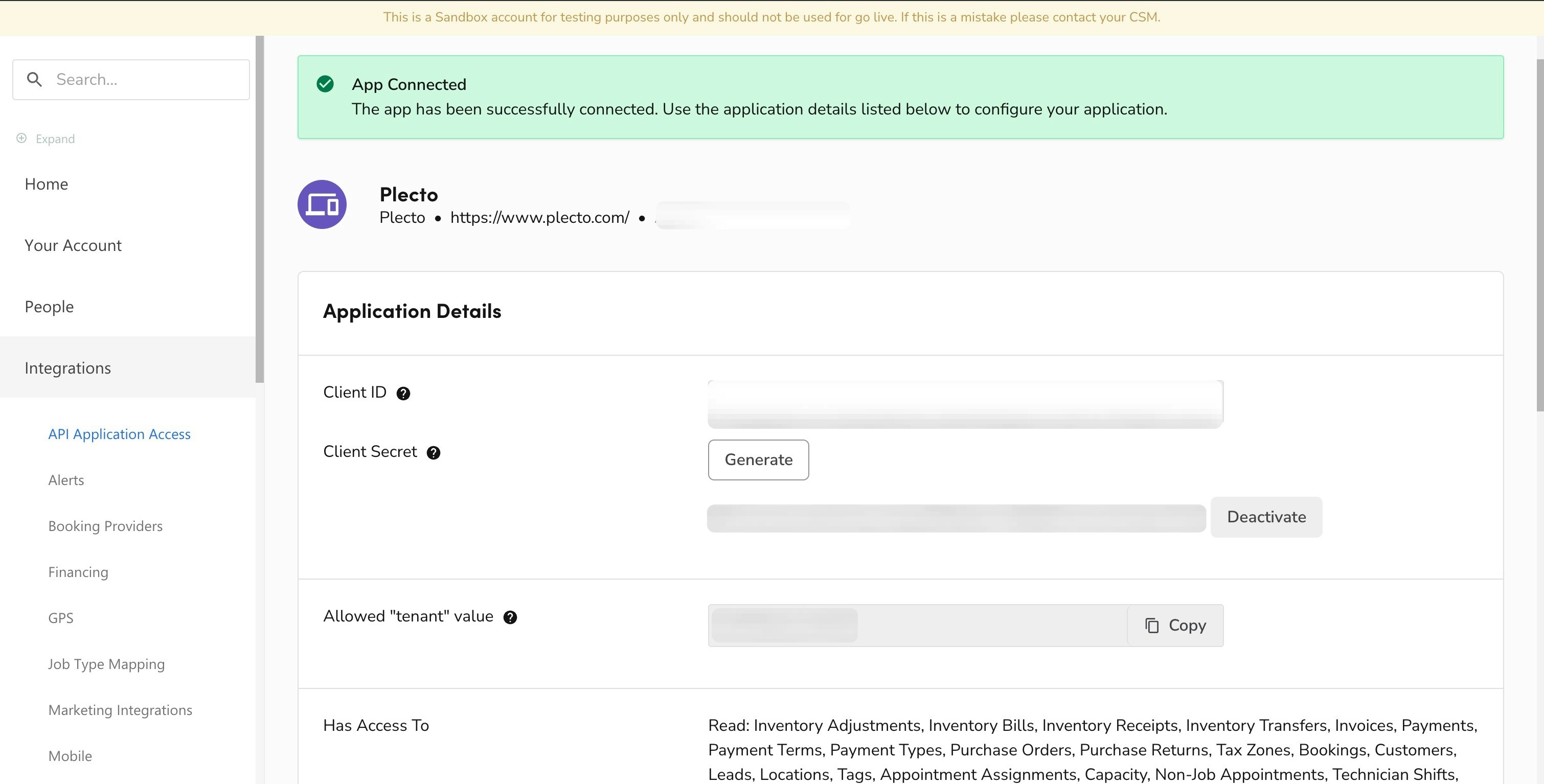
You will now see your
-
Tenant ID
-
Client ID and
-
Client Secret under Application Details.
You will need to use all these credentials in the next step.
-
-
Click Generate to create a Client Secret key.
-
Copy the key.
Read more about the Client ID and Secret in ServiceTitan's article: Manage Client ID & Secret.
Step 3: Integrate ServiceTitan with Plecto
-
Open Plecto.
-
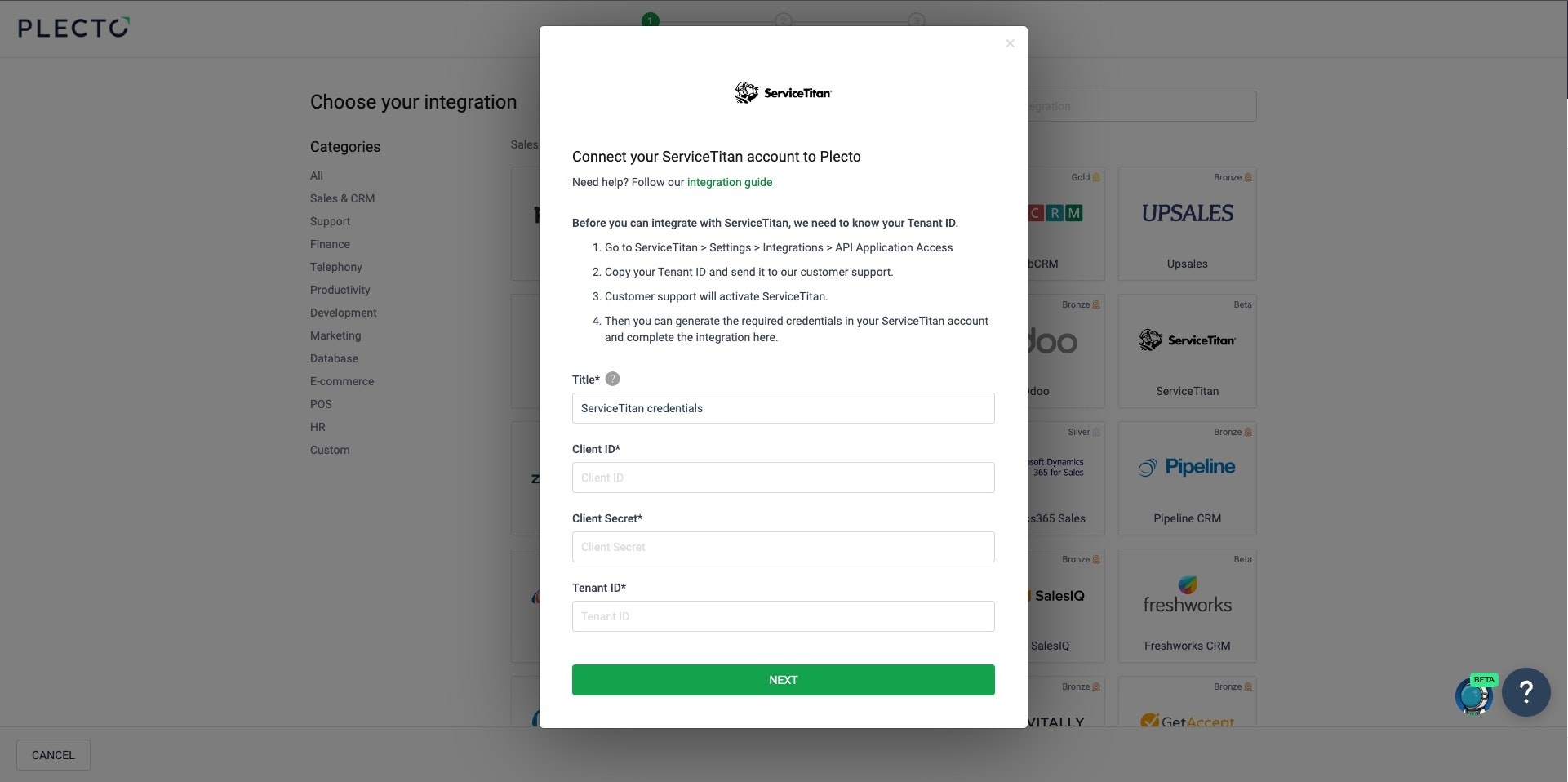
Go to Data sources > New data source > ServiceTitan.
-
Insert your Client ID, Client Secret and Tenant ID.
-
Click Next.
-
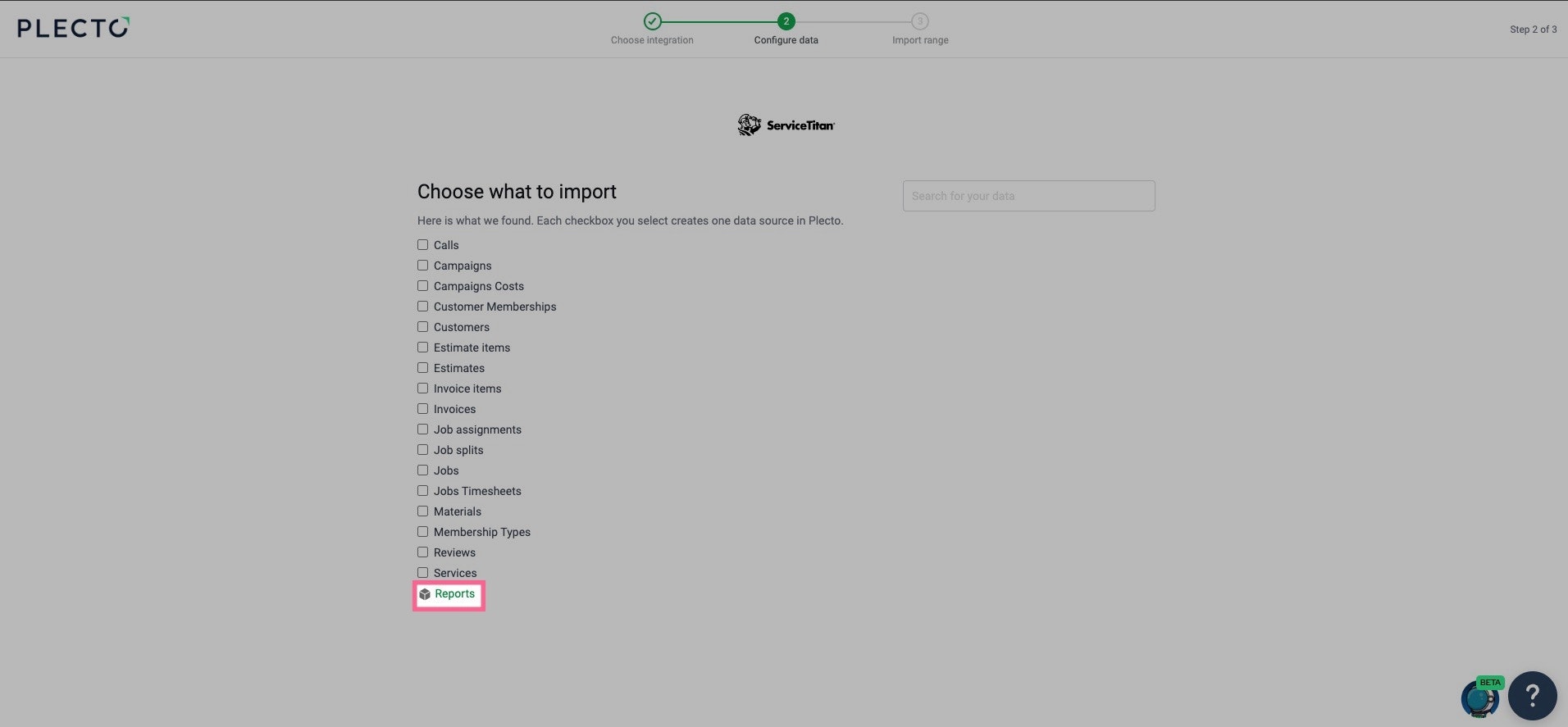
Find the created reports: Reports > Other
-
Click Next.
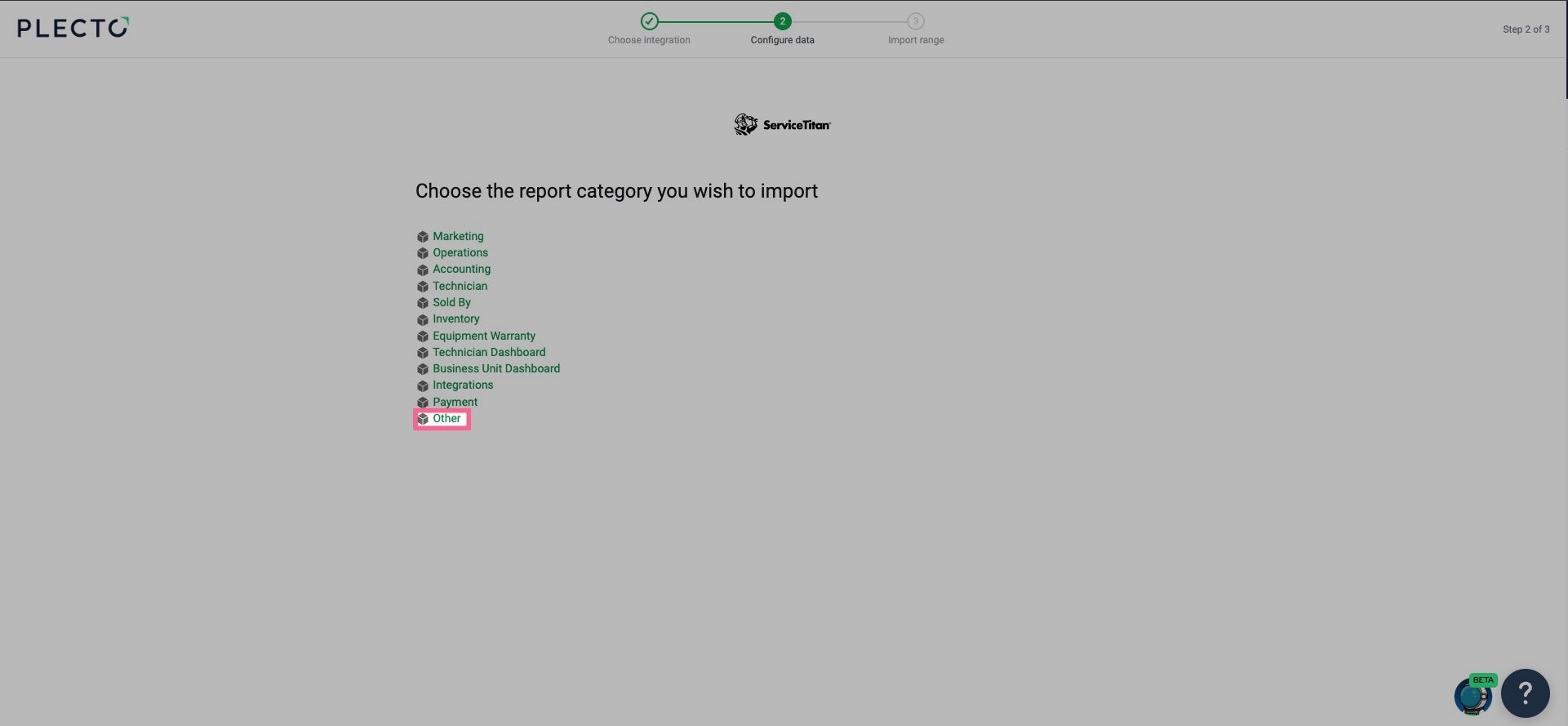
Step 3.1: Select the type of your report
Select the data you want to import:
-
Raw data: Each row in Plecto will represent an individual record, created or modified during a specified time period. Each registration is unique and has an External ID field (for example Job ID, Invoice ID).
-
Aggregated data: Each row in Plecto will provide a summarized view of your metrics over a specified time period (can be aggregated daily or monthly). Each registration represents a specific metric (for example Completed Jobs).
For the Jobs report that was made earlier - select Raw data.
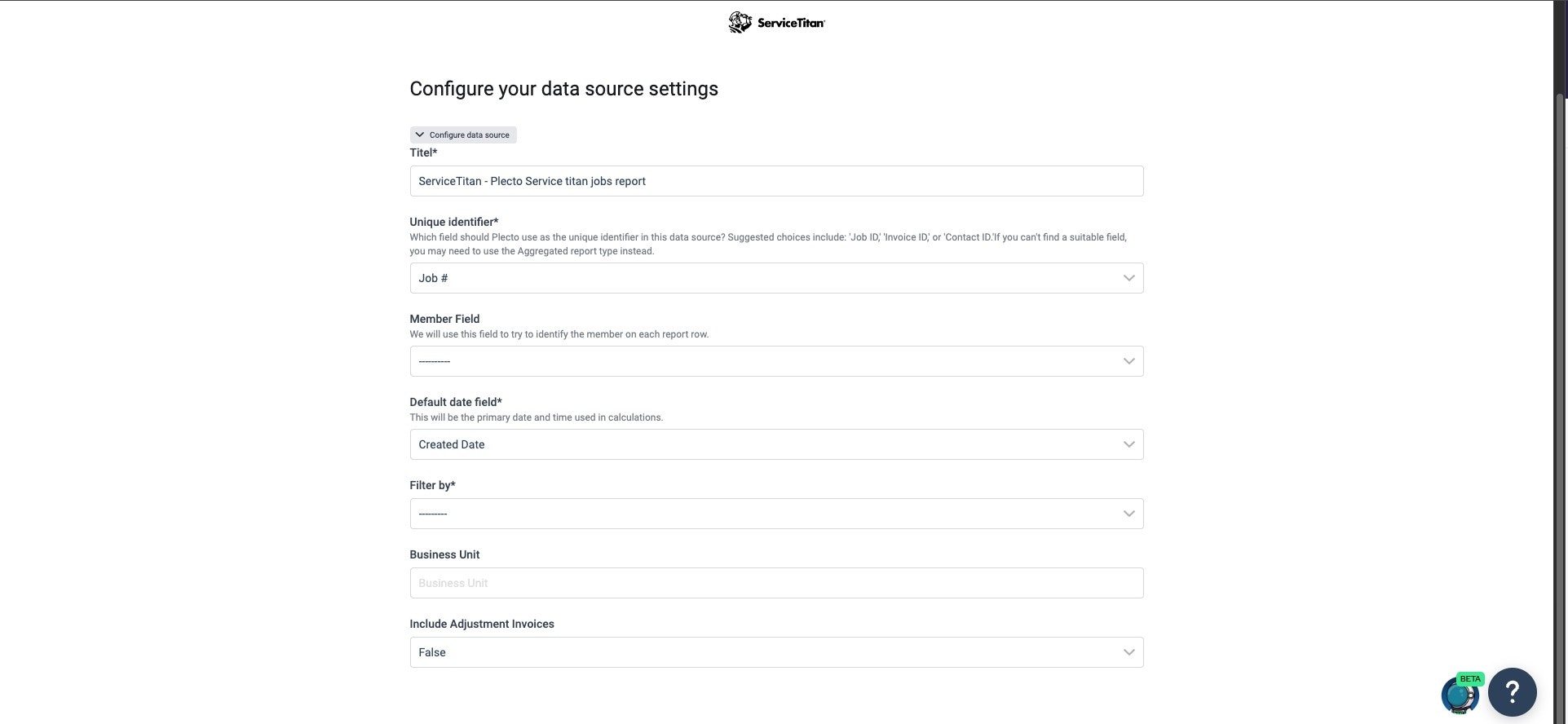
Step 3.2: Configure your data source settings
Configure your data source settings:
-
Title: Name your report, e.g:
-
ServiceTitan - Plecto - Jobs Report - Job Start Date
-
ServiceTitan - Plecto - Jobs Report - Job Completion Date
-
-
Unique identifier: Field that contains a unique ID, e.g:
- Job #
-
Member Field: Add at least one field that relates to an Employee, e.g:
- Primary Technician
-
Default date field: Choose a default date field for the formulas, e.g:
-
Scheduled Date
-
Completed Date
-
-
Filter by: Choose the date field that matches the specific data you want to track.
-
Job Start Date (If you want to track scheduled jobs)
-
Job Completion Date (If you want to track completed jobs)
-
If you want to track both scheduled and completed jobs, you’ll need to import the same report a second time. For this second import, choose a new “Filter by” option based on the specific data you want to track.
Step 3.3: Import range and retention
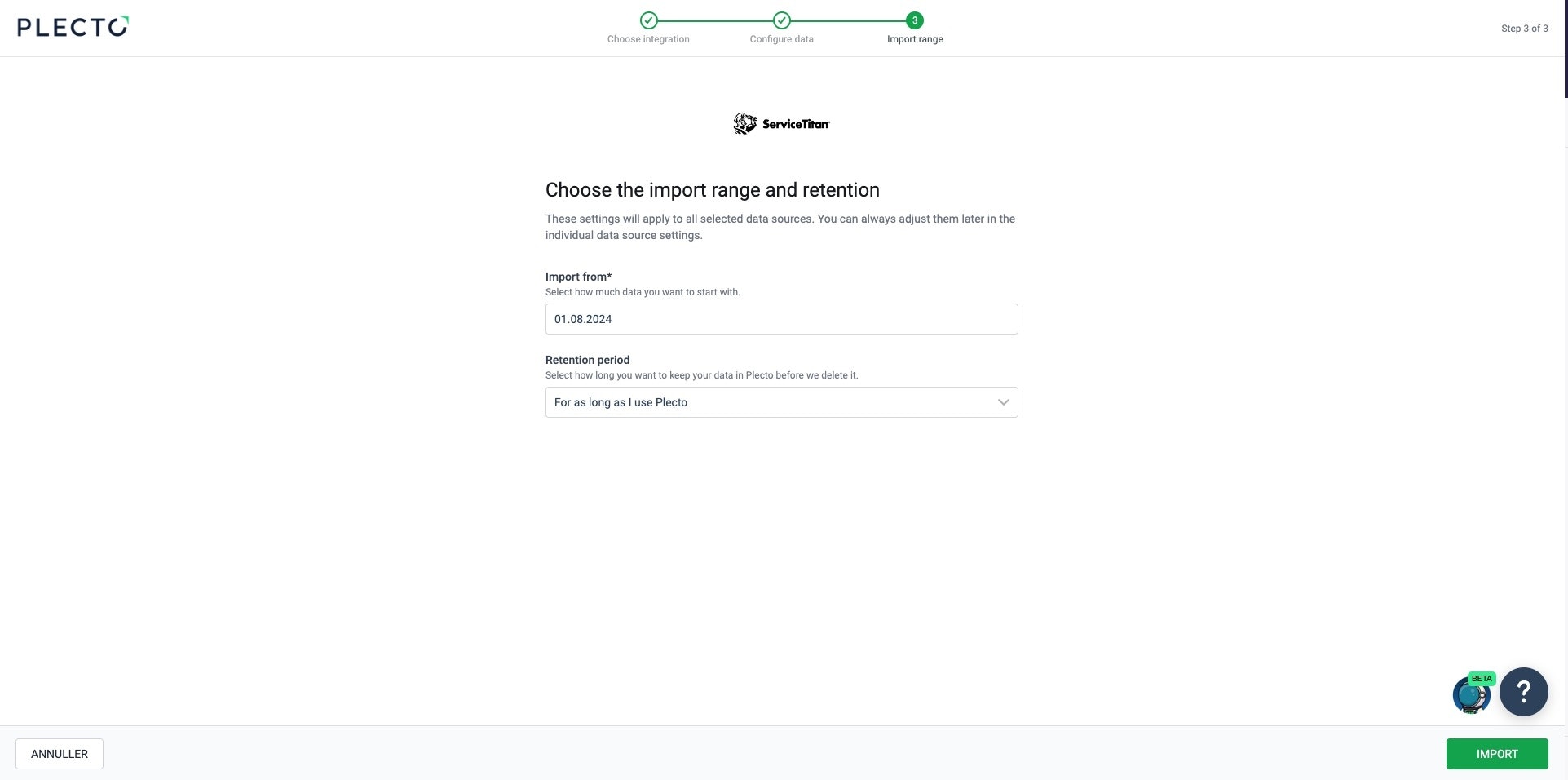
Choose the import range and retention:
-
Import range: Select how much data you want imported.
-
Retention period: How long you would like to retain the data in Plecto.
We recommend "For as long as I use Plecto".
Lastly, Click Import.
Available data
Currently, you can import the following data from your ServiceTitan account into Plecto:
Update frequency: 2m
Supports custom fields? No
Supports webhooks? No
Supports automatic registration deletion? No
Supports relations? No
Update frequency: 2m
Supports custom fields? No
Supports webhooks? No
Supports automatic registration deletion? No
Supports relations? No
Update frequency: 24h
Supports custom fields? No
Supports webhooks? No
Supports automatic registration deletion? No
Supports relations? No
Update frequency: 2m
Supports custom fields? No
Supports webhooks? No
Supports automatic registration deletion? No
Supports relations? No
Update frequency: 2m
Supports custom fields? No
Supports webhooks? No
Supports automatic registration deletion? No
Supports relations? No
Update frequency: 2m
Supports custom fields? No
Supports webhooks? No
Supports automatic registration deletion? No
Supports relations? No
Update frequency: 2m
Supports custom fields? No
Supports webhooks? No
Supports automatic registration deletion? No
Supports relations? No
Update frequency: 2m
Supports custom fields? No
Supports webhooks? No
Supports automatic registration deletion? No
Supports relations? No
Update frequency: 2m
Supports custom fields? No
Supports webhooks? No
Supports automatic registration deletion? No
Supports relations? No
Update frequency: 2m
Supports custom fields? No
Supports webhooks? No
Supports automatic registration deletion? No
Supports relations? No
This data type aggregates all assignments for all jobs.
Update frequency: 2m
Supports custom fields? No
Supports webhooks? No
Supports automatic registration deletion? No
Supports relations? No
Update frequency: 2m
Supports custom fields? No
Supports webhooks? No
Supports automatic registration deletion? No
Supports relations? No
Update frequency: 2m
Supports custom fields? No
Supports webhooks? No
Supports automatic registration deletion? No
Supports relations? No
Update frequency: 2m
Supports custom fields? No
Supports webhooks? No
Supports automatic registration deletion? No
Supports relations? No
Update frequency: 2m
Supports custom fields? No
Supports webhooks? No
Supports automatic registration deletion? No
Supports relations? No
Update frequency: 2m
Supports custom fields? No
Supports webhooks? No
Supports automatic registration deletion? No
Supports relations? No
Update frequency: 1h
Supports custom fields? Yes
Supports webhooks? No
Supports automatic registration deletion? No
Supports relations? No
Update frequency: 2m
Supports custom fields? No
Supports webhooks? No
Supports automatic registration deletion? No
Supports relations? No
Update frequency: 2m
Supports custom fields? No
Supports webhooks? No
Supports automatic registration deletion? No
Supports relations? No
Plecto x ServiceTitan Dashboard Package
Install Plecto's ready-made ServiceTitan dashboards in the link below.