Sign in
Dinero
Step 1: Get your Organization ID from Dinero
-
First, you need to locate your Organization ID (Firma ID) in Dinero. Log in to your Dinero account, and make sure that the sidebar menu is expanded. You will find the ID in the bottom-left corner of the sidebar.
-
Copy the ID and move to Step 2.
Step 2: Integrate Dinero to Plecto
-
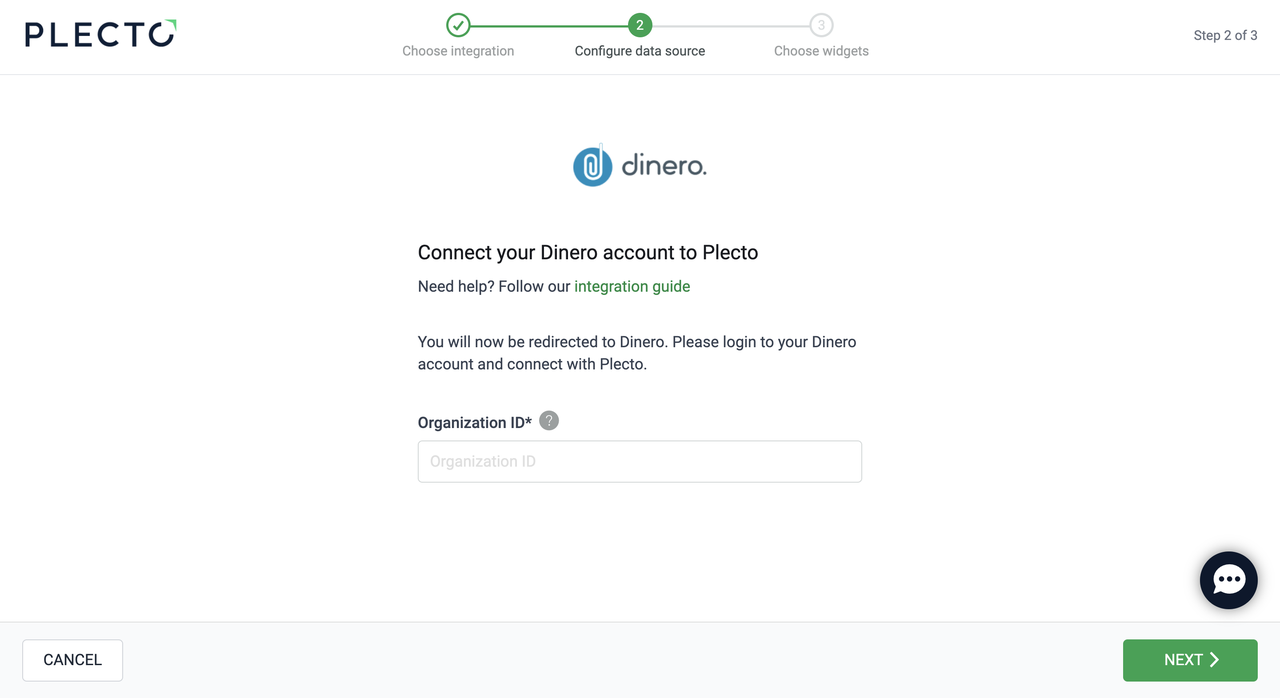
In Plecto, go to Data sources > New data source > Dinero.
-
Enter your Organization ID and click Next.
-
You will be redirected to Dinero's authorization page. Click Godkend (Approve) to allow Plecto to access your Dinero account.
-
Select the data you want to import.
-
Configure your data source settings. Here, you can change the title, choose the default date, select which fields to import, and more.
-
Click Next to choose how much data to import and how long you want to keep it in the data source.
-
Click Import to finish.

Available data
Our integration with Dinero currently allows you to import the following data:
Update frequency: 15m
Supports custom fields? No
Supports webhooks? No
Supports automatic registration deletion? No
Supports relations? No
Update frequency: 30m
Supports custom fields? No
Supports webhooks? No
Supports automatic registration deletion? No
Supports relations? No
Update frequency: 15m
Supports custom fields? No
Supports webhooks? No
Supports automatic registration deletion? No
Supports relations? Yes
Update frequency: 30m
Supports custom fields? No
Supports webhooks? No
Supports automatic registration deletion? No
Supports relations? No
Update frequency: 15m
Supports custom fields? No
Supports webhooks? No
Supports automatic registration deletion? No
Supports relations? Yes
Update frequency: 15m
Supports custom fields? No
Supports webhooks? No
Supports automatic registration deletion? No
Supports relations? No
Update frequency: 15m
Supports custom fields? No
Supports webhooks? No
Supports automatic registration deletion? No
Supports relations? Yes
Update frequency: 2m
Supports custom fields? No
Supports webhooks? No
Supports automatic registration deletion? Yes
Supports relations? No
Useful information on data type "Entries"
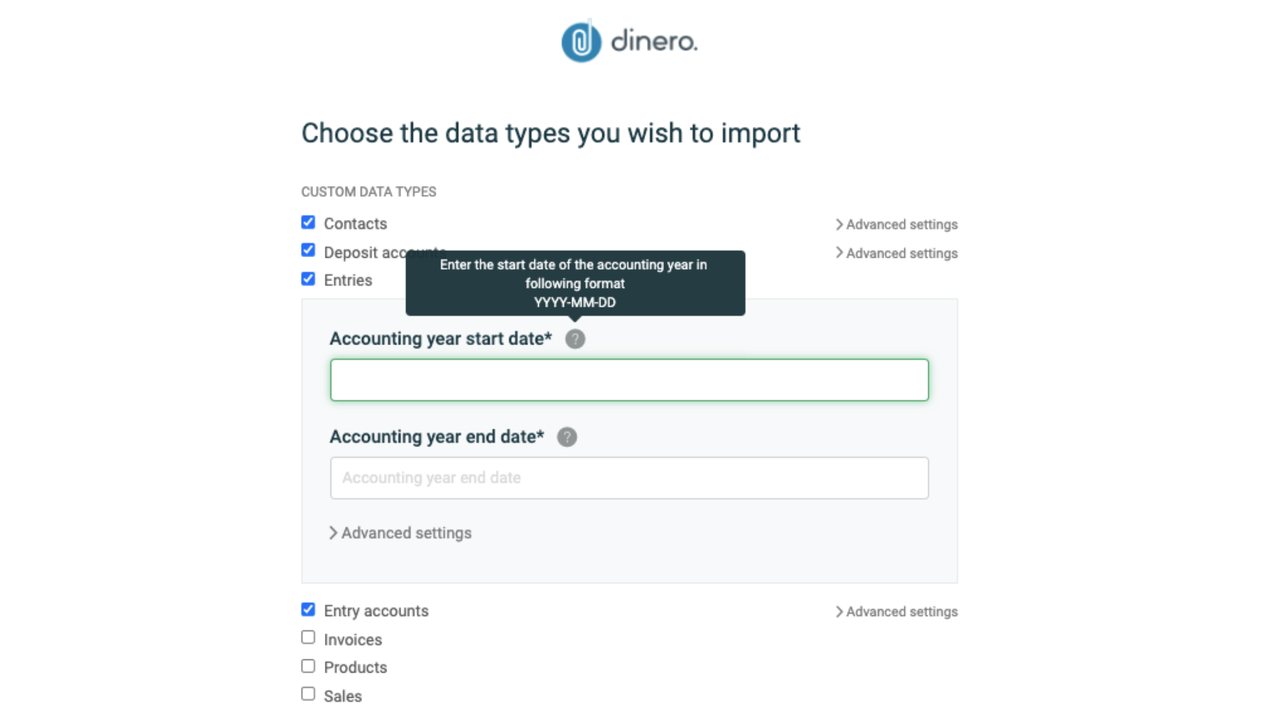
If you import Entries, you need to select the start and end dates of your accounting year. The dates must be written in the YYYY-MM-DD format.
Selecting an accounting year, for example, from 2021-01-01 to 2021-12-31, means that, with this import, Plecto will create a new data source and only import data within the appointed accounting year.
If you add start and end dates that do not confirm with your organization's accounting year, Plecto will not be able to import your data.
To import data from another accounting year, for example, 2020, you will have to create a new data source and import the Entries data again. Only this time, you need to add different start and end dates.
Tip – Add custom data source name. For example, "Accounting Year 2023," to help you recognize what data you're importing.