 Sign in

Build with AI: Plecto's AI Assistant
What is Build with AI?
Build with AI is the AI assistant built into Plecto. Describe what you want in plain language, and it creates or changes dashboards, widgets, formulas, reports, notifications, contests, and more for you, all within your own permissions.
It's the same assistant you can connect to Claude, ChatGPT, or other AI tools through MCP, but you don't need to set anything up.
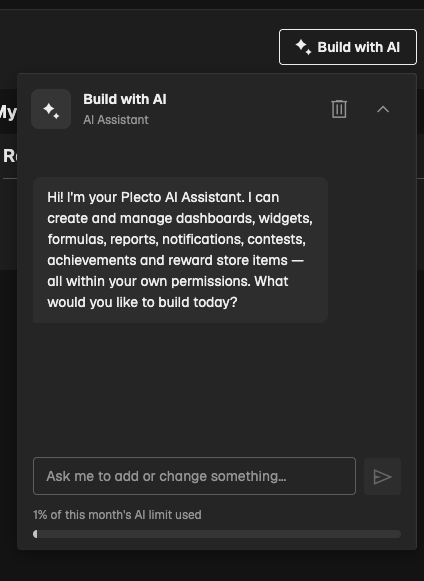
How to open Build with AI
-
Click Build with AI in the top-right corner of the page. You can also click Ask Plecto AI in the help menu.
-
Describe what you want to build or change, for example "Create a Sales dashboard with revenue this month and a leaderboard of won deals".
-
Answer the assistant's questions if it needs more details. Before it changes employees, teams, or data, such as merging employees or adding registrations, it asks you to confirm.
-
When it's done, use the links in its reply to open what it created.
Good to know:
-
When you open Build with AI while you edit a dashboard, or from a report or an achievement, the assistant knows which one you're working on.
-
The button isn't shown on pages with nothing to build, such as data source, employee, and team settings.
-
To start a new conversation, click the trash can in the chat to delete the chat history.
What you can build with AI
-
Dashboards and widgets: create dashboards, and add, move, resize, or replace widgets
-
Formulas: create formulas from a description, test them on your data, and check their values
-
Reports: create reports and schedule report emails
-
Gamification: set up contests, streaks, achievements, and Reward Store items
-
Notifications: celebrate wins on slideshows, or send push, email, Slack, or Microsoft Teams messages
-
Slideshows: choose which dashboards and contests rotate on your TVs
-
Employees and teams: edit employee details, merge duplicates, give coins, and manage teams
-
Data sources: create manual data sources, add registrations, and connect Jira Software, Adversus, webCRM, or Freshdesk
-
Questions about your data: for example, "Who made the most calls last week?"
See everything it can do, with example prompts, in Using MCP with Plecto.
Who can use Build with AI
You need the Use the AI Assistant permission. Global Admins have it by default, and you can give it to others through their permission profile. Without the permission, the Build with AI button is shown, but you can't use it.
The assistant acts as you. It can only see and change what you have access to, and only use features included in your plan.
Build with AI usage limit
AI use is limited per month. The bar under the message field shows how much of this month's AI limit you've used. It turns orange at 80% and red when the limit is reached. Then you can't send new messages until next month. If you need a higher limit, contact your Customer Success Manager.
Turn off Build with AI and other AI features
Global Admins can turn off all AI features for the organization:
-
Go to the Settings page in Plecto.
-
Under AI features, click Opt-out of AI features.
-
Click Opt out of AI features to confirm.
This hides Build with AI and every other AI assistant feature for all employees in your organization.
Turning AI features back on requires help from Plecto staff. Make sure your organization wants to opt out before you confirm.