Sign in
How Parent Dashboards and Sub-Dashboards Work
Parent dashboards and sub-dashboards
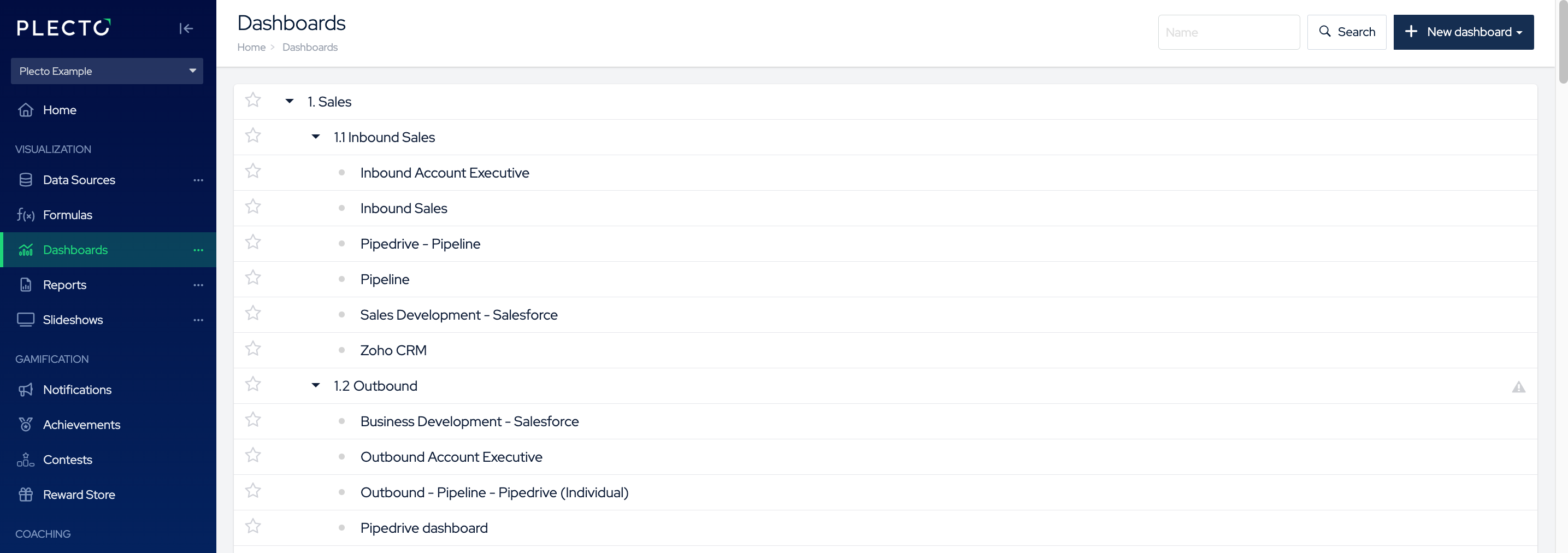
Plecto follows a simple dashboard hierarchy where you can organize your dashboards in parent dashboards and sub-dashboards.
For example:
-
Sales
-
Inbound Sales Overview
-
Inbound AEs
-
Inbound Pipeline
-
Sales Development Dashboard
-
-
Outbound
-
Outbound AEs
-
Pipeline (Individual)
-
BDRs
-
-
Sub-dashboards inherit dashboard access from parent, but you can customize and in that way overwrite access in the sub-dashboard settings.
If you delete a parent dashboard, all sub-dashboards will also be deleted.
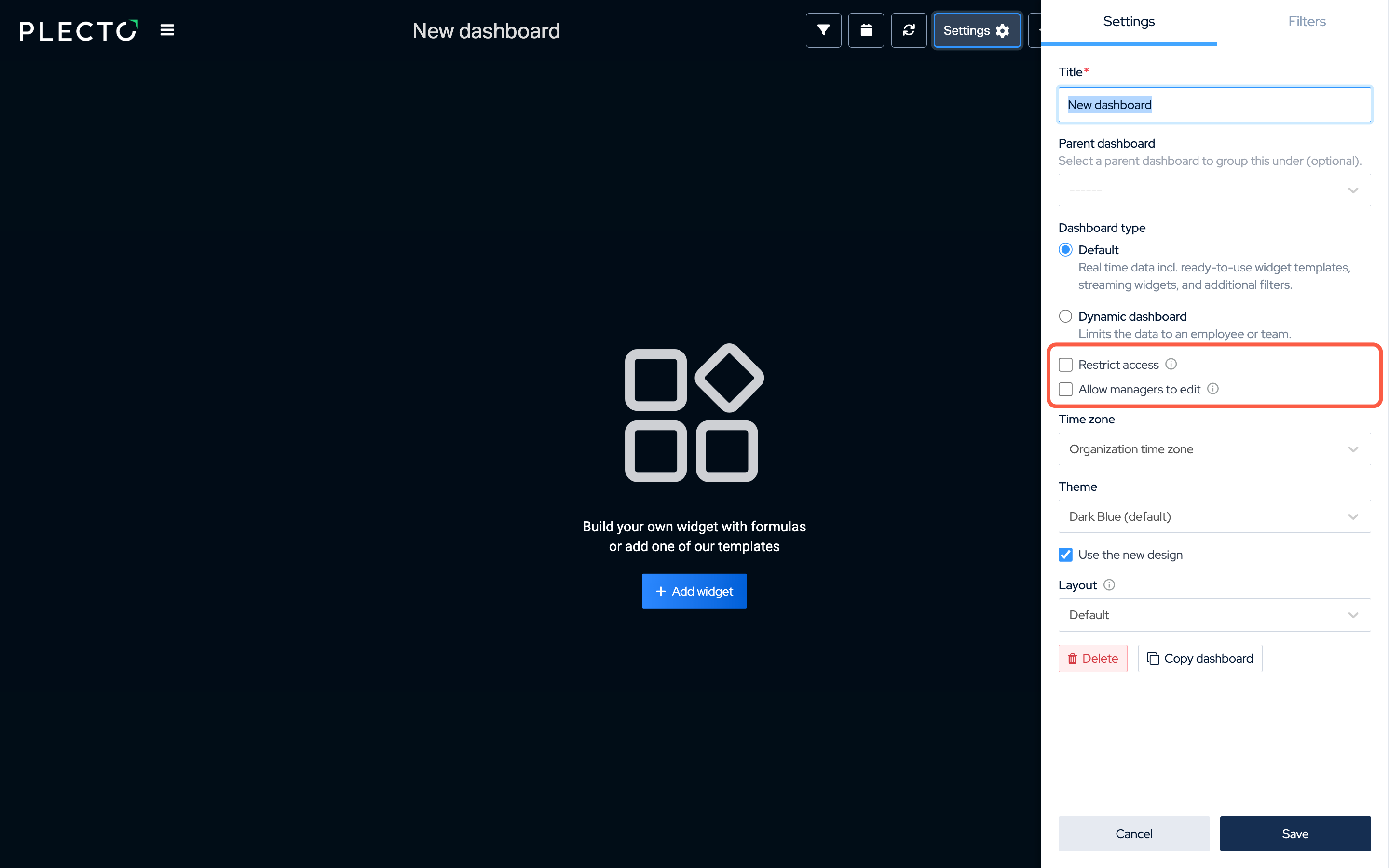
Dashboard settings on Parent & Sub-dashboards
Restrict access
You can restrict access to only allow specific teams in your organization to view your dashboards. The restrictions apply to everyone who's not an admin in your organization.
If you set up a restriction to a parent dashboard, all its sub-dashboards will inherit this limit. However, if you set a custom team access to a sub-dashboard, it will overwrite the restrictions inherited from the parent dashboard.
Allow managers to edit
This setting builds on the Filter data by teams option. It allows managers of the selected teams to:
-
Add and rearrange widgets
-
Duplicate widgets
-
Make limited modifications
Note: The Restrict access setting takes priority over Allow managers to edit.
-
If you only use Allow managers to edit, all selected managers can access and edit the dashboard.
-
If you also enable Restrict access, only managers from the teams listed in Restrict access will be able to access and edit the dashboard—even if they're listed under Allow managers to edit.