 Sign in
How to Send a Slack Notification
Step 1: Invite Plecto to your Slack channel
-
Open Slack and invite Plecto to a channel.
-
To invite, type @plecto in the message field and select Plecto [APP].
-
Hit Enter to send the message to the channel.
-
Click Add to Channel.
-
Move on to Step 2 and connect your Slack account to Plecto.


Step 2: Add a Slack notification action
-
In Plecto, go to Notifications and create new or open an existing notification.
-
In the Actions step, add Send Slack message to your notification timeline.
-
Add credentials. If no credentials are available, click + New credentials and sign in to your Slack account.
Tip! Sign in to Slack before adding new credentials to Plecto. This will make it faster to add your credentials.
-
Plecto will ask you to connect it to your Slack account. To continue, click Next.
-
Click Allow to grant Plecto permission to access your workspace. You will get redirected back to Plecto.
-
Enter the channel name. Don't use the hash (#).
-
Add a message (optional). You can use variables, for example {{ employee_name }} or {{ date }}, and Plecto will show who triggered the notification and when. If your notification is based on data (configured in Conditions), more variables will be available to you.
-
Click Next to set up the conditions (what triggers the notification).
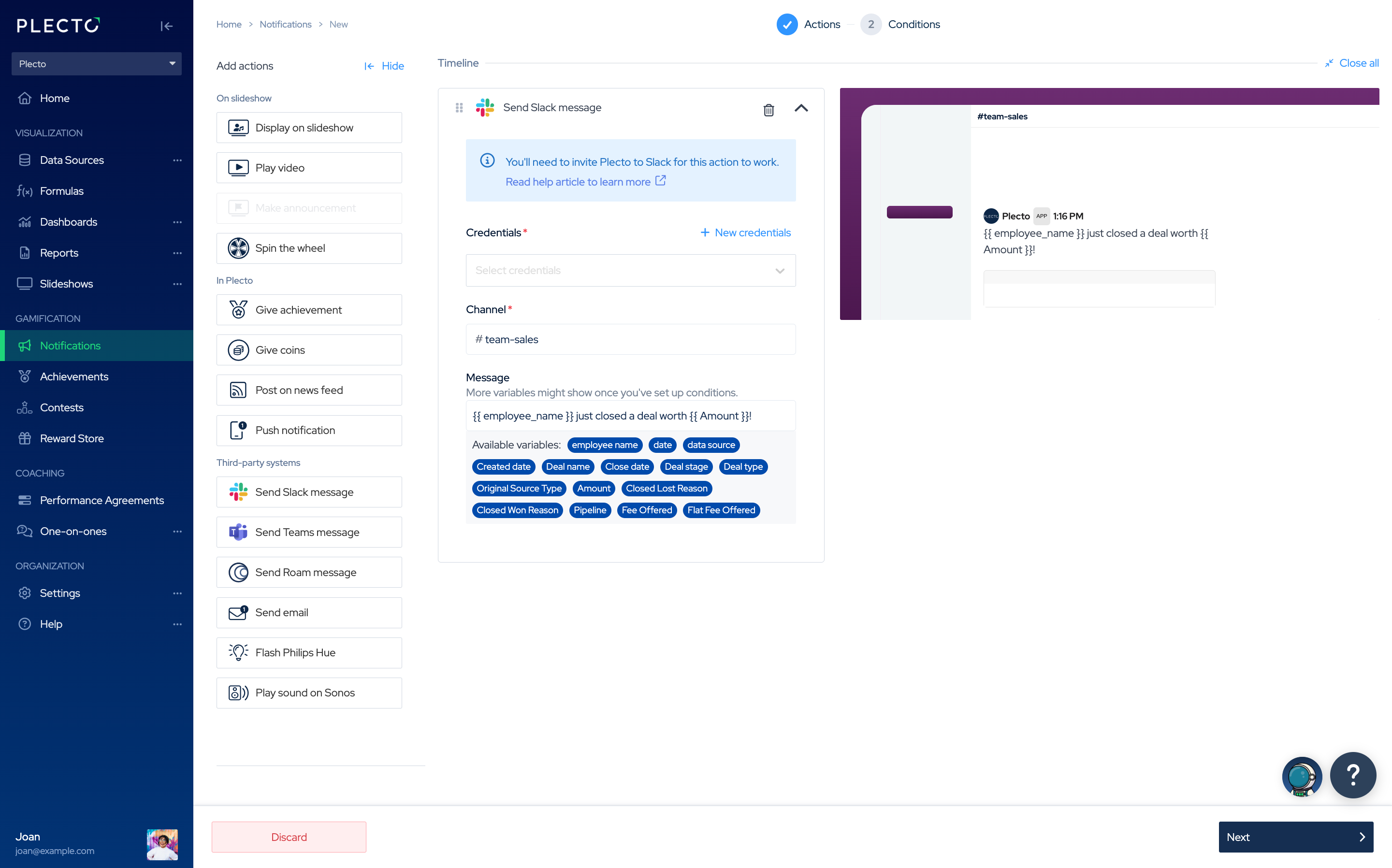
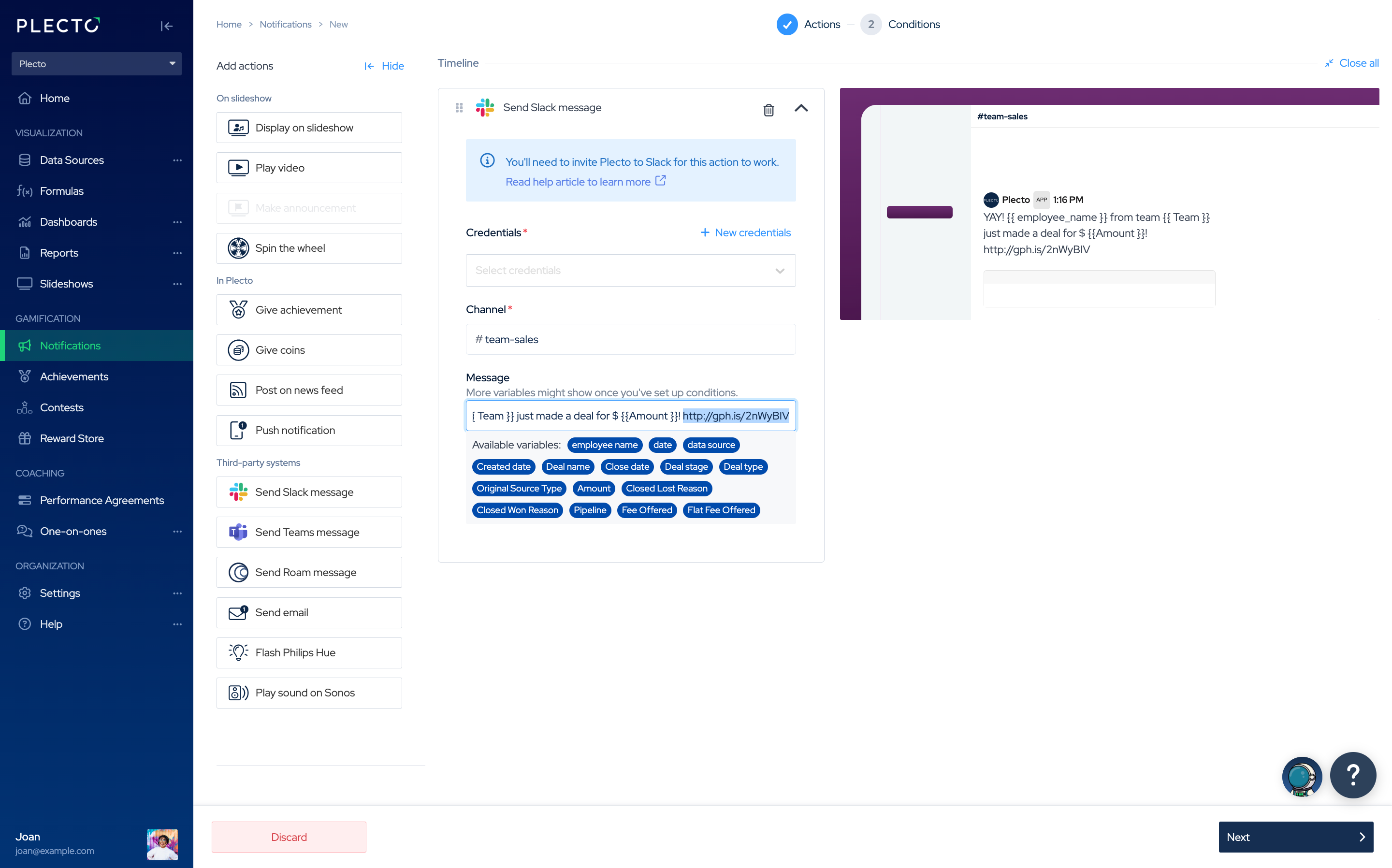
Slack Notification Example: Send a GIF
Send a GIF to your channels in Slack whenever a notification triggers in Plecto.
Find a URL to a GIF and add it in the notification action's text box. For example, go to Giphy, find a GIF that you like, and copy the link to it.
Did you know? If you choose the Play video action, you can send GIFs from Giphy to your slideshows!

Slack Notification Example: Missed Calls in Aircall
Are you tracking your Aircall data in Plecto? Get real-time updates in Slack about missed or abandoned calls.
Instant notifications enable your team to react quickly and follow up on missed calls if necessary.
---
-
In Plecto, go to Notifications > New notification.
-
Add Send Slack Message to your actions timeline. You can add custom text, for example: 📣 Missed call due to {{ missed_call_reason }} from {{ raw_digits }}!
-
Click Next.
-
Name your notification. For example, Customer Service – Aircall Missed Calls.
-
Choose Send notification based on > New or Updated Registration.
-
Select a data source that stores your Aircall calls.
-
Click Add filter and add three filters:
-
Number name = <name of the number the customer tried to reach. Example: Support Team>
-
Missed call reason != <leave empty>
-
Missed call reason != out_of_opening_hours
-
-
Select the employees or teams that can trigger this notification.
-
Keep the notification frequency as unlimited. This way, Plecto will notify you about each missed call.
-
Select a start date. The notification will look for triggers starting from this date and time.
-
Click Save to finish.
Add multiple notification actions if you want to send it to more than one Slack channel.
