Sign in
Notification Actions
What are Notification Actions?
Notification actions are the different ways you can launch a notification from Plecto. It's what happens when the notification triggers. 🎉
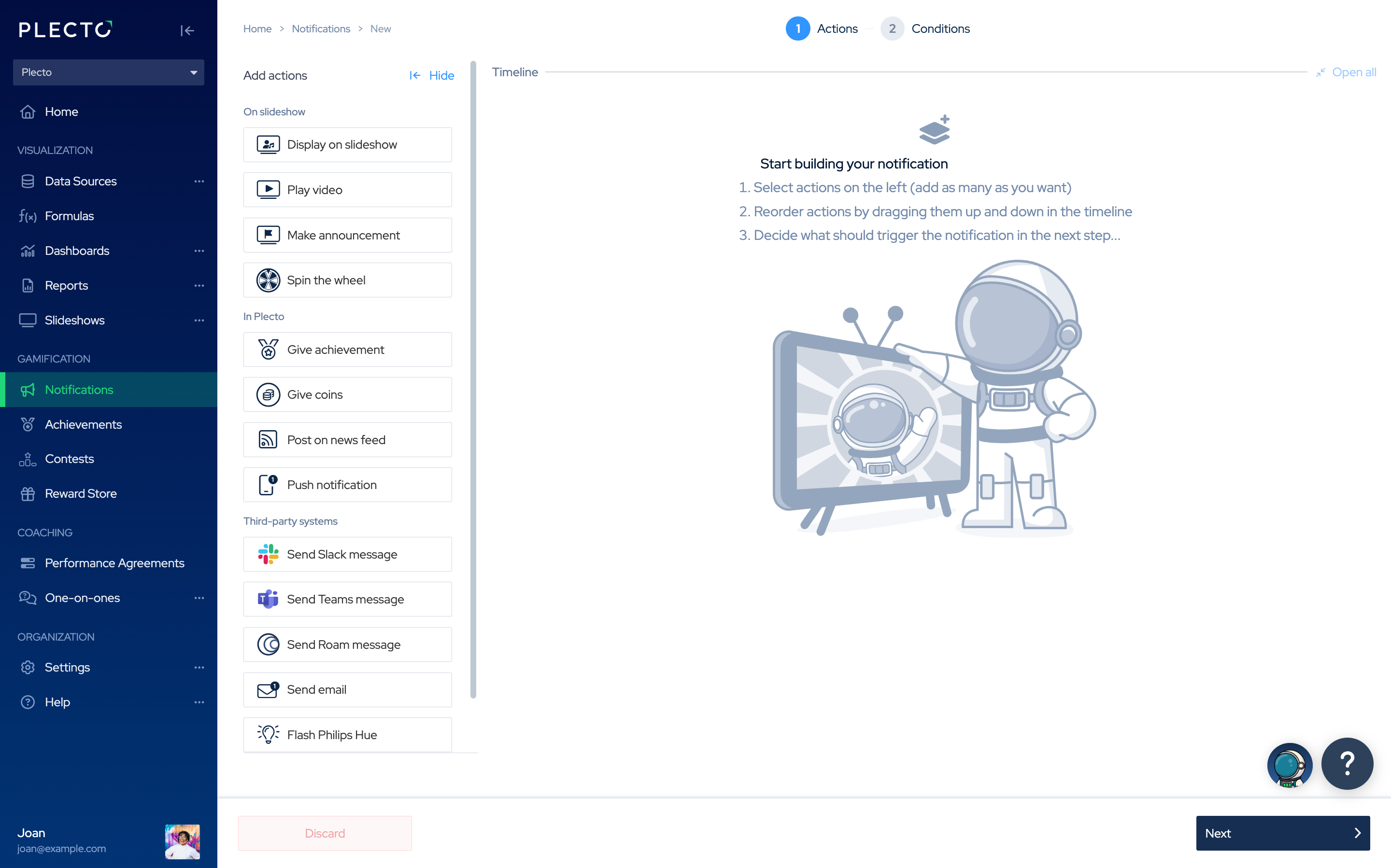
All notification actions live in a timeline. If multiple actions target the same slideshow, they will appear in the order they are arranged on the timeline.
Here are a few examples of how you can use your notification actions:
-
Combine multiple notification actions. Get notified on slideshows, by email, in the mobile app, and more.
-
Add multiple actions to the same slideshow. They will launch in the order they appear on the timeline.
-
Send the same notification to different slideshows. Say you want to get notified on both the Inbound and Outbound slideshows. You don't have to create two notifications – you can easily add two actions and select different destination slideshows.
Display on Slideshow
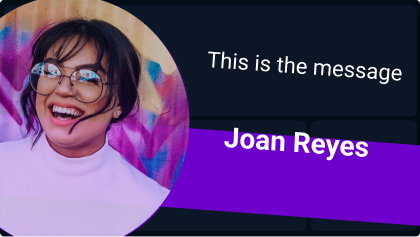
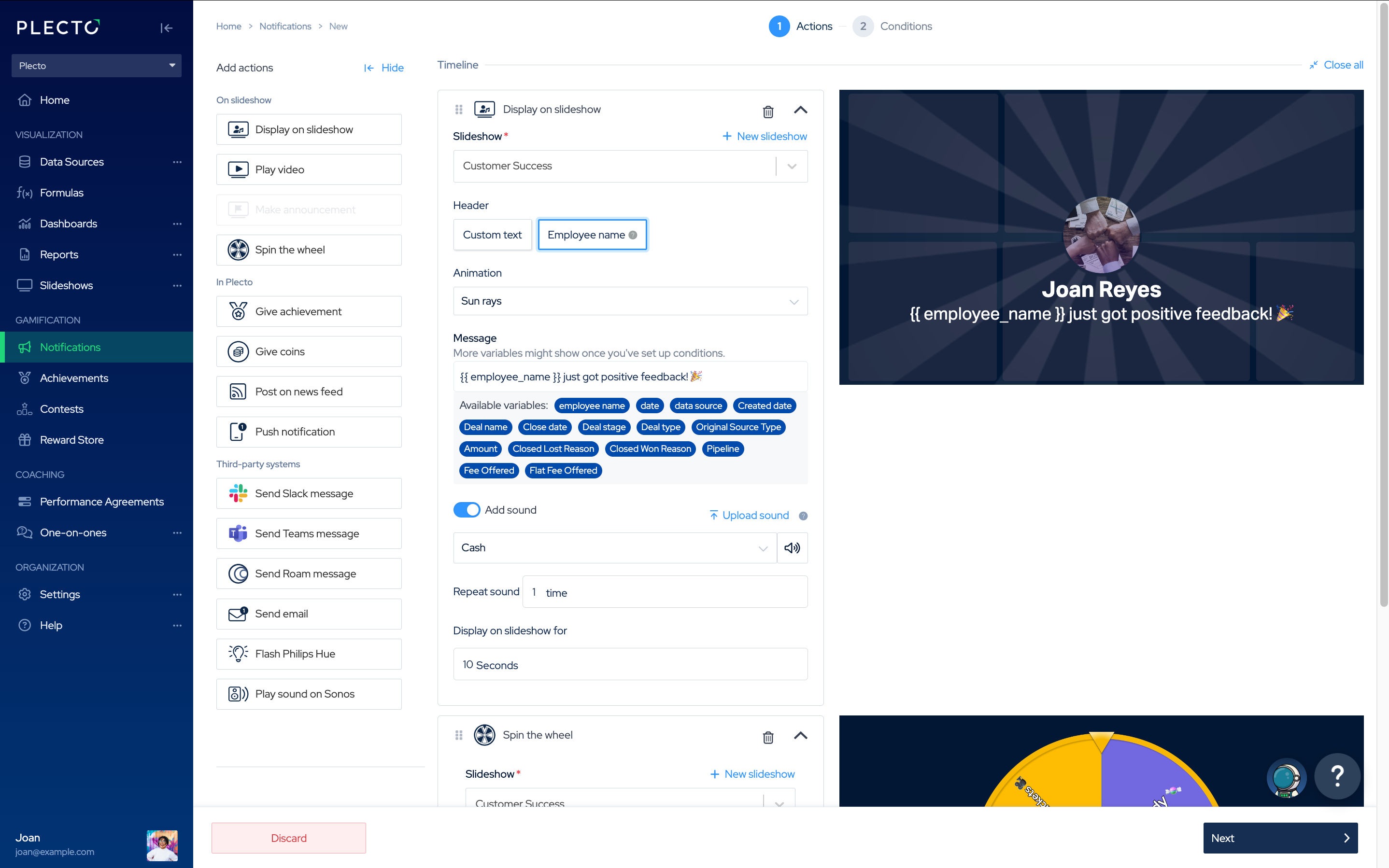
Show custom text or display an employee on slideshow when they trigger a notification.
Here's what you can do:
-
Add a custom message and even use some text variables from a data source or formula (if your notification is based on data and not schedule).
-
Choose an animation, sound, or upload your own custom sound.
-
Choose how long this notification will be displayed.
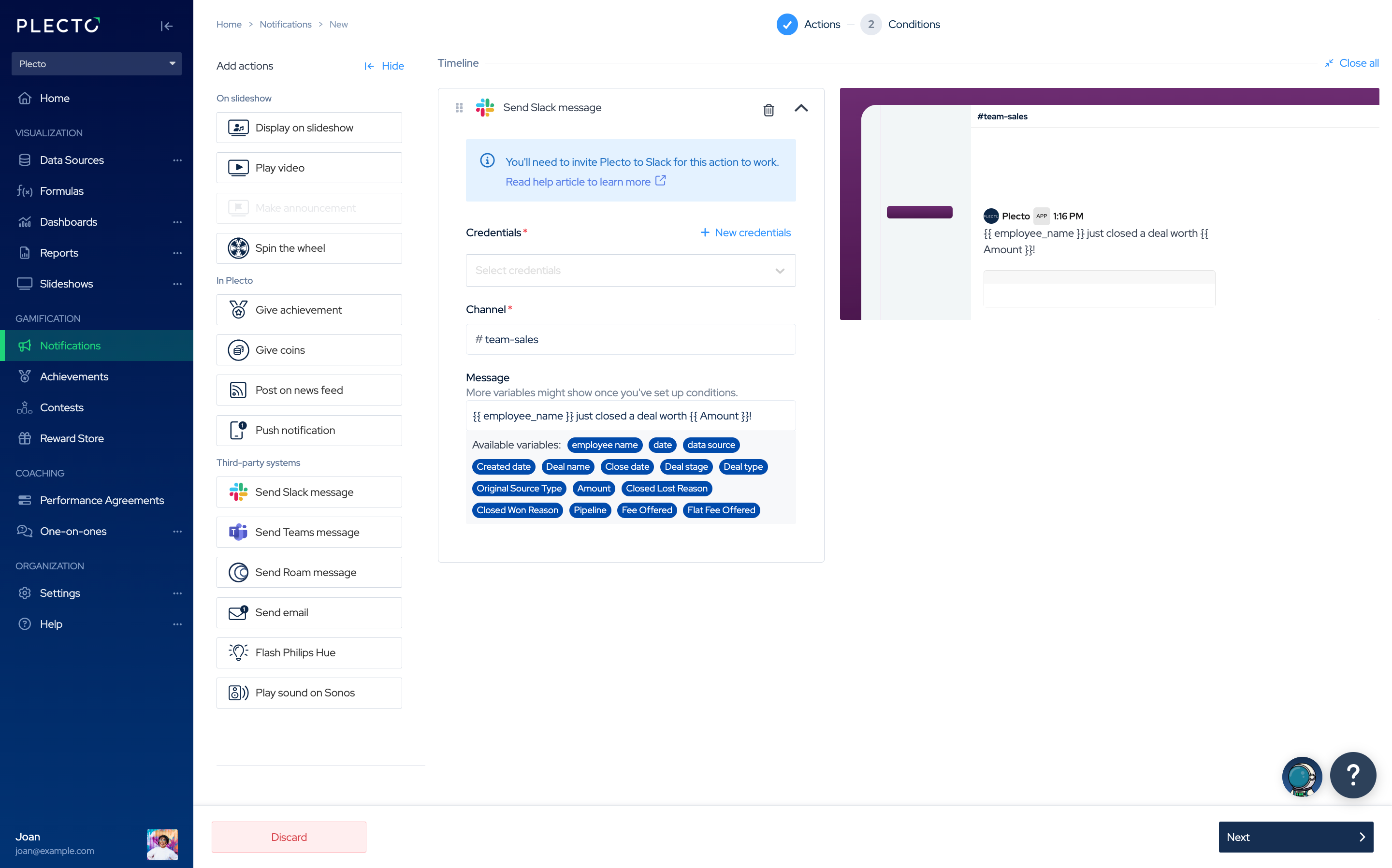
Send a Slack Message
Get notifications from Plecto in your Slack workspace. Invite @plecto to your channels to get instant updates from Plecto about activities in your organization. 🚀
Send an Email
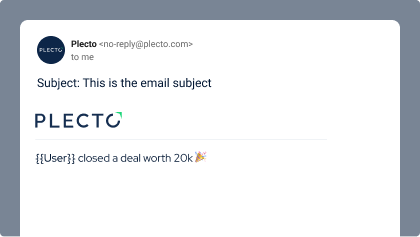
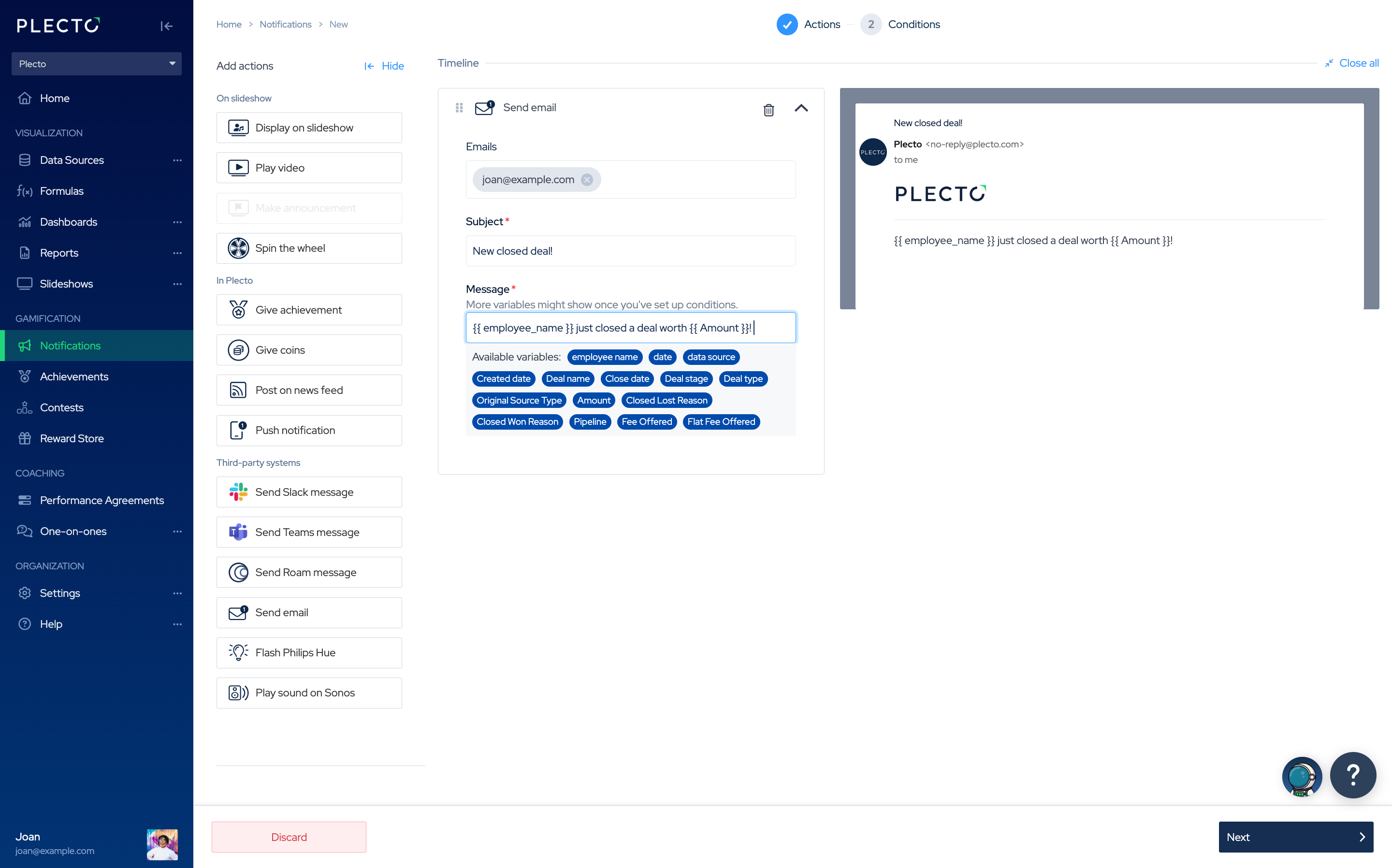
Send an email to notify relevant people when a notification has been triggered.
With Email action, you can:
-
Select employees from your organization or add external emails that should receive the notification.
-
Add the email Subject and Message. You can combine your message with variables from your Plecto data sources or formulas.
Spin the Wheel
Make slideshow notifications even more exciting!
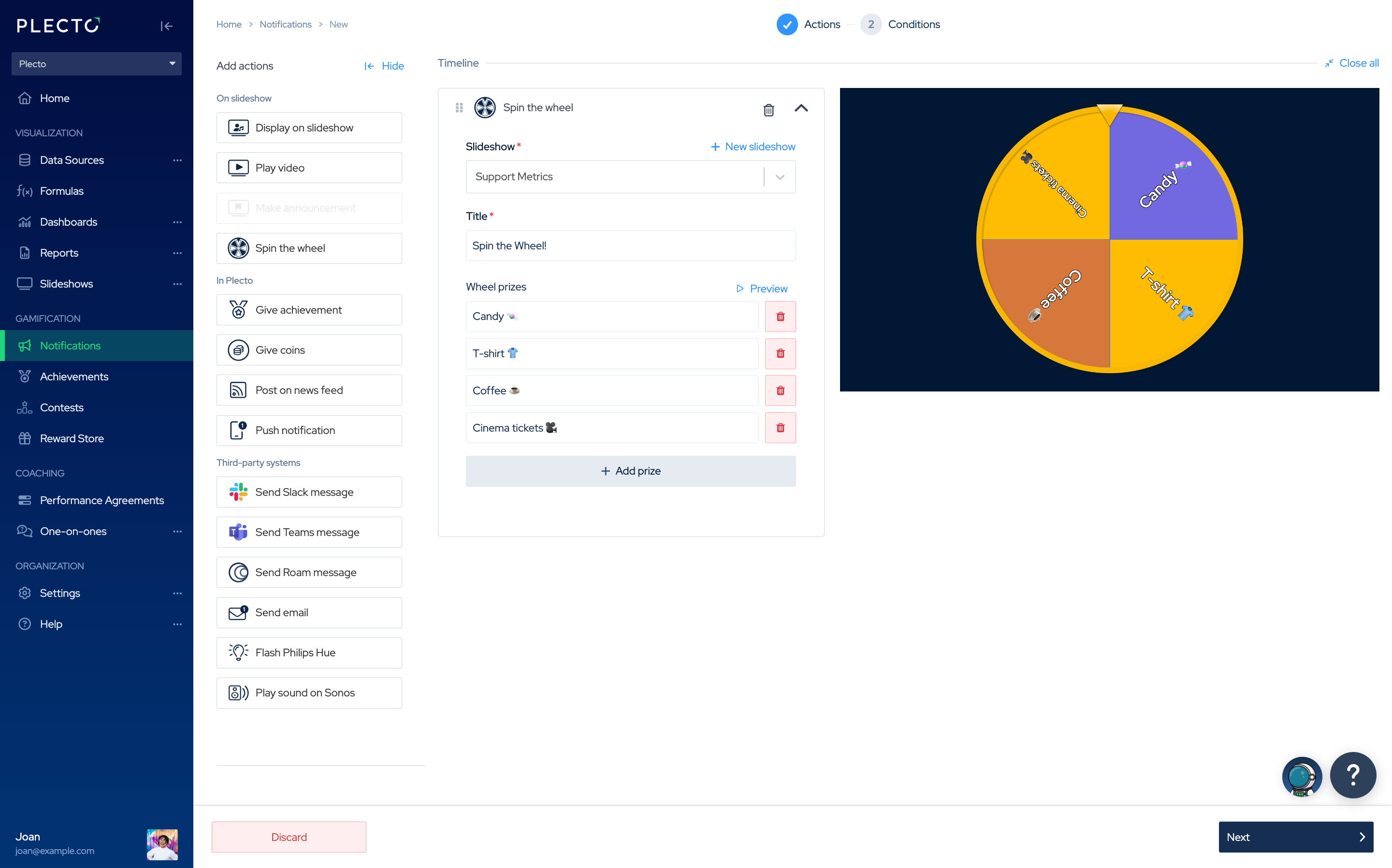
With Spin the Wheel, you can:
-
Launch a spin whenever someone triggers a notification,
-
Set up a schedule and do a spin as a team event (for example, on Fridays at 4PM).
Add the title and list all your motivating prizes.
P.S. You can even use it to make important life decisions: "Should I grab a piece of chocolate or a banana?" 😎
This notification action is available on Gamification+. Head over to the Billing page in Plecto to start your 14-day free trial.
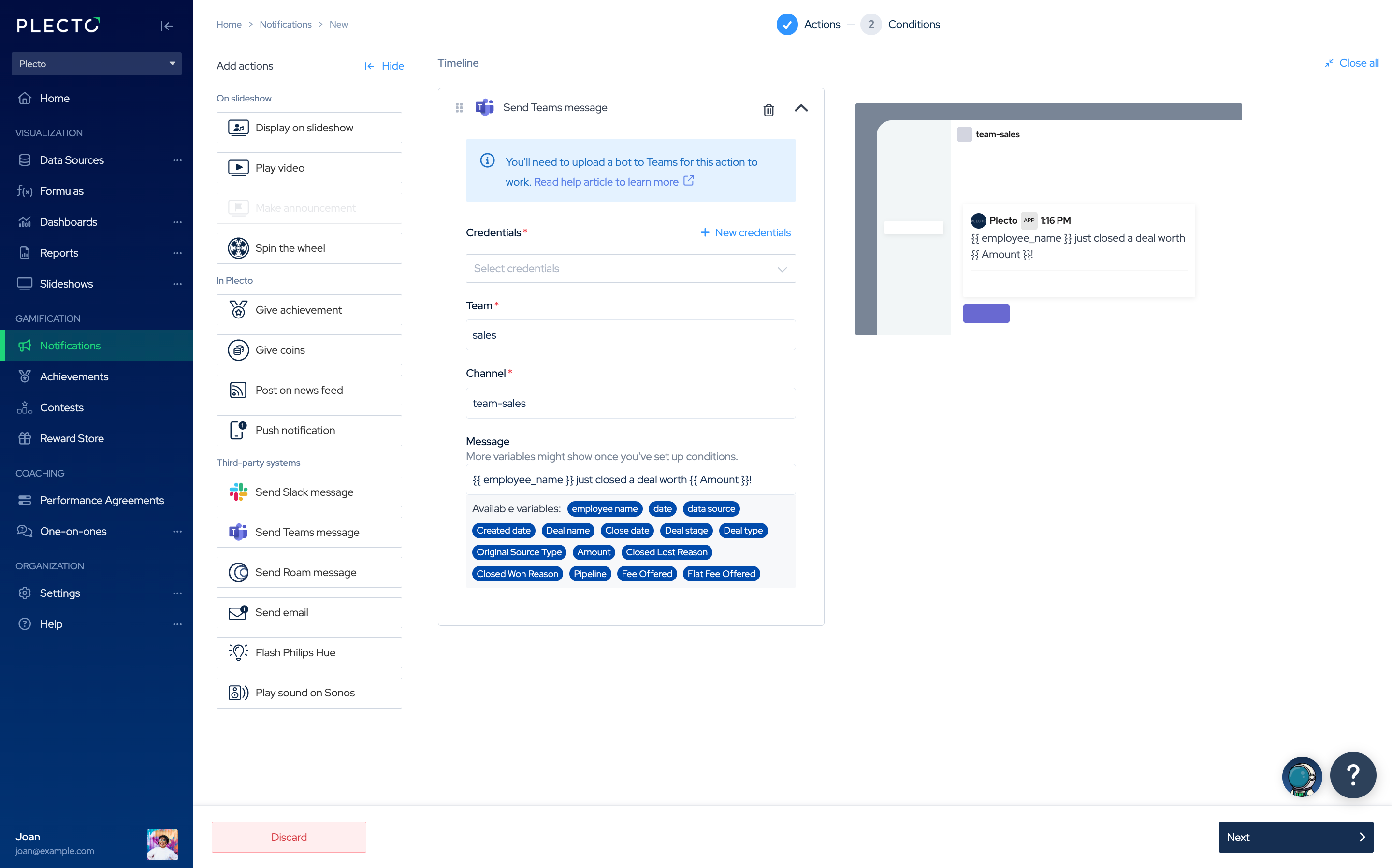
Send a Teams Message
Send notifications to your Public MS Teams channels.
Add Plecto bot to your App Catalog in Teams, add your credentials to Plecto, and you're good to go!
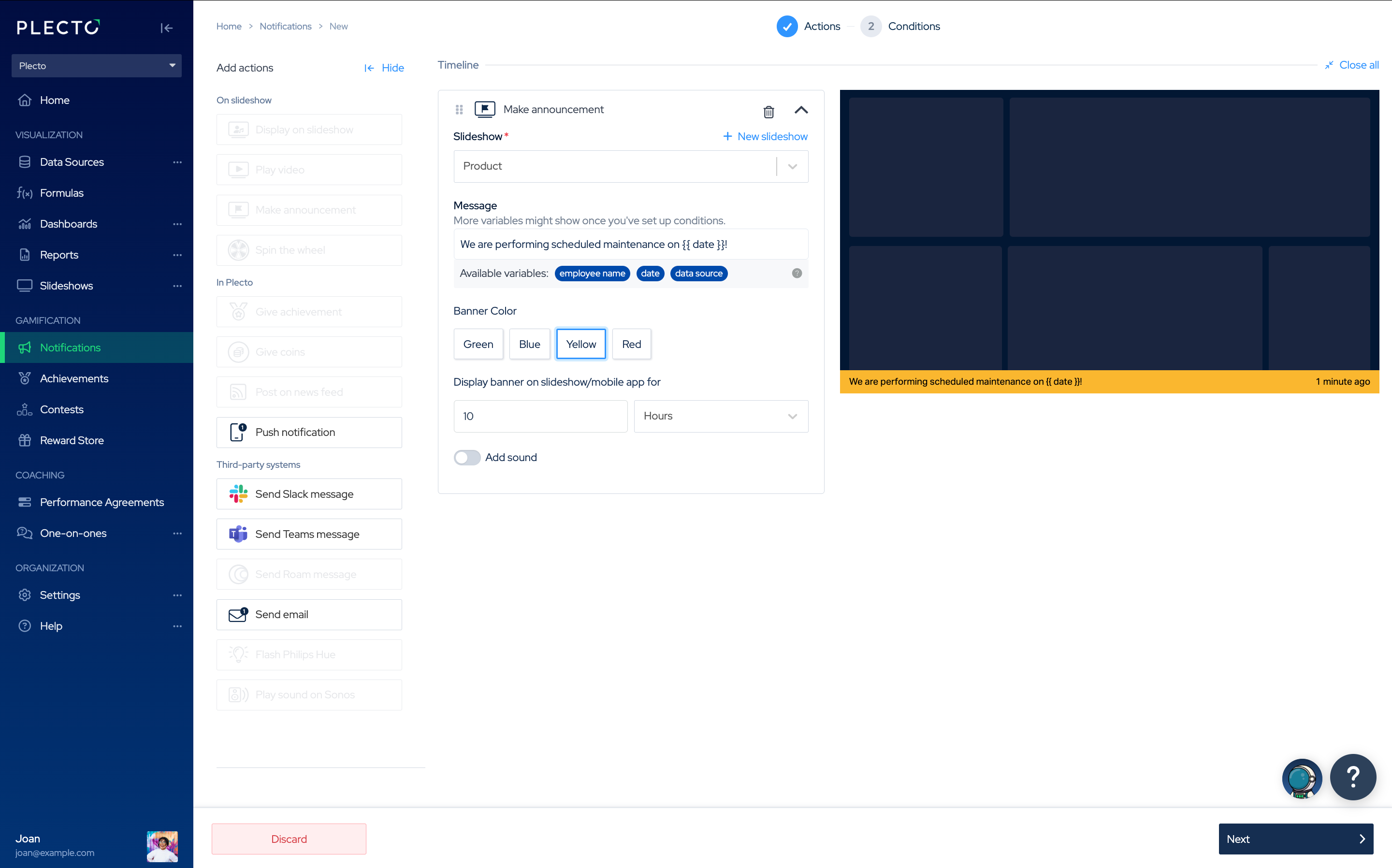
Make Announcement
Announcements allow you to send or schedule time-sensitive messages across your organization.
With Announcements, you can:
-
Add banners to slideshows in different colors (green, blue, yellow, red) to send info and warning messages to your employees and teams, inform your organization about critical situations, send reminders, and more.
-
Add a custom message or combine it with text variables from your data sources or formulas.
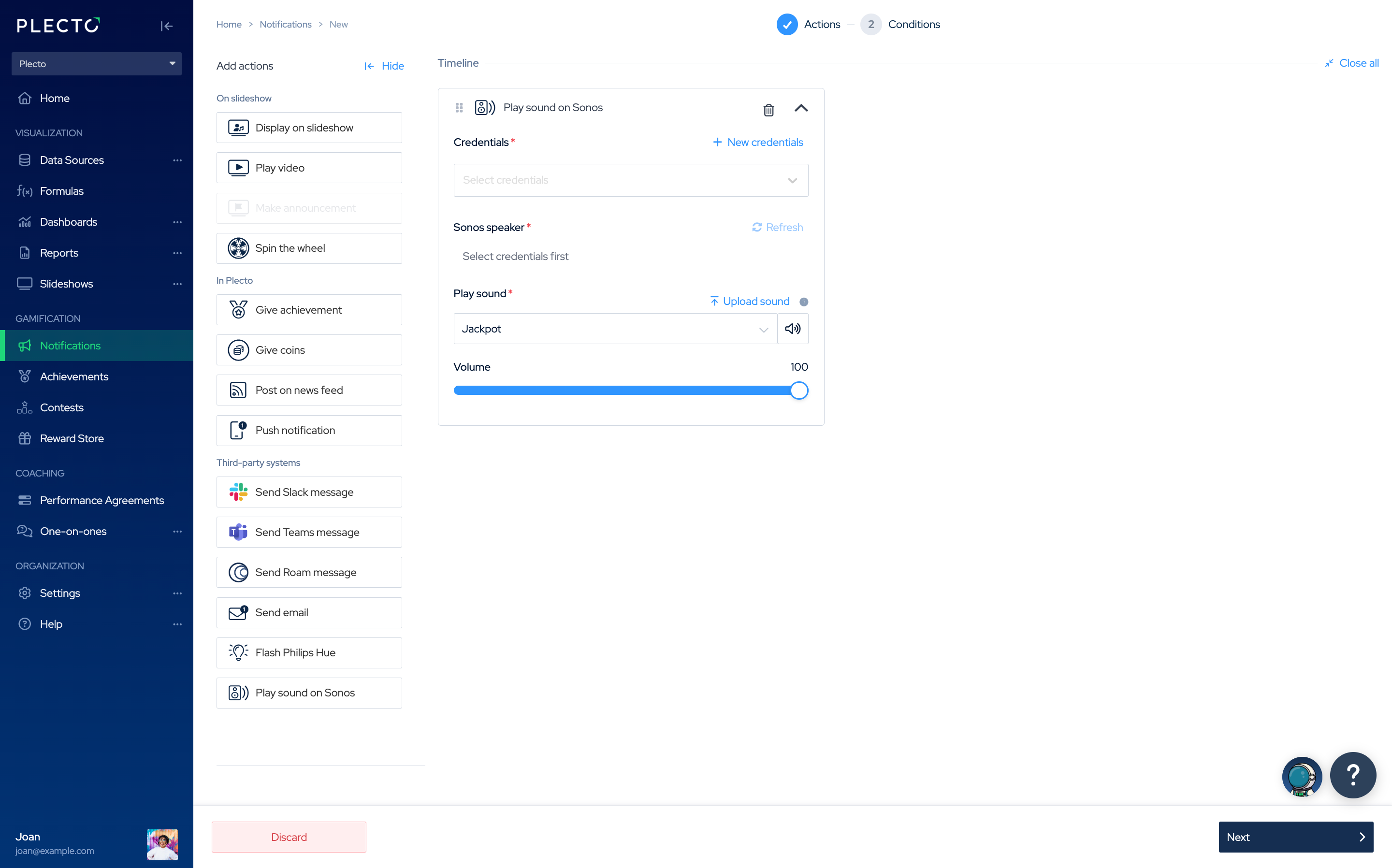
Play Sound on Sonos
Add your Sonos credentials and play a sound whenever a notification triggers.
Combine this action with other notification actions to create the ultimate celebration experience!
To play a sound through Sonos, add your Sonos credentials by signing in to your Sonos account from Plecto while creating the notification.
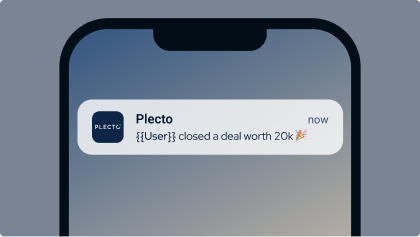
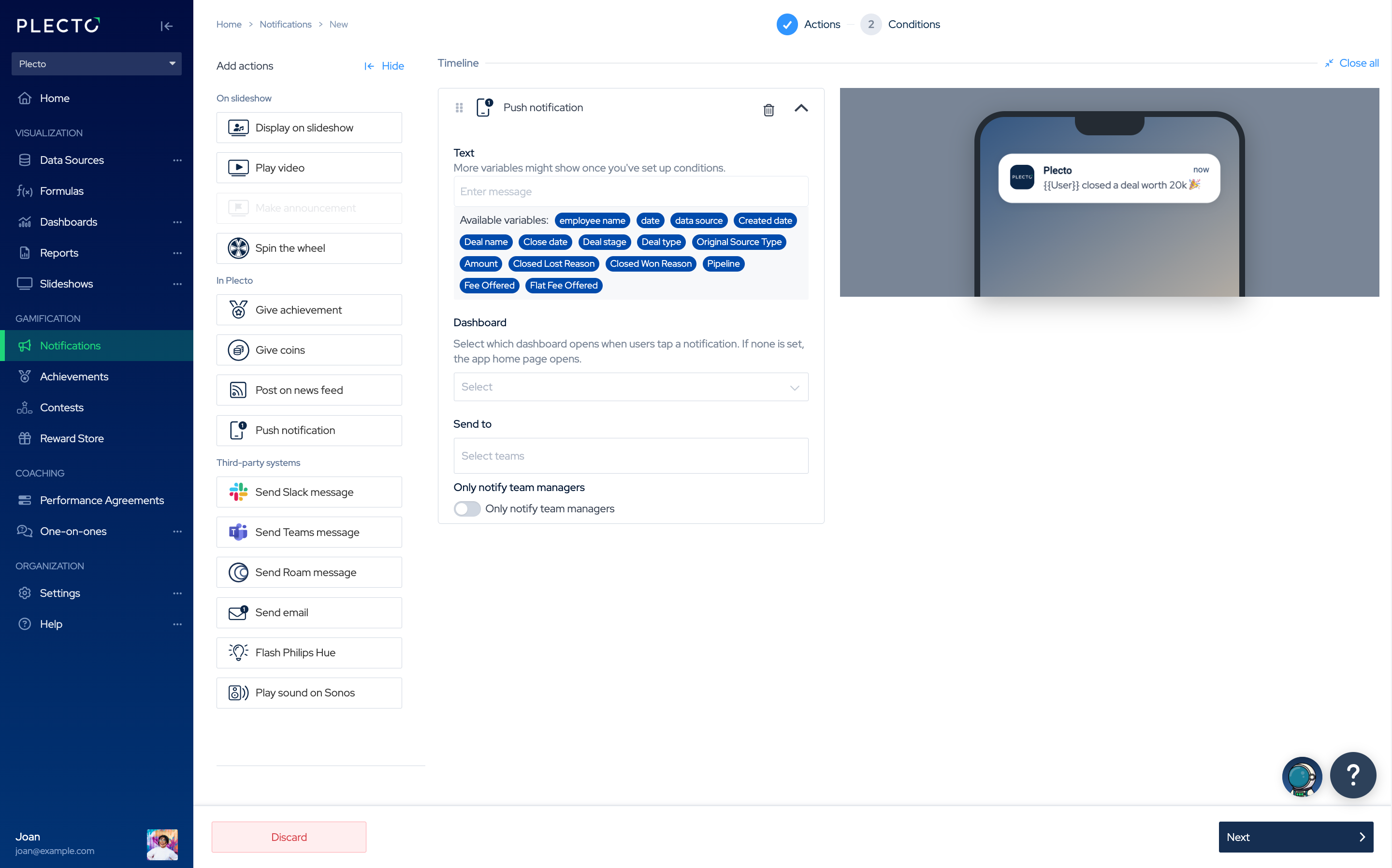
Push Notification
Send notifications to your team members' mobile device. The notification will only be sent to people who have the Plecto mobile app and are logged in.
With this action, you can:
-
Add custom text to the notification, for example, "Keep up the great work!"
-
Choose what dashboard should open once people tap on the notification on their screen.
-
Select the receiving teams that the notification will be sent to.
-
(Optional) You can choose to send the push notification only to the team managers.
Allow Plecto to send notifications. To receive notifications, you need to be logged in to Plecto on your mobile app and allow Plecto to send notifications to your phone (enable them in your phone settings).
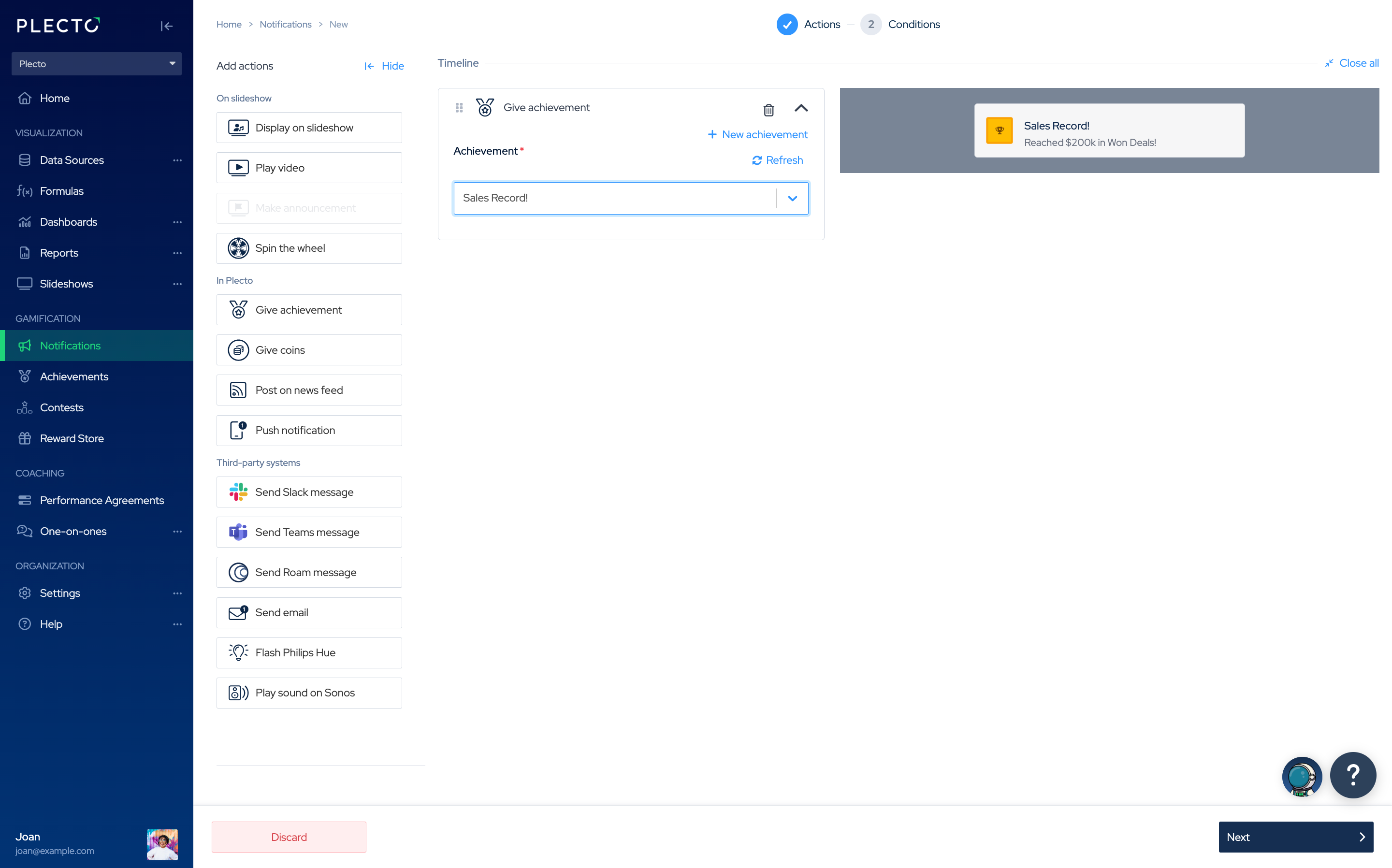
Give Achievement
Automate achievements with notifications. Whenever someone triggers a notification, they will receive an achievement badge.
Here are some ideas for achievements:
-
Booked 20 meetings
-
Received a positive rating
-
Call champion
-
Finished onboarding
-
Completed 10 demos
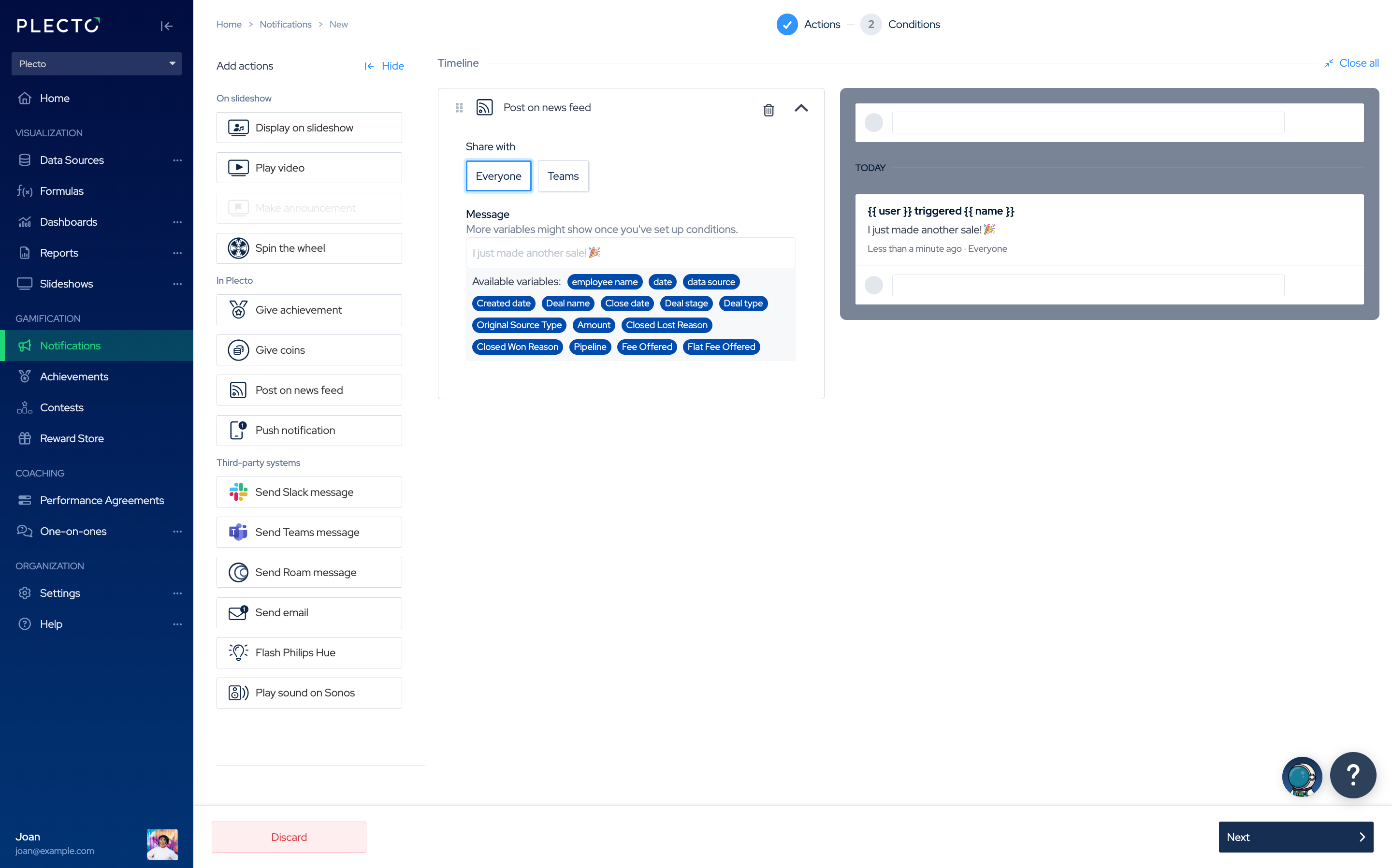
Post on News Feed
Receive updates on your Home Page in Plecto whenever someone triggers a notification.
Organization admins can configure what gets posted on the News Feed in Organization > Settings > News Feed.
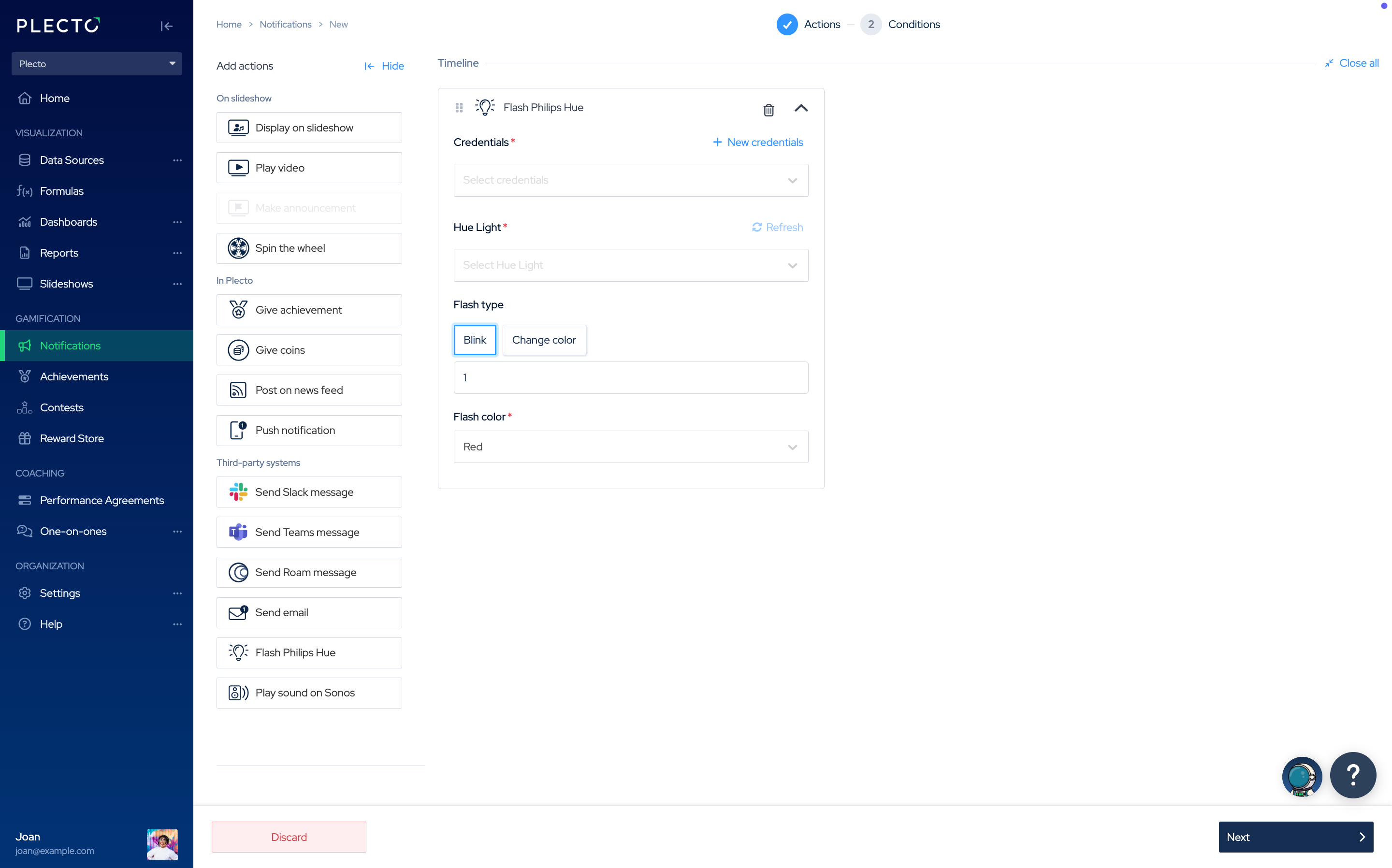
Flash Philips Hue
Connect Plecto to Philips Hue to create a colorful atmosphere in the office whenever someone triggers a notification!
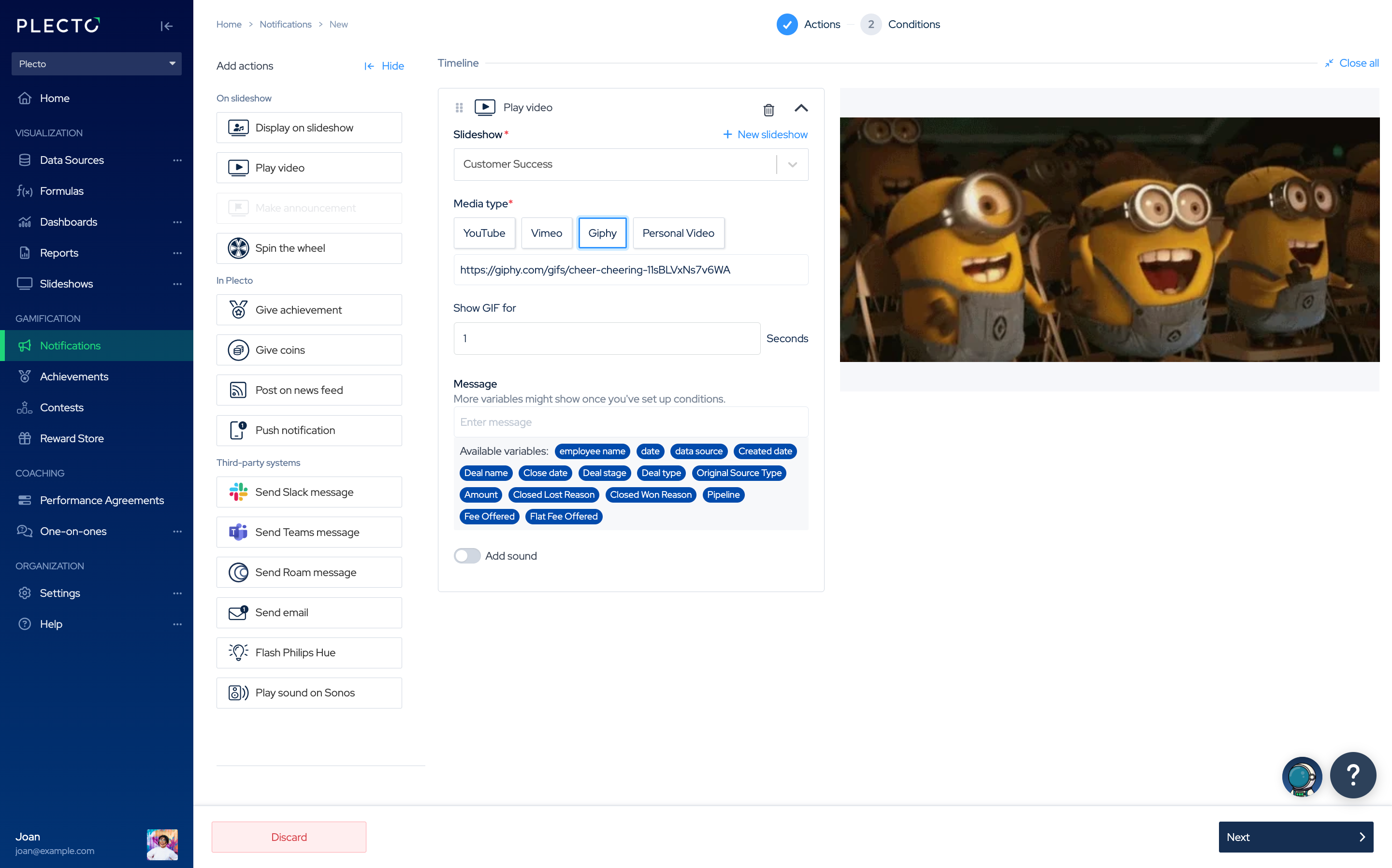
Play Video/Show GIF
Does your team or office have a victory song? 🏆 Launch a video or GIF whenever your notification triggers!
You can add media from:
-
YouTube/Youtube shorts
-
Vimeo
-
GIPHY
-
or play a YouTube video chosen by your employees (called Personal video)
Play Personal video when notification triggers
Let your team members choose what to play when they trigger a notification.
Each employee in your organization can add a YouTube video link in their account settings and personalize their notifications.
Give Coins
Add Give coins action to the notification and let your teams earn coins when they trigger the notification.
-
The amount of coins added is given per employee.
-
When setting up the notification, decide how many coins the activity is worth (Is it a reached quarterly target? Booked 10 meetings? A positive rating?)
Estimate how much a notification is worth, and people's coin balance will increase whenever they trigger the notification.
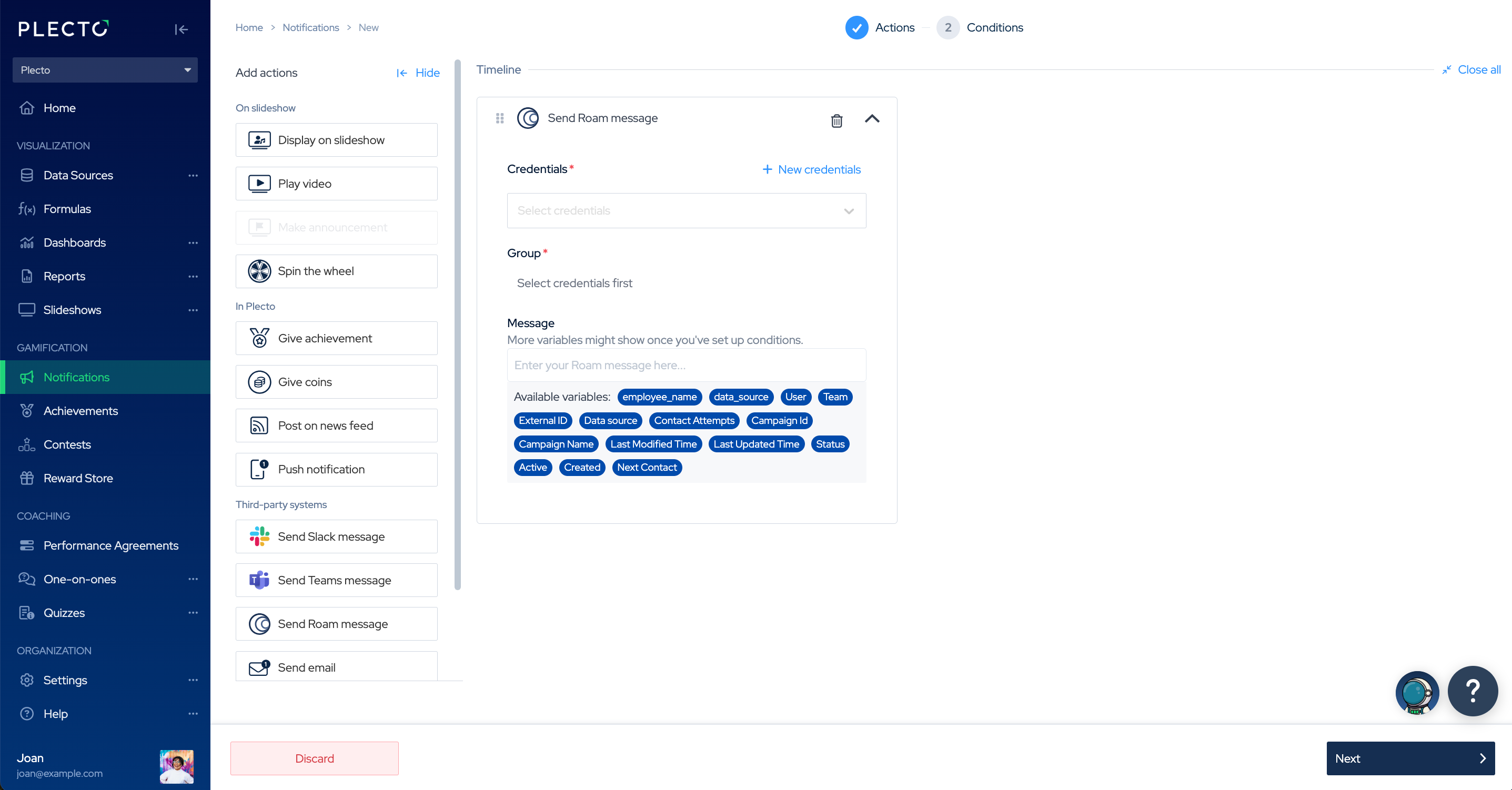
Send a Roam Message
Post notifications from Plecto to ro.am! Add your credentials, select a group, update the notification message and receive updates every time the notification triggers! 🚀