 Sign in
KPI Examples for Timeline Widget
Make use of the timeline widget
Do you want to display the latest closed deals, calls, or get an overview of your meetings, tasks, or other activities? The timeline widget allows you to view your KPIs in chronological order, and it is most widely used with Last and Sum of functions.
-
The examples below show how to create formulas with the Last function.
-
Each of the examples requires you to know the default date field of your data source. Find the default date in your data source settings. For manual data sources, it's always the Created date.
Latest closed deal overview
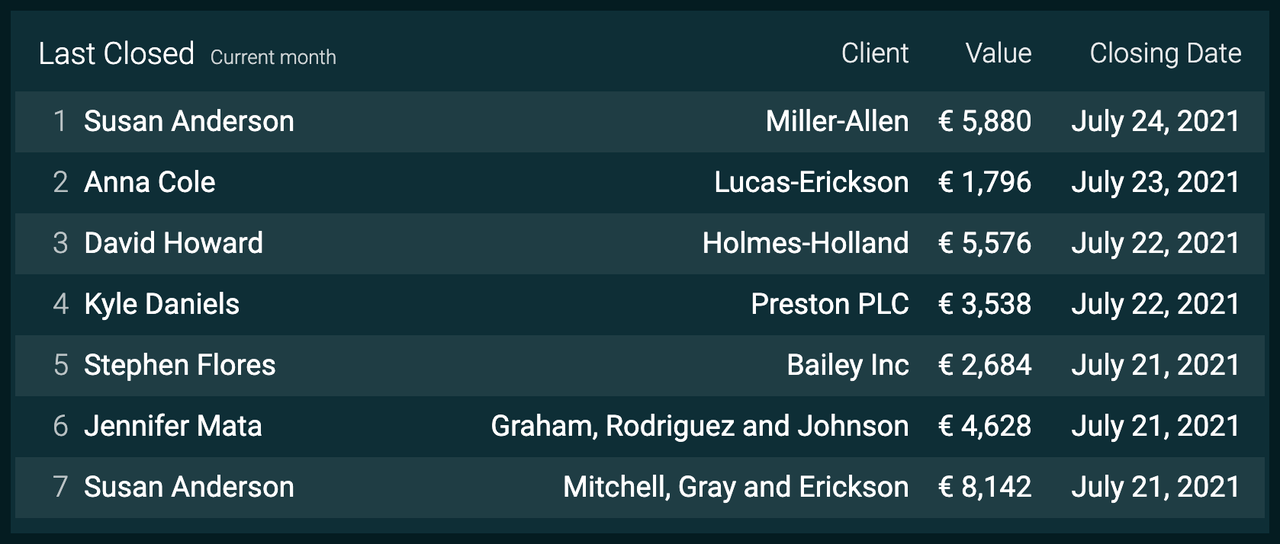
Let's say you want to get an overview of your latest closed deals, their value, and closing date. All you have to do is create three formulas and add them to a timeline widget on your dashboard.
-
Choose the Timeline widget on your dashboard.
-
Click and hold your mouse and drag it onto the dashboard.
-
Click Add column and enter a column title. You can add as many columns to the widget as you need.
-
Click Create formula and start building your formulas (scroll down to see how).
1. Latest closed client name
-
Add a Data function component:
-
Data source: Select a data source that stores info about your deals
-
Function: Last
-
Field: Select a field that contains your clients' names
-
Date field: Choose a date that the formula will be based on
-
Click Add filter and filter only your won/closed won deals and click Done.
-
-
Change the number format to Text.
-
Give your formula a title.
-
Click Save in the bottom-right corner.
Once you add the formula to a column in the timeline widget, it will display the client names of your closed deals.
2. Closed deal value
-
Create a new column and formula.
-
Add a Data function component:
-
Data source: Select a data source that stores info about your deals
-
Function: Sum of
-
Field: Select a field that contains your deal values
-
Date field: Choose a date field the formula will be based on
-
Click Add filter and filter only your won/closed won deals and click Done.
-
-
Keep the number format to Decimal number.
-
(Optional) If you want to see the currency on the widget, add a prefix (such as $, €) or suffix (such as USD, EUR) in the bottom-left of the formula editor.
-
Give your formula a title.
-
Click Save in the bottom-right corner.
Add this formula to another column on your timeline widget. It will show the latest closed deal values.
3. Closing date
-
Create a new column and formula.
-
Add a Data function component:
-
Data source: Select a data source that stores info about your deals
-
Function: Last
-
Field: Select a field that contains your closing dates
-
Date field: Choose a date field the formula will be based on
-
Click Add filter and filter only your won/closed won deals and click Done.
-
-
Change the number format to Date or Date and time.
-
Give your formula a title.
-
Click Save in the bottom-right corner.
Add this formula to a third column on your timeline widget. It will show all the closed deal dates in chronological order.
Latest call overview
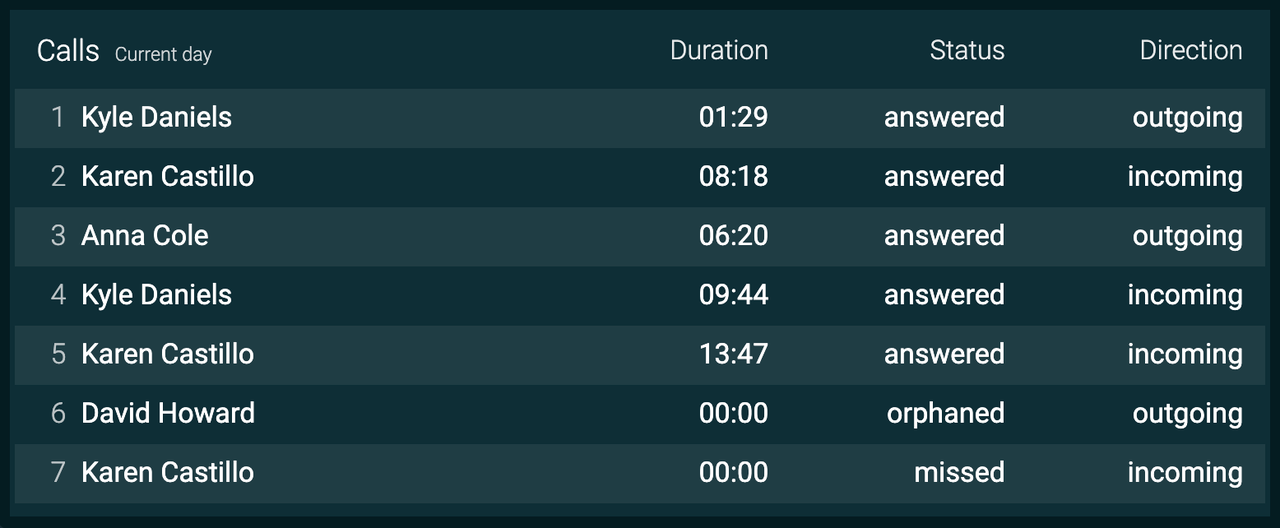
This example shows how to create KPIs to display your team's latest calls by duration, status, and direction.
-
Choose the Timeline widget on your dashboard.
-
Click and hold your mouse and drag it onto the dashboard.
-
Click Add column and enter a column title. You can add as many columns to the widget as you need.
-
Click Create formula and start building your formulas (scroll down to see how).
1. Latest call duration
-
Add a Data function component:
-
Data source: Select a data source that stores info about your calls
-
Function: Last
-
Field: Select a field that contains your call duration
-
Date field: Choose a date field the formula will be based on
-
-
Change the number format to Duration.
-
Give your formula a title.
-
Click Save in the bottom-right corner.
2. Latest call status
-
Create a new column and formula.
-
Add a Data function component:
-
Data source: Select a data source that stores info about your calls
-
Function: Last
-
Field: Select a field that contains your call status
-
Date field: Choose a date field the formula will be based on
-
-
Change the number format to Text.
-
Give your formula a title.
-
Click Save in the bottom-right corner.
3. Latest call direction
-
Create a new column and formula.
-
Add a Data function component:
-
Data source: Select a data source that stores info about your calls
-
Function: Last
-
Field: Select a field that contains your call direction
-
Date field: Choose a date field the formula will be based on
-
-
Change the number format to Text.
-
Give your formula a title.
-
Click Save in the bottom-right corner.
Latest completed tasks
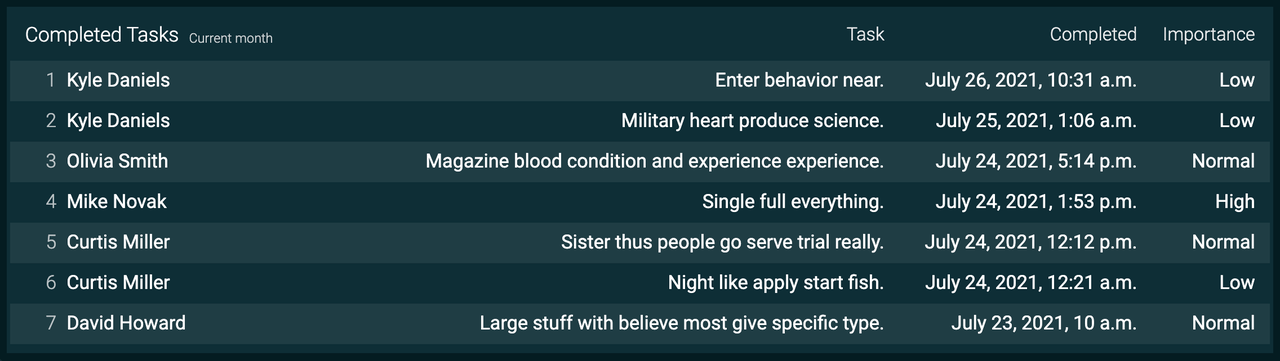
Create a timeline widget to see your latest completed tasks by description, completion date, importance, or other metrics.
-
Choose the Timeline widget on your dashboard.
-
Click and hold your mouse and drag it onto the dashboard.
-
Click Add column and enter a column title. You can add as many columns to the widget as you need.
-
Click Create formula and start building your formulas (scroll down to see how).
1. Task description
-
Add a Data function component:
-
Data source: Select a data source that stores info about your tasks
-
Function: Last
-
Field: Select a field that contains your task description
-
Date field: Choose a date field the formula will be based on
-
Click Add filter and filter only your completed/done tasks and click Done.
-
-
Change the number format to Text.
-
Give your formula a title.
-
Click Save in the bottom-right corner.
2. Task completion date
-
Create a new column and formula.
-
Add a Data function component:
-
Data source: Select a data source that stores info about your tasks
-
Function: Last
-
Field: Select a field that contains your task completion dates
-
Date field: Choose a date field the formula will be based on
-
Click Add filter and filter only your completed/done tasks and click Done.
-
-
Change the number format to Date or Date and time.
-
Give your formula a title.
-
Click Save in the bottom-right corner.
Add this formula to a third column on your timeline widget. It will show all the completed task dates in chronological order.
3. Task priority
-
Create a new column and formula.
-
Add a Data function component:
-
Data source: Select a data source that stores info about your tasks
-
Function: Last
-
Field: Select a field that contains your task priority/importance
-
Date field: Choose a date field the formula will be based on
-
Click Add filter and filter only your completed/done tasks and click Done.
-
-
Change the number format to Text.
-
(Optional) Add conditional colors. For example, if the task priority is High, type High in the condition field and choose the color red.
-
Give your formula a title.
-
Click Save in the bottom-right corner.