Sign in
How to Add Your Logo to Slideshows
Add a logo to your Plecto slideshows
You can add a company logo to your slideshows. The logo will appear in a small bubble in the top-right corner of your Plecto slideshows.
-
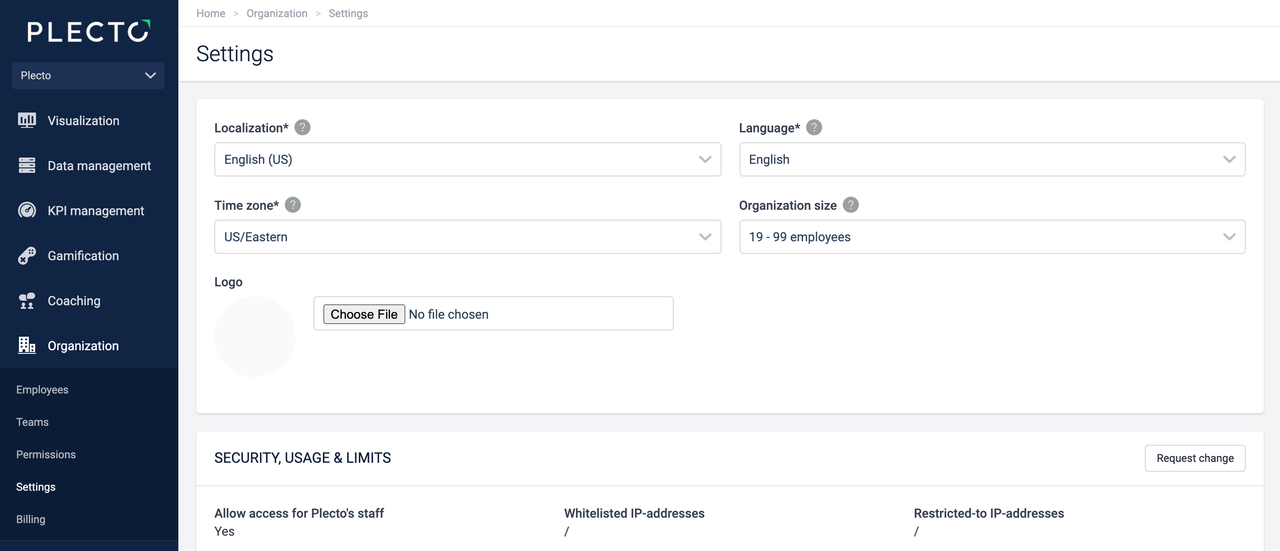
Go to Settings.
-
Click the Choose file button in the Logo section.
-
Select an image from your local device (max 10MB).
-
Click Save in the bottom-right to finish.
To remove the logo, tick the checkbox Clear next to your logo, then click Save.
Did you know? Each employee can personalize their notifications and choose a YouTube video they want to play when they trigger a notification. Go to your account settings and add your own video.