 Sign in
Plecto TV App
Plecto TV App
Plecto has native TV apps for LG, Samsung and smart TVs running on Android. If you can't find Plecto in your TV's app store, you can use the TV browser instead.
We recommend TV models released in 2020 and later. The minimum version for LG TVs is webOS 5.0. For Samsung's Tizen, it's 5.5.
Once installed, you can activate a slideshow using your computer or mobile app:
-
From computer: Go to Slideshows > TV management > Activate TV and follow the instructions on the screen.
-
From mobile app: Tap More in the bottom-right corner, then tap Add TV and scan the QR code on your TV screen.
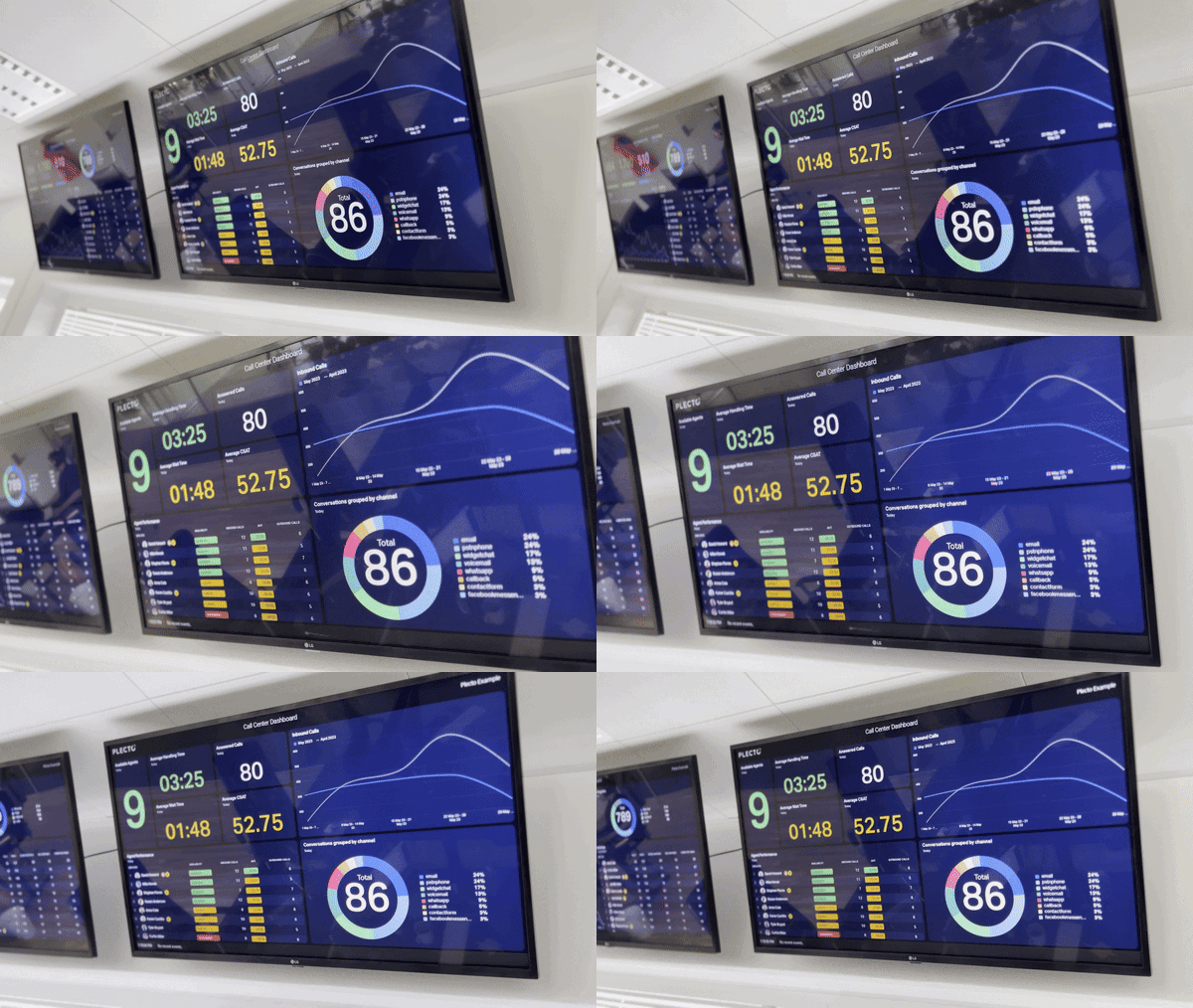
How to install Plecto on your LG TV
-
Open the LG Content Store on your TV.
-
Type and search for Plecto in the search bar. You can also find the app in the Life category.
-
Install the app and open it on your Smart TV.
You will now see Plecto's TV page. You can activate a slideshow from your computer or mobile app:
-
Computer: Go to Slideshows > TV management > Activate TV and follow the instructions on the screen.
-
Mobile app: Tap More in the bottom-right corner, then tap Add TV and scan the QR code on your TV screen.
Set up Quick Access on your TV remote
Set up a shortcut to open Plecto with a single button. The minimum webOS version required on your LG TV is 5.0. For more details, read the LG help guide.
-
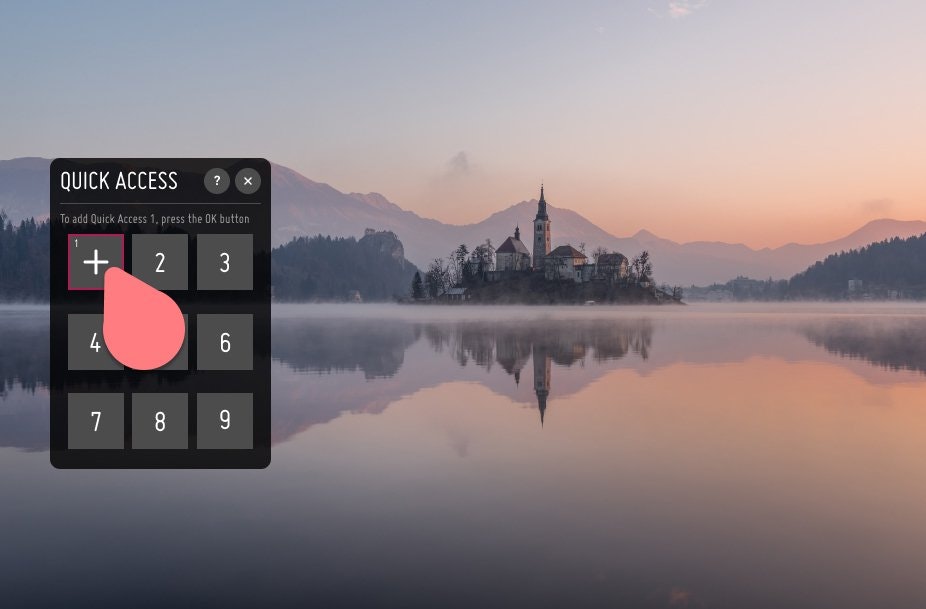
Press and hold the "0" [zero] button on your TV remote. A menu will appear on your TV screen. From there, you can assign quick access to an app for each number on the remote.
-
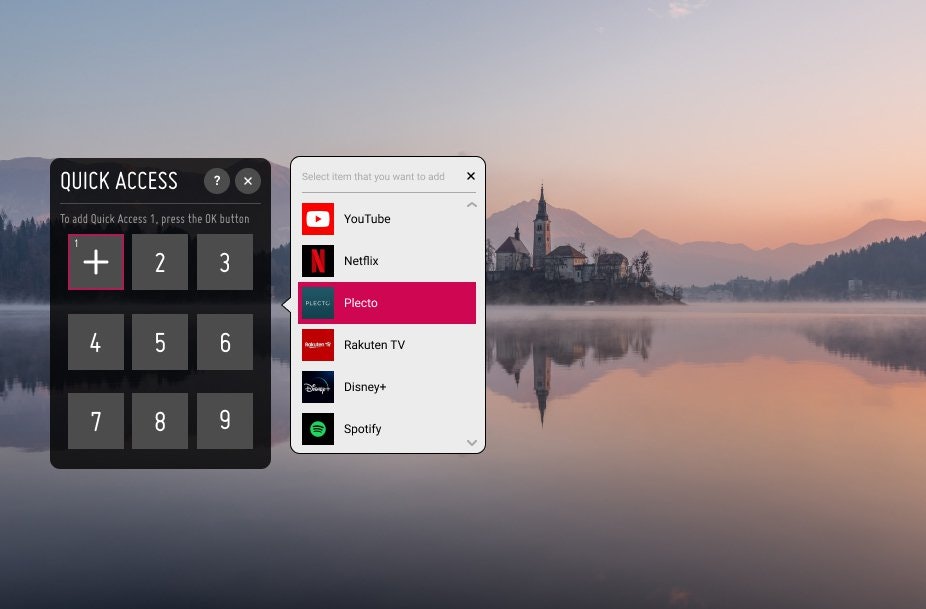
Using the cursor, select a number on your TV screen to assign the Plecto TV app. If a number is already taken, you can remove the assigned app by clicking on it.
-
Select Plecto from the list of applications and TV channels.
-
To finish, exit the edit mode by clicking X in the top-right corner.
Now you can easily open your slideshows once you turn on the TV – all you need to do is hold down the shortcut button assigned to Plecto.
How to install Plecto on your Samsung TV
To install the Plecto TV app on your Samsung TV, you need to have a Samsung account and be signed in on your TV. The minimum version of the Tizen operating system required for the app to run on your Samsung TV is 5.5.
The TV uses Full HD (1080p) resolution – 1920x1080
Here's how to get Plecto for Samsung TV:
-
Press the home button on your TV remote and go to Apps.
-
Click on the search icon in the upper-right corner, then type and search for Plecto. Alternatively, you can find the Plecto app in the Lifestyle category in Samsung Apps.
-
Click Install, then Open to open the Plecto app.
-
You will now see Plecto's TV page. You can activate a slideshow from your computer or mobile app:
-
Computer: Go to Slideshows > TV management > Activate TV and follow the instructions on the screen.
-
Mobile app: Tap More in the bottom-right corner, then tap Add TV and scan the QR code on your TV screen.
-
A known issue is that Samsung TVs are not capable of rendering dashboards well enough, nor can they show some types of notifications like, for example, YouTube videos. It's all because the browser rendering is too slow. If you have a TV that runs on Android, we recommend to use that instead.