 Sign in
How to Activate Slideshows on TVs
How can I activate a slideshow on a TV?
Display your slideshows on TVs, computer screens, tablets, and more. There are multiple ways how to activate a TV:
-
Activate a TV through Plecto
-
Activate a TV from the mobile app
-
Create a slideshow URL (no activation needed) – anyone with the link will be able to open the slideshow and see its contents.
All activated TVs are listed under Slideshows > TV management, and you can easily activate, swap, or remove slideshows in just a few clicks.
Plecto TV app. If you have LG or Samsung TVs or a TV that runs on Android, you can install the Plecto TV app to make it easier to display slideshows. We recommend using TVs from 2020 and later.
Activate with a four-digit code
-
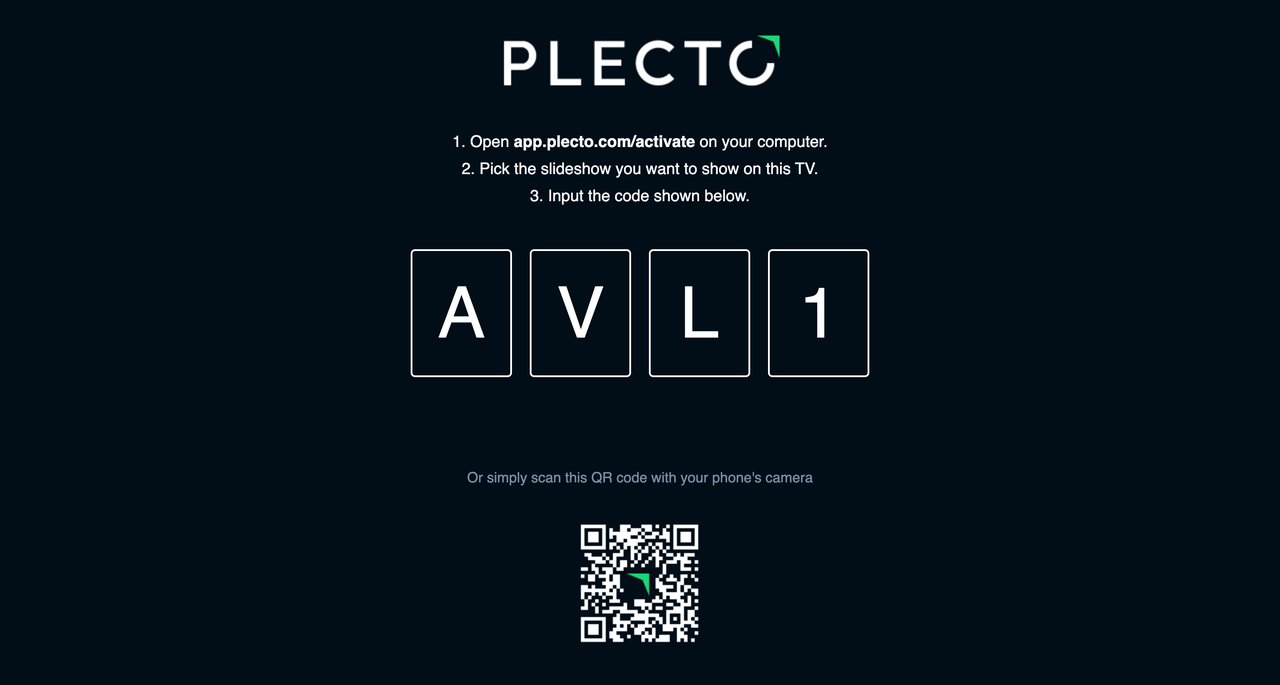
On your Smart TV, open https://tv.plecto.com/. You should see a four-digit code (it will refresh once in a while).
-
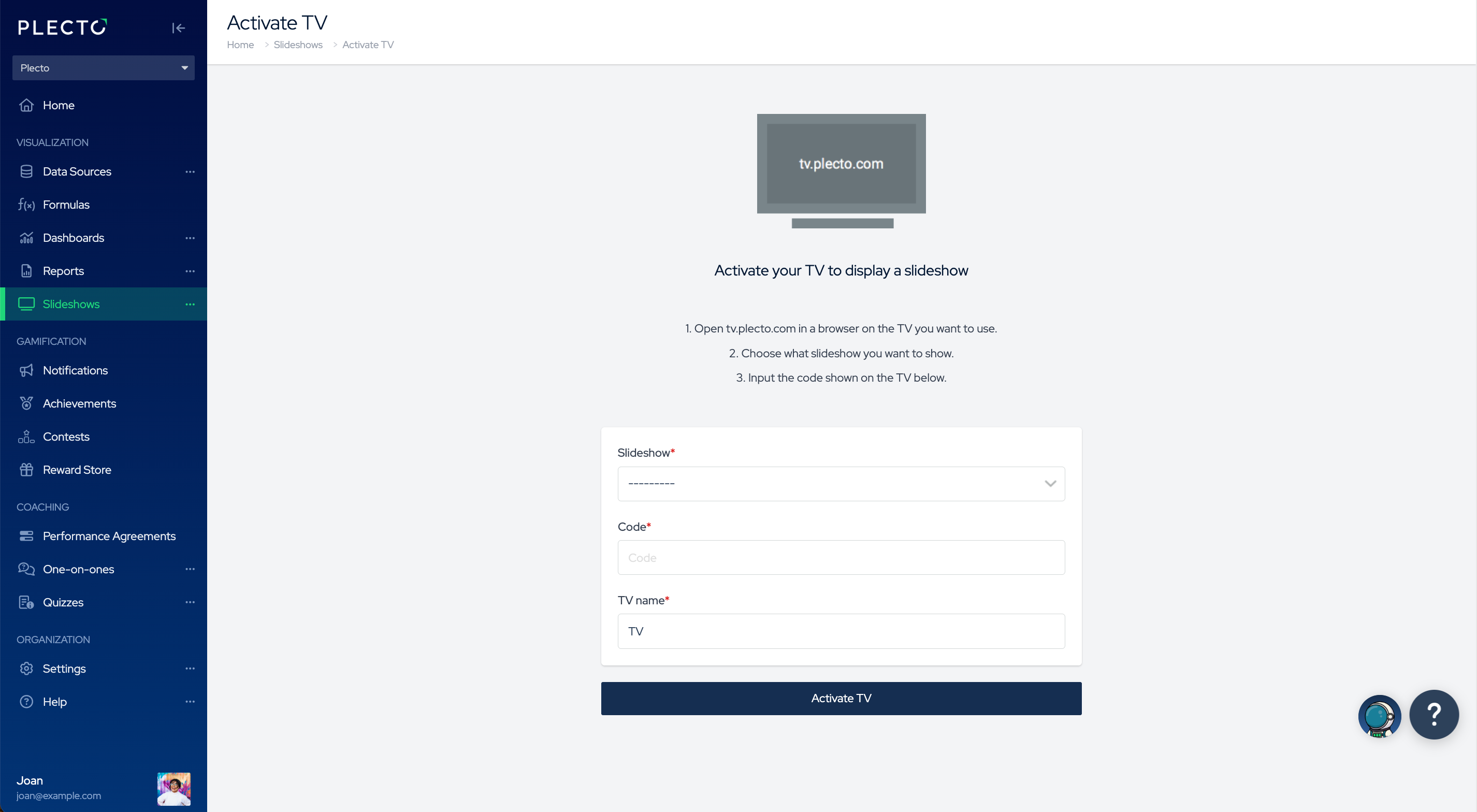
On your computer, open Plecto, then go to Slideshows.
-
Find your slideshow, then click Actions > Activate on the right.
-
Enter the four-digit code you see on the TV screen.
-
Give your TV a name, for example, Conference Room or Office Amsterdam.
-
Click Activate TV. Your slideshow will now be connected to this TV.
Activate with a QR code
If you have the Plecto mobile app (download for iOS, Android), you can activate a TV by scanning a QR code with your phone.
-
Open the Plecto mobile app on your phone and log in.
-
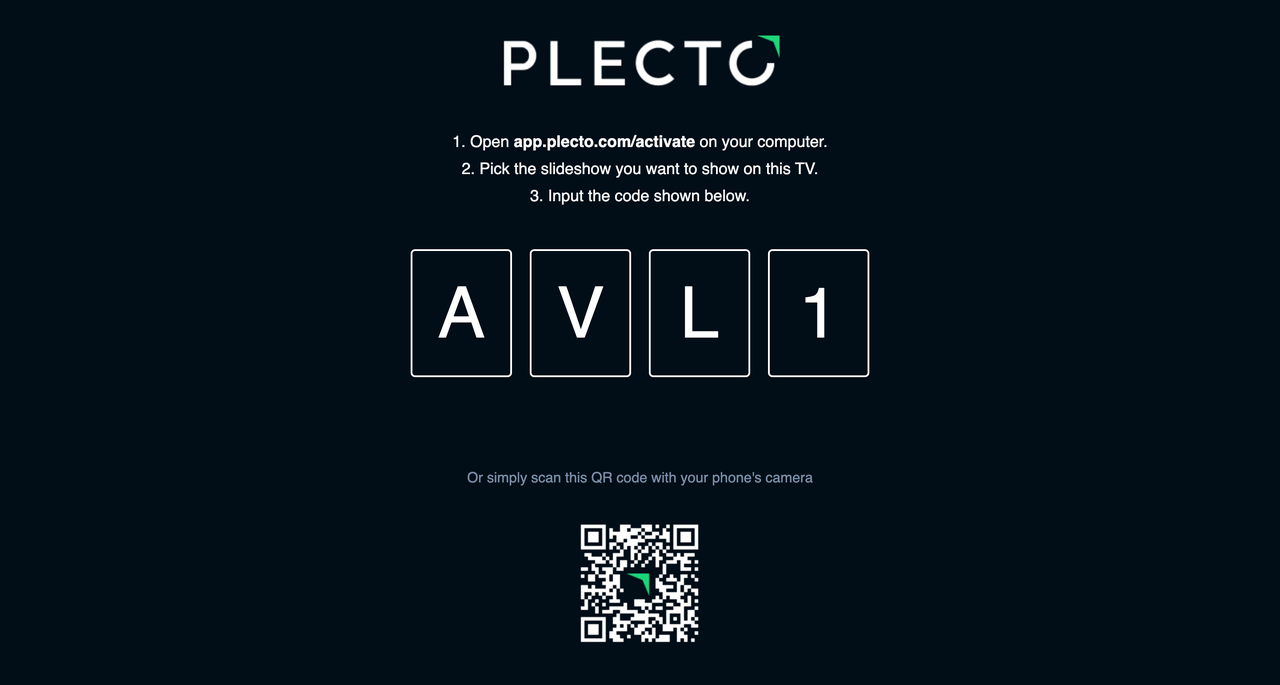
Turn on your smart TV and open the http://tv.plecto.com/ page. You will see a QR code on your TV.
-
Take your phone and scan the QR code with the camera app (iOS) or the QR code scanner (Android).
-
There should be some form of activity on your screen such as a notification.
-
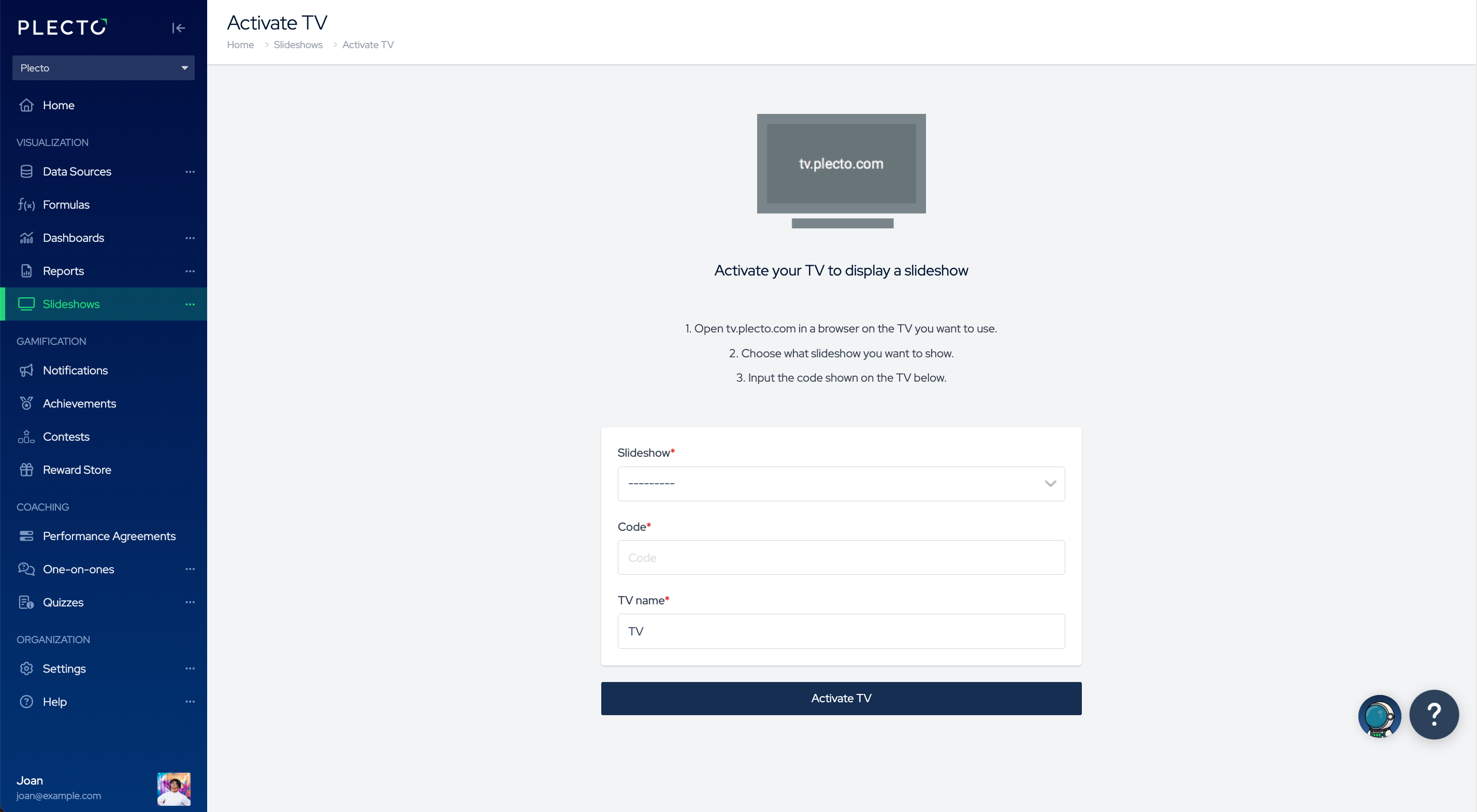
Click the notification – it will redirect you to the Activate TV page.
-
Choose a slideshow and give your TV a name.
-
Click Activate TV to finish.
Create a public slideshow URL
You can generate a public URL for your slideshow and share it with people outside Plecto. Public URLs can also be handy in case you can't use the Plecto app on your TV or when the device doesn't support cookies.
-
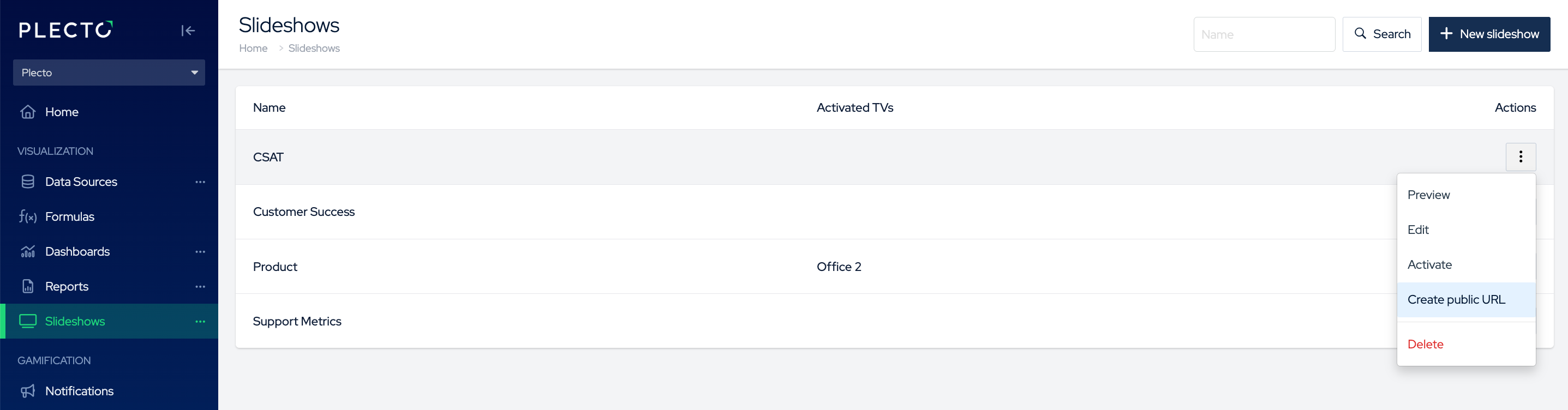
Go to Slideshows.
-
Find a slideshow, then click Actions > Create public URL on the right.
-
Confirm that you want to create the URL.
-
You can now copy the URL listed in the section Public URLs.
Anyone with the link will be able to see the slideshow and its contents – they won't be able to access Plecto or edit the slideshow. You can remove the link at any time.
The URL link will stay the same even if you rename the slideshow or the name of your Public URL.
How to replace a slideshow on TV
You can replace a slideshow with another slideshow in the TV management section:
-
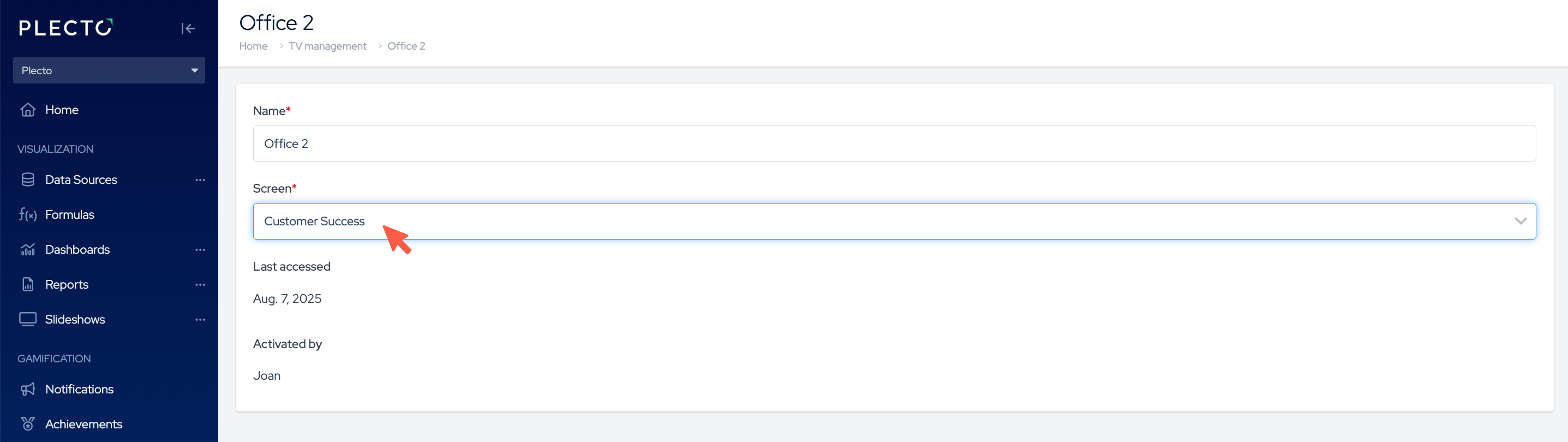
Go to Slideshows > TV management and open the TV you want to change.
-
Under Screen, select another slideshow.
-
Click Save. Your TV will update with the new slideshow! 🎉
Recommended devices
We recommend using modern and updated browsers such as Google Chrome or Safari when viewing slideshows on a PC or casting them on a TV.
For best performance, use TVs that are built in 2020 and after.
-
If you use an LG TV, we recommend newer LG models with minimum webOS 5.0.
-
If you have a Samsung TV, then the Tizen operating system should be over 5.5.
OLED TVs! Please be careful when using OLED TVs for displaying Plecto slideshows. We have received feedback from users that displaying static images for a prolonged time might cause permanent discoloration of some pixels.