 Sign in
Mobile Home Screen Widgets
Widgets.. widgets everywhere!
You don't have to carry your laptop around just to look at your KPIs. With Plecto's mobile app, you can add widgets to the Home Screen of your phone and keep track of your metrics on the go.
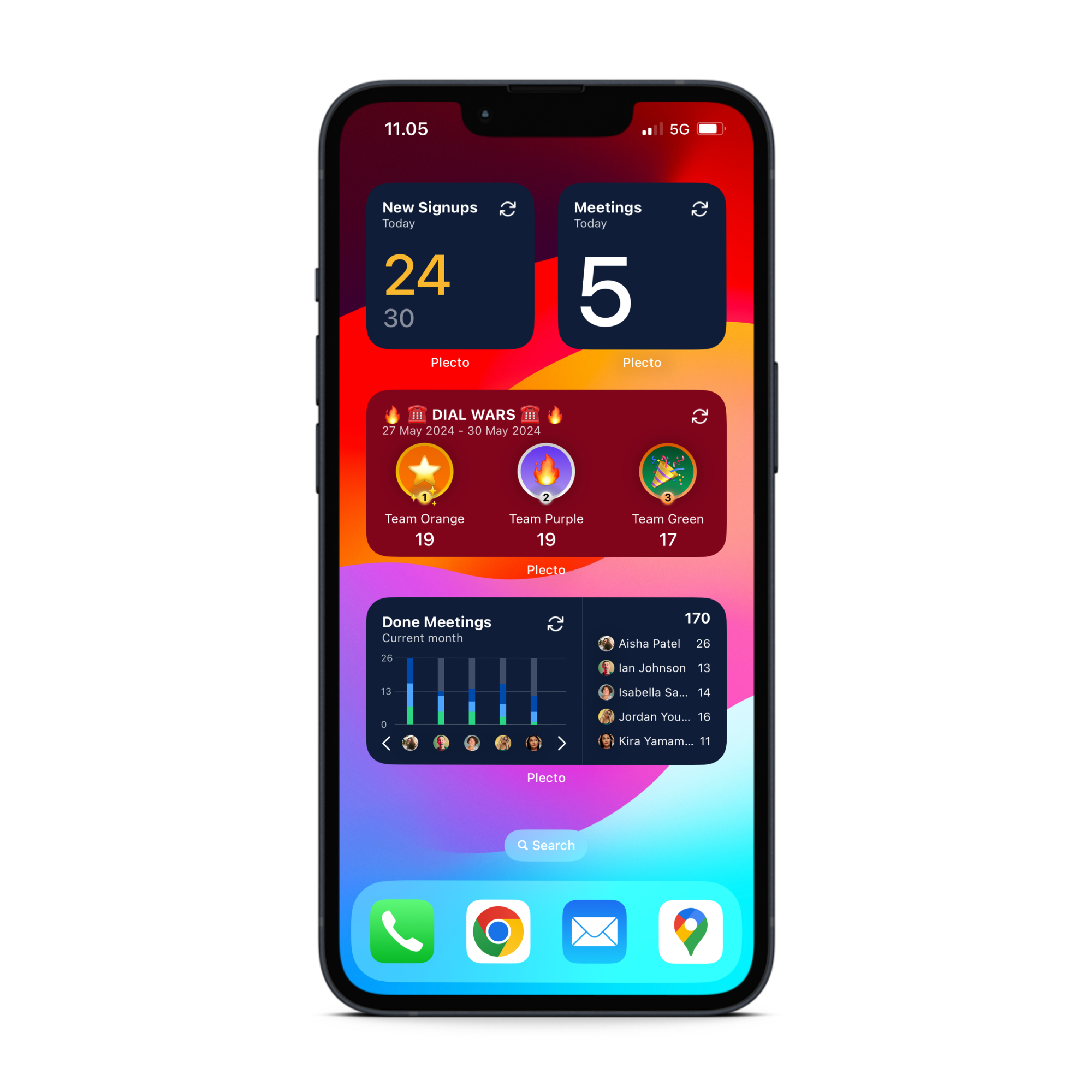
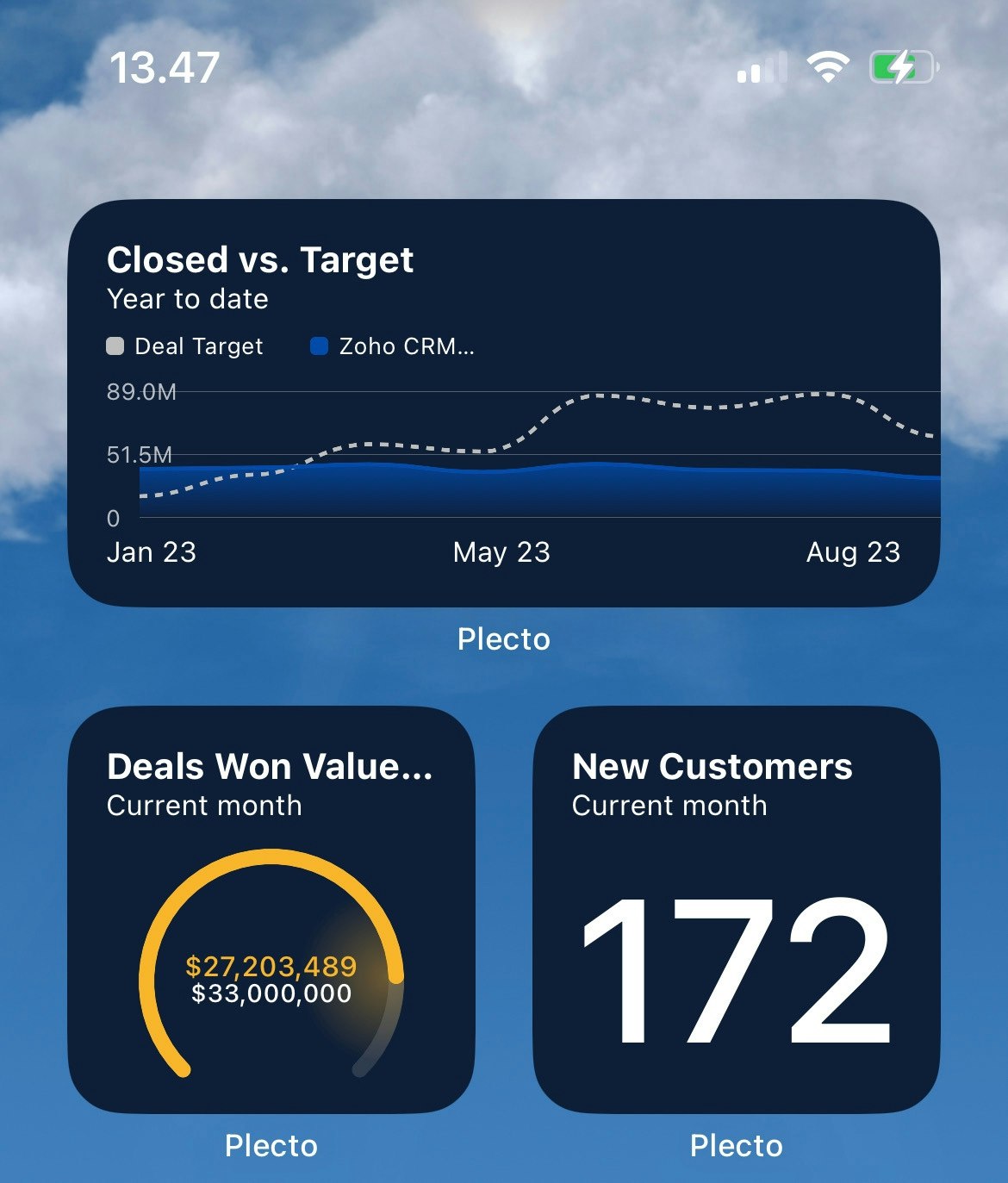
Home screen widgets on iOS
The current version of Plecto for iOS supports the following Home Screen widgets:
-
Number box
-
Speedometer
-
Leaderboard
-
Line chart
-
Area chart
-
Donut chart
-
Column chart
-
Table widget
How to add widgets to home screen:
-
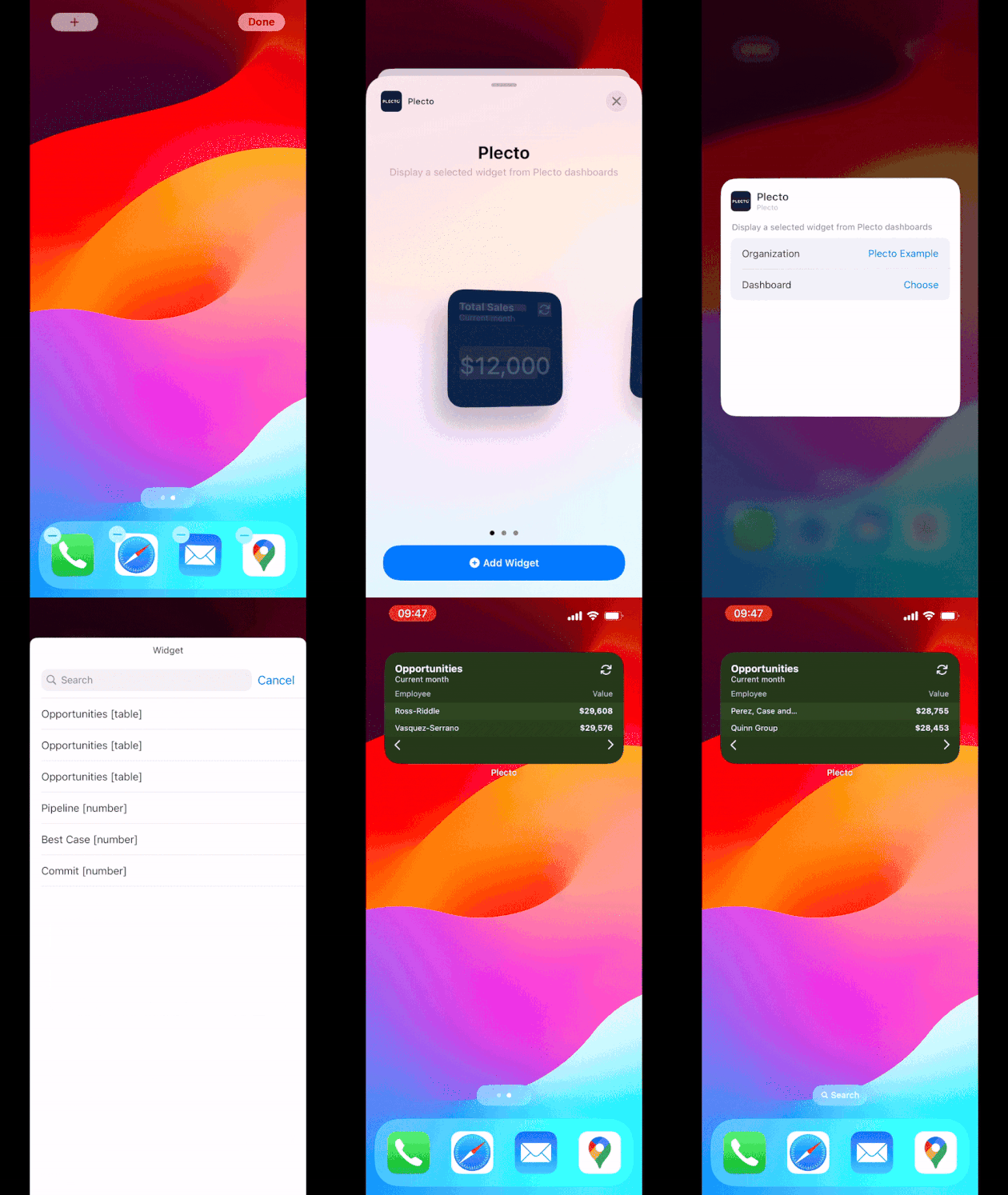
Touch and hold any area on your screen until the apps jiggle.
-
Tap the + button in one of the top corners of your screen (depending on your device).
-
Select Plecto from the list, choose one of the three widget sizes, then tap Add Widget.
-
Tap lightly on the newly added widget and select the organization, dashboard, and widget.
- You can also add contest widgets. All contests are marked in square brackets [contest].
-
Tap outside the Plecto pane, then tap Done.
Widget update time – every 15 minutes
Home screen widgets on Android
The current version of Plecto for Android supports the following Home Screen widgets:
-
Number box
-
Speedometer
-
Leaderboard
-
Line chart
-
Area chart
-
Donut chart
-
Column chart
-
Table widget
How to add widgets to home screen:
-
Press and hold an empty area on your device's home screen. A Widgets button should appear at the bottom.
-
Tap the button, and you will be able to select Plecto from the list. Once you've placed a widget on the home screen, you can resize it by dragging the outlined dots.
-
Tap lightly on the newly added widget and select the organization, dashboard, and widget.
- You can also add contest widgets. All contests are marked in square brackets [contest].
-
Tap outside the widget to finish and save the layout.
Widget update time – every 30 minutes