Sign in
Add Plecto Widgets on Mac
Use Plecto widgets from your iPhone's Home Screen
If you have added Plecto widgets on your iPhone's home screen, you can transfer the same widgets to your Macbook's desktop and Notification Center.
To add Plecto widgets to Mac, you must be logged in with the same Apple ID on your computer as on your phone. Your iPhone must use iOS 17 or later.
-
Open System Settings on your Macbook computer, then go to Desktop & Dock.
-
Scroll down to the Widgets section and enable the Use iPhone widgets option.
-
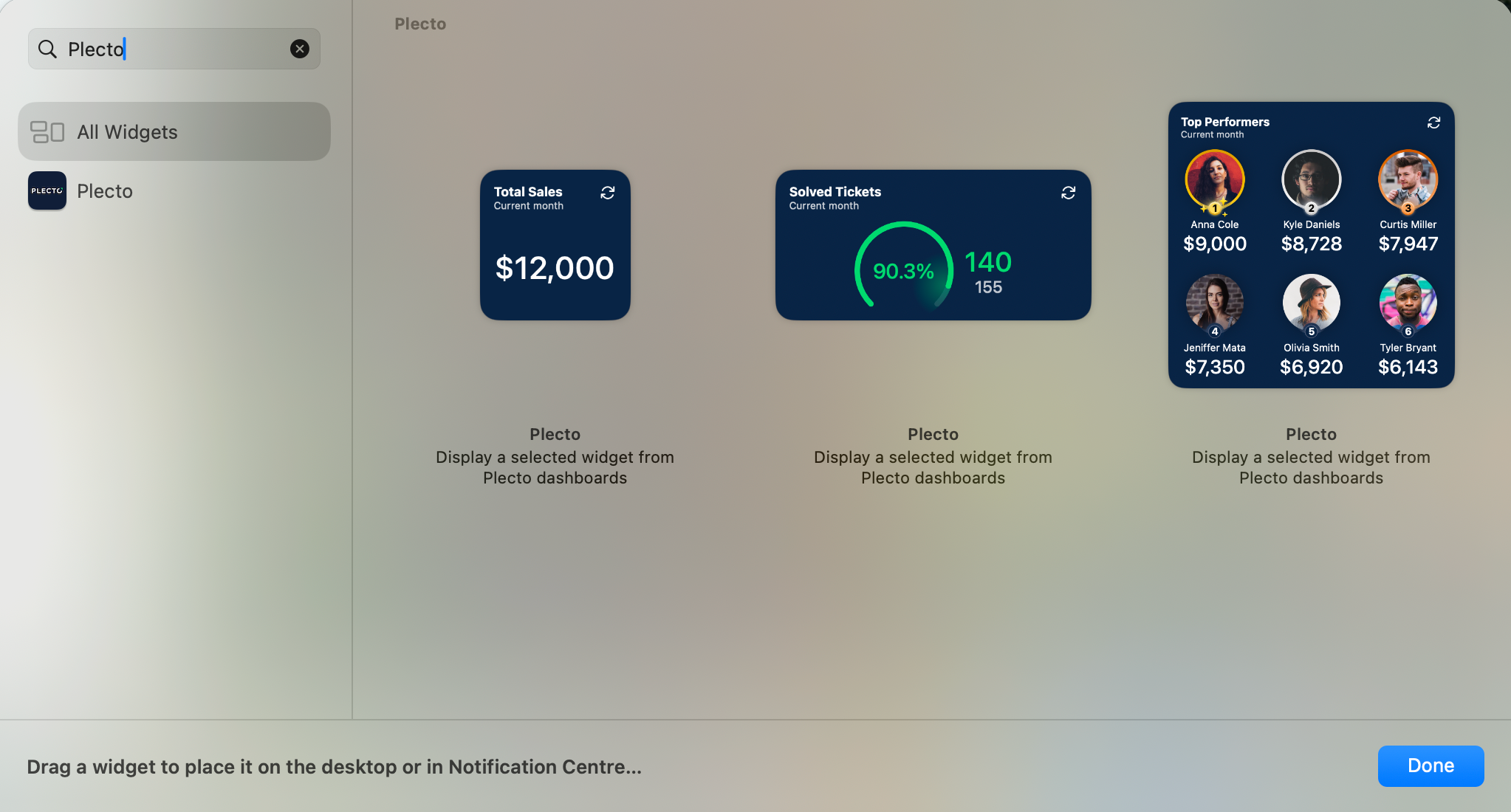
You will now be able to select your Plecto widgets in the widget gallery of your computer.
Install Plecto on your Mac to add widgets
You can install Plecto on your Mac and it will enable you to add Plecto widgets on your desktop and Notification Center. This option can become useful in case you don't use the same Apple ID on your iPhone and Mac.
Disclaimer! Plecto doesn't provide a desktop version of our platform - the app simply allows you to add widgets to the Home Screen, Desktop, and Notification Center.
Compatibility requirements: Requires macOS 11.0 or later and a Mac with Apple M1 chip or later.
If your device meets the requirements above, here's how you can add Plecto widgets to your Mac:
-
Go to the App Store and install Plecto on your Apple computer.
-
On your desktop, right-click the mouse and select Edit Widgets...
-
Find Plecto in the list and select the widgets you want to add to the desktop.
-
Click Done to finish.
-
Click on a widget and locate your Plecto KPIs.
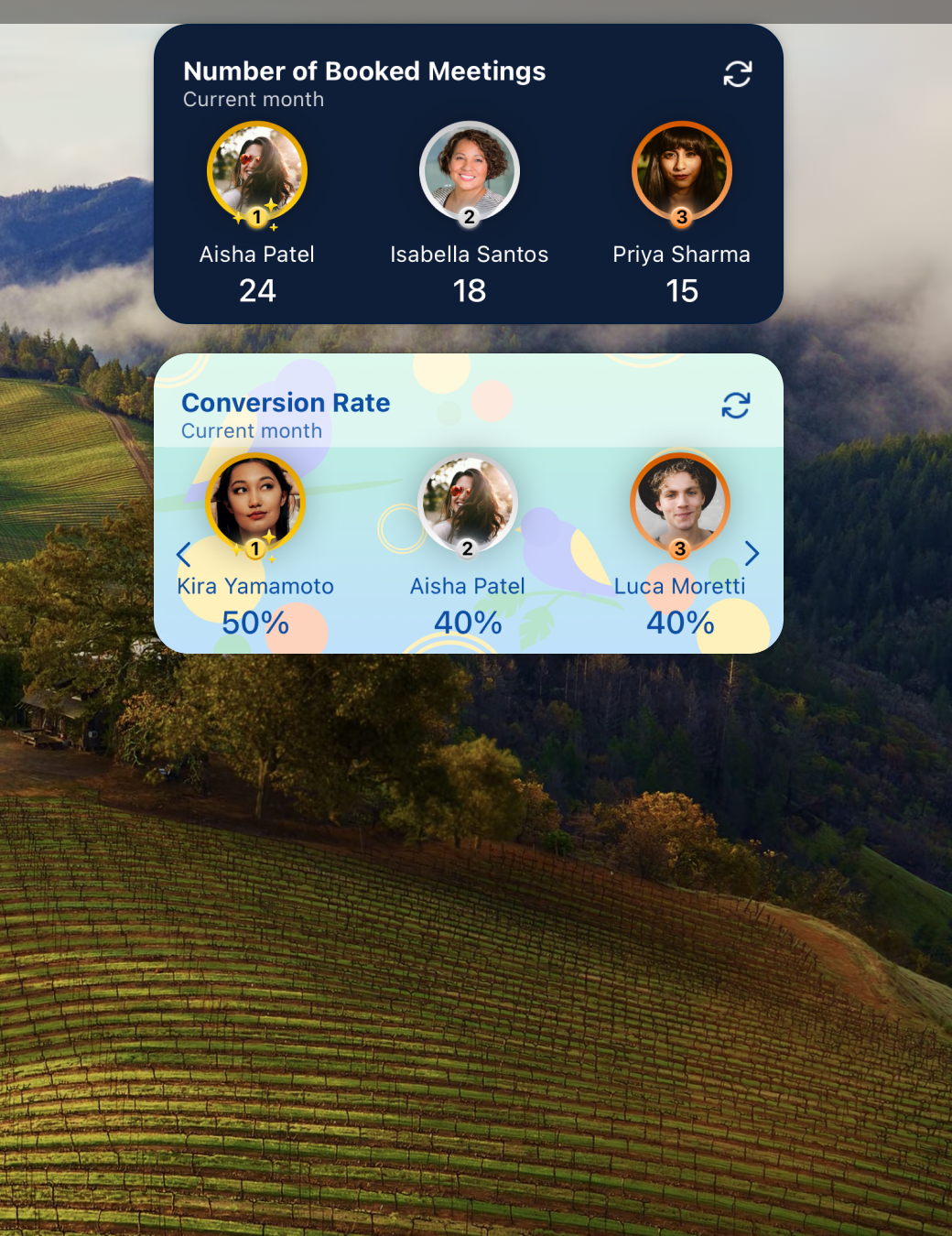
That's all! Your Plecto widgets will update automatically.