Sign in
Step 4: Add Your Dashboards and Contests to TVs
Create slideshows and activate your TVs
| Quick Start Guides |
|---|
| Step 1: Integrate Your Data Step 2: Create Formulas Step 3: Set up Dashboards, Reports, Contests & More Step 4: Add Your Dashboards and Contests to TVs Step 5: Invite Your Teams |
How do I get my dashboards on TVs?
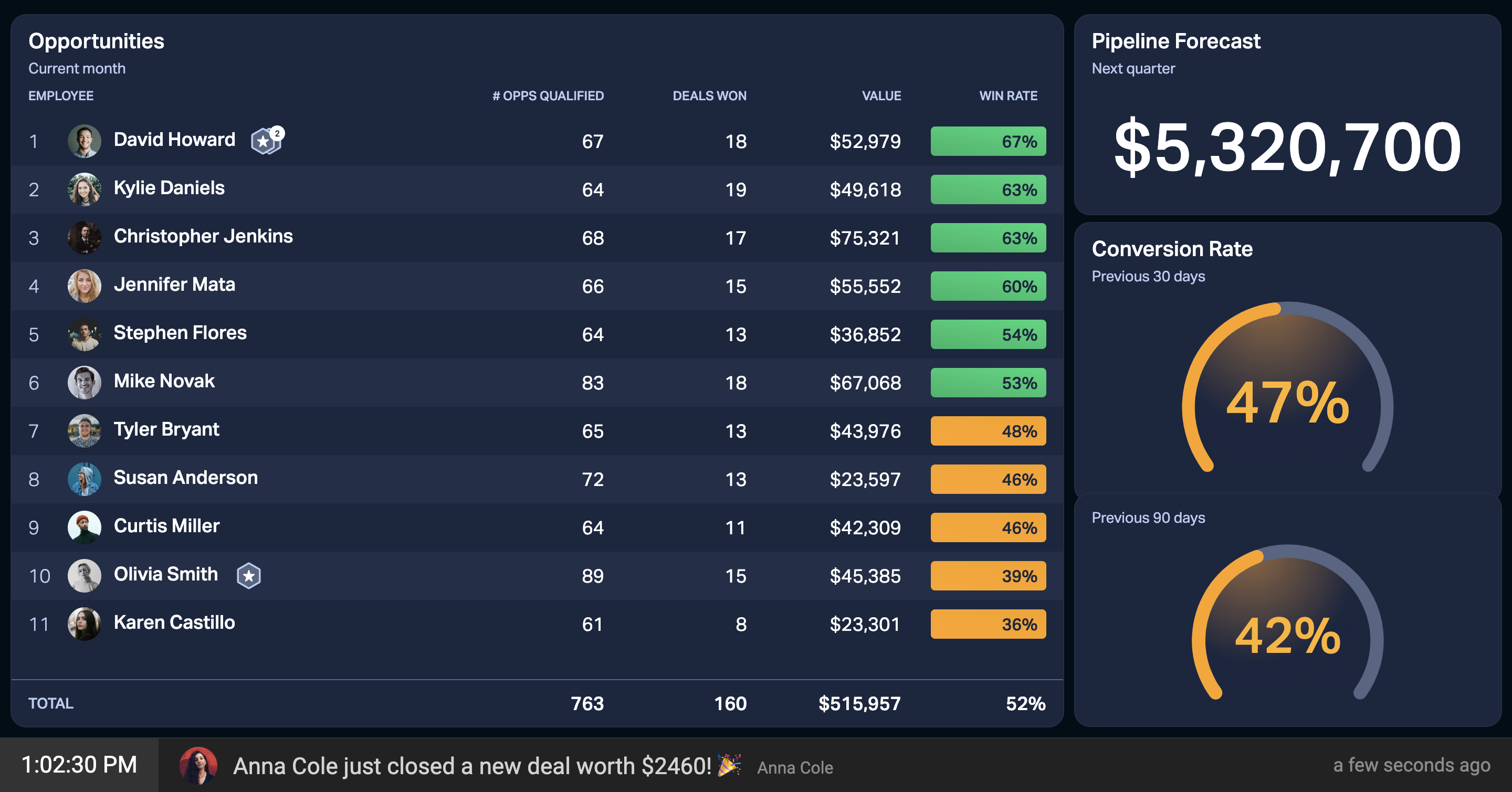
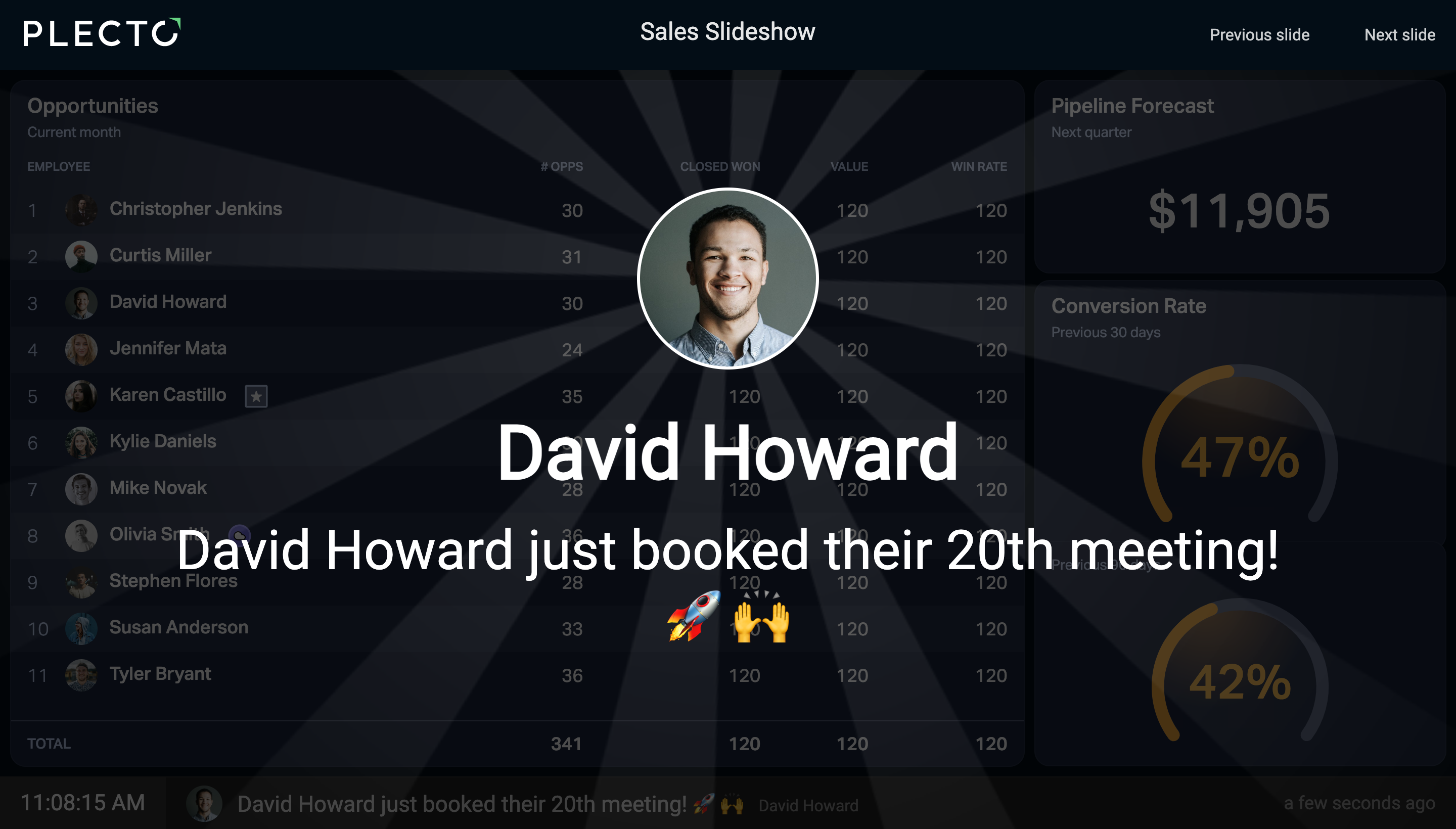
To visualize your dashboards, contests, and other media on a TV screen, you first need to add them to a slideshow. Think of slideshows live frames that rotate automatically throughout the day.
A single slideshow allows you to add unlimited slides containing:
-
Dashboards
-
Contests
-
YouTube videos (your company's promo video, a song, or other)
-
Content from a website via URL (such as the weather forecast)
Step 1: Create a slideshow
-
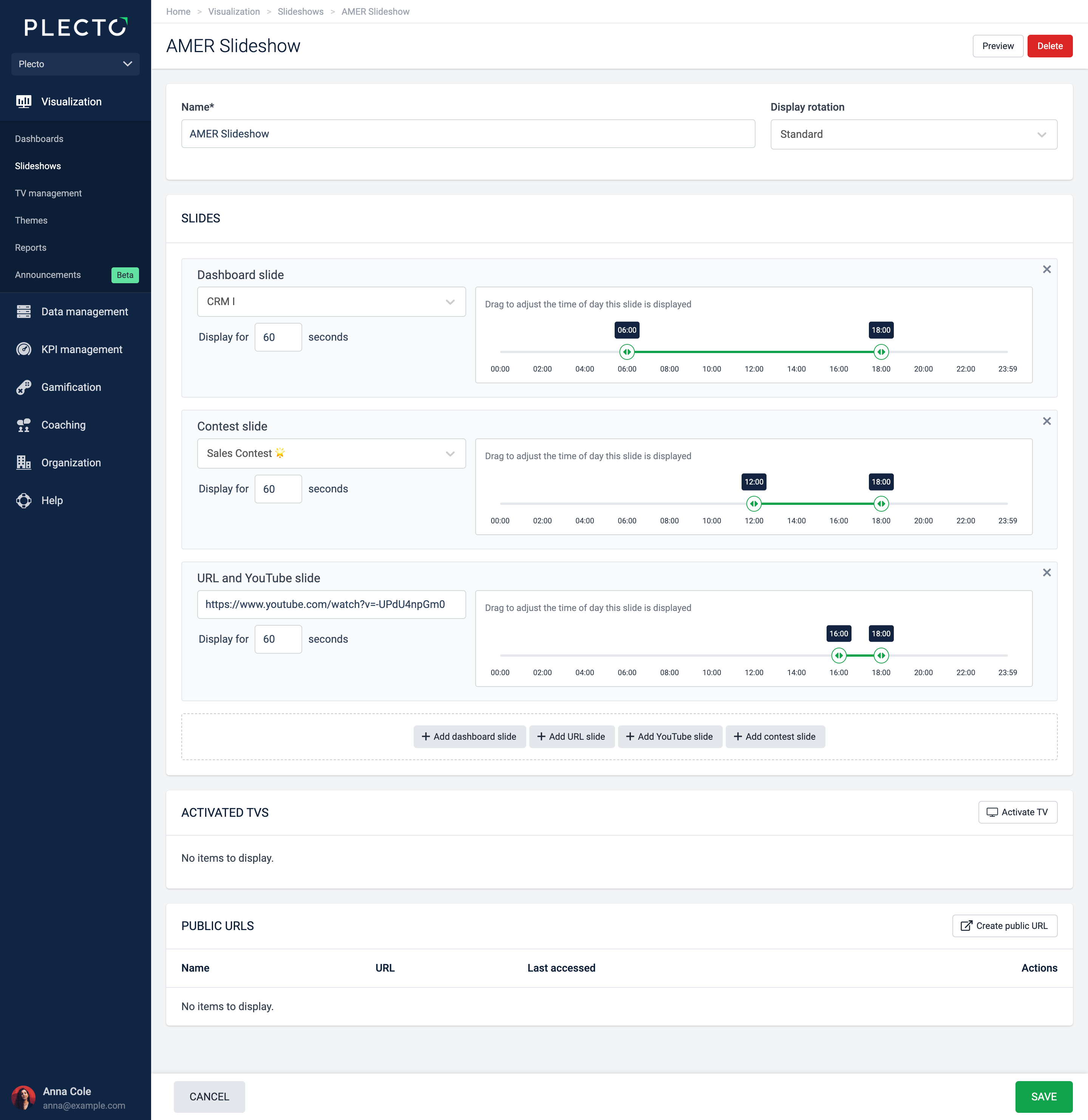
Go to Slideshows > New slideshow.
-
Give your slideshow a name and adjust the display rotation in case the screen is vertical.
-
Start adding slides. If you want to show a YouTube video, it must be the full video link and not the shortened version.
-
(Optional) Adjust the slide timelines if you want a slide to be displayed between specific hours during the day.
-
Click Save.
-
(Optional) Click Preview in the top-right corner to see how your slideshow looks.
(Optional) Create a public slideshow URL
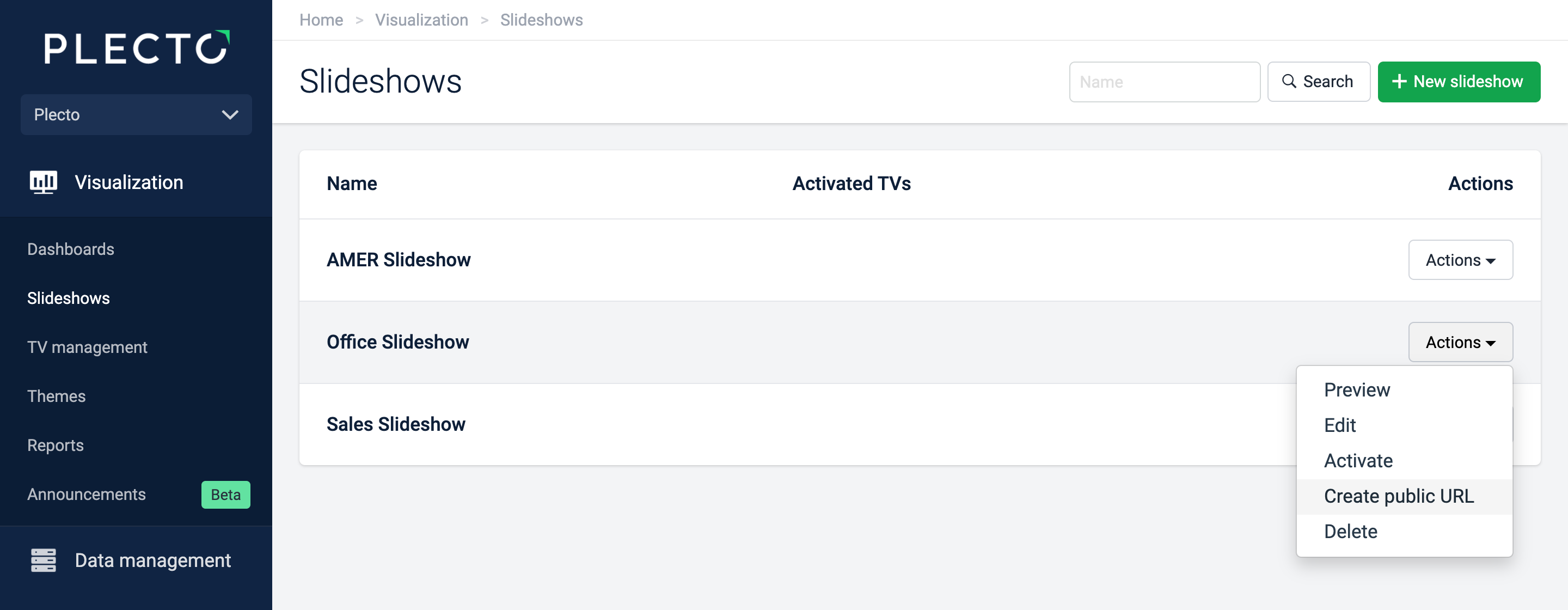
You can generate a public URL for your slideshow and share it with people outside Plecto. Anyone with the link will be able to see the slideshow and its contents – like a picture frame – they won't be able to access Plecto or edit the slideshow. You can remove the link at any time.
-
Go to Slideshows.
-
Find a slideshow, then click Actions > Create public URL on the right.
-
Confirm that you want to create the URL.
-
You can now copy the URL listed in the section Public URLs.
All URLs are stored in each individual slideshow settings. All slideshows with a public URL have a yellow "Public" label next to their name.
Step 2: Connect your slideshow to a smart TV
-
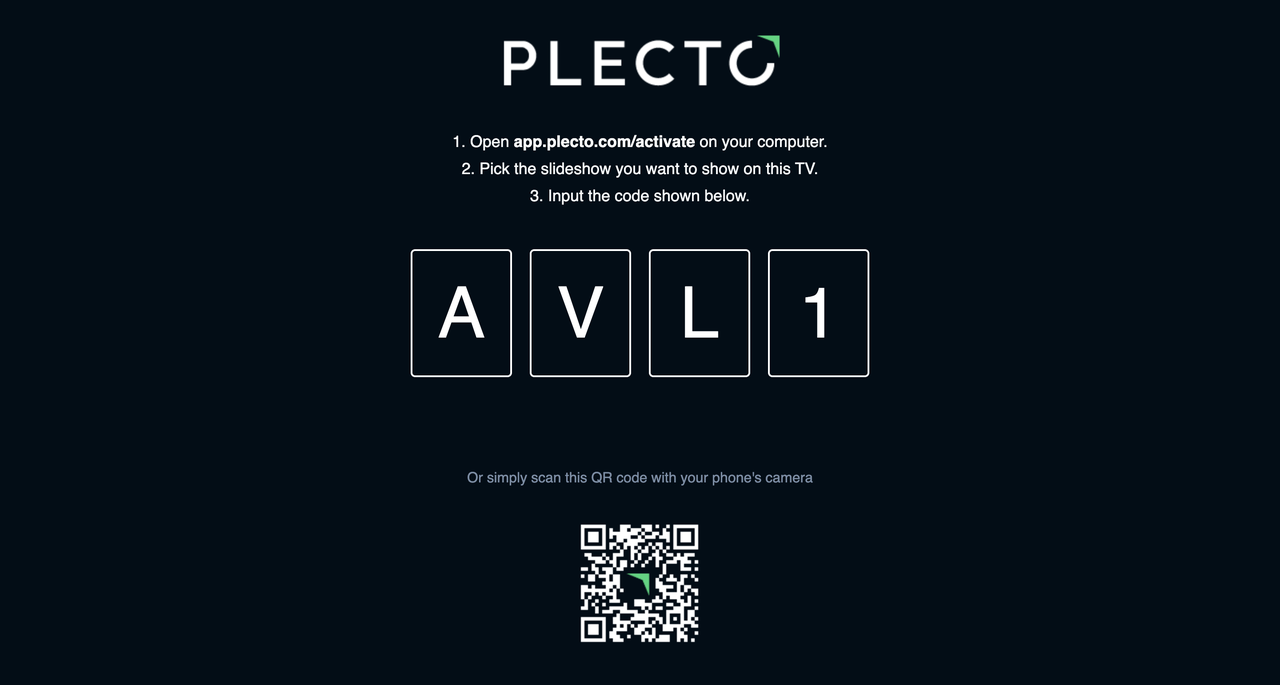
Open the https://tv.plecto.com page or the Plecto app (available on LG, Samsung and Android-based TVs) on your smart TV. You will see a four-digit code and a QR code.
-
Make sure to log in to the Plecto app on your phone.
-
Scan the QR code with your phone's camera and tap the notification once it appears.
-
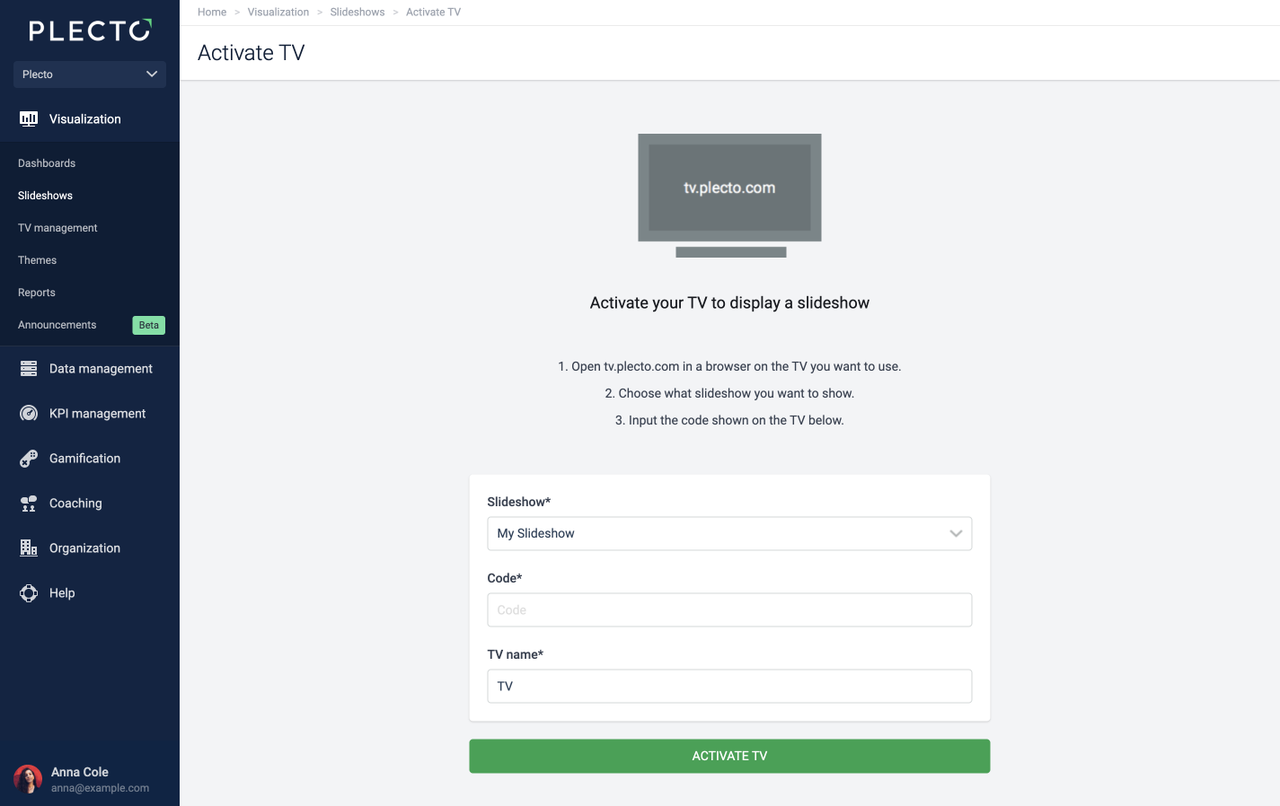
You should now see the Activate TV page.
-
Choose a slideshow you want to display on the TV.
-
Give your TV a name (for example, TV Main Room).
-
To finish, click Activate.
All the activated TVs are listed under Slideshows > TV management in Plecto.
TV apps
We've built native Plecto apps for LG and Samsung, and other smart TVs that run on Android. If our app isn't available on your device, you'll need to use Plecto via TV browser.
The apps are more reliable than the TV browsers and guarantee that all the features are supported.

Plecto on LG TV
-
Open the LG Content Store on your TV.
-
Type and search for Plecto in the search bar. You can also find the app in the Life category.
-
Install the app and open it on your Smart TV.
How to configure a Quick Access shortcut
Configure a shortcut on your LG TV remote to access your slideshows with one button. For this to work, the minimum version of the webOS required on your LG TV is 5.0. For more details, read the LG help guide.
-
Press and hold the "0" [zero] button on your TV remote. A menu will appear on your TV screen. From there, you can assign quick access to an app for each number on the remote.
-
Using the cursor, select a number on your TV screen to assign the Plecto TV app. If a number is already taken, you can remove the assigned app by clicking on it.
-
Select Plecto from the list of applications and TV channels.
-
To finish, exit the edit mode by clicking X in the top-right corner.
-
Now you can easily open your slideshows once you turn on the TV – all you need to do is hold down the shortcut button assigned to Plecto.
Plecto on Samsung TV
The minimum version of the Tizen operating system required for the app to run on your Samsung TV is 5.5.
-
Press the home button on your TV remote and go to Apps.
-
Click on the search icon in the upper-right corner, then type and search for Plecto. Alternatively, you can find the Plecto app in the Lifestyle category in Samsung Apps.
-
Click Install, then Open to open the Plecto app.
Known issue
Samsung TVs are not capable of rendering dashboards well enough, nor can they properly prompt YouTube videos for notifications. It's due to slow TV rendering.
How to Activate Slideshows on TVs →
Install Plecto on your mobile
Download the Plecto app on your phone. It will make connecting slideshows to your TV screens much quicker.
You'll be able to connect a slideshow by simply scanning a QR code with your phone. The app is free and available for both iOS and Android devices.