 Sign in
How to Create a Quiz
How to create a Quiz in Plecto
-
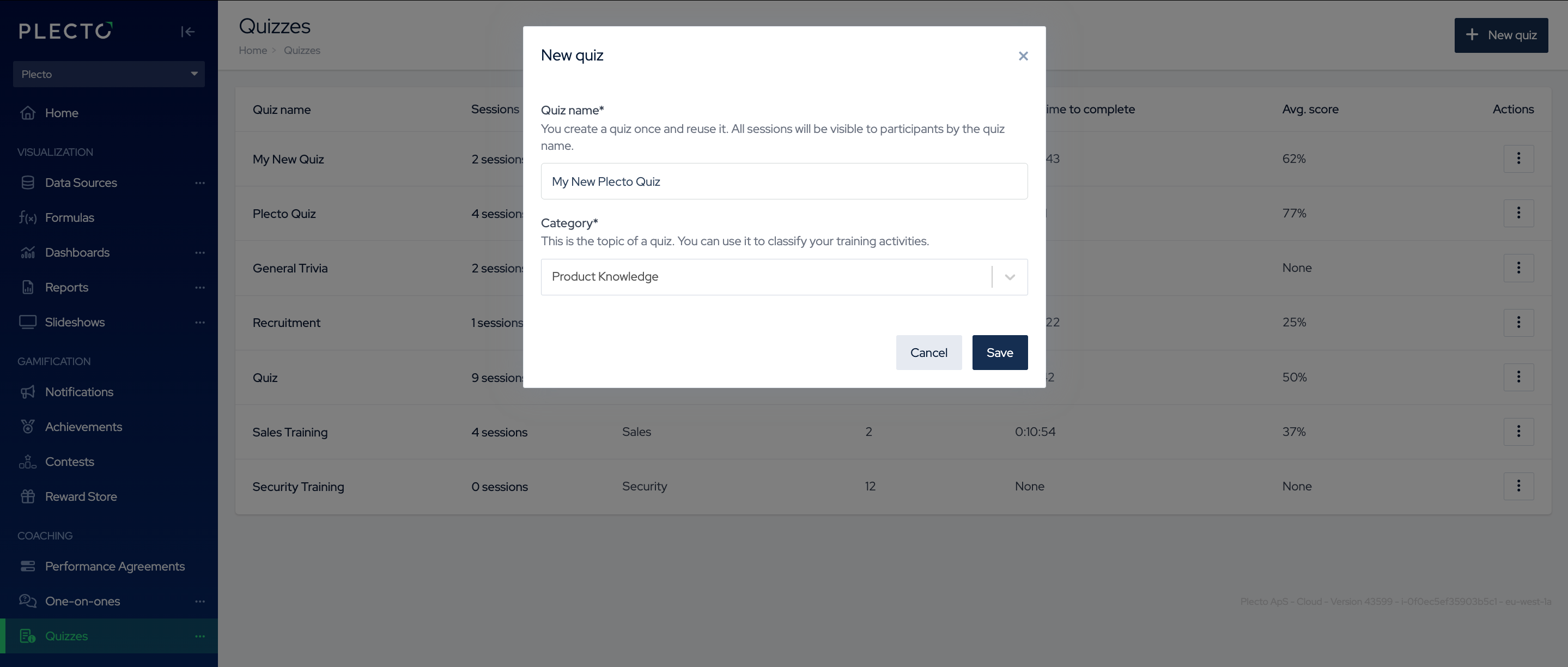
Navigate to Quizzes > New quiz.
-
Enter a quiz name.
-
Select a quiz category that fits your topic. Options include:
-
Company and Culture
-
Product Knowledge
-
Sales
-
Customer Support
-
Customer Success Management
-
Security
-
Internal Processes
-
Other
-
-
Click Save and start building your quiz.
-
Build and organize your quiz using different sections. (Learn more about quiz sections and question types below.)
-
Once you’ve added all your questions, click Save in the bottom-right corner.
-
(Optional) Set a timer on the quiz to challenge your participants.
Participants will be required to answer the entire quiz within the set time limit. Failing to stay within the allocated time will automatically fail them on any remaining questions.
-
Once done, click Save again.
🎉 Your quiz is now saved! To send the quiz to people or teams, you’ll need to schedule a quiz session.
Quiz sections and question types
You can build your quiz using five different section types:
-
Multiple Choice Questions
-
Sort-Into-Order Questions
-
Match-the-Pair Questions
-
Open-Ended Questions
-
Info Slide
***
⭐️ Multiple Choice Questions
Create questions where one or more answers are correct. Options can include text, images, or text & images.
⭐️ Sort-Into-Order Questions
Participants must drag answer cards into the correct sequence. This question type is great for testing knowledge about processes, chronological order, priorities, and more.
- How to add options to this section: Write the answers in the correct order, and Plecto will automatically randomize them for participants.
⭐️ Match-the-Pair Questions
Participants match items by dragging answers to their correct pairs This question type allows matching text-to-text or image-to-text for a variety of use cases.
⭐️ Open-Ended Questions
Create questions that require written or numerical responses. You can choose from:
-
Short answers
-
Long answers
-
Number answers
Open-ended answers require manual review – Plecto will ask you to assign a reviewer when you schedule a quiz session.
The participant will only receive their quiz results after the reviewer scores their responses.
⭐️ Info Slide
Add educational content to your quiz in the form of:
-
Text
-
Image
-
Video
-
Link to a learning resource
-
Your own comment
Use info slides to give an introduction to the coming questions or explain the answers of previous ones. You can place info slides anywhere in the quiz to enhance learning and engagement.