Sign in
How to Create a Permission Profile
How to create a permission profile
To create and manage permission profiles, you need to be subscribed to Plecto's Large or Enterprise plan and have full admin access. Visit our pricing page for more information.
-
Go to Settings > Permissions > New permission profile.
-
Give the permission profile a title (required) and description (optional).
-
You can choose to set this as the default profile, which means that Plecto will automatically assign all new employees to it.
-
Select the permission profile options.
-
Click Save in the bottom-right corner to finish.
How to duplicate a permission profile
-
Open Settings > Permissions.
-
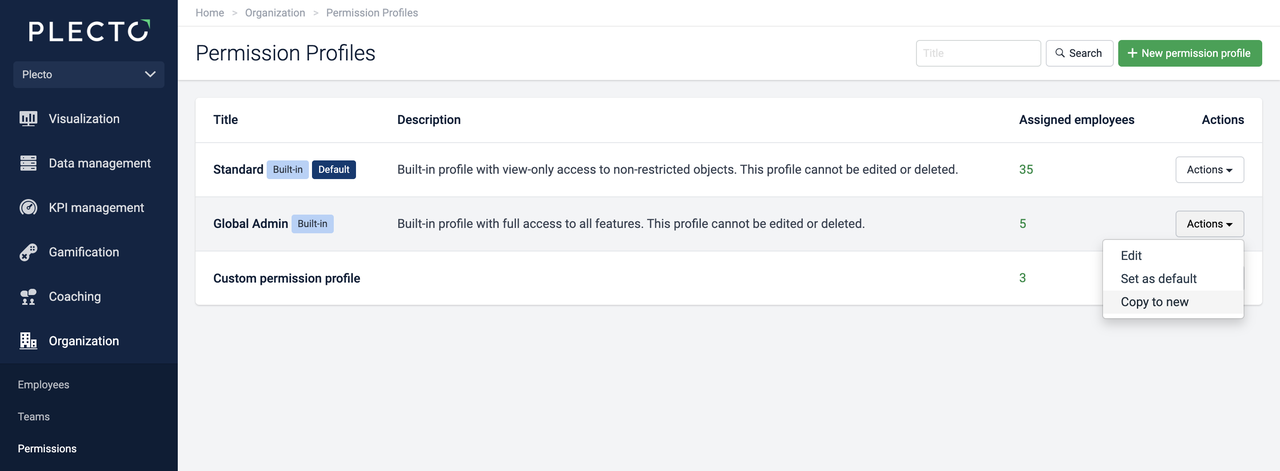
Decide which permission profile you want to copy, then click Actions > Copy to new on the right. Plecto will open a copy of the original permission profile (it's not saved yet).
-
Give the profile a different title, description, and adjust the permission.
-
To finish, click Save in the bottom-right corner.
How to delete a permission profile
You can only delete custom permission profiles and only no employees are assigned to them. The built-in profiles cannot be edited or deleted. Here's how to delete a permission profile:
-
Go to Settings > Permissions and open a permission profile.
-
Scroll to the bottom of the page.
-
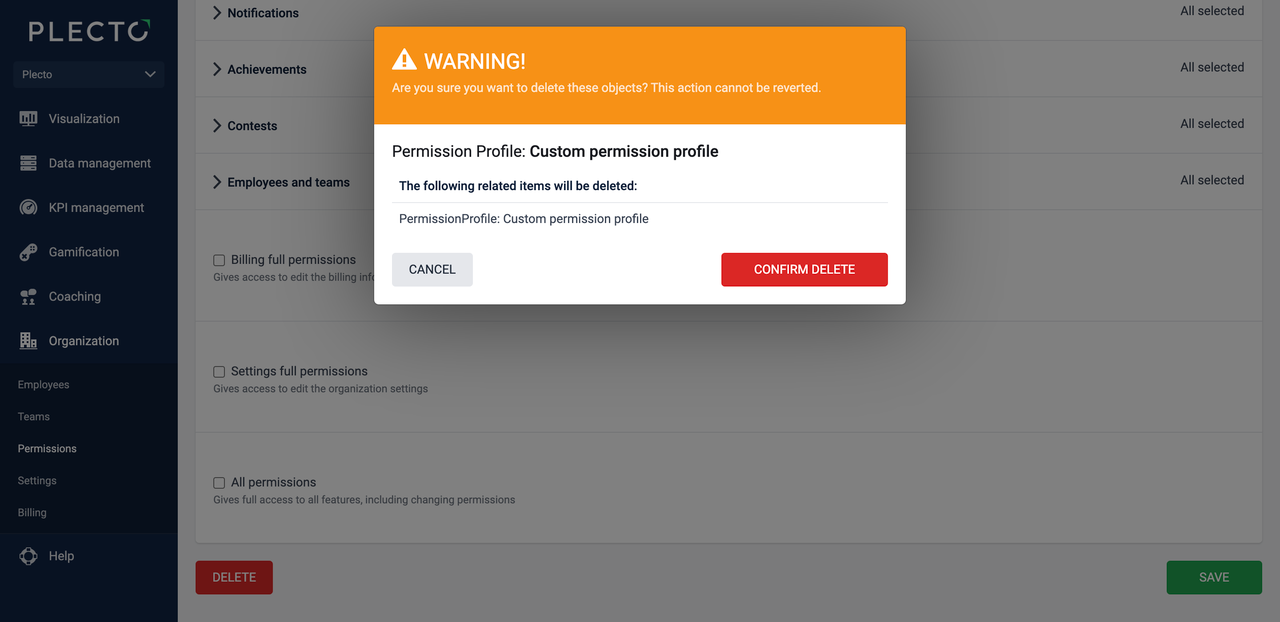
Click Delete, then Confirm delete to remove the permission profile from your organization.
Deleting a custom profile that is also default. If you delete a custom permission profile that is also the default profile in your organization, Plecto will set Standard as the new default profile.