 Sign in
How to Change a Profile Picture
How does it work?
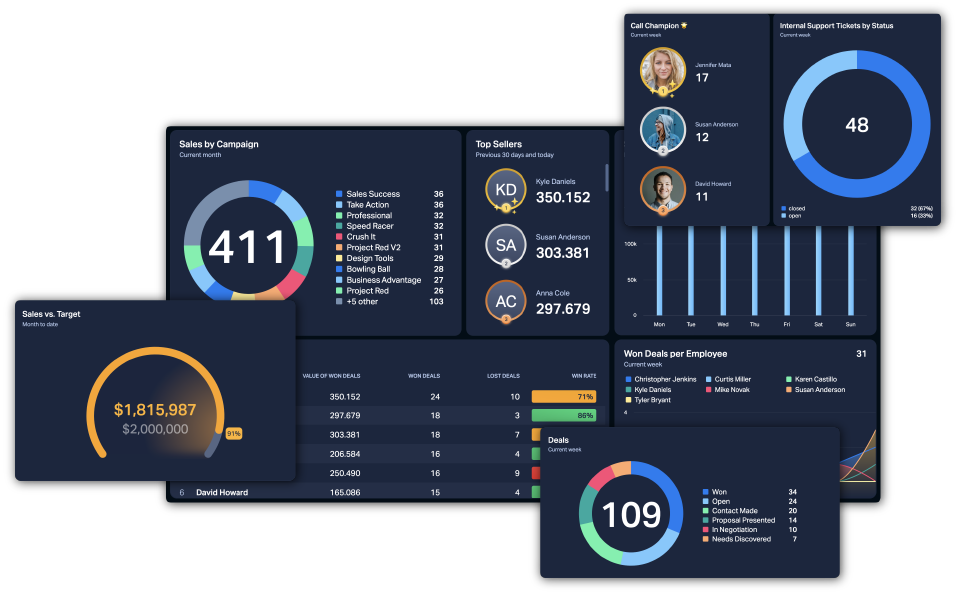
Having a profile picture can help your team recognize who you are. Besides, profile photos make your Plecto dashboards look much better. 🎉
Everyone with login access to Plecto can upload their profile pictures. Admins can upload both their and other employees' profile pictures.
The following integrations import employee pictures automatically: Salesforce, Pipedrive, Podio, and Close.io. The photos get updated whenever Plecto receives new data.
How to upload a profile picture
You can upload a photo up to 10MB. Plecto supports the following file formats: JPG, JPEG and PNG.
-
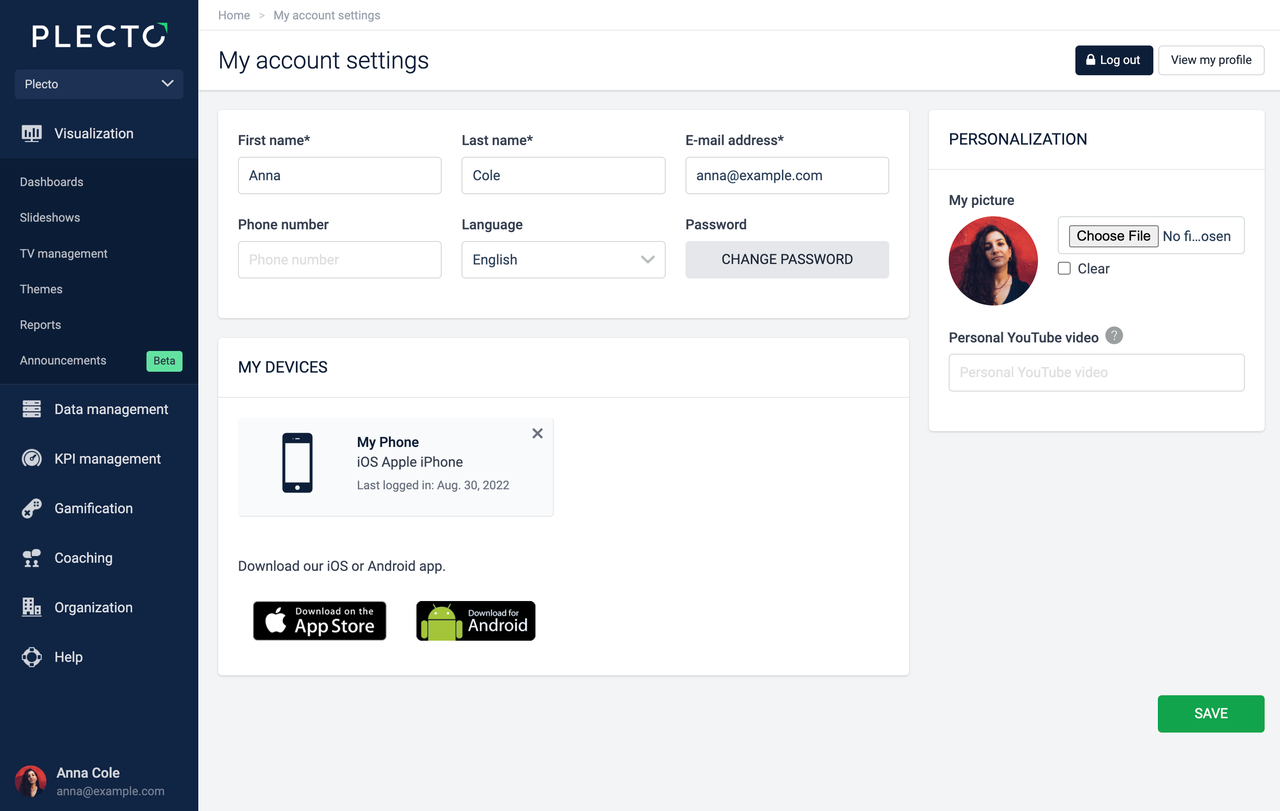
Click your name in the bottom-left corner.
-
Click the Account settings button in the top-right.
-
Click Choose File and select a file from your local device.
-
Click Save to finish.
How to remove a profile picture
You can easily remove a profile picture from your account or another employee's profile.
-
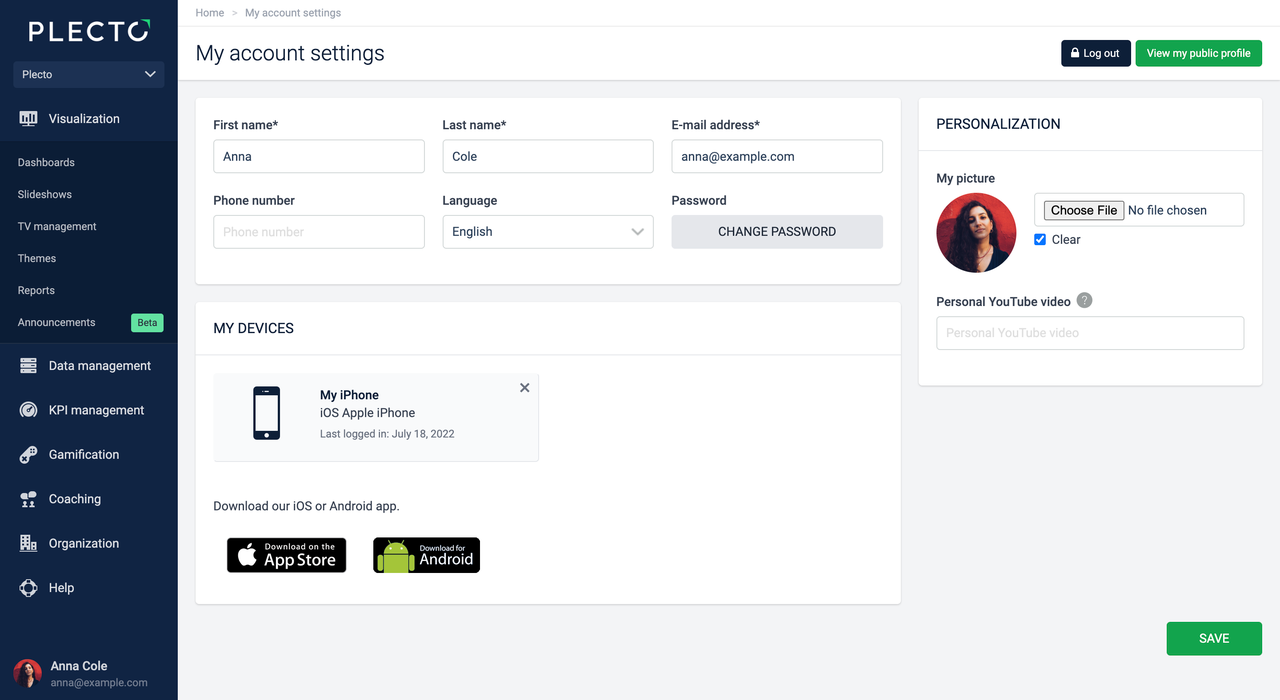
Select the Clear checkbox.
-
Click Save in the bottom-right corner.
How to upload pictures for other employees
If you have admin access to Plecto, you can upload profile pictures for other employees.
-
Go to "..." Next to Settings > Employees > Edit.
-
Click Choose File and select a file from your local device.
-
Click Save in the bottom-right corner.
If your employee is managed by an external system, you can upload a picture on their profile only if you enable the option to manage the employee manually. In that case, click the Manage this employee manually button on their employee page.