Sign in
Introduction to the Reward Store
What are rewards?
Keep your employees motivated at all times with a reward system in Plecto that allows your team to earn virtual coins as a result of their performance. Once they earn enough coins, they can redeem rewards of your choice. The Reward Store is easy to set up and maintain.
How to add rewards to the store
-
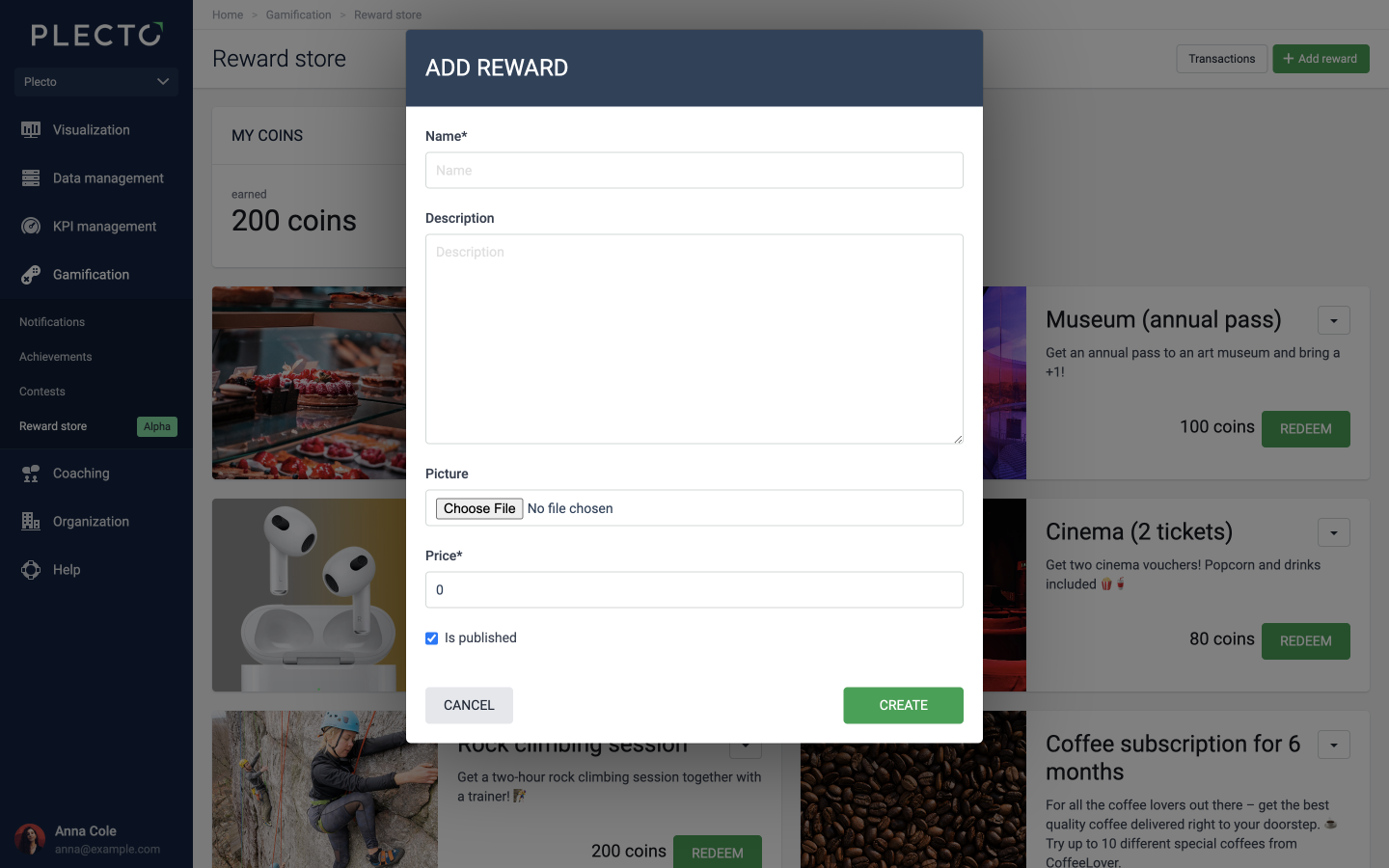
Go to the Reward Store and click Add reward in the top-right corner.
-
Name the reward. For example, Rock climbing session.
-
(Optional) Describe what the reward entails. The more details you provide, the more tempting the reward will seem.
-
(Optional) Add a cover photo for the reward.
-
Add the price. This is how many coins everyone will have to spend to redeem the reward.
-
Choose if you want to publish the reward right away.
-
Click Create to finish.
Who can manage the Reward Store? For now, all Global Admins have access to manage and maintain the Reward Store. We're working on adding certain permission levels to the feature so that you can decide who gets what access.
How to earn coins
Everyone can earn coins by
-
Triggering a notification
-
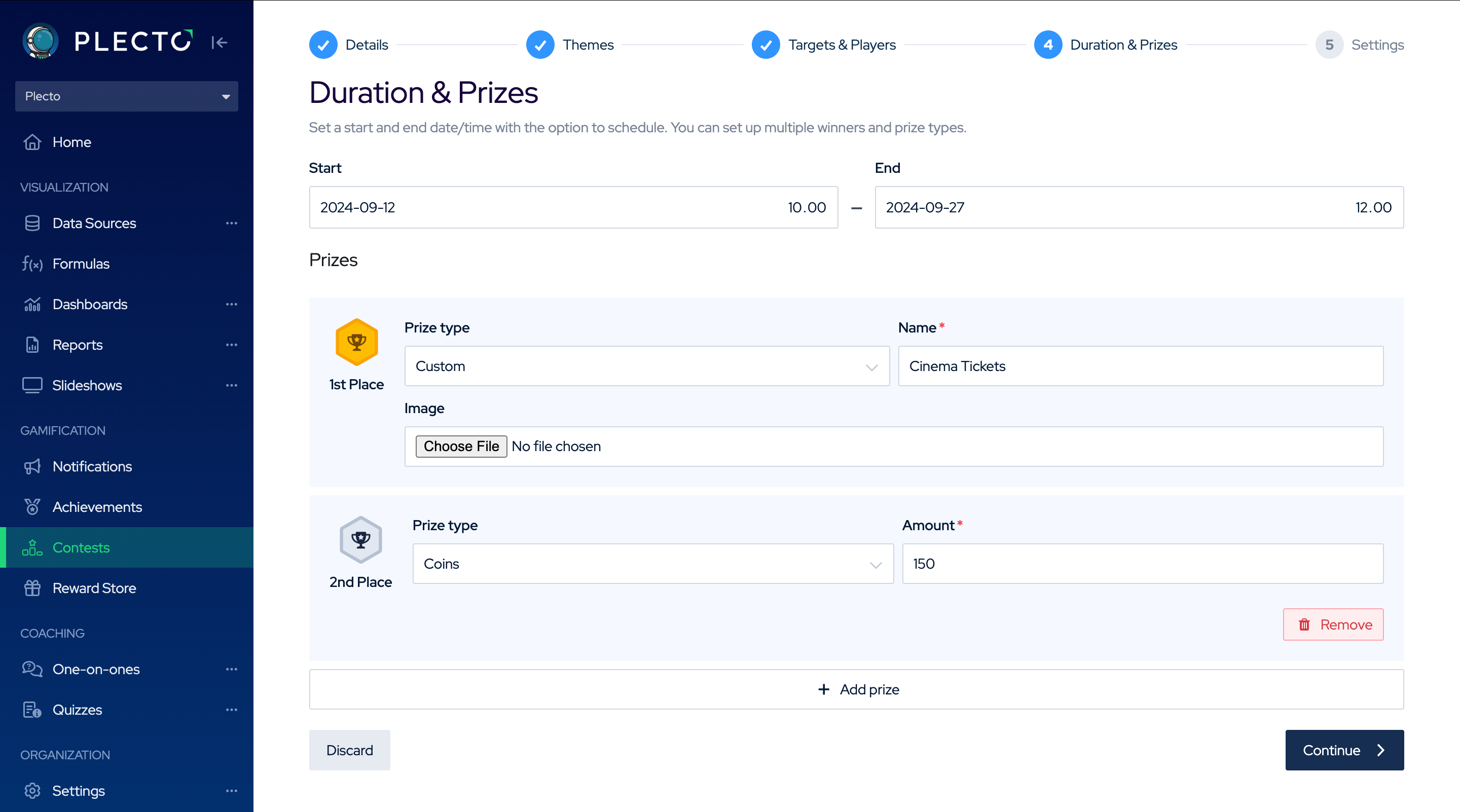
Winning a contest
-
Receiving coins manually from Global Admins
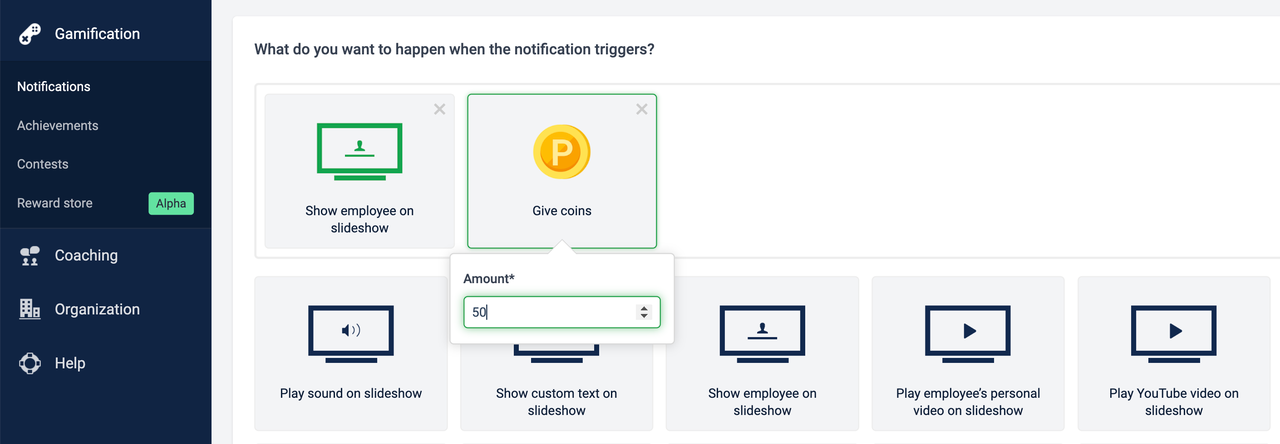
If you want to automate the process with notifications, all you have to do is add the Give coins action to the notification.
When you set up the notification, you choose how many coins the activity is worth (Is it a reached quarterly target? Booked 10 meetings? A positive rating?). Estimate how much a notification is worth, and people's coin balance will increase whenever they trigger the notification.
How to redeem a reward
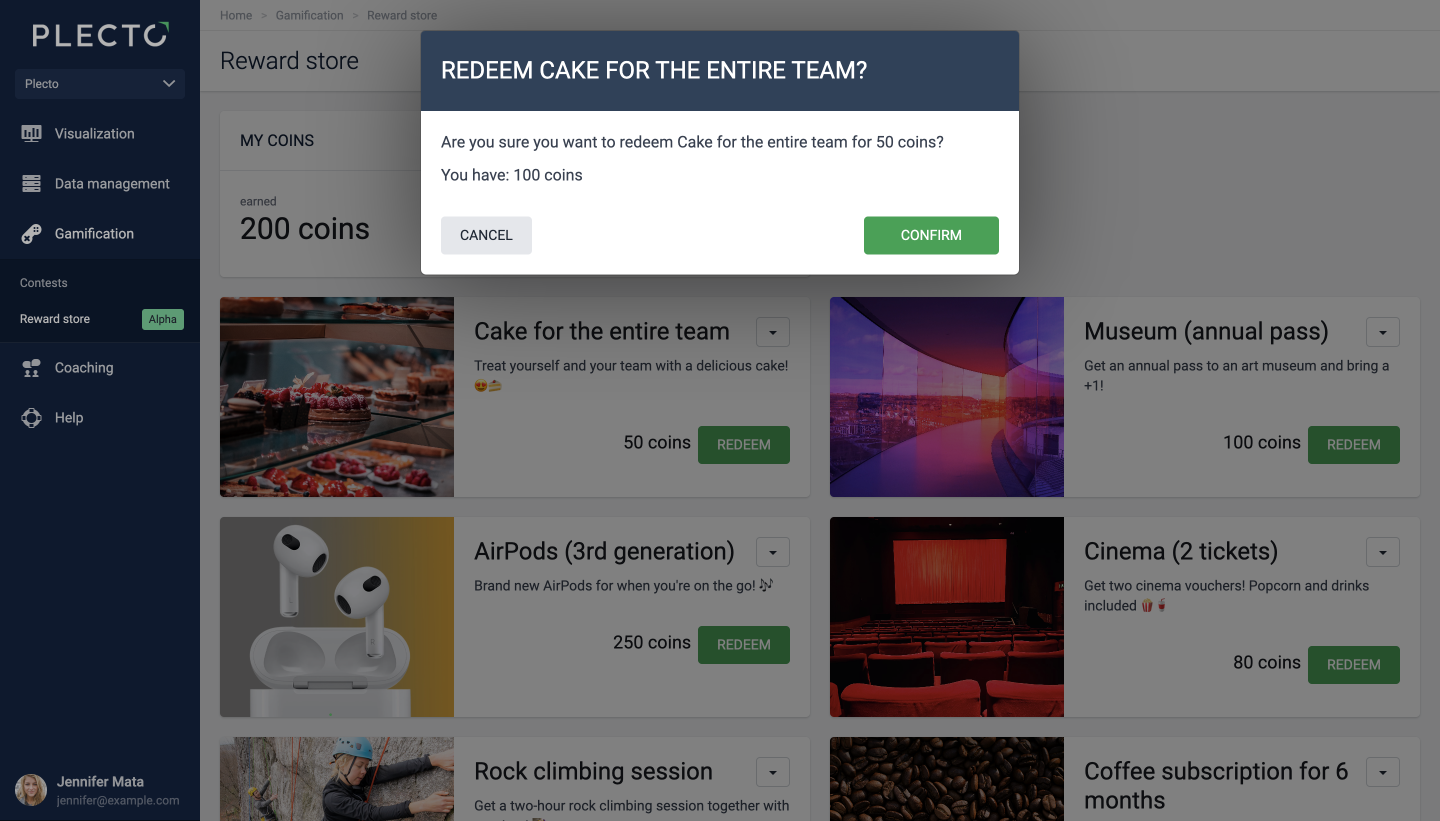
Everyone with a Standard permission profile has access to browse the Reward Store. To redeem a reward, all you have to do is click the Redeem button.
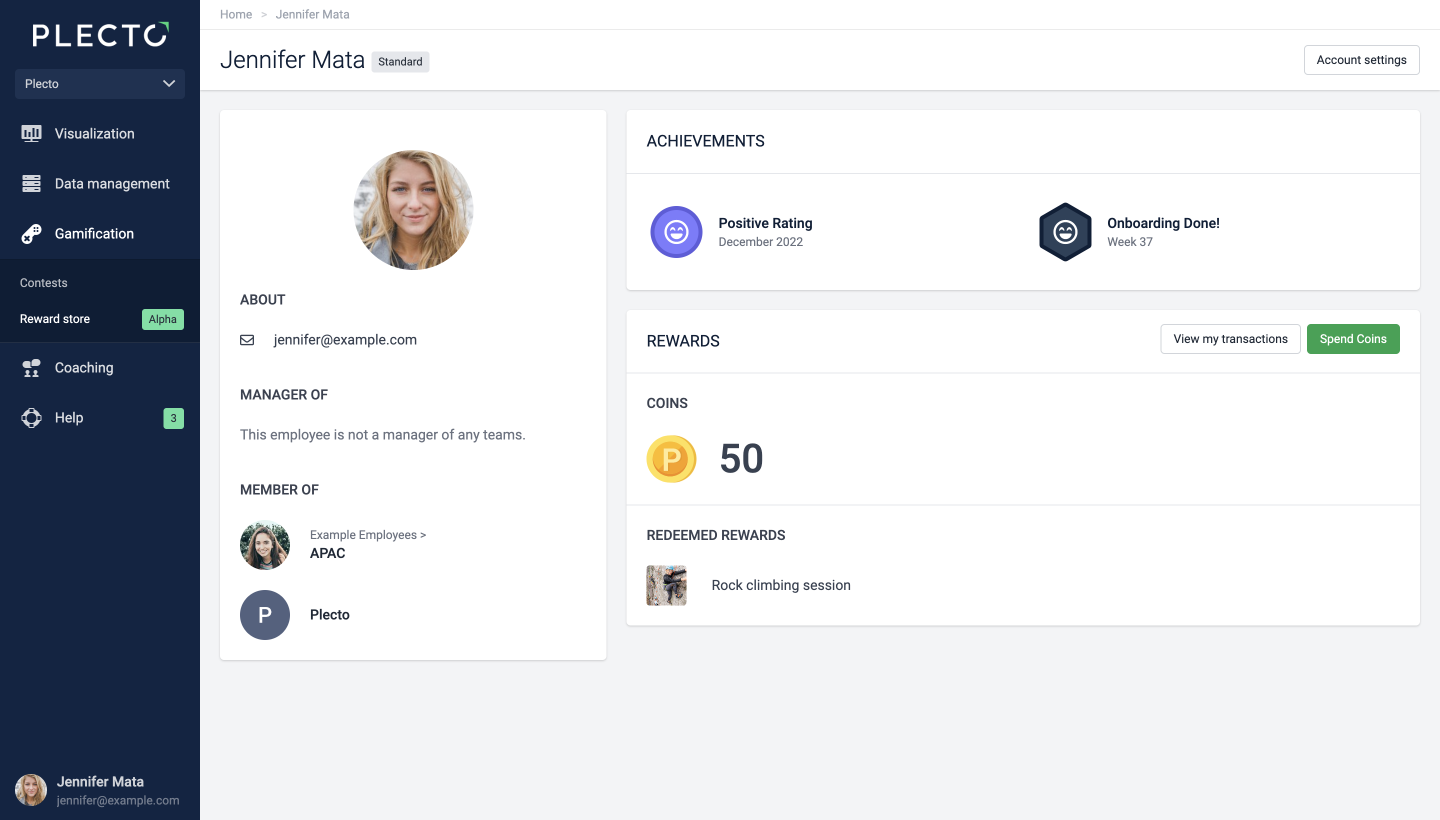
All redeemed rewards are listed in each employee's profile. Unless they're an admin, each person can only see their own coin balance and redeemed rewards.
What happens after a reward has been redeemed?
We are currently working on an automation to let the Reward Store managers know that a reward has been redeemed. Until then, we encourage everyone who's redeemed a reward to reach out to their organization admins.