Sign in
How to Give an Achievement
Give achievements manually
-
Go to Settings > ... > Employees.
-
Click on an employee's name.
-
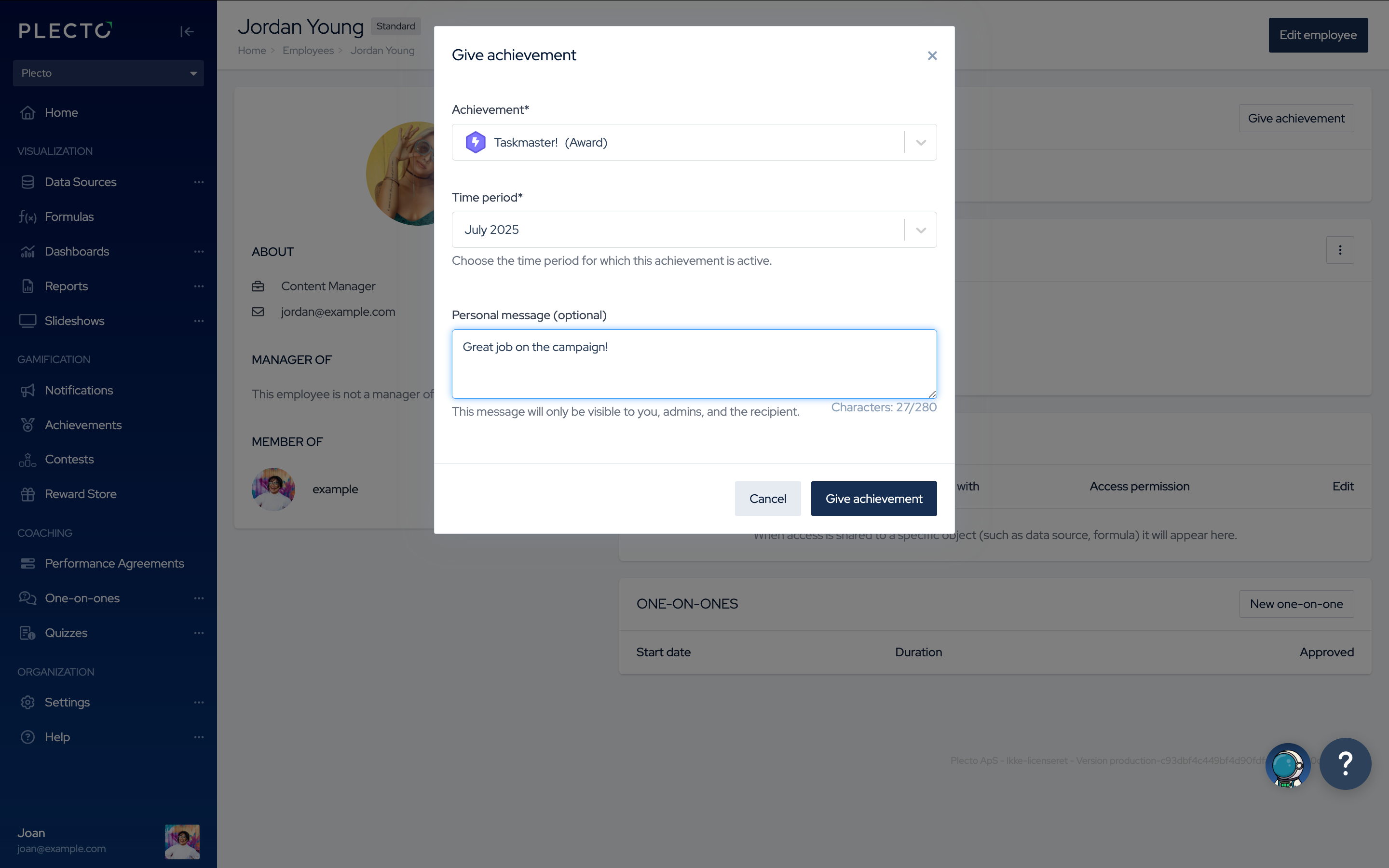
Click Give achievement in the top-right.
-
Select an achievement from the dropdown list.
-
Choose a time period. The achievement will be active during that time.
-
(Optional) Add a personal message if you want to give kudos or say "thank you."
-
Click Give achievement to finish.
Automate achievements with notifications
Add achievements to your notifications. Whenever someone triggers a notification, they will receive an achievement badge.
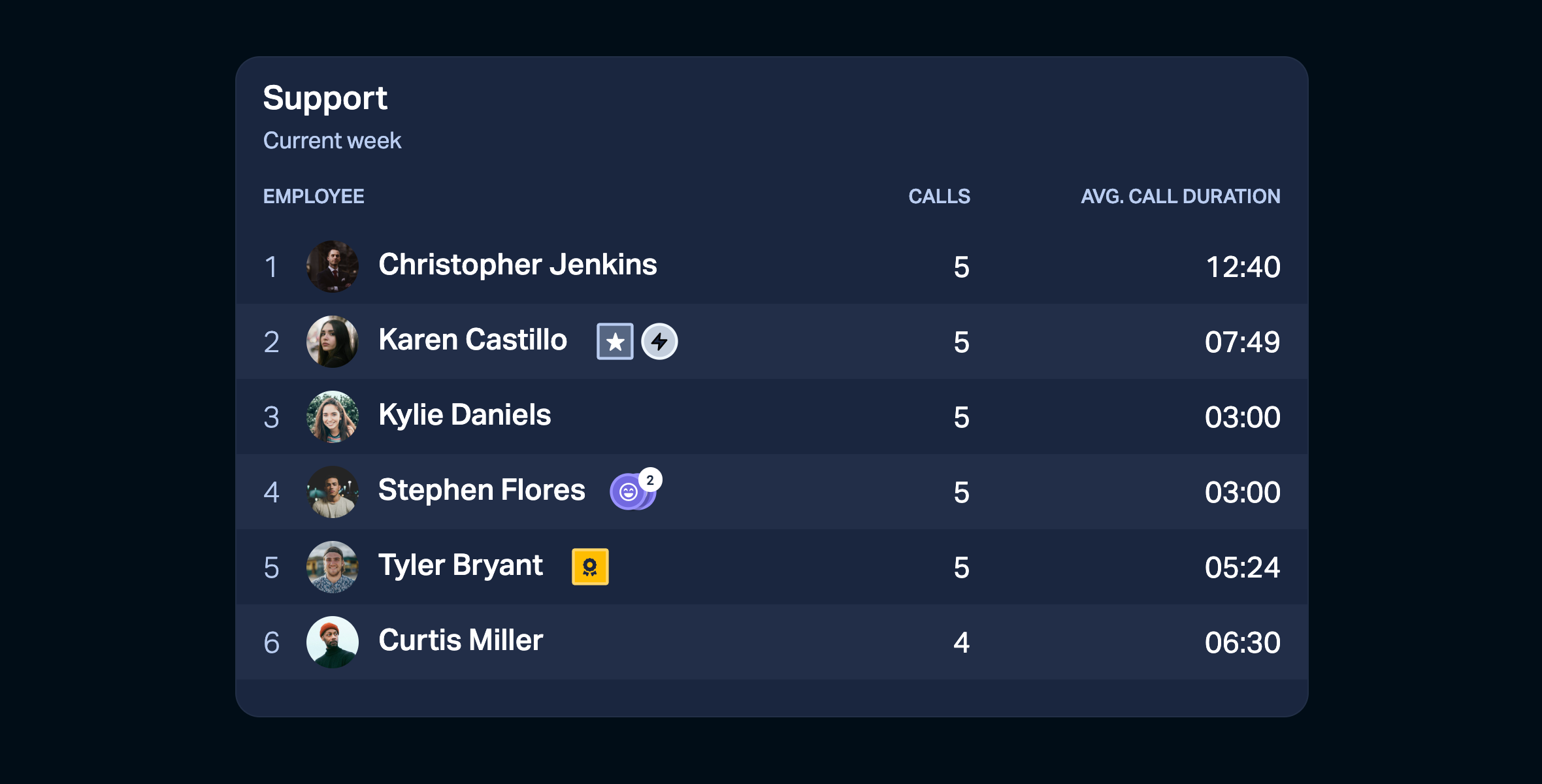
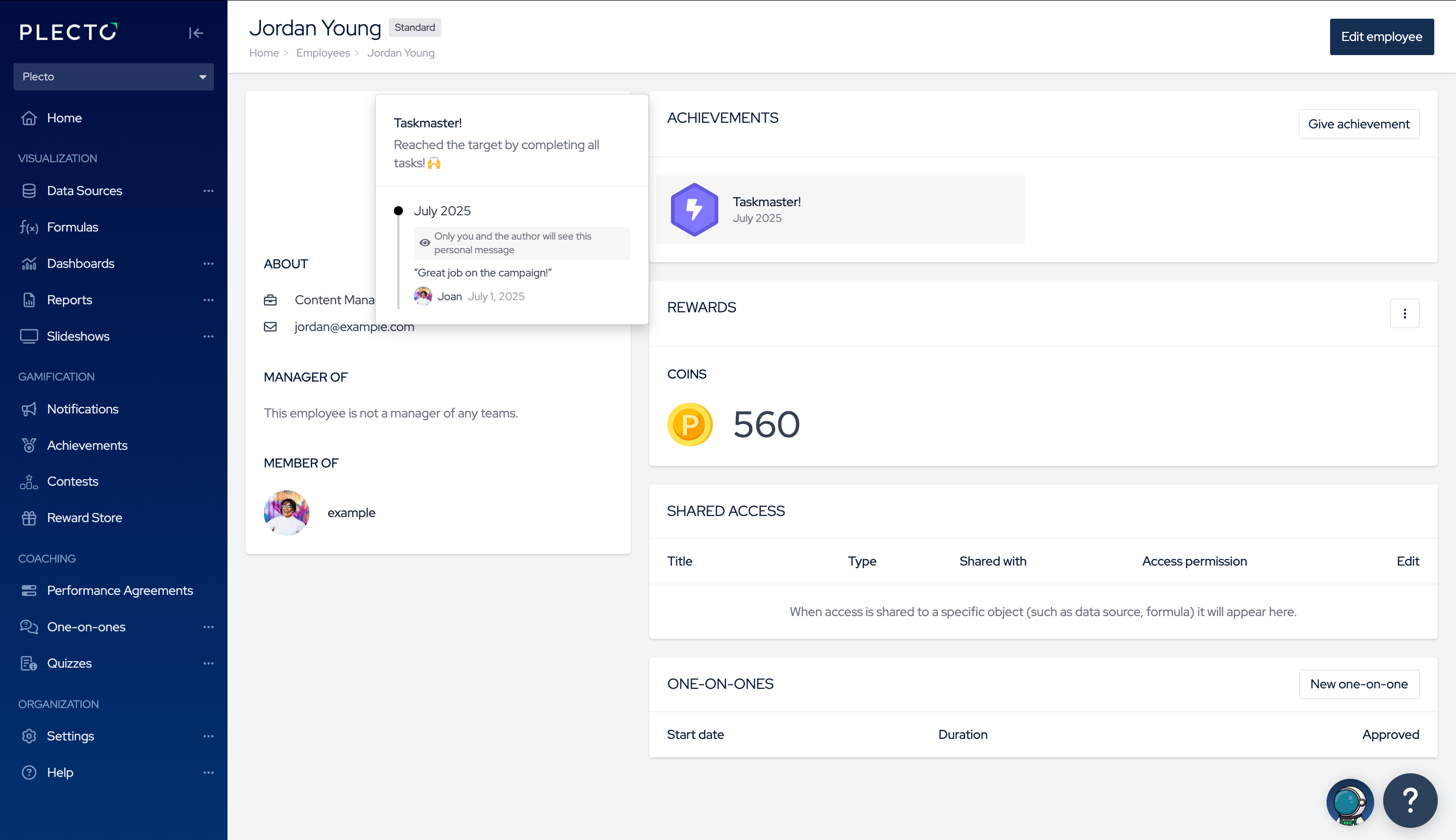
The badge will be visible on:
-
Table and Timeline widgets on dashboards
-
On Employee's profile
-
In the News Feed (if achievement posting is enabled in the organization settings)
How to add achievements to notifications:
-
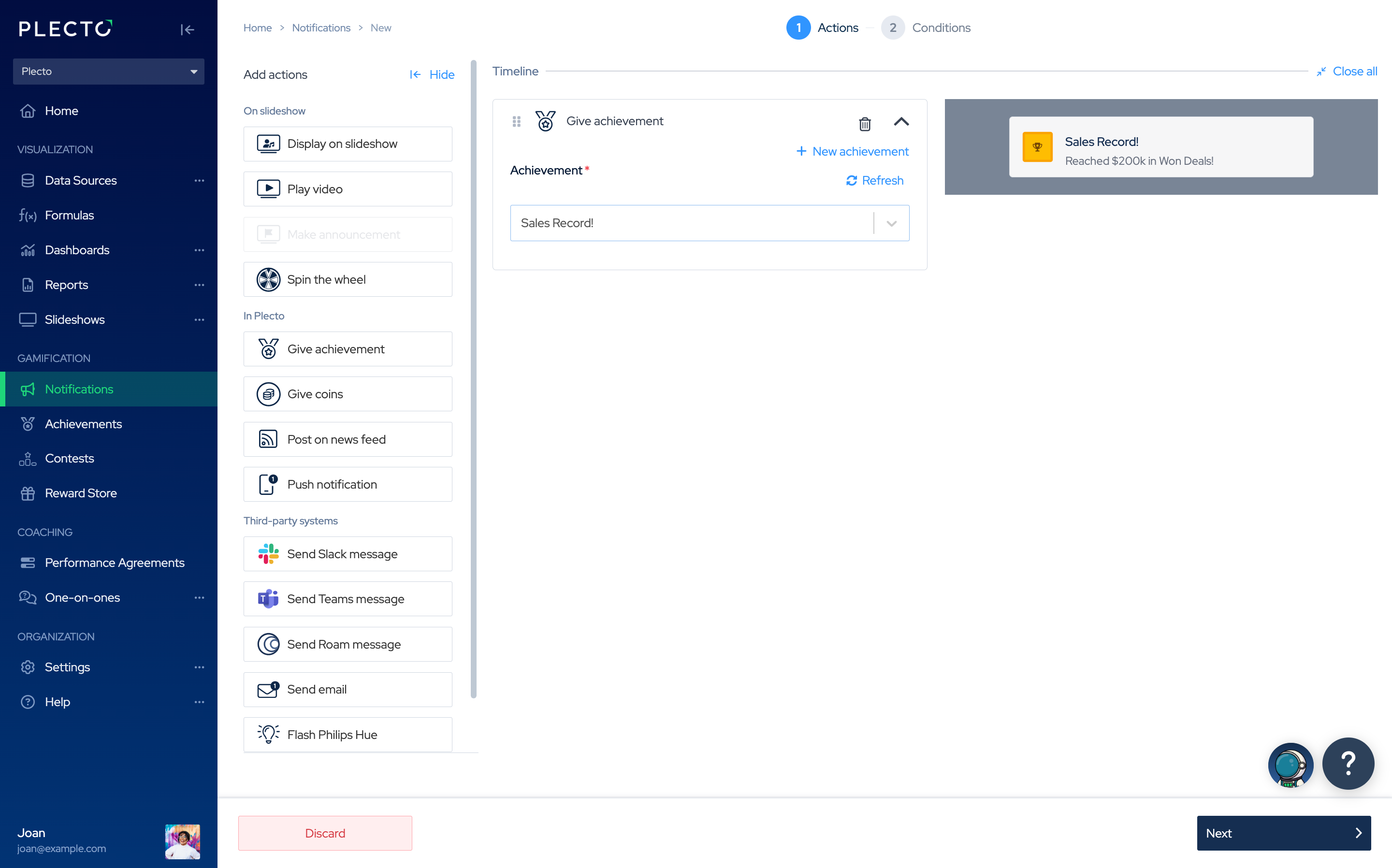
Go to Notifications and create new notification.
-
In Actions, select Give achievement.
-
Choose an achievement from the dropdown list. If no achievements are listed in the dropdown, click + New achievement and create a new achievement. Return to the notification once you have made an achievement.
-
Click Next to continue.
-
Set up the notification conditions (what triggers the notification). You can choose data as the trigger (registrations, formula) or schedule giving an achievement, regardless of performance.
-
Configure who can trigger the notification and click Save notification to finish.
If an achievement's time period is set to Week and the notification triggers on a Wednesday, the achievement will last until Sunday and reset on Monday.